The LinkedIn studio drafts posts to LinkedIn's real limits, checks them, and then publishes through the app or LinkedIn's own composer, ampersands and clipboard included.
The LinkedIn studio is where editors write feed posts for a LinkedIn profile or company page, with or without pictures. It works to LinkedIn’s real limits and checks AI drafts against them. Once a post is ready, the app sends it to LinkedIn at the time you choose, unless you’d rather post it yourself.
Open it from Social, then LinkedIn, in the left menu. The studio itself works like every other post studio, as writing posts describes. This page sticks to what’s specific to LinkedIn.
What a LinkedIn post can be
| Shape | What goes out |
|---|---|
| Text only | Words, no picture. |
| + Image | The copy with one picture. |
| + Carousel | The copy with several pictures the reader swipes through. LinkedIn takes 2 to 20; the studio renders or uploads up to 8. |
Video isn’t offered on LinkedIn yet.
LinkedIn’s limits
These are the numbers the studio works to. LinkedIn itself enforces the length of the copy and the picture rules, and the app checks those again before anything is queued, so a post LinkedIn would refuse never waits in the queue. The rest are what the format skill aims for, because posts perform better that way.
| Rule | Limit |
|---|---|
| Length of the copy | 3,000 characters, counting spaces, line breaks and emoji. The counter under the editor turns red past it. |
| Before “see more” | About 140 characters show on a phone and about 210 on a desktop. The first line has to stand alone. |
| Length that performs | 1,300 to 2,500 characters, the range the format skill treats as the measured sweet spot for engagement. |
| Hashtags | At most 5, on a final line. |
| Links in the copy | None: LinkedIn cuts the reach of posts with external links. The first comment is the place for a link. |
| Formatting | Plain text only. LinkedIn shows Markdown as literal characters, and “bold” Unicode letters break screen readers. |
| Pictures | JPG, PNG or GIF, up to 10 MB each. |
The LinkedIn post format skill
The LinkedIn post format skill is picked by default in the Skills card. With it on, Draft with AI writes to these rules:
- plain text, with short paragraphs of one or two sentences and a blank line between them
- a first line of 140 characters or fewer that works on its own
- 1,300 to 2,500 characters overall, never more than 3,000
- one question or clear call to action at the end, then 3 to 5 hashtags
- no link in the body. If the brief asks to share one, the post points readers to the first comment.
- two or three emoji at most, where they add meaning. Note that Emoticons on the brief is ticked by default, and it overrides this rule: ticked, it asks for 3 to 6 emoji; unticked, none at all.
Once the draft is written, the app checks it. Anything broken goes back to the model once, with the broken rules spelled out. If the result still breaks a rule, the draft is kept and the rule is listed after Still off the rules. The draft’s cost shows on the status line, and when the check sends it back, that cost covers both passes. A draft that comes back over 3,000 characters twice is refused and not saved, with this message: “The draft came back over LinkedIn’s 3000-character limit twice.” Tighten the brief and try again.
You can read and edit the skill’s text on the Skills page. Whatever your organization writes there is what runs, unless you’ve made a personal version, which wins for you. Unpick the skill to draft free-form with no checks. See skills.
Publishing options on LinkedIn
When the app publishes for you, What LinkedIn asks for on the publishing step holds three settings:
- Shape: Feed post, or Article with a link, which shares a web page. Paste the page’s address under The link this article points to, not in the copy. LinkedIn doesn’t read the page, so the post’s title and first picture make the preview.
- Who sees it: Anyone on LinkedIn or Connections only.
- Nobody may share this post on, to turn off reposting.
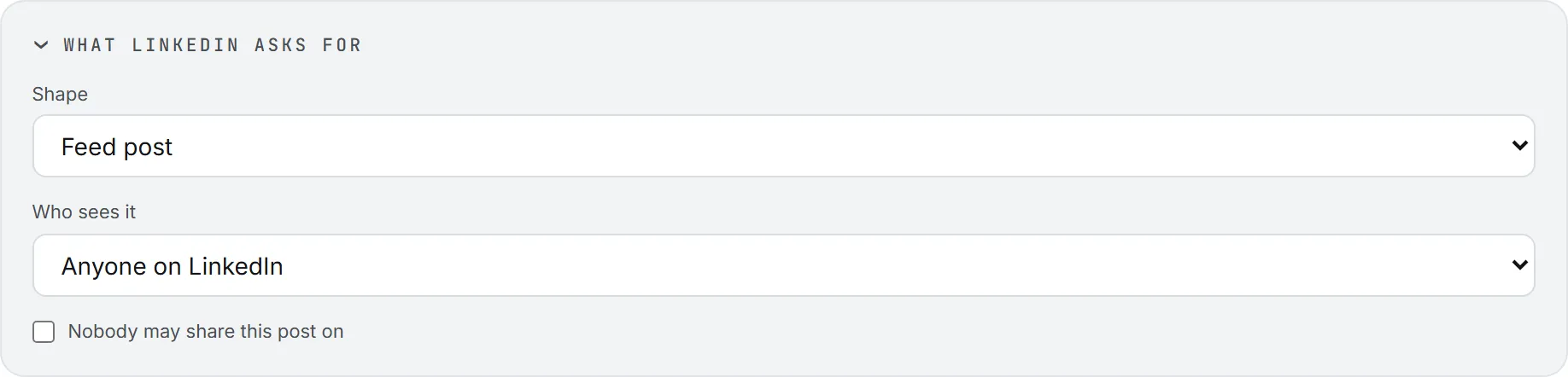
Above those settings, the account tiles decide whose name the post carries: your own profile, or a company page you administer. Tick one or several. Publishing on LinkedIn through the app is free. The credits go on drafting and rendering.
LinkedIn doesn’t take scheduled posts this way, so the app keeps hold of the post and sends it at the moment you pick. How that works, and what happens if LinkedIn refuses, is in publishing.
Publish it yourself in LinkedIn’s composer
Most of LinkedIn’s surprises turn up on this path, so it’s worth reading once before you use it.
On the Publish manually tab, Publish interactively opens LinkedIn’s own composer in a new tab with the copy already in it. You need no connected account for this: the post leaves from your own LinkedIn session.
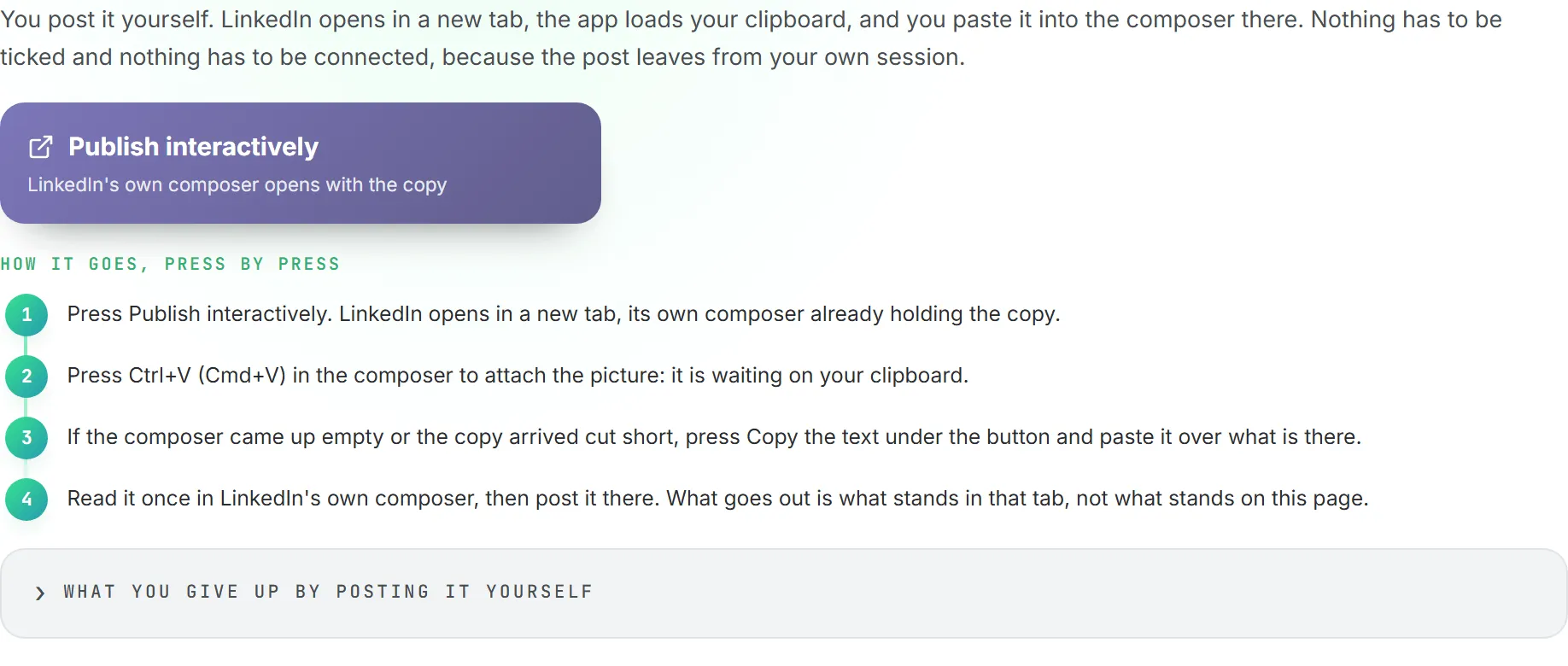
On the way, the app prepares the copy for LinkedIn. Web addresses are taken out of the copy and listed under the button, ready for the first comment. A bare domain such as example.com keeps its letters, but its last dot is swapped for a look-alike so LinkedIn doesn’t turn it into a link.
Pictures travel separately. A single picture rides on the clipboard: press Ctrl+V (Cmd+V on a Mac) in the composer to attach it. If the browser refuses the clipboard, the picture is downloaded instead. Several pictures are downloaded as files named slide 1, slide 2 and so on, to drag into the composer in order.
The copy travels inside the link LinkedIn opens, which carries up to 2,900 characters, so a very long post can arrive cut short. Copy the text under the button puts the whole copy on the clipboard again, for when the composer comes up empty or cut.
Why ”&” is written out as a word
LinkedIn’s composer drops every plain ampersand from the copy it receives, so “Challenge 1 & 2” arrives as “Challenge 1 2”. Nothing in the link can prevent it.
So when your copy has an ampersand, the app writes it out as a word in the post’s own language before opening the composer: “and” in English, “et” in French, “und” in German, and so on. A glued “M&A” becomes “M and A”. It looks odd, but you’ll spot it before posting, whereas LinkedIn would silently show “MA”.
Your copy as you wrote it, ampersands included, waits on the clipboard, and a note under the button says so. With no picture or with several, select the text in the composer and press Ctrl+V (Cmd+V) to replace it with the exact copy. With one picture it’s a two-step job, because the clipboard is holding the picture: paste the picture first, then press Copy the text and paste the copy over what’s in the composer.
Note: This only happens on the manual path. When the app publishes for you, the real ”&” goes out untouched.
Connect your LinkedIn account
If you want the app to post for you, connect your LinkedIn profile on My connections. Sign in to LinkedIn as yourself and press Allow. Company pages that LinkedIn lists you as an administrator of come back too. A connection lasts 60 days: you’re emailed before it runs out, and one press renews it.
Troubleshooting
If something looks off, it’s usually one of these.
“Still off the rules:” after a draft. The check found a rule the fix pass couldn’t land, and names it: a first line that runs too long, too many hashtags, a URL in the body, Markdown, or “bold” Unicode letters. Fix it by hand in the editor, or ask for Another version that fixes it.
The composer opened empty or cut short. Press Copy the text and paste into the composer.
My ampersands turned into “and”. That’s on purpose. Paste the copy from the clipboard to put them back.
“A LinkedIn article post needs the link it points to.” You picked Article with a link without an address. Paste the page’s address, or switch back to Feed post.
My LinkedIn tile says Reconnect. The 60-day connection has run out. Renew it on My connections, then tick the account again.
A company page is missing from my accounts. LinkedIn doesn’t list you as its administrator. Ask the page owner to add you, then connect again.