Ads overview
Ads covers Google Ads keywords, campaigns and reporting plus the LinkedIn Ad Library. Learn how brands, account links, roles and credits shape this Beta area.
Ads is where Intelligence handles paid acquisition, across two channels. On Google Ads you build campaigns around paid keywords and follow what they deliver. On LinkedIn Ads you research what other companies advertise there.
Ads is in Beta
The Ads menu entry carries a Beta tag in the app. It works end to end, and a campaign you launch spends real money on your Google Ads account. Screens and rules can still change, so open How this page works in each page header before you launch anything.
You can build without risk: nothing reaches Google Ads, and nothing spends, until you launch.
The pages in Ads
Open Ads from the left menu. It opens on the Google Ads Campaigns page. Two tabs at the top switch channels: Google Ads and LinkedIn Ads. On the Keywords and Reporting pages, a left column lists the three Google Ads pages. The Campaigns page uses the full width instead and links to the other two from the top of the page.
| Page | Where | What you do there |
|---|---|---|
| Keywords | Google Ads > Keywords | Let AI pick the searches worth paying for, then tick them into ad groups. See Google Ads keywords. |
| Campaigns | Google Ads > Campaigns | Build campaigns, ad groups, keywords and AI-written ads, then launch them. See Google Ads campaigns. |
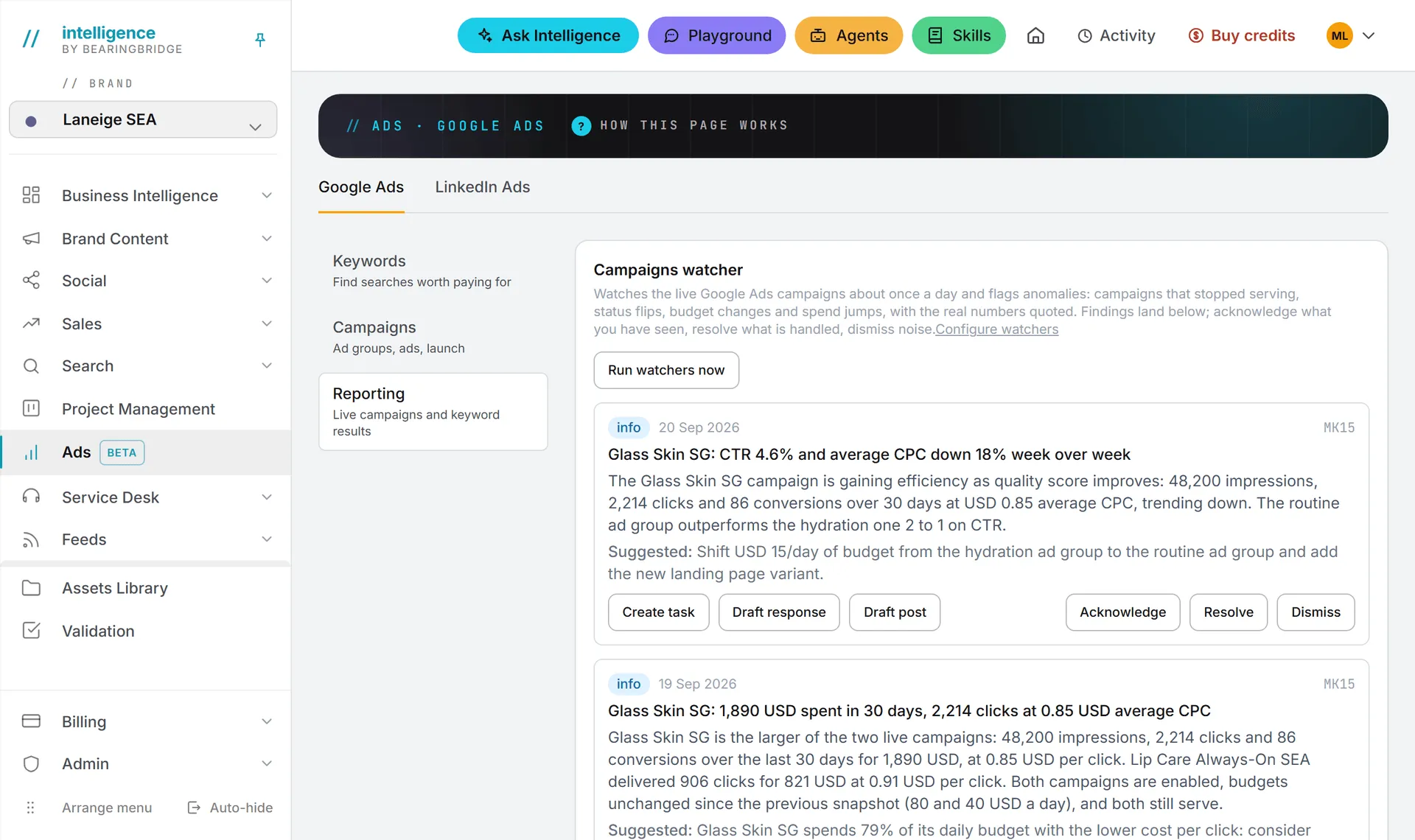
| Reporting | Google Ads > Reporting | See the campaigns that are live in your Google Ads account, with 30 days of results. See Ads performance report. |
| Ad Library | LinkedIn Ads > Ad Library | Search LinkedIn’s public record of ads by keyword or advertiser. See LinkedIn Ads. |
Landing pages used to have their own tab here. They now live in Brand Content; see Landing pages for ads.
From keyword to report
- Track keywords for the brand in Search.
- On Keywords, let AI keep the ones with buying intent and tick them into an ad group.
- On Campaigns, link the group to a campaign, add negative keywords, write the ads and launch.
- On Reporting, follow what runs and what it costs, with the watcher’s alerts on top.
You don’t have to follow it to the letter, but it’s the order the pages were built for.
Everything follows the active brand
The three Google Ads pages work for one brand at a time: the brand selected in the brand picker. Each brand keeps its own keyword selection, ad groups, campaigns, negative keyword list and imported live campaigns. Switch brand and the pages switch with it. You only see brands you have access to. See brands.
The LinkedIn Ad Library works differently. It searches public data, so it isn’t tied to a brand: the same search works whatever brand is active.
Turning Ads on
Whether someone sees Ads at all depends on three switches.
First, the organization needs the Ads capability, one of the families an organization can have (capabilities). Then each brand needs its modules on: in the brand editor, an admin turns on Google Ads and LinkedIn Ads brand by brand, and a module that’s off hides its tab while that brand is active (managing brands).
Last comes the role. The rights grid has two Ads lines, Google Ads and LinkedIn Ads. The AI keyword actions also check the Search (SEO) line, because they read the brand’s tracked keywords. See roles and rights.
Accounts and links to set up
This part is mostly for admins, and most of it is done once.
Your Google Ads account
Campaigns you build are created in your organization’s Google Ads account. The BearingBridge team links that account to your organization, under BearingBridge’s manager account. Ask them to do it before your first launch.
One account serves every brand of the organization. That’s why the Reporting page lets admins decide which brand each imported campaign belongs to. The manager-account link is what lets Intelligence create and change campaigns in your account on your behalf.
Until the account is linked, you can still pick keywords and build campaigns. The Reporting page then says no Google Ads account is configured for the brand’s organization, and launch buttons stay unavailable.
The Google Ads dashboard link on a brand
Each brand can store a link to its own Google Ads dashboard. An admin sets it in the brand editor, in the Profile section, in the Google Ads dashboard field. Once it’s set, a Google Ads dashboard link appears at the bottom of the left column on the Keywords and Reporting pages, and the campaign builder’s Google Ads console links open it.
The field is just a shortcut. It doesn’t connect an account, and campaigns aren’t sent to it.
Brand languages and markets
The campaign builder reads two brand settings: the languages the brand works in and its markets. Languages decide which campaign languages you can pick. Markets decide which countries a campaign can be restricted to. Set both in the brand editor before you build.
The Ad Library needs a one-time LinkedIn sign-in by an admin. See LinkedIn Ads.
Who can do what
| Action | Viewer | Editor or brand manager | Admin |
|---|---|---|---|
| Open the pages, read campaigns and reports | Yes | Yes | Yes |
| Search the LinkedIn Ad Library | Yes | Yes | Yes |
| Run AI actions (keyword selection, negatives, suggestions, ad writing) | No | Yes | Yes |
| Build, save, launch, pause and delete campaigns | No | Yes | Yes |
| Sync the live account, pause or enable it, change a budget | No | Yes | Yes |
| Assign an imported campaign to a brand, or move it | No | No | Yes |
| Connect or disconnect LinkedIn | No | No | Yes |
The rights grid can narrow this further for a role or a single person. And every action checks that you can access the brand in question.
What it costs
AI actions use credits: the keyword selection, the negative keywords, the bid and budget suggestions and the ad writing. Each result shows the tokens used and its cost. A few also pull live market data, such as search volumes. It’s paid as well, and the amount shows next to the suggestion. See what costs credits.
Syncing the account and opening reports are free. So is searching the LinkedIn Ad Library. The Campaigns watcher is the exception on the Reporting page: it’s an AI agent, so each of its runs uses credits.
Clicks are a separate bill. Google charges them to the Google Ads account; they never come out of your credits. Each campaign’s daily budget is what Google spends against, so set it with care before you launch.
To see what the AI actions cost after the fact, open your usage log.
Good to know
- If a launch button stays grayed out with “Google Ads not connected”, your organization’s account isn’t linked yet. Contact the BearingBridge team.
- The Reporting page carries the Campaigns watcher, an agent that reviews your live campaigns about once a day and flags anomalies. See agents.
- Already running campaigns in Google Ads? The Reporting page imports them on its first sync, and an admin assigns each one to a brand.
- Only Google Ads campaigns are built and launched from Intelligence. LinkedIn is covered for research, and other ad networks aren’t covered.
- Ask Intelligence can read your Ads data (the keyword selection, campaigns, the build and performance) when your role can open Google Ads and you have access to the brand. See Ask Intelligence.