Discovery and tips
Your first sign-in opens on Discovery: every module you can open, by pillar, with a tour of the screen. Tips after each sign-in keep teaching.
The app teaches itself in two ways. The Discovery page shows everything you can open, pillar by pillar, and takes you on a quick tour of the screen. Tips then follow your sign-ins: a small card in the corner of the page with one thing worth knowing at a time. Both are free.
The Discovery page
Your very first sign-in opens on Discovery, whatever page you were heading to. It greets you by name and shows the modules of your own menu, nothing you can’t open. If you came through a link to a particular page, Continue to your page in the band takes you there when you’re ready.
You can come back at any time: open the menu under your picture, at the top right, and click Discovery. The page then reads Everything you can do instead of the welcome.
The page opens on a map of the three pillars around the AI layer, with the number of modules in your menu and the buttons that start the tour and open the help center. A bar then follows you down the page and jumps to each part: Start here, Studio, Growth, Operations, The AI layer, Your account and Help center. Here’s what each part holds:
- Start here. Your first steps: add your first brand and invite your team, for administrators; add credits and connect your accounts, for everyone. Each step has a button to the page where it happens.
- Studio, Growth and Operations. One part per pillar, in its color: Studio makes the content, Growth finds and wins customers, Operations runs the business. The pillar’s modules are listed on the left; pick one to read what it is for and three things you do with it, with Open, Show in the menu and Help article.
- The AI layer. Ask Intelligence, Playground, Agents and Skills, the buttons at the top of every page that work across the three pillars. Ask Intelligence only shows when your role can use it.
- Your account. Billing, and Admin when you manage your organization: the groups at the foot of your menu, outside the pillars.
- Help center. A few articles to start with, such as finding your way and the first steps for your role, plus What’s new and Report a bug.
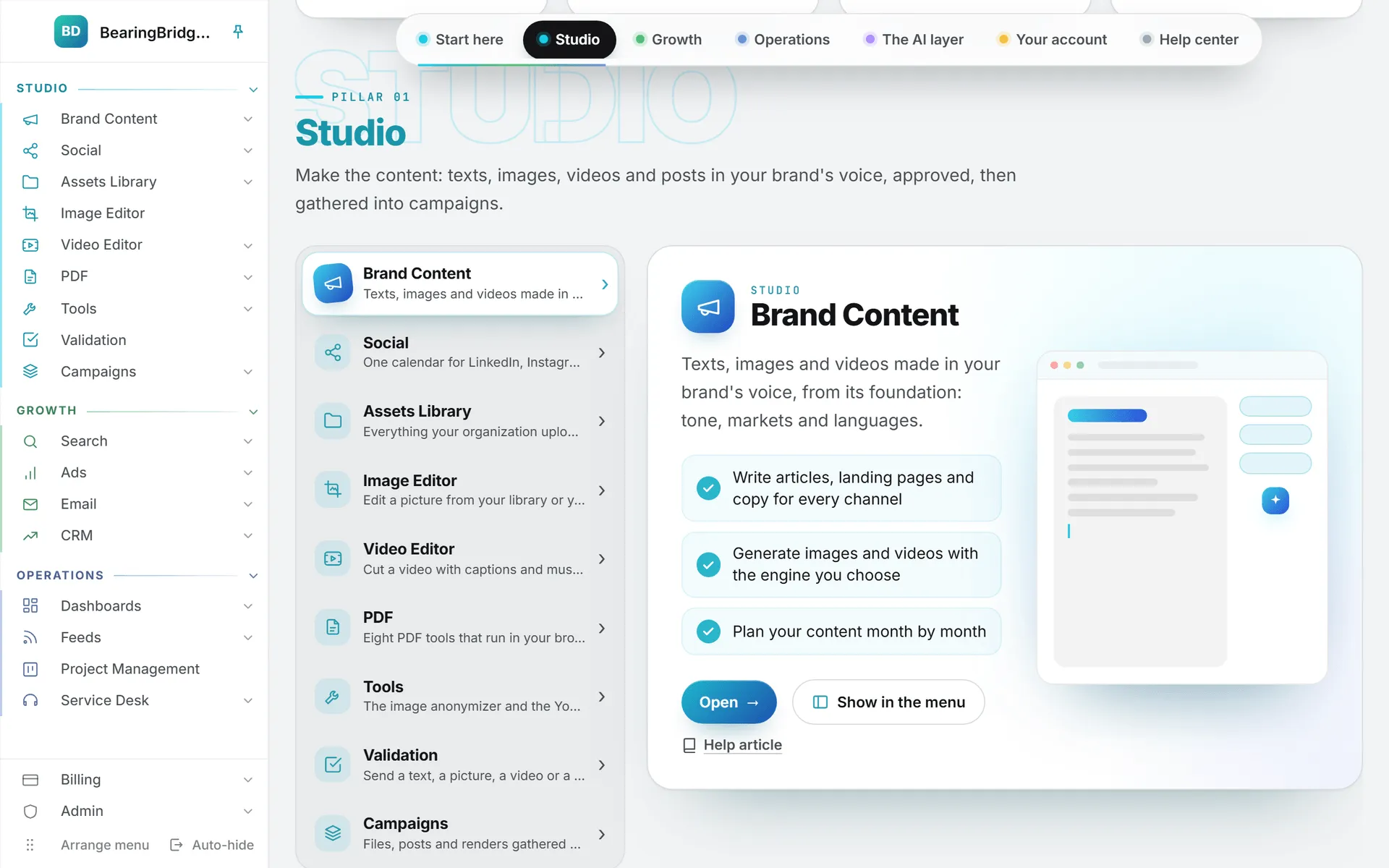
The modules follow your menu: the order you gave it with Arrange menu, and only the groups your organization, your brand and your role give you. A colleague’s Discovery page can be shorter or longer than yours for the same reasons as their menu. Capabilities and modules explains why.
Show in the menu lights up the module’s group in the left menu, so you know where to find it once you leave the page. Help article opens its article on this site, in your language, in a new tab.
The quick tour
Click Take the quick tour on the Discovery page. A spotlight walks across the real screen, one part at a time, each with a sentence:
- Your menu, then each pillar heading (Studio, Growth, Operations) and each module under it, in your menu’s order.
- The AI layer in the header: Ask Intelligence, Agents, Skills and Playground.
- The house icon that sets your home page, Activity, your credits, your account menu and the help center link at the bottom of the page.
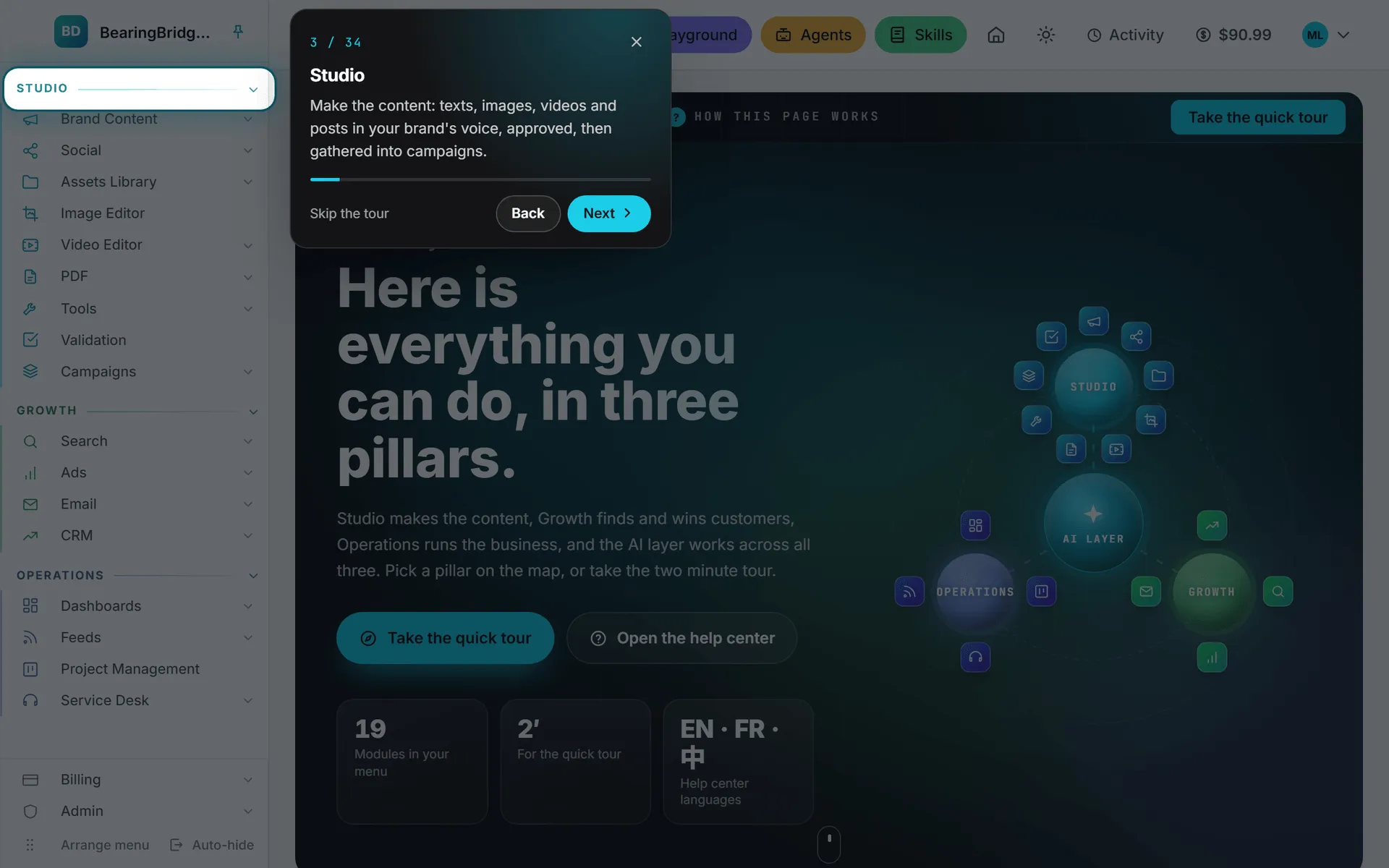
Next and Back move through it, and so do the arrow keys. Skip the tour, the X or Escape stops it. The tour only points; it never clicks or changes anything, and it skips whatever isn’t on your screen. On a phone, where the menu is folded away, it points at the menu button instead. It takes about two minutes.
Tips after you sign in
Each time you sign in, the first page you open brings a small deck of tips in the lower right corner, where the Activity notices appear. When that first page is Discovery, the deck waits for the next one.
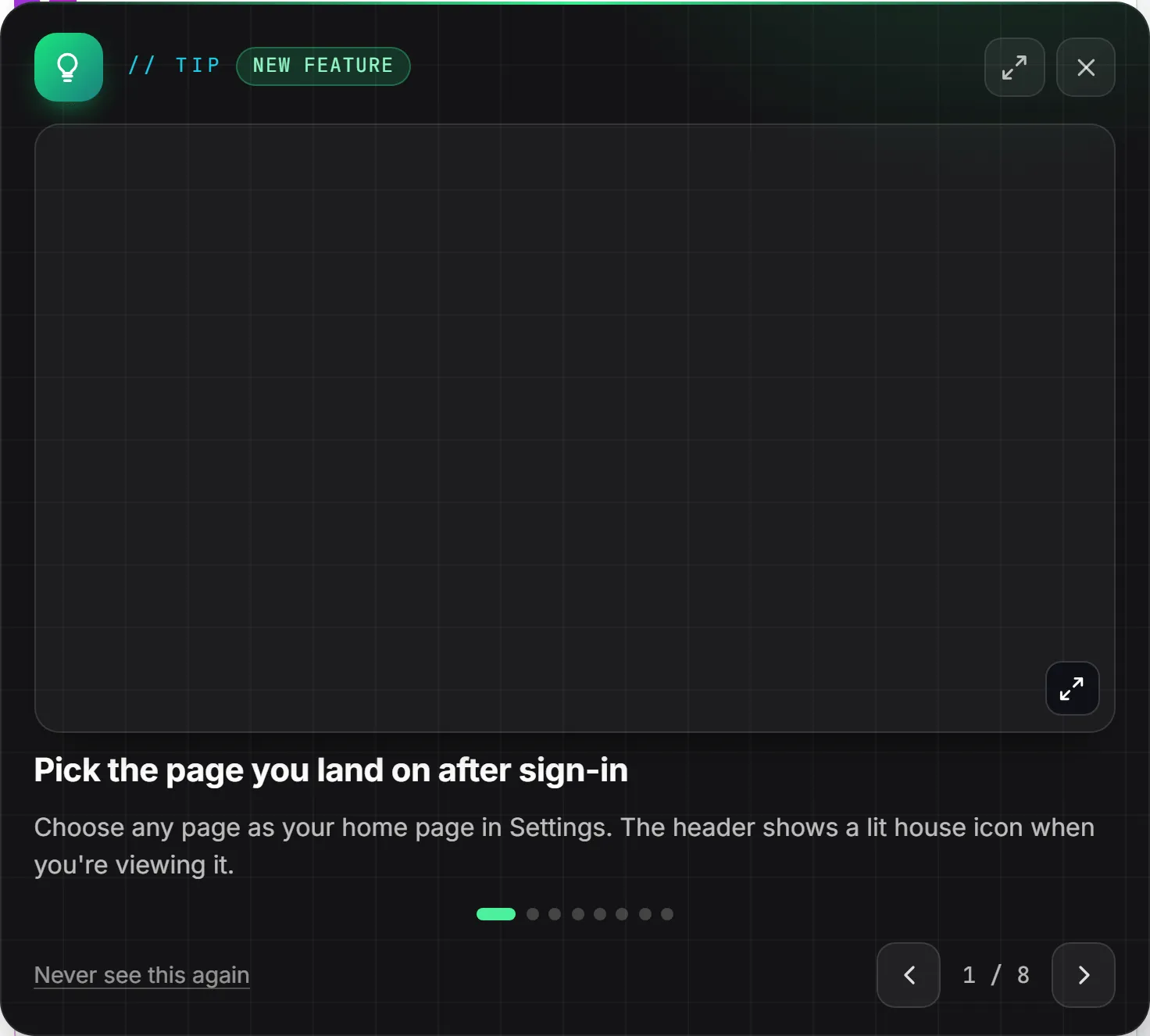
Each tip carries a label saying what kind it is: How to, Did you know?, New feature, Work faster or For your team. Below it come a screenshot of the screen it’s about, in your language, then a title and a sentence or two. A deck holds up to eight tips, the ones you haven’t seen yet first, led by the newest features of the app.
- The arrows, or the left and right arrow keys, go to the previous and next tips.
- Click the screenshot to see it full screen. Escape or a click on the dimmed page brings it back to its corner.
- Show me, on a tip about a page you aren’t on, opens that page. The card stays open, so you can follow the tip on the real screen.
- The X closes the deck. Until you close it, it follows you from page to page.
- Never see this again switches tips off. The card then says Tips are off, with a link to Settings.
A tip only ever points at a page you can open, so a module you don’t have never comes up.
Switch tips on or off
Open User Settings from the menu under your picture, then the Tips card.
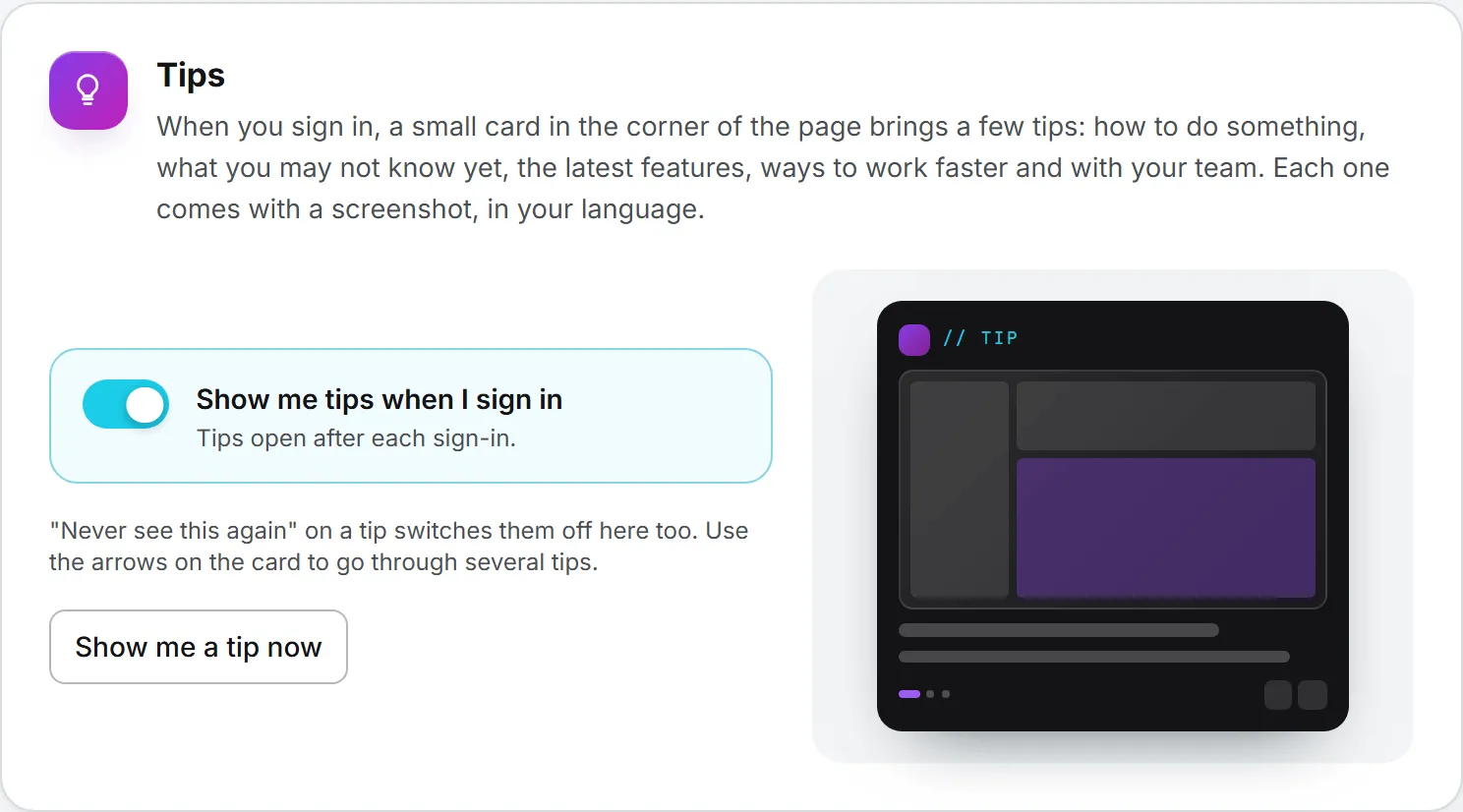
- Show me tips when I sign in switches the deck on or off. The line under it confirms the change: “On. Tips open at your next sign-in.” or “Off. No more tips after sign-in.”
- Show me a tip now opens a deck on the spot, whether the switch is on or off.
“Never see this again” on a tip turns the same switch off, so this is where you turn tips back on. The choice belongs to your account, not to your browser.
What it costs
Nothing. The Discovery page, the tour and the tips use no credits.