Ask Intelligence
Ask Intelligence answers your questions from the data you can see in the app, lists what it read, and shows what each answer cost you.
Ask Intelligence answers questions about your own data. You type a question in plain words, it reads the data you are allowed to see in the app, and it writes an answer that lists what it read, with the price at the bottom.
It’s meant for anyone who wants a number or a summary out of the app without clicking through five pages to find it.
Open Ask Intelligence
Click Ask Intelligence in the header. On a phone or a narrow window, open the left menu instead: the button is the first item in it. The page opens in the same tab, at the address /ask.
The dark band at the top of the page holds Previous conversations, Data included, New conversation and, once you have brands, Brands. Just below it, a short notice spells out what the page reads. The conversation fills the rest, with its own toolbar on top (Web search, the model list and Use a skill) and the message box at the bottom.
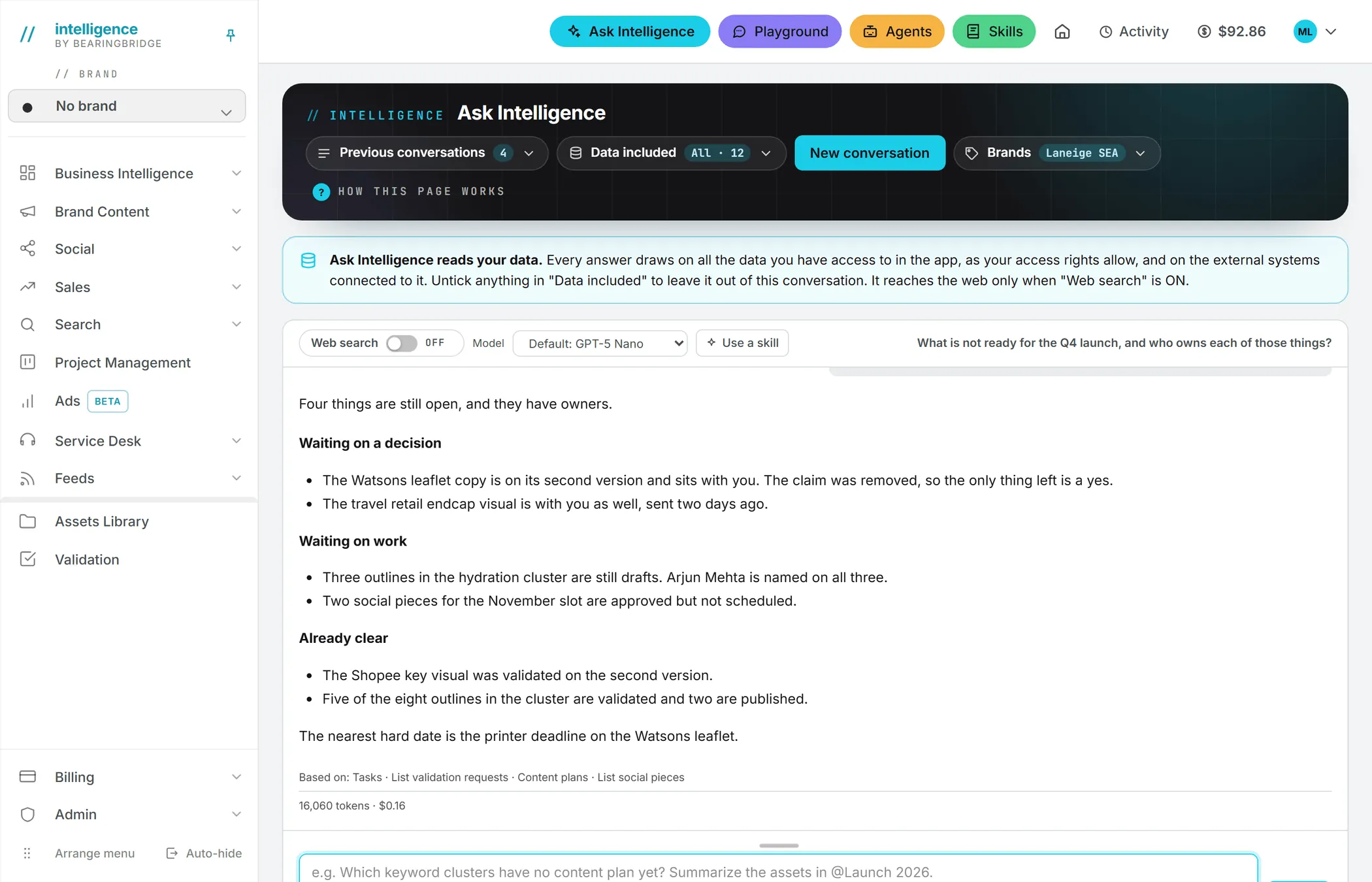
Ask a question
- Type your question in the box at the bottom. It holds up to 1,000 characters.
- Press Enter or click Ask. Press Shift+Enter for a new line.
- A status line shows while Ask reads your data and writes. Then the answer appears in the thread.
- Ask a follow-up in the same box. The button now reads Send, and the follow-up keeps the context of the thread.
Ask Intelligence answers in the language you ask in. It leads with the direct answer and adds the detail after, with a table or a list when that’s clearer.
Your conversations are private to you. Nobody else in the organization sees them, administrators included. Each one is saved as soon as its first answer comes back, so you can close the tab and pick it up later from Previous conversations. Click New conversation to start a fresh thread; the one on screen is kept. See Conversations.
Questions that work well
The best questions are about things the app already holds. A few examples:
- “Which keyword clusters have no content plan yet?”
- “What did our service desk visitors ask most this month?”
- “Which deals are expected to close before the end of the quarter, and what is the next step on each?”
- “Compare the social posts planned for our two brands next week.”
A question about something the app does not hold, such as a competitor’s latest press release, needs web search. See Data, brands and web search.
Point at a folder or a document
Type @ followed by the first letters of a name. A list of your Assets Library folders and files opens. Pick one and it lands in your question, as in “Summarize the assets in @Launch 2026”. Ask then reads that exact folder or file rather than guessing which one you meant. You can point at up to 10 items in one question.
Make the message box bigger
Long question? Drag the grip above the box upward. Your browser remembers the height. Double-click the grip to put it back.
What an answer shows
Each answer is written from what Ask read in the app to answer you. The small print under it is worth a glance, because it tells you where the answer came from. You’ll find up to three lines:
| Line | What it tells you |
|---|---|
| Based on: | The areas of the app the answer read, such as SEO keywords, Sales pipeline or Library documents. The full list is in What Ask can read. |
| From the web: | Only when web search was on. The sites it used, as links, with the pages it opened first. |
| Cost line | The number of web searches, if any, the tokens used and the price of the answer. |
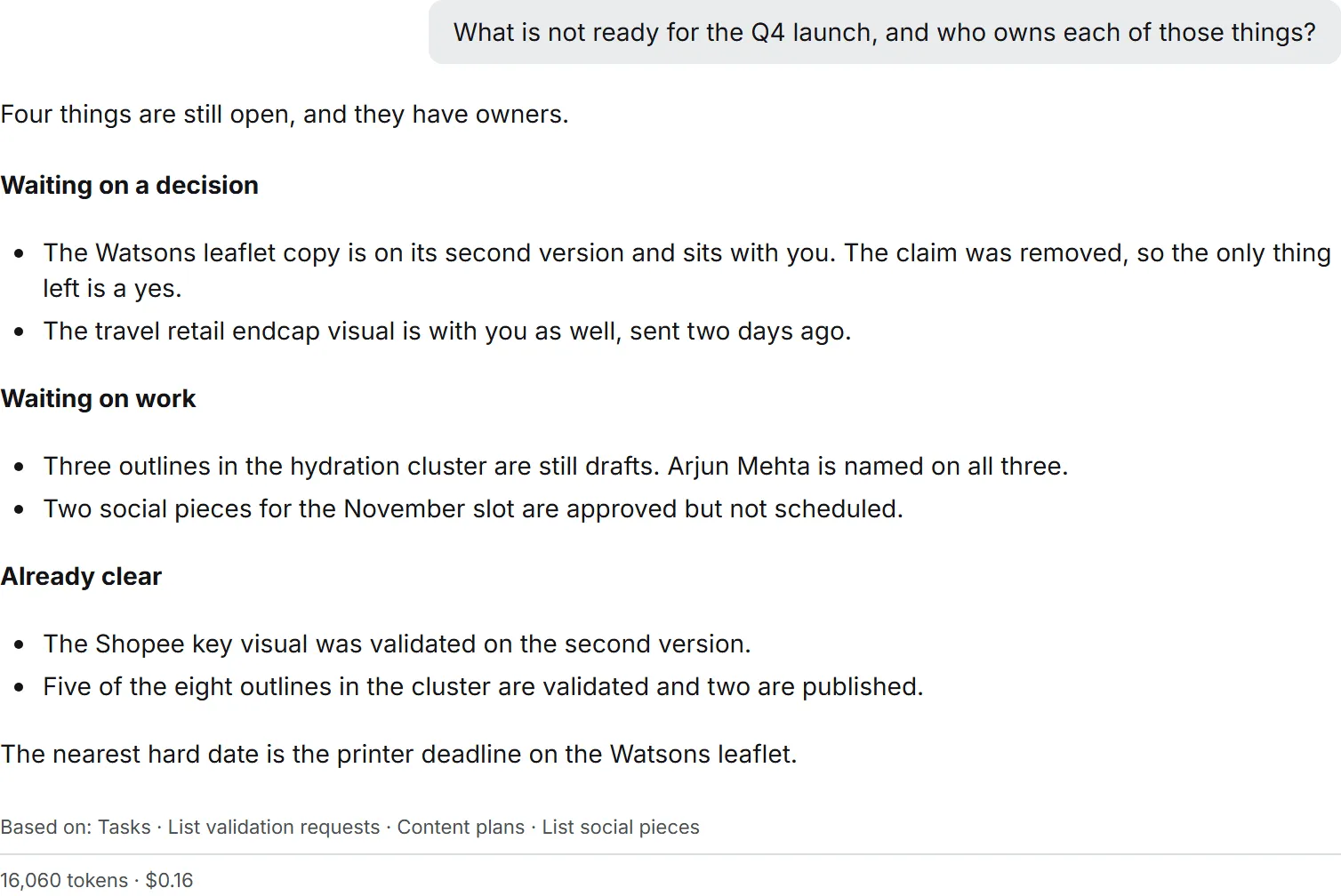
If the data does not hold the answer, Ask says so and names the part of the app that would produce it. It won’t fill the gap from general knowledge.
Note: With web search off, Ask uses nothing but your data. With it on, the answer keeps the two apart: facts about your organization still come only from your data, never from the web.
Brands, data and web search
What a conversation may use comes down to three controls. Each one has its own article. In short:
- Brands picks the brands the conversation reads: none, one or several. With none, only your organization’s own data is read. If you have no brand yet, the button doesn’t show.
- Data included lets you leave some of your data out, for example your CRM when you ask about content.
- Web search adds the web to your data. It’s off when the page opens; you switch it on for the conversation that needs it.
All three are kept with the conversation. See Data, brands and web search.
Use a skill in the toolbar opens the skills picker. Pick one of your organization’s or your own skills and the answer follows its instructions. Nothing is applied unless you pick it.
Pick a model
The model list in the toolbar shows the models your organization offers for Ask Intelligence, grouped by maker. Pick one before you ask. This browser remembers your choice. If you never pick, the default your administrator set is used. Models don’t cost the same, so one question can cost more on one model than on another: the cost line under each answer lets you compare.
Your administrator decides which models are offered. See AI models.
What it costs
Every answer is a paid AI call. There’s no quote before you ask: you see the price under the answer once it’s written. It covers:
- the tokens the model read and wrote, including the data it pulled from the app;
- each web search, when Web search was on;
- reading documents from the Assets Library, which counts as a download.
The cost is charged to your credits, like any AI action, and appears in your usage log. If your credits run out, or you reach your own spending cap or your organization’s monthly budget, Ask stops before it runs and says why. See Credits and costs.
Who can use it
Most people can ask right away. The exception is the read-only role.
| Role | What they can do |
|---|---|
| Viewer | Open the page, but not ask. Asking is a paid action, and the Viewer role is read-only: a question sent anyway comes back with “Your role (viewer) is read-only.” |
| Editor and above | Ask, follow up, rename and delete their own conversations. |
The same goes for every role above Editor, Brand manager and Admin included. What Ask reads follows your own rights, so it never shows you anything you couldn’t open yourself. See What Ask can read, brands and roles and rights.
Ask Intelligence or the Playground
The two pages look alike, but they work the opposite way. Ask Intelligence reads your data in the app. The Playground never does: the model there sees only what you type and attach. For anything about your own data, use Ask Intelligence.
Troubleshooting
The question came back into the box with a red message. Something went wrong before the answer was written. Your question is put back so you can edit it and send it again. Nothing is added to the thread.
“No answer came back. Please try rephrasing.” The model returned an empty answer. Ask the question another way.
The Web search switch is gray. Either your organization turned web search off, or the model you picked has no web search of its own. The reason is written next to the switch.
The answer says data is left out or not available. Check Data included and Brands for this conversation. See Data, brands and web search.