Content plan
Turn a brief, a keyword cluster or both into article outlines, follow each piece from draft to published, and see what every planning run cost.
The content plan is the planning layer of Brand Content. It turns a brief, a keyword cluster or both into article outlines, then follows each piece from draft to published. What every run cost stays on record next to it. It’s meant for whoever decides what a brand publishes.
Where the plan lives
The plan no longer has a page of its own. The old address, /content/plan, now opens the article workspace. In the left menu, that is Brand Content > Text, then the Other tile (“The article workspace, end to end”). Every brief you create there is a plan, and its outlines and articles hang off it.
Landing pages have a lighter plan of their own: one keyword in, one landing page brief out. See Landing page briefs below.
Content reports are no longer part of Brand Content. See Where content reports went.
Before you start
- Pick the brand in the header first. Plans, outlines and articles belong to one brand, and you only see the brands you have access to. See brands.
- To use live search data, the brand needs keyword clusters. You build them on the Keywords page.
- Creating a plan is a paid action. It needs the editor role or above and the right to create in Content: Text. See roles and rights.
Create a plan
You create a plan in the Start a new brief form at the top of the workspace: your brief text, an optional keyword cluster, the language, how many outlines to draft, the material to read, the skills to follow and the model. Give it a brief (text, a link or a PDF), a cluster, or both, then click Create the brief and its outlines. The run joins the Outline queue and works through one request at a time, so you can close the page and come back to finished outlines.
Every field, every queue state and what each one costs are described field by field in Article workspace. The rest of this page covers what the planner does with what you give it.
What the planner reads
With a keyword cluster, the planner reads the cluster’s keywords in the chosen language, their live search volume, and the top Google results for each (EN reads the United States market, FR reads France). It also reads the brand’s own market evidence: its current Google ranks for those keywords, the competitor reports for that cluster, and recent findings from the brand’s market, rankings and AI visibility agents. The planner is asked to propose articles that fill a gap in that market.
Without a cluster, the planner works from the brief alone. It picks keywords from the brief’s own language and says so in each outline’s evidence, rather than inventing search volumes.
A brief can run to 800,000 characters, all sources combined. Only the first 24,000 reach the model, though, and that clipped version is what the plan keeps. So put what matters at the top.
Re-running a plan
A plan is identified by its title and language. Start a new brief with the same title and language and its outlines join the existing plan instead of replacing it. The planner sees the articles already there, including the published ones, and must propose different angles. A cluster run compares against every article already planned for that cluster.
To grow a plan without writing a new brief, open it, go to the Outlines stage, set Add outlines (1 to 20) and click Draft more outlines. The run joins the queue with the same brief, cluster and skills.
Inside a plan
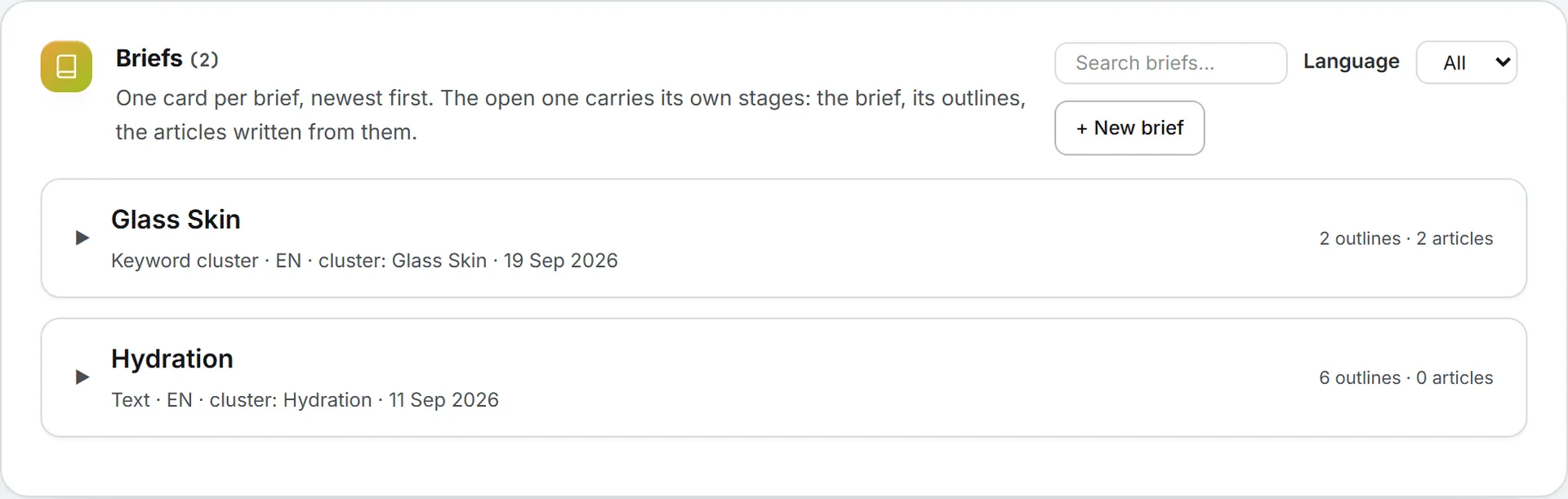
Open a brief card in the Briefs list and it shows three stages: Brief, Outlines and Articles. The Brief stage holds the plan itself. At the top sit its Source (Keyword cluster, Text, Link, PDF or Mixed sources), Language, Keyword cluster, Blog base URL, Created date and Generation cost. Below that comes The brief, the text the outlines were written from. Unfold Plan overview, linking & publishing order to read the planner’s own notes: a short overview, how the articles should link to each other and to service or landing pages, the order to publish them in, and the competitive gap the content can own.
Each outline carries a role (Pillar or Supporting), a primary keyword, a funnel stage and an estimated word count. Open it to read Why this article (market evidence): two to four points that justify it.
The rest of the work, from writing articles off an outline to checking and exporting their versions, is in Articles.
The list has a Search briefs box, a Language filter and a + New brief button. Each card shows its source, language, cluster, date, and how many outlines and articles it holds.
Statuses from plan to publication
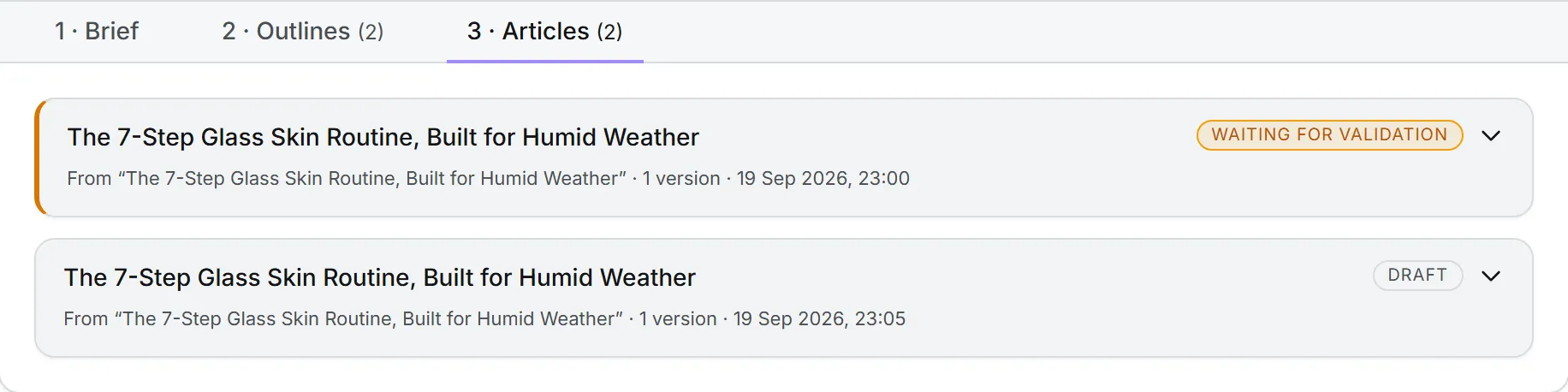
Once outlines exist, the plan works like a checklist. Every item in it has a status, and cards change color with it: green for a validated outline or a published article, blue for approved, amber while waiting for validation.
| Item | Status | Meaning |
|---|---|---|
| Outline | Draft | Proposed or edited, not signed off. Saving an edited outline sends it back to Draft. |
| Outline | Validated | Signed off with Validate outline. Only a validated outline can be written into articles. Reopen for editing sends it back. |
| Article | Draft | Written, not yet approved. |
| Article | Waiting for validation | A version was sent to a colleague with Send for validation. The article is locked until they answer. |
| Article | Approved for publication | Cleared to go out. The approval date is recorded. |
| Article | Published | Live. The publication date is recorded. |
| Landing page brief | Draft or Published | Published once you enter the address where the page went live. |
Note: You set an article’s status yourself, in its Publication menu. The app never publishes an article on its own, and marking one Published doesn’t post it anywhere.
Assigning work to a colleague
The plan has no assignee field. Work reaches a colleague through validation: Send for validation on a version asks a named colleague to review it, puts a task on their board and mails them a link. While it waits, the article can’t be edited or deleted.
The outline queue also names who asked for each run, which helps when several people share a brand and want to know whose runs are waiting.
Landing page briefs
A landing page brief is the one-keyword version of a plan. You reach it from Google Ads: in an ad group, pick one of its keywords (the highest volume comes first) and click Create landing page. The old /content/landing address opens it too. The Landing page format under Brand Content > Text > Commercial is the everyday way to write landing pages; see Landing pages and Google Ads landing pages.
The form takes a Keyword (a tracked keyword or any you type), a Language (EN or FR), an optional Target URL and your skills. Create landing page brief reads live search volume and the top Google results for the keyword, then writes the brief on screen as it goes: angle, title tag and meta description options, a full outline with word counts, internal links and calls to action, and the competitive gap.
Each brief is saved as a card with its volume, cost and dates. Copy copies the Markdown. Type the live address into Published at and the card turns green, gets a Published badge and records the date. Clear the address and it goes back to Draft. Filter the list by keyword, language or status.
Where content reports went
Content reports used to have a tab of their own. Today, report agents write them in Agents > Organization: the Weekly operating review and the Executive report read content activity along with search, ads and social, and you read each document from its agent’s card. See organization agents.
You may still see a Content Reports switch among a brand’s modules and a line for it in the rights table. Neither one opens a report page in Brand Content any more.
Who can do this
| Action | Who |
|---|---|
| Read plans, outlines and articles | Anyone with the Content: Text view right and access to the brand, viewers included |
| Create a plan, draft more outlines | Editor role or above, with the create right on Content: Text |
| Edit, validate or reopen outlines, change an article’s status | The update right on Content: Text |
| Delete outlines, articles or versions, cancel a queued run | The delete right on Content: Text |
The Brand Content capability must be on for your organization and for you. A brand can also switch the text module off, which hides it while that brand is active. See capabilities and modules.
What it costs
Every plan is billed to credits. Before you start, the model picker shows what each model costs. The AI run is charged for the model you picked. A run with a keyword cluster also pays for the live search data it reads; a run without one spends nothing on search data. The exact cost of each plan appears as Generation cost in its Brief stage and in your usage log. Landing page briefs show their tokens and price on the card.
If your spending cap or your organization’s budget is used up, the run is refused before it starts.
Good to know
- A link to an article from the Assets Library or from an email opens its brief on the Articles stage, with that article unfolded.
- The brief text is kept with the plan, so you can always see what the outlines were written from. An uploaded PDF is read once and not stored.
- There’s no button to delete a brief itself. You can delete its outlines, articles and versions one by one.
Troubleshooting
- No cluster to pick. The brand has no keyword clusters yet. The form links to the Keywords page.
- A run sits in Queued. Runs happen one after another. Opening the page nudges the queue if nothing is running.
- “You do not have access to this brand.” Plans belong to a brand, and you need access to it. Ask an admin.
The messages the brief form itself can return, such as an empty form, a PDF over 3 MB or a cluster with no keywords in the chosen language, are listed in Article workspace.