Keywords
The Keywords page holds the Google searches a brand targets, grouped in clusters, with live ranks you refresh on demand. Here is every option explained.
The Keywords page holds the Google searches you want a brand to show up for. Keywords are grouped by topic, and each one shows the position the brand’s website holds on Google today. The whole team works on the same list. If the brand has no keywords yet, start with Start a list with AI.
The keyword table
You land on the brand picked in the header, with a toolbar on top and the keyword table below.
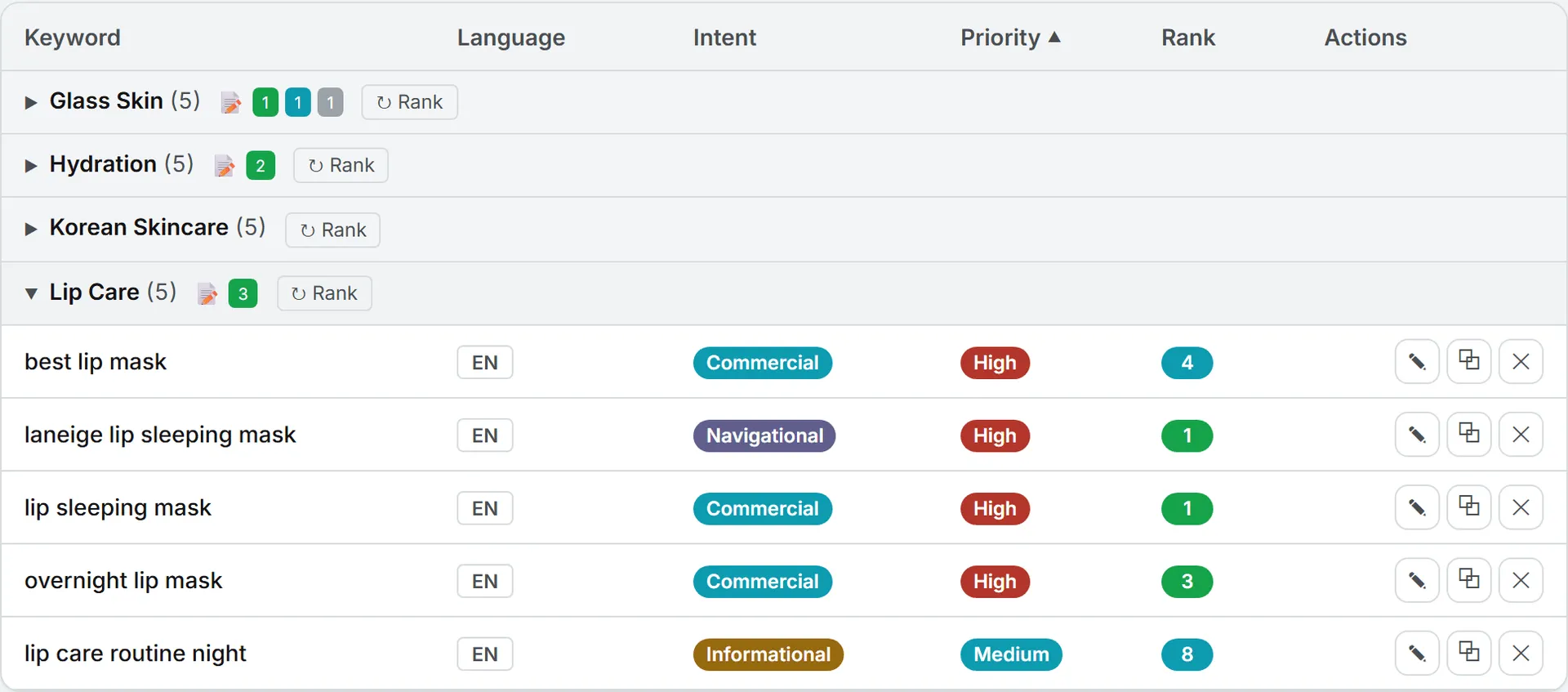
The table is grouped by cluster, a topic group such as “Hosting” or “Pricing.” Each cluster starts with a header row: its name, how many keywords it holds, and a Rank button. Clusters start out collapsed, so the page first looks like a list of topics. Click a header to open or close it.
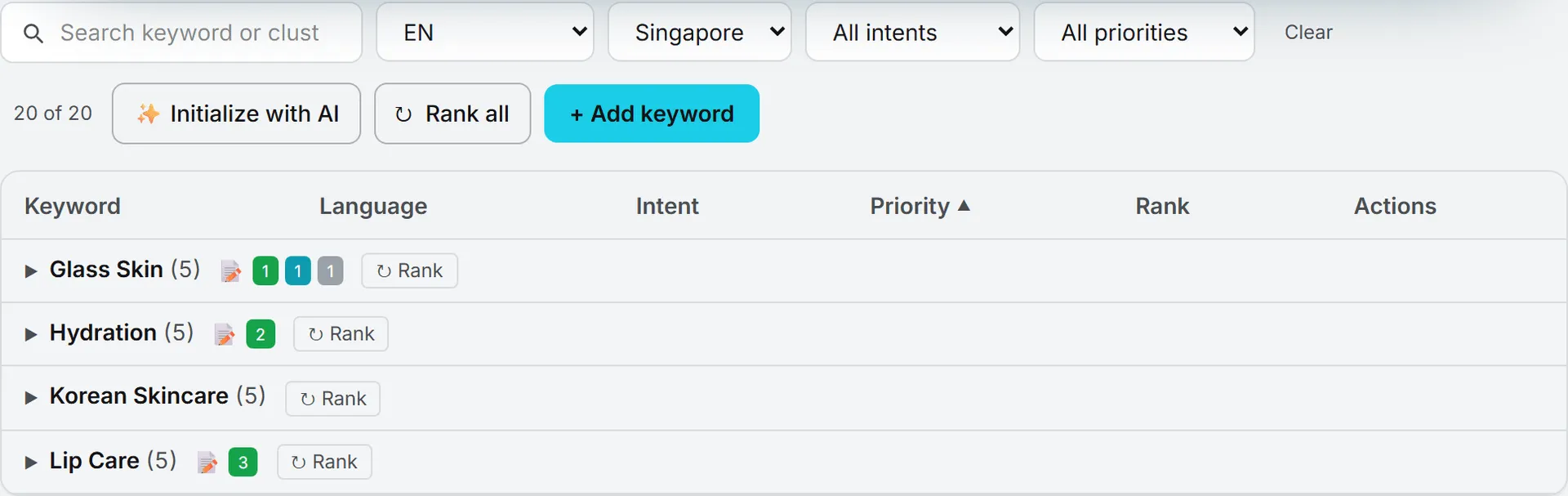
Clusters are ordered by their most important keyword (the highest priority inside the group), then by name. Keywords with no cluster sit together under Uncategorized.
Each keyword row has these columns:
| Column | What it holds |
|---|---|
| Keyword | The search phrase |
| Language | EN, FR, ES, DE or ZH |
| Intent | Commercial, Informational or Navigational |
| Priority | High, Medium-High, Medium, Low-Medium or Low |
| Rank | The brand’s Google position for the market picked in the toolbar |
| Actions | Edit, duplicate, delete |
If the brand also has articles planned in the Articles workspace, a small note icon on the cluster header counts them by status: published, accepted and proposed. See Articles from search data.
Brand settings this page needs
Three brand settings matter here, all set by an admin (see Brands administration).
The website is the site ranks are measured for, and without it every rank refresh fails. The markets fill the toolbar’s market list; with none set, the list offers only the United States. The keyword clusters are the groups you can file a keyword under when you add or edit it.
Three ways keywords get on the list
For a new brand, the quickest start is Initialize with AI, described next, which builds a first list from the website. After that, people add keywords one at a time with + Add keyword (see Add, edit, duplicate and delete keywords), or pick them up from competitors with + Track on the Keyword Gap page.
Start a list with AI
When a brand has no keywords yet, a brand manager or admin can let the AI build a first list from the website. Click ✨ Initialize with AI, in the toolbar or on the empty page.
- Check the Website field. It is pre-filled with the brand’s site; you can analyze another address.
- Pick the Target market (from the brand’s markets) and the Keyword language (EN, FR, ES, DE or ZH).
- Pick a model in the model list. Each model shows what it costs.
- Click Run the AI deep dive. The AI reads the home page and builds a keyword plan. This can take a minute or two.
- Review the proposal. It groups keywords into clusters, lists the competitors it found with a one-line reason each, and sums up the strategy. The cost of the analysis is shown at the top.
- Untick what you don’t want. Unticking a cluster unticks all its keywords.
- Click Create N keywords & launch the first ranking. The app saves the ticked keywords and adds any new cluster names to the brand’s cluster list. Then it checks every new keyword on Google in the chosen market.
- The last screen says how many keywords were created and what the ranking cost. Click Open the keyword list.
Important: The whole wizard runs in your open window, including the first ranking. Close it before the proposal appears and the proposal is gone, though the analysis is still charged. Close it during the ranking and the keywords are saved, but some may not be ranked yet: use Rank all afterward.
The AI is asked for 6 to 9 clusters of 5 to 10 keywords each. The competitors it lists are there to help you judge the plan and aren’t saved anywhere. If the site can’t be reached, the AI works from the domain name and what it knows of the market, so check the proposal closely.
Editors and viewers don’t get the button. On an empty list they see “Contact your administrator to initialize the keyword list,” with the admin’s address when the app has one.
Add, edit, duplicate and delete keywords
Click + Add keyword. The form asks for:
- Keyword, required.
- Language: EN, FR, ES, DE or ZH.
- Intent: Commercial, Informational or Navigational.
- Cluster: one of the brand’s clusters, or No cluster. If the brand has no clusters yet, the form says so and an admin can add them on the Brands page.
- Priority: High to Low. Medium is the default.
Click Add. To change a keyword, click ✎ on its row and Save. To make a variant, click ⧉: the copy appears right under the original, ready to edit. To remove one, click ✕ and confirm.
There’s no Save button for the list itself: changes go to the server as you make them, and teammates see them on their next load. If a save fails, you get “Could not save the change” with the reason, and the list reloads from the server.
A keyword tracked from Keyword Gap arrives in the run’s language, under Uncategorized, with no intent or priority. Edit it to file it properly.
Search, filter and sort
- The search box matches keyword text and cluster names. While you type, matching clusters open.
- All languages, All intents and All priorities filter the list. Each one only offers values present in the list.
- Clear resets the search and the filters. When nothing matches, the table says “No keywords match the current filters” with a clear filters link.
- The counter shows “12 of 80” while a filter narrows the list.
- The list opens sorted by priority. Click a column header to sort inside each cluster by that column. Click again to reverse. Unranked keywords sort last on Rank.
Tip: The language filter starts on EN every time the page opens. Pick All languages to see every keyword, and before you click a cluster’s Rank button if you want all its languages checked.
Google ranks
Keeping the list is free. The Rank column is where refreshes start spending credits.
The rank is the position of the first organic result from the brand’s website, subdomains included, in Google’s top 100. Google is read on desktop, in the market picked in the toolbar. The language is the keyword’s own.
| Badge | Meaning |
|---|---|
| Green | Positions 1 to 3 |
| Blue | Positions 4 to 10 (page one) |
| Orange | Positions 11 to 100 |
| Gray “n/a” badge | Checked, but not in the top 100 |
| Plain “n/a” text | Never checked in this market |
Hover a badge to see the ranking page and the date of the check. Hover a plain “n/a” and it says “Not checked yet: refresh this group.”
The market list in the toolbar switches the Rank column at once. Each market keeps its own ranks.
Refresh ranks
The Rank button on a cluster header checks that one cluster; if a language filter is on, it only checks keywords in that language. Rank all in the toolbar checks every cluster in every language, up to 50 clusters per click.
Both buttons put the work in a queue on the server. Clusters run one at a time, in the order you asked. A spinner stays on each cluster until it is done. You can leave the page; when you come back, the spinners pick up where the queue stands. If you click Rank again on a cluster that’s still waiting, the app keeps the job already in line rather than adding and billing a second one.
The page checks the queue every few seconds. When a wave finishes, the toolbar shows what it cost, for example “Last rank refresh: 12 data calls · $0.08”. There’s no estimate before you click. Each distinct keyword is one lookup, so a 12-keyword cluster makes 12 calls.
If live search returns nothing at all, the app keeps the old ranks and says “Existing ranks were left untouched; try again in a minute.”
How the same keyword is recognized
The app treats small spelling variations as one keyword. Case, extra spaces and ad match-type marks ([exact], “phrase”, +broad) are ignored. So “Web Agency China” and “[web agency china]” share one rank, and a refresh pays for that phrase once.
Rank history
This page keeps the latest check only. Each refresh replaces the previous rank for that keyword, market and language. To follow movements over time, use the Search rankings watcher agent (see Agents) or the refresh history on Competitors.
Who can do this
| Action | Viewer | Editor | Brand manager | Admin |
|---|---|---|---|---|
| See keywords and ranks | Yes | Yes | Yes | Yes |
| Add, edit, duplicate, delete | No | Yes | Yes | Yes |
| Rank, Rank all | No | Yes | Yes | Yes |
| Initialize with AI | No | No | Yes | Yes |
These are the default rules. An admin can adjust them per role or per person. See Roles and rights. Viewers still see the buttons; a click returns “Your role (viewer) is read-only.”
What it costs
- Adding and editing keywords is free.
- A rank refresh buys one live Google lookup per distinct keyword. The cost appears in the toolbar when the wave ends.
- Initialize with AI costs one AI analysis (shown on the proposal) plus the first ranking (shown on the last screen).
Every run is paid from your credits and listed in your usage log. See Credits and costs.
Troubleshooting
- “This brand has no website set to rank against.” Ask an admin to add the website on the Brands page.
- I clicked Rank and some keywords stayed “n/a”. The language filter was probably on EN (see the Tip under Search, filter and sort). Use Rank all, or switch to All languages and click Rank again.
- “You need editor access to refresh rankings.” Viewers can read ranks but not buy new ones.
- “Could not refresh ranks” with a credit or cap message. Your credits or spending cap can’t cover the run. See Buy credits.
- Where do errors show? A refresh that fails on the server prints “Could not refresh ranks:” and the reason in the toolbar, in the spot where the cost line appears.