Choosing a model: Quick, Balanced and Best
Every text model picker opens on Quick, Balanced and Best, each with its model and cost per run. Model benchmarks compares them on public scores.
The app’s text features can run on more than thirty AI models, and you don’t need to know any of them by name. Every model picker opens on three plain choices, Quick, Balanced and Best, each showing the model it runs and what one run costs. When you want to see why one model beats another, the Model benchmarks page compares them on public scores.
The model button
Next to the button that runs a text feature sits one compact button. It shows your current choice, the name of the model behind it, and what one typical run of that feature costs, for example Balanced, a model name and a price. When you’ve picked a model that isn’t one of the three choices, the button shows the model and its price only.
You’ll find it in Ask Intelligence, the Dashboards builder, the Brand Content text forms (the copy studios, the article workspace, landing pages and the brand foundation form), the Social post forms, the AI steps of Search and Ads, the Email pages, and the menu that rewrites a highlighted passage.
When only one model is on offer, there’s nothing to choose and no button: the form just says Runs on and names the model.
Quick, Balanced and Best
Click the button to open Choose a model. The three choices come first:
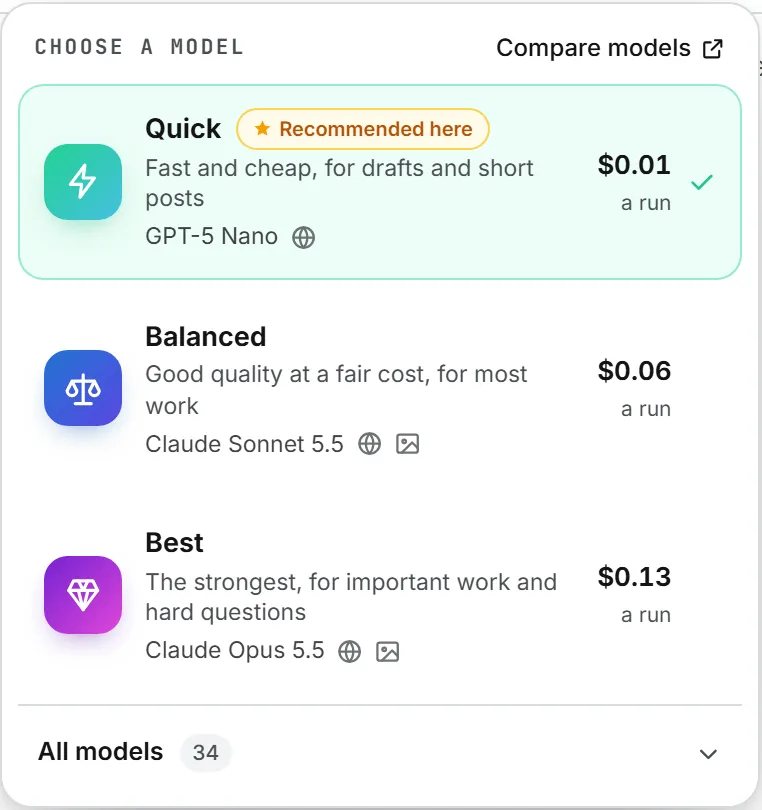
| Choice | What it’s for |
|---|---|
| Quick | Fast and cheap, for drafts and short posts |
| Balanced | Good quality at a fair cost, for most work |
| Best | The strongest, for important work and hard questions |
Each card names the model it runs, shows a small globe when that model can search the web and a picture icon when it can read images, and gives the price of one run of this feature, with a run under the amount. Click a card to use it. The popover closes, and the button shows your new choice.
The Recommended here star
One card carries a Recommended here star. It holds the feature’s default, the model your administrators chose for that page, and the one that runs when nobody picks. The default always sits among the three: it takes the place of the choice closest to it in price. On a page whose default is a strong writer, the star can sit on Best; on a page of short captions, on Quick.
Picking the starred card means “follow the default.” If an administrator later changes it, your runs move with it. Any other card, or any model from the full list, is a standing choice of that model.
What the price means
The price on a card is a typical run of this feature, everything included, as billed to your organization. It changes from one feature to the next, since a long article reads and writes far more than a social post. A real run costs more on a long brief and less on a short one. The exact amount shows next to the result once the run is done, and it lands in your usage log. Prices per million tokens aren’t shown in the picker; Credits and costs explains how runs are paid for.
All models
Under the three cards, All models unfolds the full list, with the number of models next to it. It holds every model your organization allows, minus the ones you switched off in My models.
- Models are grouped by provider, each with its price for one run and the same web search and image icons.
- The feature’s default carries a Default tag.
- Type in Search a model or a provider to narrow the list. When nothing fits, it says No model matches.
The list opens by itself when the model you’re on isn’t one of the three choices. On Ask Intelligence with Web search switched on, the cards and the list keep only the models that can search; see Data and web search.
The arrow keys move from one option to the next, Enter picks, and Escape closes the popover without changing anything. Escape closes only the popover, never the window around it.
Your choice is remembered
The picker remembers your choice for each feature, in that browser. Write every LinkedIn post on Best and you pick it once. On another browser or device, you start from the default again.
When a page carries the same feature more than once, such as one form per post format, they all follow the choice you make in any of them. If the model you picked is later forbidden or withdrawn, the picker forgets it and goes back to the default. A run sent from a page left open since is refused with a sentence, and the picker reloads without that model.
When a choice’s model isn’t open to you
Your administrators decide which model each choice runs, on the AI Models page (see AI models administration). A choice never disappears because its model is out of reach. If the model is forbidden in your organization, or you switched it off in My models, the choice runs on the closest model in price that you can use. Quick looks among cheaper models first and Best among stronger ones first, so Quick stays cheap and Best stays strong.
Two cards never show the same model. With only one or two models on offer, you see one or two cards.
Model benchmarks
Model benchmarks shows how the text models compare on public, independent benchmarks, and what one typical run costs on each. There are three ways in:
- Compare models, at the top of every picker. It opens the page in a new tab, so your form stays as it was.
- Compare the models on public benchmarks, on the My models card in Settings.
- The same link on the AI Models page, for administrators.
The three choices
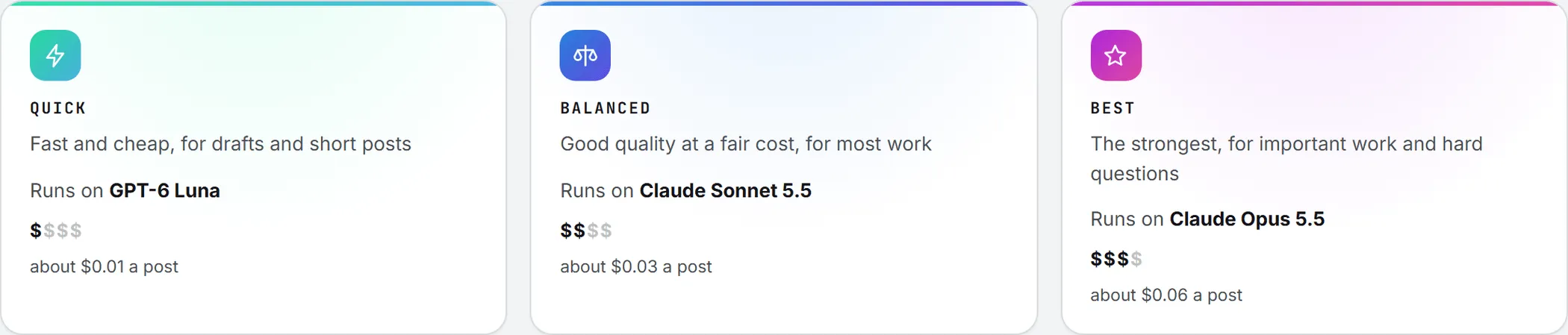
The page opens on three cards, Quick, Balanced and Best, each with the model it runs in your organization after Runs on, a price level from $ to $$$$, and about what one LinkedIn post costs on it. The price level says how dear a model is next to the others; it never gives an amount. A choice with no model left to run shows Not available here.
Scores and costs
The Scores and costs card lists the text models your organization allows, strongest first on the Intelligence Index.
The Image and Video tabs at the top of the page do the same for the image and video engines, with their arena ratings and the cost of one image at the default quality or of one 8 second clip without sound. The engines that upscale a clip, Proteus and Starlight Precise 2.6, are on the Video tab too, tagged Upscales a clip. They have no benchmark score; their cost is that of 8 seconds of a 24 fps clip upscaled to 1080p. Upscale a clip, on the video page, shows the exact price of your own clip before it starts.
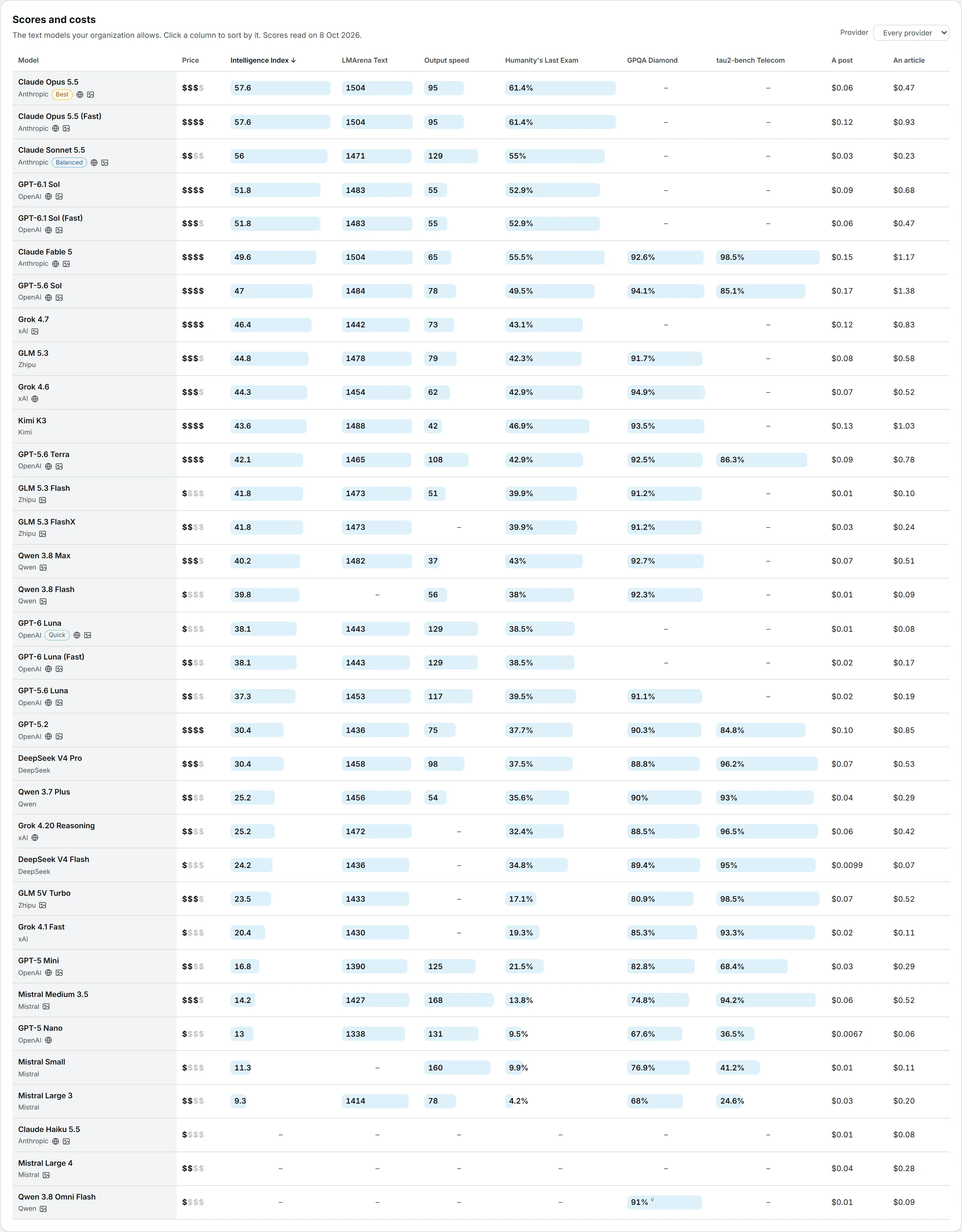
| Column | What it shows |
|---|---|
| Model | The model’s name and provider, plus a tag for the choice it runs, Searches the web and Reads images |
| Price | The price level, from $ to $$$$ |
| Intelligence Index | Artificial Analysis’s overall score, which blends nine hard tests of reasoning, knowledge, coding and agent work |
| LMArena Text | A rating built from blind votes in which people pick the better of two answers |
| Output speed | How many tokens the model writes per second once it starts answering |
| Humanity’s Last Exam | About 2,000 very hard expert questions; even the best models score well under 100% |
| GPQA Diamond | Graduate-level science questions that are hard to answer even with a web search |
| tau2-bench Telecom | A customer support conversation in which the model must use tools and follow the rules |
| A post | One LinkedIn post, everything included |
| An article | One long article, everything included |
Click a column heading to sort by it. Scores sort strongest first, the price level and the costs cheapest first, and a second click turns the order around. A model with no figure in that column always goes last. Provider narrows the table to one maker; Every provider shows them all again.
Reading the figures
- Every score is a link to the public page it was read on.
- A small “v” next to a score means the figure comes from the model maker’s own launch post, used only when no independent figure exists.
- A dash means there’s no public figure for that model. No score is ever estimated.
- The date the scores were read shows under the card’s title. They’re refreshed twice a month.
The last card, What the benchmarks measure, describes each test and links to its source. A high score on one test doesn’t make a model better at everything. For marketing copy, look first at the overall index and at LMArena, where people vote for the answers they prefer.
Tip: Benchmarks rank models on other people’s questions. To see how two or three of them handle your own material, send the same prompt through Compare in the Playground: each answer shows its own cost.
Who can do what
| Action | Who |
|---|---|
| Pick a choice or a model when running a feature | Anyone allowed to run that feature |
| Open Model benchmarks | Everyone with an account |
| Hide models from your own picker | Everyone, in My models |
| Set the model behind Quick, Balanced and Best | Administrators, for their own organization |
| Set a page’s default, the one that gets the star | Administrators, for their own organization |
Opening the picker or the benchmarks page costs nothing. Runs are billed on the model that actually ran.