Article workspace
Write blog articles from a brief or keyword cluster: queue outlines, validate them, draft articles at your length, check them against brand guidelines, then publish.
The article workspace takes a brief all the way to a finished article. Outlines come first; the articles are written from the ones you approve, and their versions are checked against the brand’s guidelines. Use it if you publish on a blog and want a person to sign off each step before the next one runs.
Where to find it
Go to Brand Content > Text and click the Other tile, “The article workspace, end to end”. Old links to the content plan and to Search articles open this page too.
This page walks through the whole workspace, from brief to published article. Content plan looks at the same screen from the planning side: clusters, queues and what gets written next.
How it works
The work is organized in four levels, each inside the one before:
| Level | What it is | Made by |
|---|---|---|
| Brief | What the articles are written from: your text, a page, a PDF, a keyword cluster, in any combination | You |
| Outline | One or more structures proposed from the brief. Each must be validated before anything is written from it. | The AI, then you |
| Article | One or more full articles per validated outline, each a distinct take | The AI |
| Version | The text of an article. Checked against the guidelines, corrected, exported, sent for validation | The AI and you |
Nothing goes live by itself. You approve and mark an article published; the workspace doesn’t post it for you.
Before you start
- Pick the brand in the brand picker. Briefs, outlines and articles belong to that brand and are shared with everyone who has access to it.
- You need create rights on Content: Text and the editor role or above to run anything.
- To use live search data, the brand needs keyword clusters. You build them on the Keywords page. See brands.
Step 1: write a brief
The Start a new brief card sits at the top of the page. Everything in it is optional except one rule: you need a brief (text, a link or a PDF) or a keyword cluster, or both.
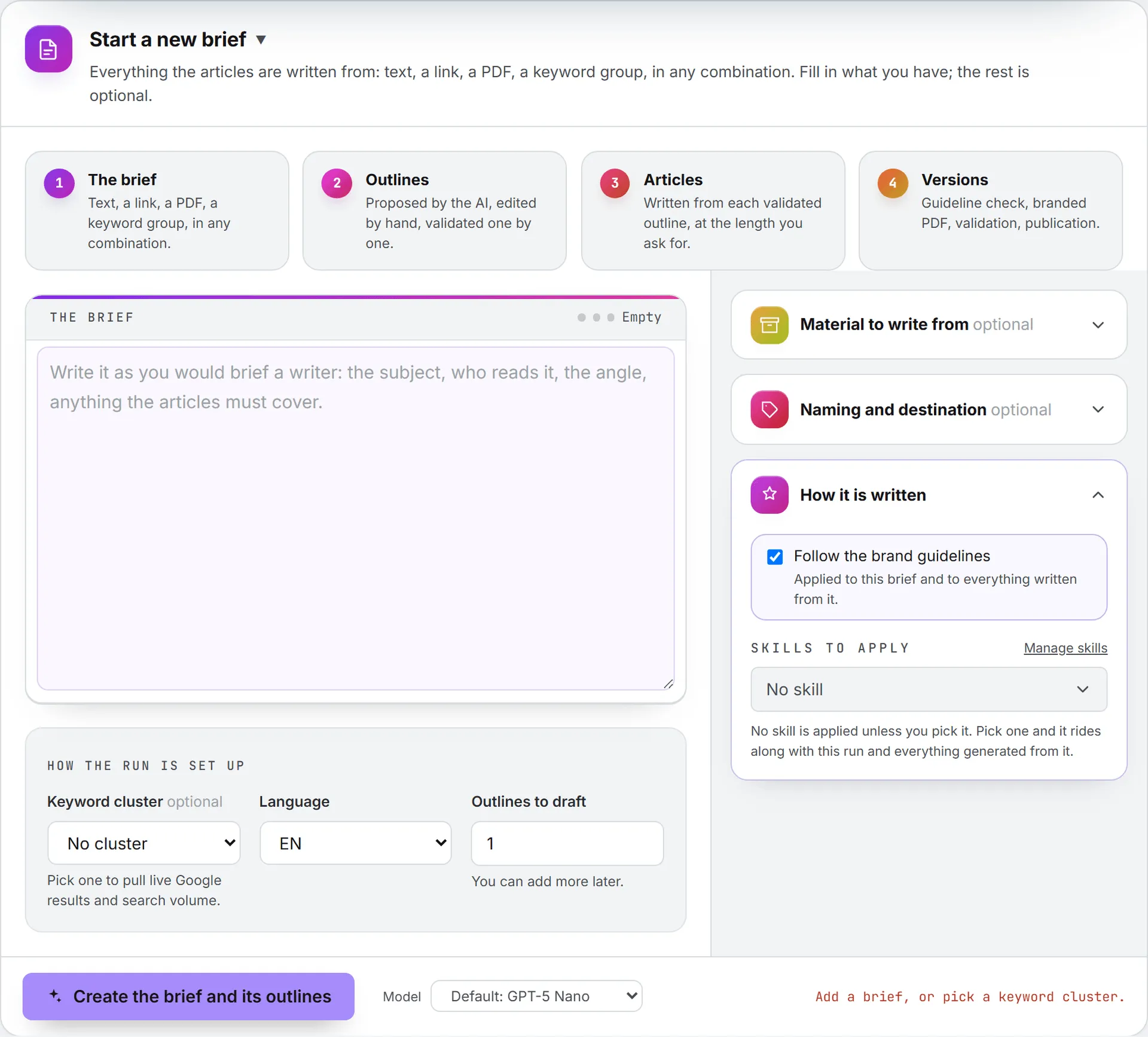
- Write in The brief box the way you’d brief a writer: what the articles are about and who reads them. Add the angle if you have one. A meter grades its length as you type.
- Under How the run is set up, choose:
- Keyword cluster (optional): pick one to pull live Google results and search volume for its keywords. With No cluster, the run buys no search data. If the brand has no clusters yet, a link sends you to the Keywords page.
- Language: EN or FR. The outlines and articles are written in it, and search data comes from United States results for EN and from France for FR.
- Outlines to draft: 1 to 20. You can add more later.
- Open Material to write from to add a Page to read (one web address) or a PDF (3 MB max). Text, link and PDF are read together as one brief. The PDF’s text is kept; the file itself isn’t stored.
- Open Naming and destination to set a Title (otherwise the brief is named after the cluster or its source) and a Blog base URL, where the articles will live. The planner suggests a slug for each article under it.
- Under How it is written, keep or clear Follow the brand guidelines. It applies to this brief and to everything written from it. Pick any Skills to apply.
- Check the bar at the bottom. Pick a model in the Model menu; it’s used for every run on the page (outlines, articles, checks and fixes). The summary next to the button reads back the number of outlines, the language, the sources and either “cluster: name (buys search data)” or “no cluster (no search spend)”.
- Click Create the brief and its outlines.
The outline queue
Nothing runs in your browser. The request joins the Outline queue, a strip above the form. Runs happen one at a time, in the order they were asked, so you can close the page and come back to finished outlines.
| State | What it means | What you can do |
|---|---|---|
| Queued | Waiting its turn behind earlier runs | Cancel |
| Running | Being written now; the line shows the current step | Wait, or leave the page |
| Failed | The run stopped; the reason shows in red | Dismiss |
When a run finishes, the brief appears in the library below.
What a brief run writes
Each outline comes with a title, a role (Pillar or Supporting), a primary keyword, secondary keywords, the search intent, a funnel stage, an estimated length and a slug. It also carries Why this article (market evidence): two to four points on the evidence behind it.
With a cluster, that evidence quotes real search volumes, who ranks today and where the brand is absent. The run also reads the brand’s own market evidence: its current Google ranks for those keywords, the competitor reports for that cluster, and recent findings from the brand’s market, rankings and AI visibility agents. Without a cluster, the run derives keywords from the brief and is told to say plainly which points are assumptions, and never to quote a search volume it wasn’t given.
A brief can run to 800,000 characters, all sources combined, but only the first 24,000 reach the model, and that clipped version is what the brief keeps. Put what matters at the top.
On top of the outlines, the brief gets a plan: an overview, how the articles should link to each other and to service pages, a suggested publishing order, and what the ranking sites miss.
The AI is told not to repeat outlines the brief already has, published articles included. Skim new outlines against the old ones anyway.
The library of briefs
Once the outlines are in, the work moves down the page, into the library.
The Briefs card lists one card per brief, newest first. Use Search briefs… and the Language filter to narrow it. + New brief reopens the form.
A card shows the title, the source (Keyword cluster, Text, Link, PDF or Mixed sources), the language, the cluster, the date, and how many outlines and articles it holds. A brief can’t be deleted from the workspace; its outlines, articles and versions can. Click a card to open it on three tabs: 1 · Brief, 2 · Outlines and 3 · Articles. The form folds away to give them room.
1 · Brief
This tab is the record of the run: Source, Language, Keyword cluster, Blog base URL, Created and Generation cost. Below, the brief text as it was read, and a fold-out Plan overview, linking & publishing order.
Step 2: correct and validate the outlines
The 2 · Outlines tab lists the brief’s outlines. Each shows its title, role, primary keyword, funnel stage and estimated length, a Draft or Validated badge, and how many articles it has. Validated outlines carry a green edge.
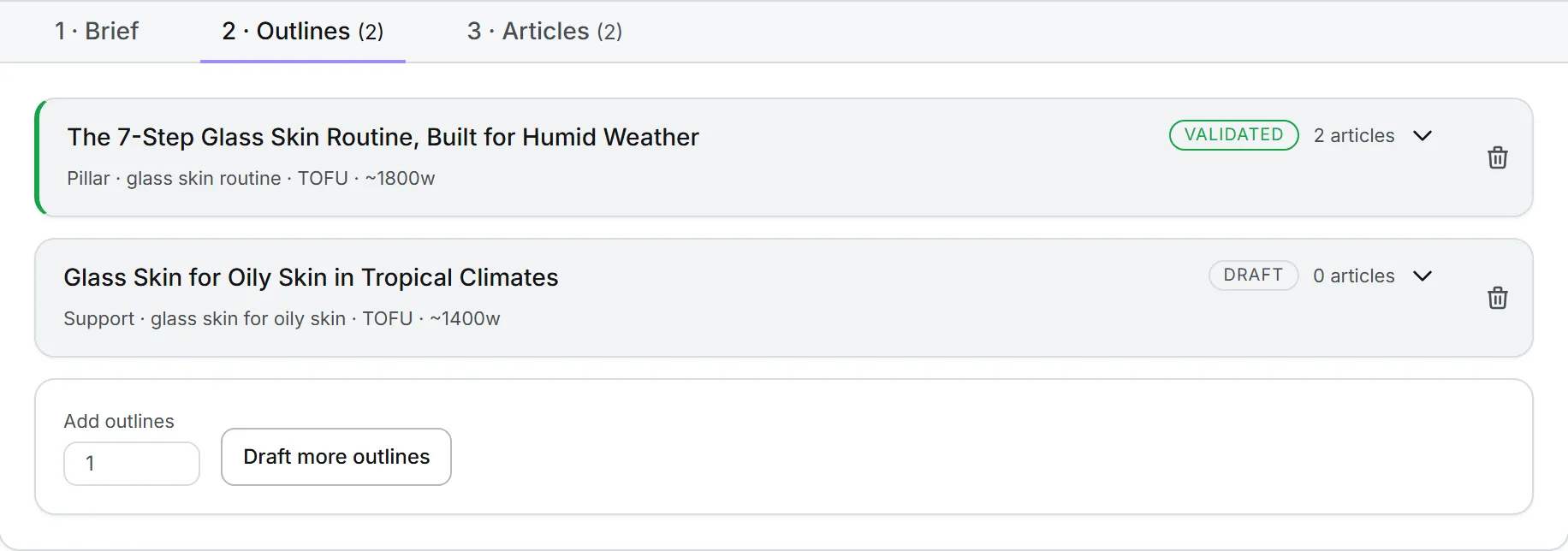
Open one to work on it. The outline sits in an editable box, in Markdown (## for sections, ### for subsections). Change what you like and click Save. Saving an edited outline sends it back to Draft, because what was signed off is no longer what would be written.
When it’s right, click Validate outline. Only then can articles be written from it, and that’s deliberate: a long, paid run never starts on a structure nobody approved. Reopen for editing takes a validated outline back to draft.
To have the AI try again, type what should change in the box next to Regenerate and click it. You’ll be asked to confirm, since the current outline is replaced and its sign-off dropped. Delete outline asks too: every article written from it goes too, with every version, and it can’t be undone.
You can also highlight part of an outline and click Rewrite with AI, or right-click it, to change just that passage. The new text replaces the passage in the box. Click Save to keep it.
Add more outlines
Under the list, set Add outlines (1 to 20) and click Draft more outlines. The run joins the queue, and the AI is told to propose outlines different from the ones already there.
A brief is identified by its title and language, so starting a new brief with the same title and language adds its outlines to the existing one instead of replacing it. See Re-running a plan.
Step 3: draft articles
A validated outline shows Draft articles from this outline.
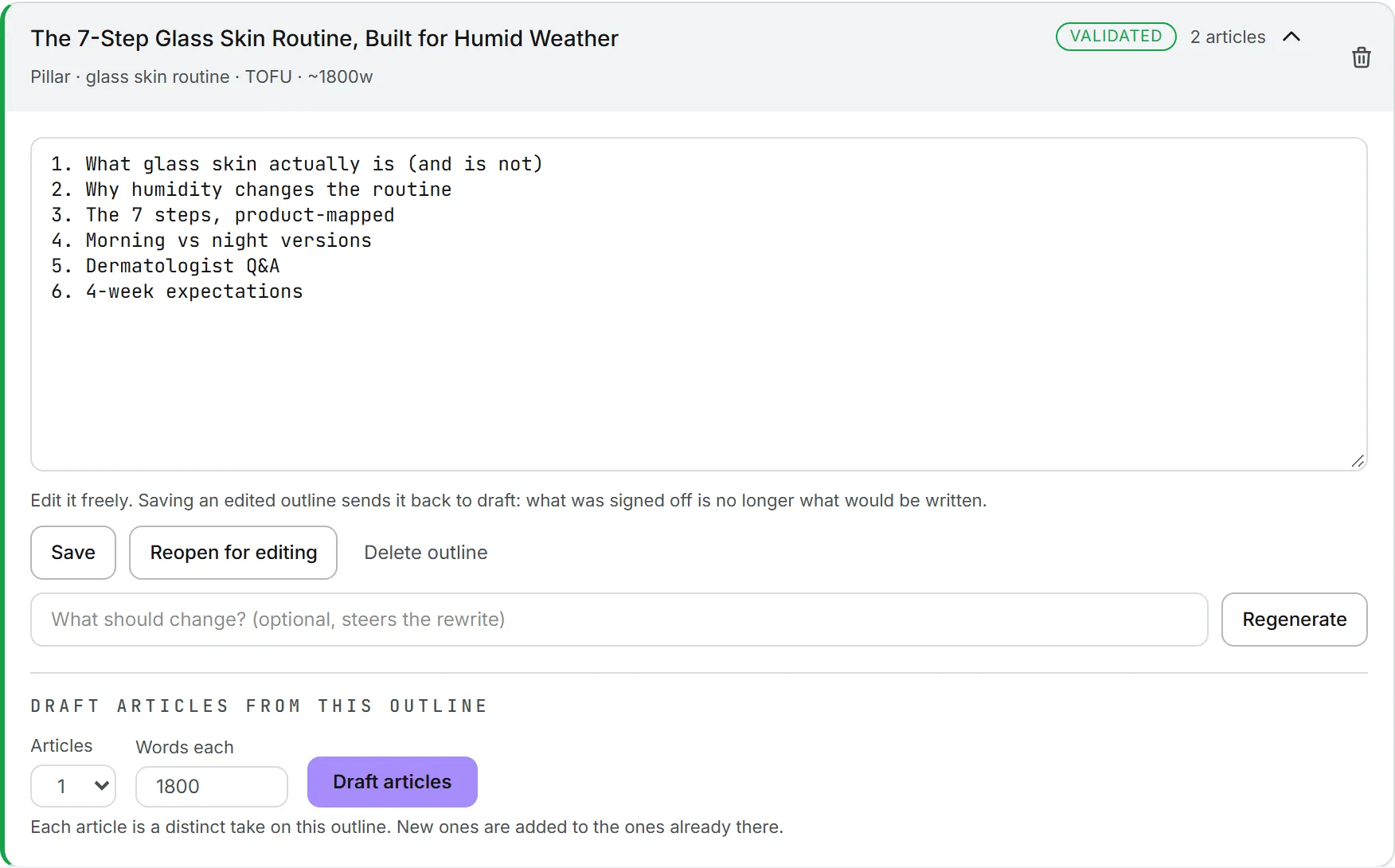
- Pick how many Articles: 1 to 5.
- Set Words each: 300 to 6,000. It starts at the outline’s estimated length, or 1,200. Longer articles take longer and cost more.
- Click Draft articles and confirm. It can take a minute per article.
You get distinct takes on the outline, added to any articles already there. The page then opens the 3 · Articles tab.
Step 4: review, check and correct versions
The 3 · Articles tab lists every article of the brief. Each card shows its title, the outline it came from, how many versions it has, its date and its status.
Approve and publish
Intelligence doesn’t post articles to your blog. You publish on your site, then record it here, at the top of the open article. Set Publication to Draft, Approved for publication or Published; the dates it was approved and published are recorded. Paste the live address in Publication URL.
Delete article removes the article and all its versions, after a confirmation.
The status saves as soon as you pick it, and the address when you leave the field. Setting Published is a record for your team; it doesn’t publish the article anywhere.
Versions
This is where most of the editing happens.
A version shows its number, its word count (with the length you asked for), the model that wrote it and its date. A Corrected badge marks a version made by Fix all.
| Button | What it does |
|---|---|
| Check guidelines | Scores the version against the brand guidelines. Becomes Re-check once run. |
| Fix all (n) | Applies every issue the check found and saves the result as a new version. The checked version is kept. |
| Downloads the version as a PDF headed by the brand logo | |
| Copy | Copies the text to your clipboard |
| Send for validation | Sends the version to a colleague for sign-off |
| Delete | Removes this version, after a confirmation |
Read unfolds the article. Edit the Markdown opens the text for hand edits; Save version keeps them. Saving clears the guideline verdict, since it described the old text. You can also highlight a passage and use Rewrite with AI here, then save.
The guideline check
Check guidelines and Fix all run on the model picked in the page’s Model menu, in the background. You can leave the page; the status reads “this keeps running if you leave the page”, and both jobs show in Activity.
The verdict shows as On brand or Needs work, with a Guideline score out of 100 and the time it ran. Below, a short summary and each issue: its severity, the rule broken, the exact quote and the fix. A clean version says “No breaches found.”
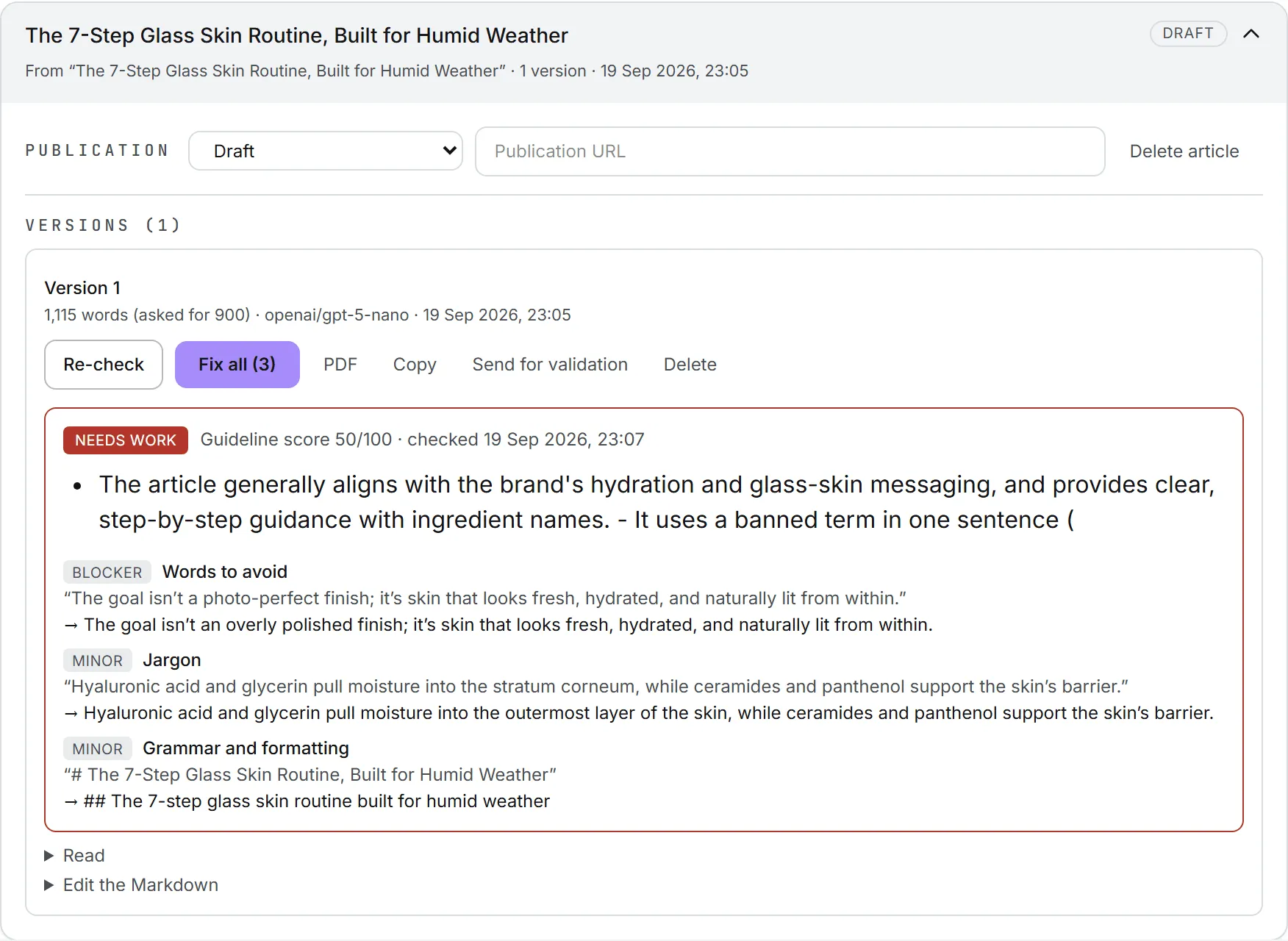
A Needs work verdict is normal on a first draft. Read the issues and fix the ones you agree with by hand, or let Fix all handle them, then check again.
If a run was cut off, the version says so and asks you to run it again.
Send a version for validation
Click Send for validation on a version, pick the validator in the dialog and send. The validator gets a task and an email with the link.
Meanwhile the article shows Waiting for validation and is locked: no edits, no status change, no deletion until the validator decides. See Validation.
Export a version
PDF is the export here. The PDF carries the brand logo (PNG or JPEG), the title, a line with the keyword, language, word count and date, and the publication address when there is one.
One catch: the PDF uses standard fonts that cover Western European characters only, so Chinese, Cyrillic and other scripts are dropped. For those, use Copy. There’s no Word export in the workspace either: copy the text and paste it into your document.
Where articles are kept
Every article is filed in the Assets Library as a text document when it’s first written. The workspace keeps all its versions.
Who can do what
| Action | What you need |
|---|---|
| See briefs, outlines and articles | Access to the brand and view on Content: Text |
| Create a brief, regenerate an outline, draft articles | Create on Content: Text, editor role or above |
| Run a guideline check or a fix, edit outlines and versions, change status | Update on Content: Text, editor role or above |
| Delete outlines, articles and versions | Delete on Content: Text |
Roles and per-person rights are explained in roles and rights.
What it costs
- A brief run is a paid AI run. With a keyword cluster, it also buys live Google results and search volume for each keyword of the cluster, so a large cluster costs more than a small one. The brief’s Generation cost shows what the AI part cost.
- Regenerating an outline, drafting articles, checking and fixing are paid AI runs.
- Editing, validating, exporting and changing status are free.
The workspace shows a price only on the brief. The drafting, check and fix runs are listed in Activity, and your usage log records every run with its cost. See credits and costs.
Troubleshooting
- Add a brief (text, a link, a PDF, or any combination) or pick a keyword cluster. The form is empty. Fill in one of them.
- That PDF is too large (3 MB max). Split it, or paste the relevant text into the brief.
- Draft articles doesn’t show. The outline isn’t validated yet. Click Validate outline first.
- This outline is empty: there is nothing to write from. Write or regenerate the outline, save it, validate it, then draft.
- This brand has no guidelines to check against yet. Check guidelines needs the brand’s guidelines. Ask whoever edits brands to fill them in; see Brand foundation and guidelines.
- There is nothing to fix: run the guideline check first. Fix all works from the issues of a check. Run Check guidelines first.
- The model returned nothing or was not valid JSON. The answer ran out of room. Run it again.
- Cluster “name” has no EN keywords: working from the brief alone (or FR). The cluster has no keywords in the brief’s language, so the run carries on without search data. Add keywords in that language on the Keywords page, or pick another cluster.