Keyword Gap
Keyword Gap compares your site with up to five competitors on Google and lists the keywords they rank for and you miss, ready to track.
Keyword Gap lists the keywords your competitors rank for on Google while your brand doesn’t. Each keyword comes with its search volume and difficulty, plus what an ad click costs on it, which helps when you’re choosing what content to build next.
What you need
- The brand needs a website. It is your side of the comparison, and the page won’t run without it.
- You need at least one competitor domain.
- The country is the brand’s first market, and the page has no way to change it. To compare in another country, an admin moves that market to the top of the brand’s list. The languages offered are the brand’s languages. Both live in the brand settings (Brands administration).
Step by step
- Open Search, then SEO, then Keyword Gap.
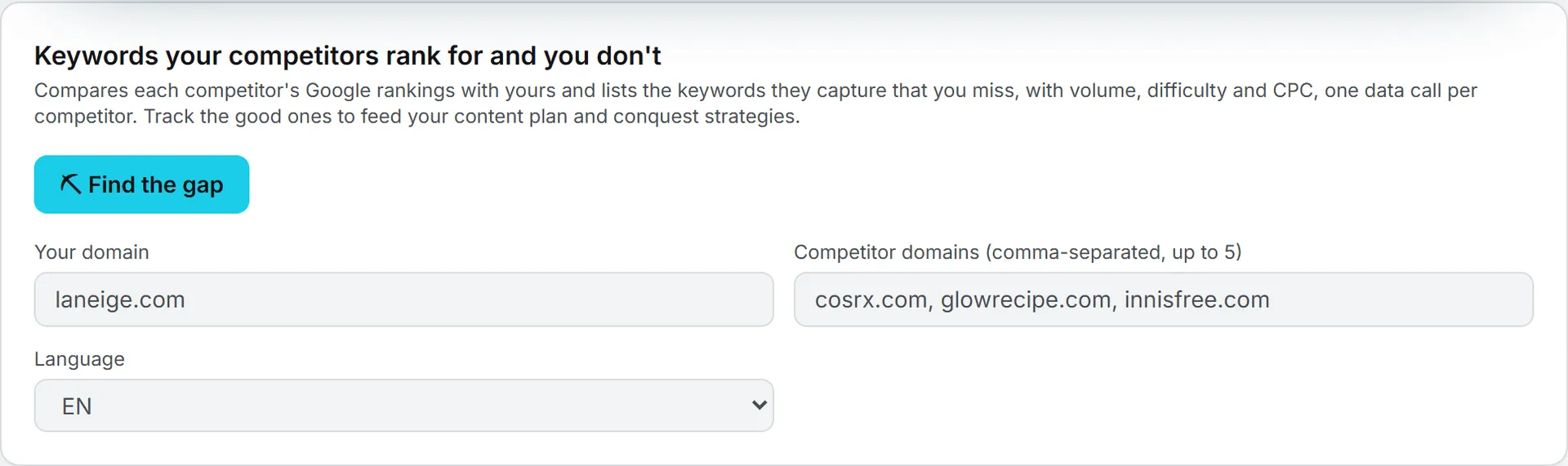
- Check Your domain. It is locked to the brand’s website.
- In Competitor domains, type up to 5 domains separated by commas. If the brand has pinned competitors on the Competitors page, the first 5 are already there.
- Pick the Language. It starts on the brand’s first language.
- Click ⛏ Find the gap.
While it works, the page reads “Comparing rankings with each competitor…” You can leave: the run keeps going, and the Activity widget in the header follows it.
You can type full web addresses. The app keeps only the bare domain. It also removes duplicates, and your own domain if it slipped in.
Tip: Not sure which competitors to enter? Start with the domains pinned on Competitors, or the competitor list the AI proposes when you use Initialize with AI on the Keywords page.
Reading the results
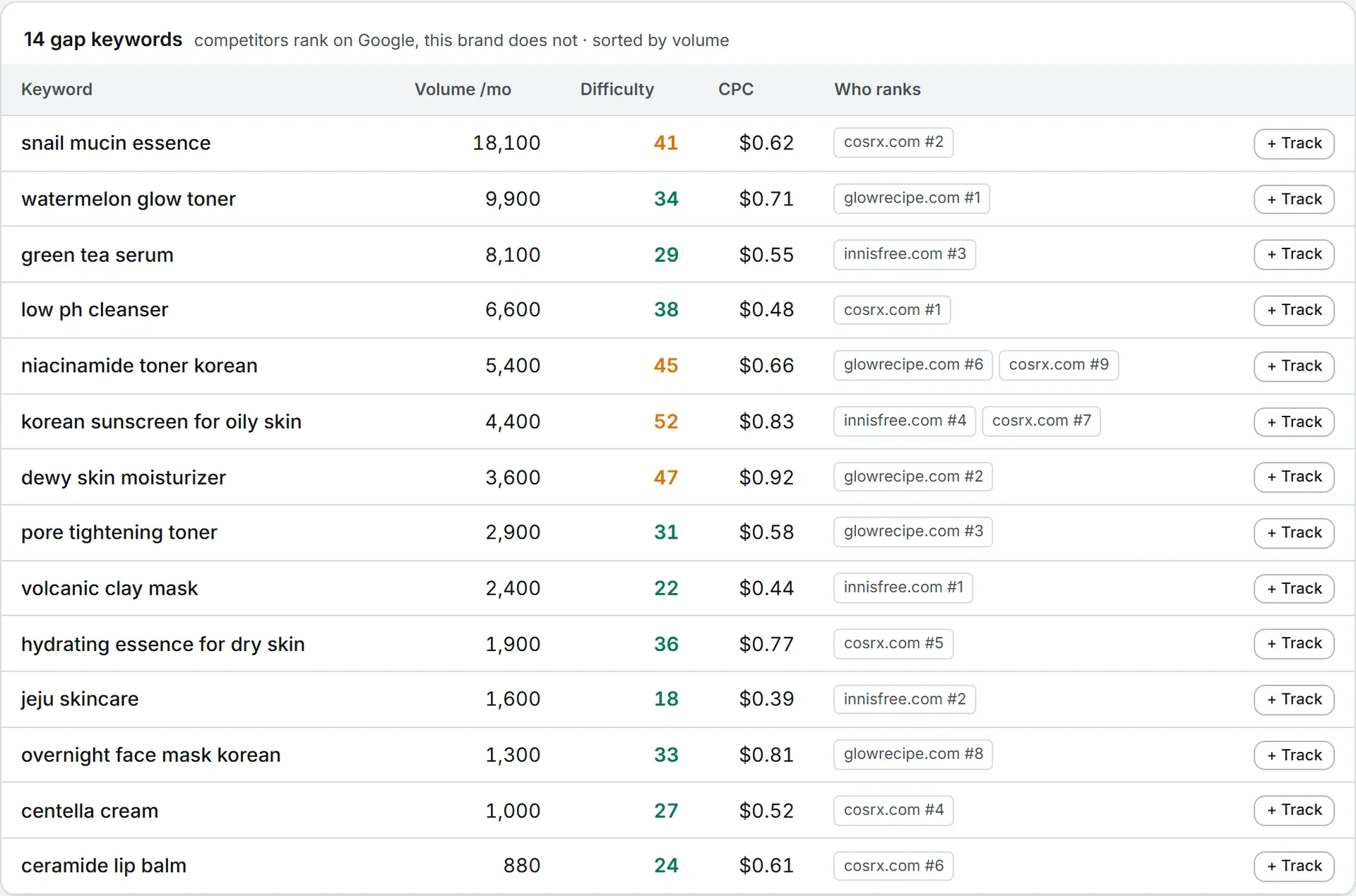
The table title says how many gap keywords were found. The comparison runs on Google in the brand’s first market. Rows are sorted by search volume, highest first.
| Column | What it shows |
|---|---|
| Keyword | A search a competitor ranks for and you don’t |
| Volume /mo | Monthly Google searches |
| Difficulty | How hard the keyword is to rank for, from 0 to 100: green under 40, amber from 40 to 69, red from 70. “n/a” when the data has no score |
| CPC | What an ad click costs on that keyword, in dollars. “n/a” when there’s no figure |
| Who ranks | Every competitor you queried that ranks for it, with its position. Click one to open its ranking page in a new tab |
| Last column | + Track, or ✓ Tracked if the keyword is already on your list |
When several competitors rank for the same keyword, all of them are listed, strongest first. Those rows are usually worth a look before the others.
Each competitor returns up to 100 keywords, the ones with the most search volume. The merged table keeps the top 200.
If one competitor fails, its error shows above the table and the others still count. If all of them fail, the run stops with the reasons.
Track a keyword
Click + Track on a row. The keyword joins the brand’s list on the Keywords page and the button turns into ✓ Tracked.
A tracked gap keyword arrives in the language of the run, under Uncategorized, without an intent or a priority. Open it on the Keywords page to file it in a cluster. After that it gets ranked and reported on like any other keyword.
A row shows ✓ Tracked when the same text, ignoring case, is already on the brand’s list, whatever its language.
Tip: The Keywords page opens with its language filter on EN. If you tracked keywords in another language, pick All languages there to see them.
Saved results
The last run is saved for the brand and comes back each time you open the page. Everyone on the brand sees the same result. The page doesn’t show when it ran; the Activity widget and your usage log do.
Important: A brand keeps one result. A new run, by you or a teammate, replaces it. Track the keywords you want before you run again.
Who can do this
Everyone with access to the brand and to SEO can read the saved results. Running ⛏ Find the gap and clicking + Track need the editor role or higher. The run button doesn’t show for viewers. They still see + Track; a click shows the read-only message inside the button. See roles and rights.
What it costs
A run makes one data call per competitor, so five competitors cost five calls. The page doesn’t print the cost, before or after; each call is listed with its price in your usage log. Tracking a keyword is free.
The app checks your credits and spending caps first. If they fall short, nothing runs; the message says what’s blocking it. See credits and costs.
Troubleshooting
- “This brand has no website domain to compare against.” The brand’s website field is empty. An admin can fill it in.
- “At least one competitor domain is required.” The field was empty, or held only your own domain.
- “No gap found.” The competitors you picked rank for nothing your brand misses in that language and market. Try other competitors.
- The Language list only offers EN. The brand has no languages set yet.