Organization and personal skills
Create a skill in the Personal tab, manage shared ones in the Organization tab as an admin, and see how personal skills override the organization's.
Skills are written and looked after in two tabs of the Skills area. Personal holds your own skills. Organization holds the skills shared with everyone, and is open to admins only. This article is for anyone who writes their own skills, and for the admins who look after the shared ones.
Before you start
Writing skills takes a role at Editor level or above. A viewer can read skills but not change them, and sees a note saying “Your role is read-only, so you can look at these skills but not change them.” Managing the organization’s skills takes an admin.
It also helps to know where the skill should apply before you write it. The places are listed in Skills.
Write a personal skill
- Click Skills in the header. The Personal tab opens, on My own skills.
- Click New skill.
- Give it a Name, for example “Quarterly report format” (up to 80 characters), and leave Status on On.
- In What it is for (shown to people, not to the AI), write one line saying when to reach for the skill. It’s optional. People see it in the pickers; the AI doesn’t.
- In Instructions (what the AI follows), write the rules themselves, up to 8,000 characters.
- Under Where it applies, tick the places the skill should join.
- Click Create skill.
From the next AI call, the skill joins the runs you start, and only those: your colleagues never get it. A run already under way keeps the skills it started with.
Write good instructions
Write them the way you’d brief a new colleague. Say what to do and what to avoid, and describe the layout you want. Short numbered steps or bullet rules work best. For example:
1. Open with the headline figure and the period it covers.
2. Compare it with the same period last year.
3. End with three actions, each with an owner.
Never use the word "synergy".
The AI reads them on top of the page’s own instructions, so there’s no need to repeat what the page already asks for.
A skill with no place ticked is saved, but the card warns “Applies nowhere yet: tick a surface”, and it never runs.
Change, pause or remove a skill
Every skill gets a card with its name, an on or off tag, a Standard tag if it came from the catalog, its description and the places it applies. The card has four buttons.
| Button | What it does |
|---|---|
| Duplicate | Makes a copy in your own skills. On the Personal tab, the copy gets “(copy)” after its name, so both apply. |
| Switch off / Switch on | Stops or restarts the skill without deleting it. |
| Edit / Close | Opens the form under the card. Change what you need and click Save. |
| Delete | Asks “Delete the skill …? It stops applying everywhere at once.” Confirm to remove it for good. |
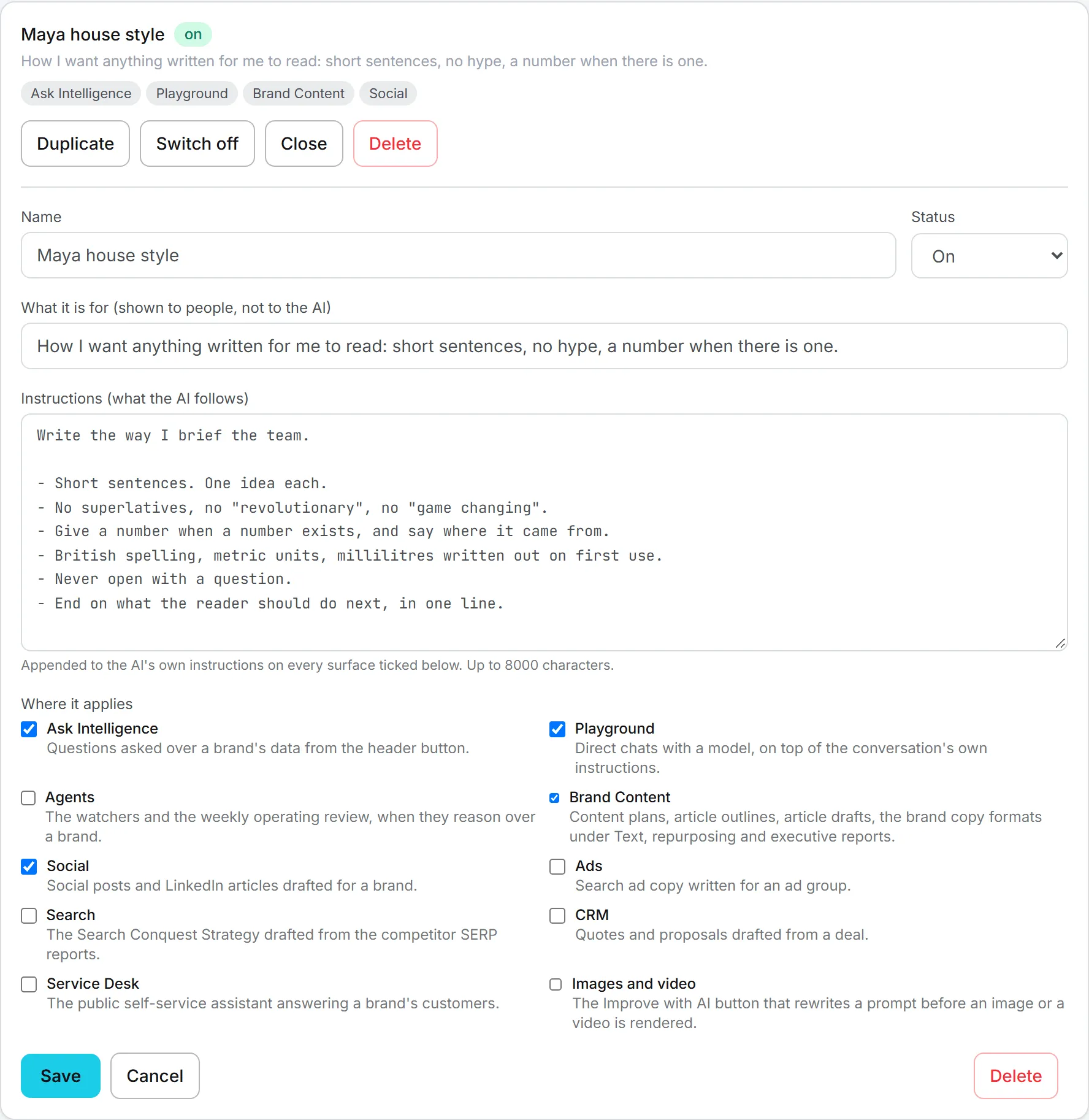
While a form has unsaved changes, its Save button turns amber. Cancel closes the form without saving. There’s no version history: Save replaces the old text, so copy the text somewhere first if you think you’ll want it back.
Organization skills
The rest of this article is mostly for admins.
The Organization tab is for admins. Anyone else who opens its address is sent back to their Personal tab.
- Click Skills in the header, then Organization.
- In Configure, pick what to manage:
- Organization: your organization’s name (shared with everyone in it): skills every member gets.
- User: followed by a member’s name: that person’s personal skills.
- Click New skill, or use the buttons on a card, as on the Personal tab.
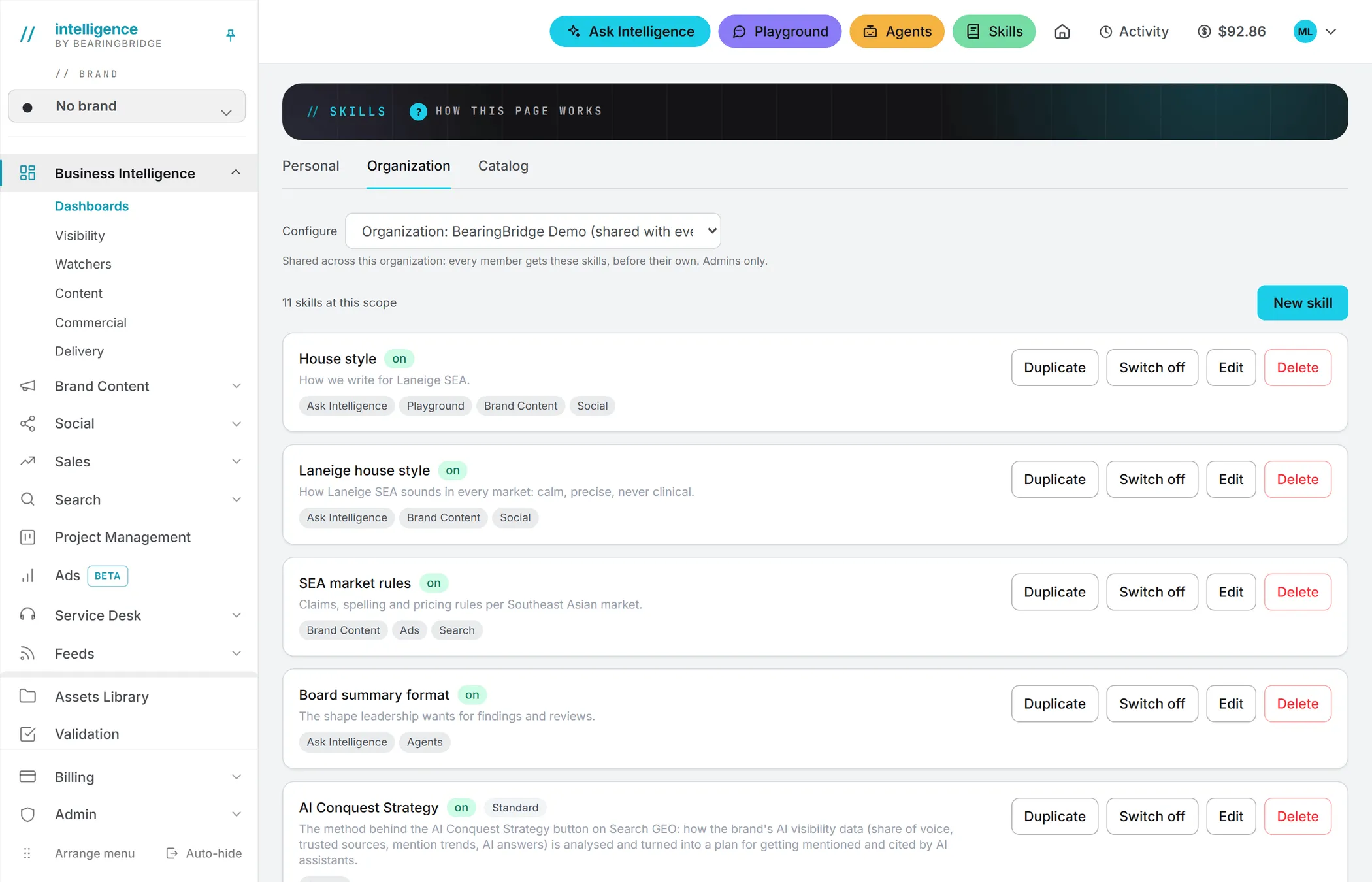
An organization skill reaches every member from their next AI call, and comes before their own skills on each run. Each one adds its instructions, and so a few tokens, to every run it joins across the organization, so keep shared skills tight (see What skills cost).
When you Duplicate a card from this tab, the copy goes to your own personal skills, not to the scope you’re configuring. A message confirms “Duplicated to your own skills, under Personal.”
Managing a member’s skills
An admin can write, edit, switch off or delete any member’s personal skills. The member sees your changes in their own Personal tab. That’s useful when a newcomer joins, or when someone’s skill no longer fits the way the team works.
The standard skills in the organization
The social network formats (LinkedIn, X, Instagram, Facebook and TikTok) and the two search methods sit in the organization scope with a Standard tag. Admins can edit them or switch them off like any other skill.
Tip: Switch a standard skill off rather than deleting it. A deleted one comes back with its shipped text the next time a page needs it.
How a personal skill overrides an organization skill
Normally the AI follows every skill that applies to a run, the organization’s first, then the person’s. There are two exceptions. A personal skill with the same name as an organization skill replaces it on that person’s runs, whatever the capitals. And a personal copy of a standard skill replaces the organization’s version, even under another name.
To adapt an organization skill for yourself, duplicate it from the Catalog, keep the name, and edit your copy.
Who can do what
| Action | Viewer | Editor, Brand manager | Admin |
|---|---|---|---|
| Read personal skills | Own | Own | Own and every member’s |
| Write, edit, switch, delete personal skills | No | Own | Own and every member’s |
| Open the Organization tab | No | No | Yes |
| Write, edit, switch, delete organization skills | No | No | Yes |
Your organization’s roles can also close the Skills area to some people. See Roles and rights.
Troubleshooting
“Give the skill a name.” or “Write the instructions the skill applies.” Those two fields can’t be left empty.
“The name is too long (80 characters at most).” Shorten it. The same kind of message shows for the description (300) and the instructions (8,000).
“This one is a content format: edit it under Skills > Catalog > Content Formats.” Content formats are edited in their own section. See Content formats.
The Organization tab says there is nothing to configure. You’re an admin with no organization or member to manage. Your own skills are under Personal.
A skill doesn’t seem to apply. Check that it’s on, that the right place is ticked, and, on a page with the skills picker, that you picked it. On those pages, nothing applies until you pick it. A run also takes at most 12 skills from each level, the oldest first, so a newer skill can be left out when you have many.