Model Playground
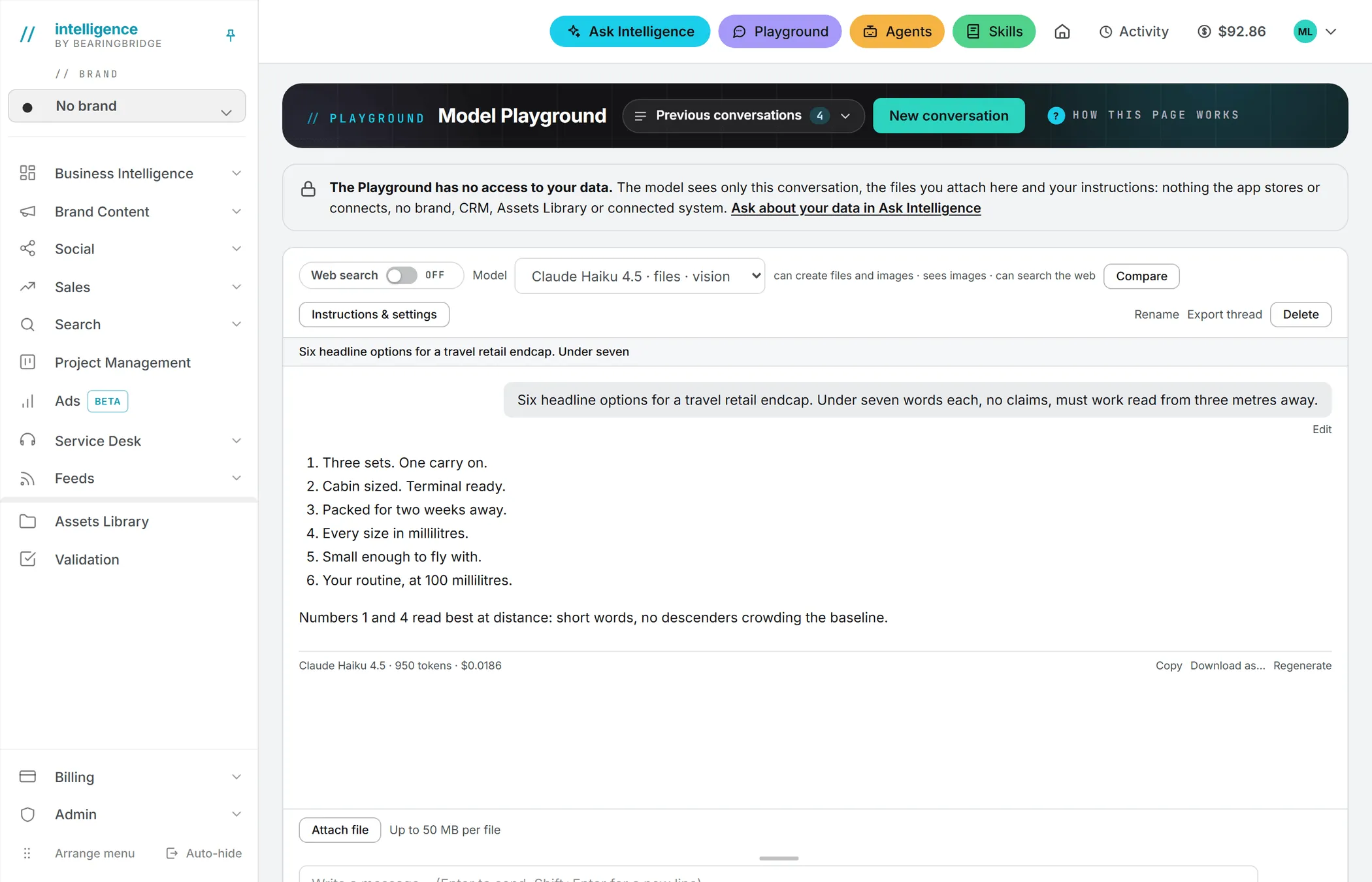
The Model Playground is a private chat with AI models your organization offers. Attach files, compare models, search the web and see each answer's price.
The Model Playground is a direct chat with the AI models your organization offers. People use it to test a model before choosing it for a feature, to draft, or to work through a PDF or a spreadsheet they bring. Some put two or three models side by side on the same question. It never reads your company’s data.
Where to find it
Click Playground in the header. On a small screen, it’s in the menu.
What the Playground can and cannot read
The page says it plainly in a note at the top: “The Playground has no access to your data.” The model sees only the conversation on screen, the files you attach to it, and your instructions for that conversation, plus any skills that apply to the Playground.
It can’t see your brands, your CRM, your Assets Library or any connected system. To ask questions about your own data, use Ask Intelligence, which the note links to.
Start a conversation
- Pick a model in the Model list. Models are grouped by their maker, and the list holds only the ones your admin offers. See AI models for how they differ.
- Type in the box at the bottom. Enter sends, and Shift+Enter starts a new line. You can drag the grip above the box to make it taller.
- The answer appears as it’s written. It ends with a line giving the model, the token count and the price.
Click New conversation to start fresh. The start of your first message, up to 60 characters, becomes the title.
You can switch models in the middle of a conversation. The new model gets the conversation so far and carries on from there.
A model’s name may be followed by one or two tags. files means it can create documents, spreadsheets, slides, code and images for you to download. vision means it can see the images you attach. A model with neither handles text only. Hover the list for the same explanation, and read the line next to it for the model you picked.
Previous conversations
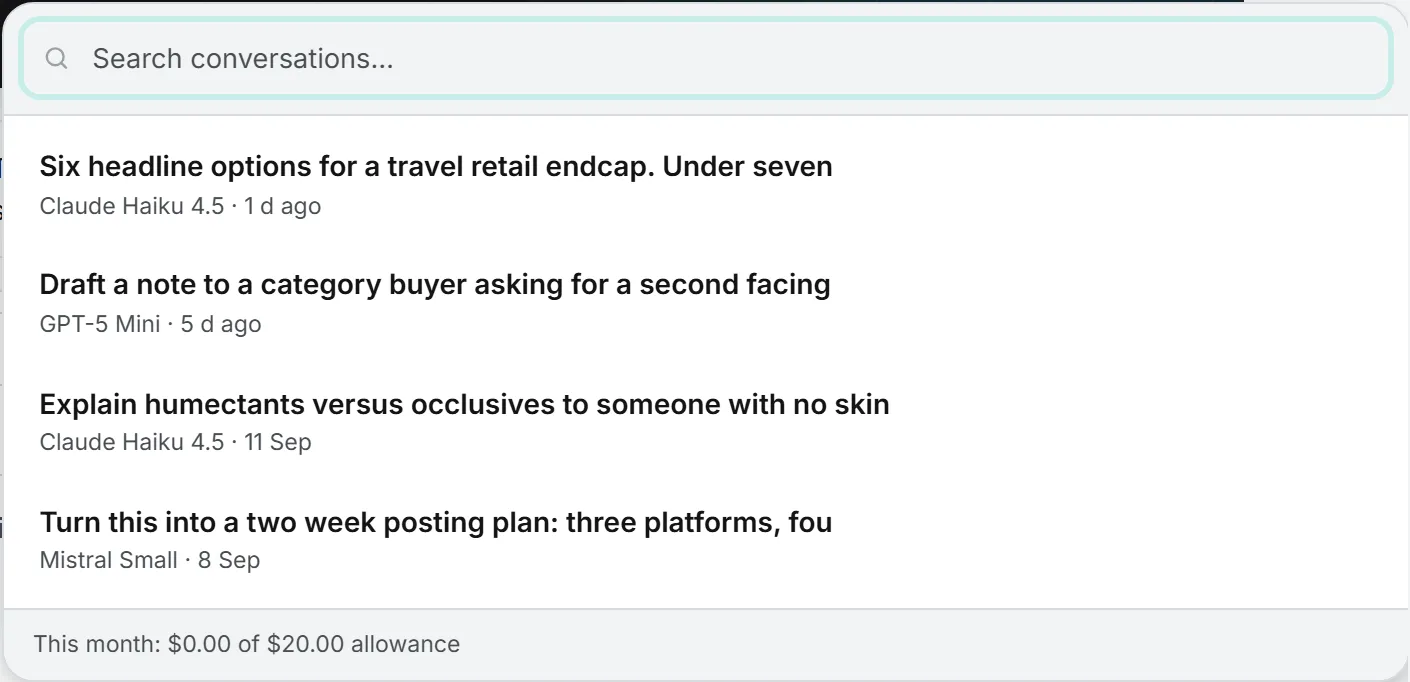
The Playground keeps every conversation. Click Previous conversations in the page header to open the list, which has a search box. Each row shows the title, the model and when you last used it. Hover a row for Open, Rename and Delete. The list shows your 200 most recent conversations.
Your conversations are private. Nobody else in your organization can open them, admins included, and there’s no share button. To pass one on, use Export thread.
At the foot of the list, a line shows what you’ve spent in the Playground this month, and your allowance if your admin has set one.
Attach files
Click Attach file under the conversation. The Playground takes:
- PDF, Word (.docx) and Excel (.xlsx) files
- text and data files such as .txt, .md, .csv and .json
- code files
- PNG, JPEG, WebP and GIF images
PowerPoint files and older Office formats (.doc, .xls) aren’t accepted.
Each file can weigh up to 50 MB, and a conversation holds up to 20 files. A bar fills while the file uploads and is read.
Documents are turned into text and sent to the model with every message. (Only a PDF’s text is sent, not its pictures. A scanned PDF with no text layer gives the model nothing to read.) The chip for each file shows roughly how many tokens it adds, which tells you what it adds to the price of each message. All the attached text together is capped at about 100,000 characters per message. Past that, the model is told that later files were left out or cut.
Images go only to models tagged vision, the 5 most recent at most. Other models are just told the file names. Click the x on a chip to remove a file.
Instructions and settings
The Instructions & settings button opens a panel above the conversation.
- Instructions for this conversation (system prompt) tells the model how to behave, for example “You are a terse financial analyst. Answer in French.”
- Temperature goes from 0 to 2. Leave it empty for the model’s default. Claude models ignore it.

You don’t need to save: changes are kept as you type. If your admin has locked the temperature, the panel says “Temperature is set by your administrator.”
The panel also lists Skills applied. These are your organization’s skills and your own personal skills that are set to apply to the Playground, and they ride along with every message. A Manage skills link opens the skills page in a new tab. See organization and personal skills.
Web search
The Web search switch sits next to the model list. A conversation starts with it off and remembers your choice.
Only models that run their own search can use it: Claude and GPT models, plus Grok 4.6 and Grok 4.20 Reasoning. Other Grok variants carry no search. For any other model the switch is grayed out, and hovering it says why.
With it on, the model searches the web before it answers. The line under the answer counts the searches, for example “2 web searches”, and the pages it used are listed under “Sources”. Each search is charged and added to the price of that answer.
If your admin hasn’t allowed web search, the switch doesn’t appear.
Compare models
Click Compare and tick up to 3 models. The send button then reads, for example, Send to 3 models. Your next message goes to all of them, and the answers appear side by side, each with its own price.
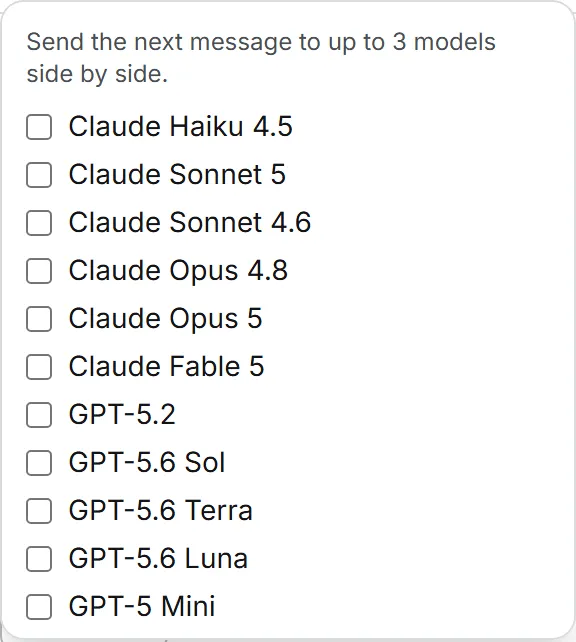
The conversation continues from the first answer that worked, which is outlined. To carry on from another one, click Continue with this under it.
Tip: To choose a model for a job, send a few typical questions to a small model first. Use Compare to bring in a larger one only where the small one falls short.
Work with an answer
Under each answer you’ll find Copy, which copies the text, and Download as…, which saves it as Word (.docx), PDF, Markdown, Text or HTML, or saves its tables with Table as CSV or Tables as Excel. The last answer also has Regenerate, which asks the model again.
Under your last message, Edit puts it back in the box. Change it and send it again, and the old answer goes away.
In the bar above the conversation, Export thread downloads the whole conversation as a Markdown file, with each answer’s price. Rename and Delete sit there too.
Files the model creates
Models tagged files can hand you files as part of an answer: Word, Excel, CSV, PDF, PowerPoint, Markdown, text, JSON, HTML and code files. They can also make images, in square, wide, tall, 4:3 or 3:4 shapes. Files show up as cards under the answer, and images show a preview. Click a card to download it.
These files live inside the conversation. They don’t go to the Assets Library, and they’re deleted along with the conversation.
What it costs
If you read only one section before a long session, make it this one. Every answer is paid from your credits, and the line under it shows the price. That price covers the tokens and any web searches.
There’s no fixed price per message. Four things drive it: the model you pick, how long the conversation already is (the model rereads it every time), the text of the files attached, and web searches. A short question to a small model costs little; a long thread with big PDFs, sent to a top model with search on, costs a lot more. Compare sends one message to up to 3 models, so you pay for each of them.
- An image the model makes is charged on its own, as an image, and isn’t part of the price under the answer. You’ll find it in your usage log.
- The Playground has no brand of its own. Each answer is logged under the brand selected in the left menu, so your usage log can sort it.
- Your admin can set a monthly Playground allowance per person. It counts every answer, file and image you’re billed for. Once you reach it, the Playground refuses new messages until the next month.
- Files you attach and files the model creates are stored, and storage is billed. See storage costs.
For how credits work in general, see credits and costs.
What your admin controls
An admin sets up the Playground on the AI Models page. They choose which models it offers (offering none switches it off), whether to lock the temperature and the answer length for everyone, the monthly allowance per member, and whether web search is allowed.
Who can use it
Anyone with the right to view the Playground can open it. Sending a message takes the right to create there, which Editors and up have by default. Renaming or changing a conversation’s settings takes the update right, and deleting one takes the delete right. See roles and rights.
Good to know
- The model is sent the last 40 messages of a conversation. In a very long one, the start drops out of what it sees. Start a new conversation, or restate what matters.
- A message can be up to 12,000 characters, and the instructions up to 8,000.
- If a model fails, its answer turns into a red error and your question stays in the conversation. In Compare, the other models carry on.
- Ask Intelligence can read your own Playground conversations when you include your own data in a question. It never reads anyone else’s.
- The Playground has the widest choice of file formats in the product. Exports and downloads compares it with the rest.
Troubleshooting
- “No model is available. Ask your administrator to enable models for the Playground.” Your organization offers no Playground models yet.
- “You have reached your monthly Playground allowance”, followed by the amount. Ask an admin to raise it, or wait for the next month.
- “That message is too long. Please shorten it.” Cut it down, or attach the text as a file.
- “That file is too large (limit 50 MB).” Split or compress the file.
- “A conversation holds at most 20 files.” Remove a file or start a new conversation.
- “Unsupported file type. Use PDF, Word, Excel, text, code or an image.” Convert the file first, for example a .doc to .docx.