Image generation
Render pictures from a prompt, edit or upscale your own, compare every engine's options and price before running, and find results in the Assets Library.
Image generation makes pictures for your brand. Describe one and an engine renders it, or upload a picture to edit or enlarge. You see the price before anything runs, and every result is filed in the Assets Library, ready to use wherever you need it.
Where to find it
In the left menu, go to Brand Content > Image. The page is called Image generation. It has three parts: the job and the engine on top, the form on the left with results on the right, and Past images underneath.
Before you start
- Pick the brand in the header. The picture is filed under that brand, and the brand’s visual identity can be applied to it. See brands.
- Generating is a paid action. It needs the editor role or above, plus the view right on Content: Image. Viewers can open the page but can’t run anything. See roles and rights.
- The brand must have the Image module switched on. If it’s off, the Image entry disappears from the menu while that brand is active.
The three jobs
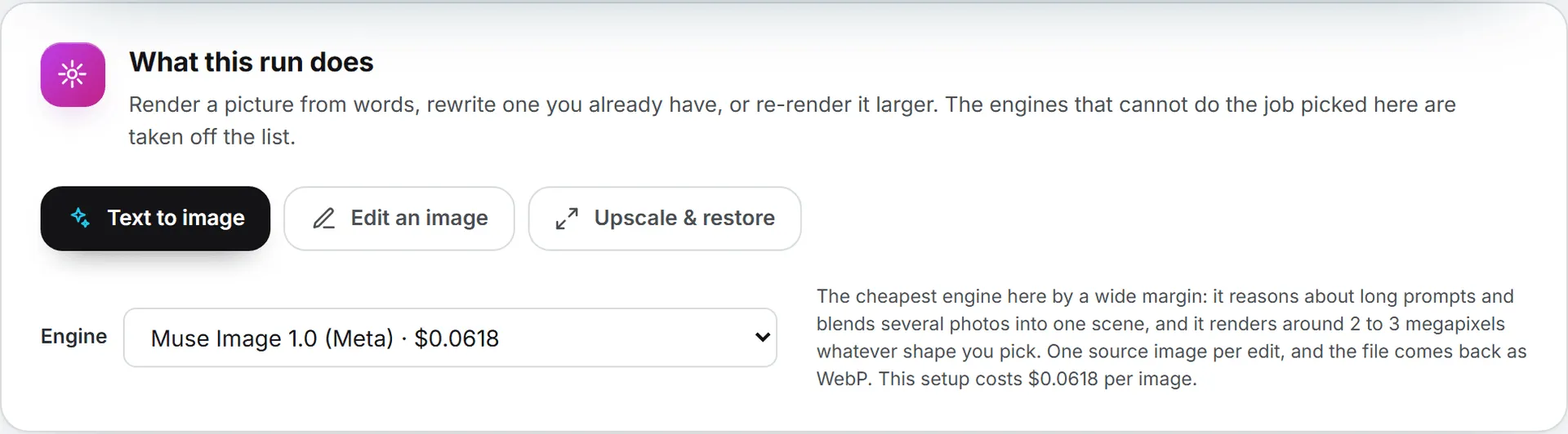
Pick the job with the tabs at the top of the page. Engines that can’t do that job are taken off the list.
| Job | What it does | What it needs |
|---|---|---|
| Text to image | Renders a picture from your description. | A prompt. |
| Edit an image | Rewrites the pictures you upload, following your instruction: change a background, remove an object, restyle a product shot, merge references. | One or more source images and a prompt. |
| Upscale & restore | Re-renders one picture larger and sharper, without compression noise, keeping everything in it the same. | One source image. The box becomes Anything to add? (optional). |
Make a picture, step by step
- Choose the job, then the Engine. The line next to the engine says what it is good at and what the current setup costs per image.
- For an edit or an upscale, drop your source image in the box, or click to choose it. PNG, JPEG or WebP.
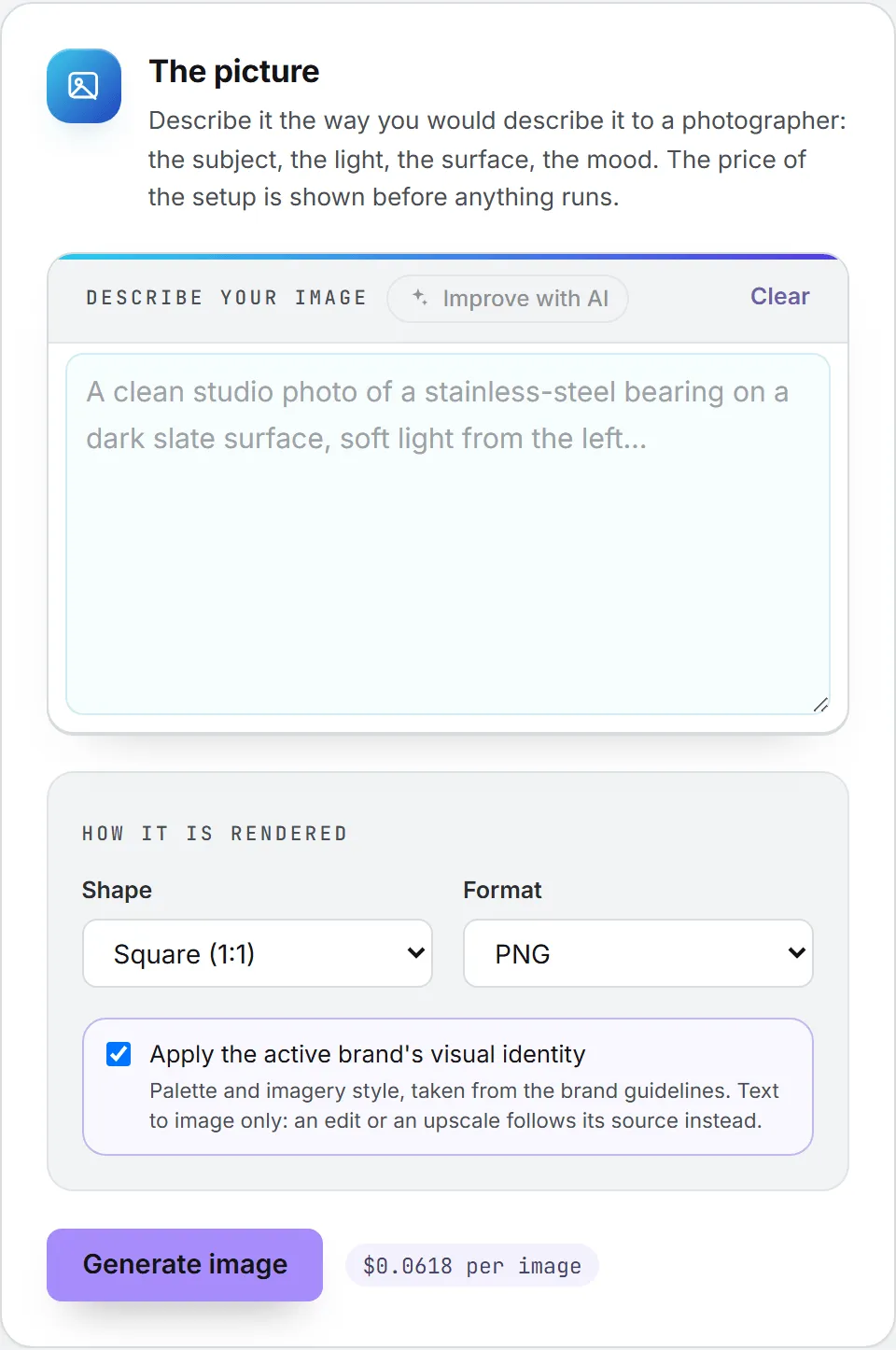
- Write the prompt in the large box (4,000 characters at most). Describe the picture the way you’d brief a photographer: the subject, the light, the surface, the mood.
- Optional: click Improve with AI. It rewrites what you wrote into a prompt the chosen engine follows well. See Improve with AI.
- Set the options under How it is rendered. Only the options the engine offers are shown.
- Click Generate image (or Edit image, or Upscale image). The total price sits next to the button.
Each run opens its own tab on the right. You don’t have to wait for it to finish before starting the next one.
The engines
Engines get added over time, so your list may be longer. The table shows what the form offers for each one today.
| Engine | Jobs | Source images per edit | Quality or resolution | File formats |
|---|---|---|---|---|
| ChatGPT Image 2 (OpenAI) | Text to image, edit | Up to 4 | Low, Medium, High, plus 1K, 2K or 4K | PNG, JPG, WebP |
| ChatGPT Image 2.5 Flare (OpenAI) | Text to image, edit | Up to 4 | Low, Medium, High, Extra high, Max, plus 1K, 2K or 4K | PNG, JPG, WebP |
| ChatGPT Image 2.5 Sunburst (OpenAI) | Text to image, edit | Up to 4 | Same as Flare | PNG, JPG, WebP |
| Nano Banana 2 (Google) | Text to image, edit, upscale | Up to 4 | 512px, 1K, 2K, 4K | PNG |
| Nano Banana Pro (Google) | Text to image, edit, upscale | Up to 4 | 1K, 2K, 4K | PNG |
| FLUX.1 Kontext Pro (Black Forest Labs) | Text to image, edit | 1 | Standard | PNG, JPG |
| FLUX.1 Kontext Max (Black Forest Labs) | Text to image, edit | 1 | Standard | PNG, JPG |
| Seedream 4.5 (ByteDance) | Text to image, edit, upscale | Up to 4 | 2K, 4K | JPG |
| Seedream 5.0 Pro (ByteDance) | Text to image, edit, upscale | Up to 4 | 2K, 4K | JPG |
| Muse Image 1.0 (Meta) | Text to image, edit | 1 | Standard | PNG |
| Grok Imagine Image 2.0 (xAI) | Text to image | n/a | Low or Standard, each at 1K or 2K | JPG |
| FLUX Pro 1.1 (Black Forest Labs) | Text to image | n/a | Standard | PNG, JPG |
| FLUX Pro 1.1 Ultra (Black Forest Labs) | Text to image | n/a | Standard, up to 4 megapixels | PNG, JPG |
An upscale always takes exactly one image, whatever the engine.
Which engine to pick
The form prints each engine’s own description next to it. In short: for text inside the picture or a long written instruction, ChatGPT Image 2 is the strongest, and also slow (high quality can take a few minutes). ChatGPT Image 2.5 Flare does the same job faster; even high quality comes back in under a minute. Nano Banana Pro is strong on infographics and legible type too, and noticeably pricier.
For editing a photo you already have, Nano Banana 2 is the most dependable. ChatGPT Image 2.5 Sunburst is tuned for precise edits and costs the same as Flare. FLUX.1 Kontext keeps characters, products and style consistent while it changes what you asked; Max follows prompts and type better, at twice the price of Pro.
The rest, by need:
- A 4K file or a 4K upscale: Seedream 4.5 or 5.0 Pro, which render and edit natively up to 4K.
- Print or a large banner, from a prompt: FLUX Pro 1.1 Ultra, up to 4 megapixels. FLUX Pro 1.1 is the very fast version for product shots and realistic scenes.
- Many drafts on a small budget: Muse Image 1.0, by far the cheapest engine. It renders around 2 to 3 megapixels whatever the shape.
- Fast, punchy renders from a prompt only: Grok Imagine Image 2.0. It doesn’t offer the 5:4 or 4:5 shapes.
For how models are chosen and offered across the app, see AI models.
Every rendering option
Once the engine is set, the rest of the form follows from it. This table lists every option it can show, and where.
| Option | Where it appears | What it does |
|---|---|---|
| Quality or Resolution | Every engine | The first dropdown. On engines priced by output size it is called Resolution. Each choice shows its price. |
| Resolution (second menu) | ChatGPT Image engines | 1K (standard), 2K (sharper), 4K (up to 3,840 px). Priced together with the quality. |
| Shape | Every engine | 1:1, 5:4, 4:3, 3:2, 16:9, 21:9, 4:5, 3:4, 2:3, 9:16. The ChatGPT Image engines add 3:1 (Panorama) and 1:3 (Tall). Grok Imagine drops 5:4 and 4:5. |
| Format | Every engine | The file type, limited to what the engine writes. |
| Background | ChatGPT Image engines | Auto: the engine decides, Opaque or Transparent. Transparent needs PNG or WebP; pick JPG and it goes away. |
| Images per run | ChatGPT Image engines | 1 to 10 pictures from one run. Each is saved as its own file and billed per image. |
| File quality | ChatGPT Image engines, JPG or WebP only | A slider from 0 to 100%, set at 100% by default. Move it down for a lighter file. |
| Less strict content filter | ChatGPT Image engines | The provider’s own low filter setting. Its usage policies still apply. |
| Apply the active brand’s visual identity | Every engine, on by default | Adds the brand’s palette and imagery style from its brand guidelines. Text to image only. |
| Mask | ChatGPT Image engines, Edit only | See Masks. |
Automatic quality isn’t offered on the ChatGPT Image engines, because its price can’t be shown before the run.
Masks
On an edit with a ChatGPT Image engine, you can add an optional Mask: a PNG file whose transparent areas mark the only part of the first image that may change. Everything else stays as it is. The mask is resized to the first image. Click Remove the mask to drop it.
Source images
Edits and upscales work from files you upload. The box says how many the engine takes. Large files are resized in your browser before they’re sent (to 1,536 px on the long edge), and that re-encoding also drops the file’s camera and location data, so only the pixels are sent.
Important: Source images are not kept. You can re-run an edit or an upscale only while its uploads are still on the page.
Improve with AI
Improve with AI sits on the bar above the prompt box. It rewrites your words into a prompt written for the engine and the job you picked: an edit comes back as an edit instruction, an upscale as a protective one. Along with its built-in prompt know-how, it follows the imagery skills your organization or you have written.
When it’s done, a note says Prompt rewritten, shows what the rewrite cost, and lists what changed. Click Undo to get your own words back. The rewrite is a small paid text call, separate from the render.
Results and tabs
Each run gets a tab beside the form, headed by its prompt. The tab shows Generating with the time elapsed, then Ready or Failed. Close a tab with its cross, or use Close all. Closing a tab that is still rendering doesn’t cancel the render; you’re asked to confirm first.
When a tab is ready, Download image saves the file as rendered. Download clean copy saves a copy re-encoded in your browser with all metadata and AI-generation markers removed, under a neutral file name, the same way the image anonymizer works. Open large shows the picture at full size.
To get a colleague’s approval, click Send for validation (see validation). Reuse prompt (or Reuse settings when there was no prompt) puts the setup back in the form. Run again starts a fresh render with the same settings; it’s a new run, so it’s billed again.
The page gives a run a little over five minutes. Past that, the tab turns to Failed and suggests a faster engine or a lower quality.
Renders also show in the Activity widget in the header, where you can follow one from another page. See activity.
Where your pictures go
Once a picture is in the library, closing the page can’t lose it. Every picture is saved in the Assets Library the moment it’s rendered, one file per picture, at the top level of the library. Each file keeps its prompt and engine, and what it cost. The tab says where it was saved. To put it in a folder or tag it, do it from the library; see folders, tags and search. A tab restored after a page reload shows the picture back from the library.
A 4K render is too heavy to come back inside the page. It’s saved in the library first and the tab shows it from there, a few seconds later than a small one.
Important: If a picture couldn’t be saved to the library, the tab says so. Download it before you close the page, because it’s the only copy.
Past images
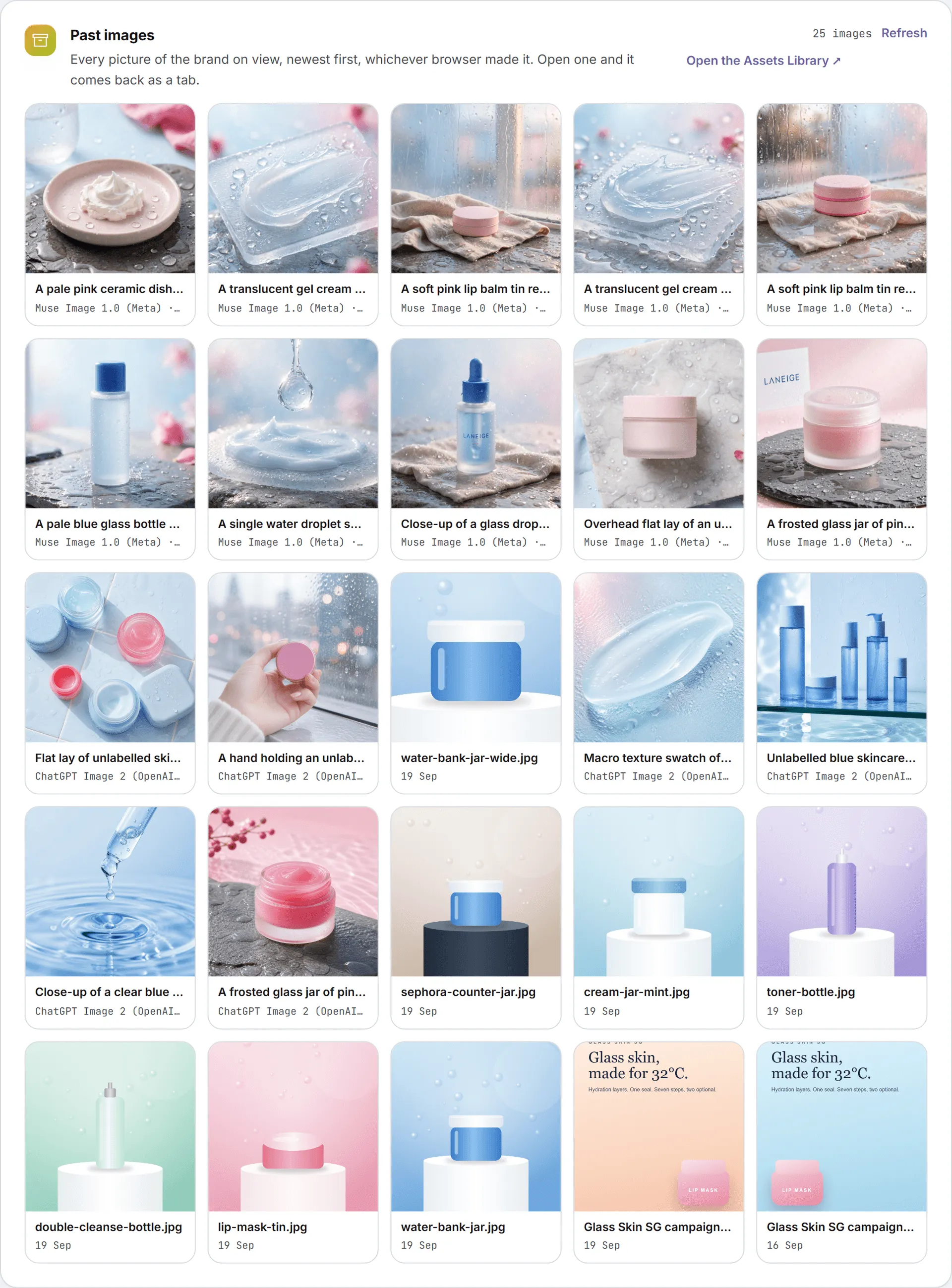
Under the form, Past images lists the pictures of the brand selected in the header, newest first, whichever browser made them. It also lists pictures made with no brand, which belong to the whole organization. A picture made for a brand only shows to people who have access to that brand. Click one to reopen it as a tab. Refresh reloads the list; Open the Assets Library opens the library in a new tab.
Pictures kept in the library are stored files like any other, and storage is billed. See storage costs.
What it costs
Each render is billed to credits, per picture, and prices show in your organization’s currency. The price follows the engine, the quality or resolution, and on some engines the shape (square or not). You see it before you run. The Engine list shows each engine’s price (or “from” its cheapest option), each Quality and Resolution choice carries its own price, the line under the engine gives the cost per image, and the total next to the button covers every picture in the run.
The form opens on the cheapest engine that can do the job, at its default settings. The exact cost of each run appears on its tab, and the usage log records it with the engine used. A failed render isn’t charged. Improve with AI is billed separately and shows its own cost.
If your spending cap or your organization’s budget is used up, the run is refused before it starts.
Good to know
- Social posts use the same engines when they render a picture or a carousel. See writing posts.
- From the Feeds reader, “Create from this post” can open this page with a prompt already written.
- The brand’s visual identity never applies to edits or upscales: those follow the source image.
Troubleshooting
- ”… does not take that quality (or resolution, shape, file format). Reload the page and choose again.” The form was left open while the engine list changed. Reload and pick again. The app refuses a setting an engine doesn’t offer rather than swapping it silently.
- An engine is missing from the list. It can’t do the job picked in the tabs. Editing and upscaling each have a shorter list than text to image.
- “Interrupted by a page reload.” The page was reloaded while the tab was rendering. Click Retry, or look in Past images in case the render finished anyway.
- “Describe the image you want first.” (on an edit: “Describe the change you want first.”) Text to image and edits need a prompt.
- “That prompt is too long.” The limit is 4,000 characters.
- “Upload the image to work from first.” Edit and upscale need a source image.
- “Source images must be PNG, JPEG or WebP files.” Convert the file first.
- “One of the source images is too large.” Use a smaller file, or fewer files at once.
- “A transparent background needs a PNG or WebP file.” Change the format.
- “The engine that made this image is no longer offered.” Pick another engine and generate again.
- “You have no access to that brand.” The brand in the header isn’t one of yours. Switch brands.
- “The generation took too long and was abandoned.” Try a faster engine or a lower quality, then check Past images before running it again.