Custom agents
A custom agent reads the data you choose, from app modules to library documents and connected systems, and reports findings on the instructions you write.
A custom agent is one you build yourself: you pick the data it reads and write its instructions. After that it behaves like a standard agent, on its own schedule and budgets. Any editor can build one for themselves, and admins can build them for everyone.
Before you start
You need the Editor role or above; viewers can’t create agents. Admins can build one for the whole organization on the Organization tab, with the organization picked in Configure. Everyone else builds on the Personal tab.
You can only give an agent data you can see yourself. The picker never offers a module or a document you can’t open, or a connection you weren’t granted.
A brand can’t own a custom agent. On a brand scope you tune the organization’s custom agents, the same way you tune standard ones, and the Create an agent from scratch block doesn’t appear there. It also stays hidden when there is no data at all you could give an agent. See roles and rights.
Step by step
- Open Agents in the header, then the Personal or Organization tab.
- Unfold Create an agent from scratch at the top of the page.
- Give the agent a Name. It’s required.
- Pick a Model, or keep Standard.
- Tick what it reads under The data it reads. At least one source is required.
- Choose The brands it reads: each brand in a run of its own, or one run over the brands you tick.
- Write What users are told it does, one sentence shown on its card.
- Fill in Instructions (the brief the agent reasons with). Say what to look for and what to ignore, in at least 20 characters.
- Set Runs every (hours), the budgets, and who hears about a run.
- Click Create the agent.
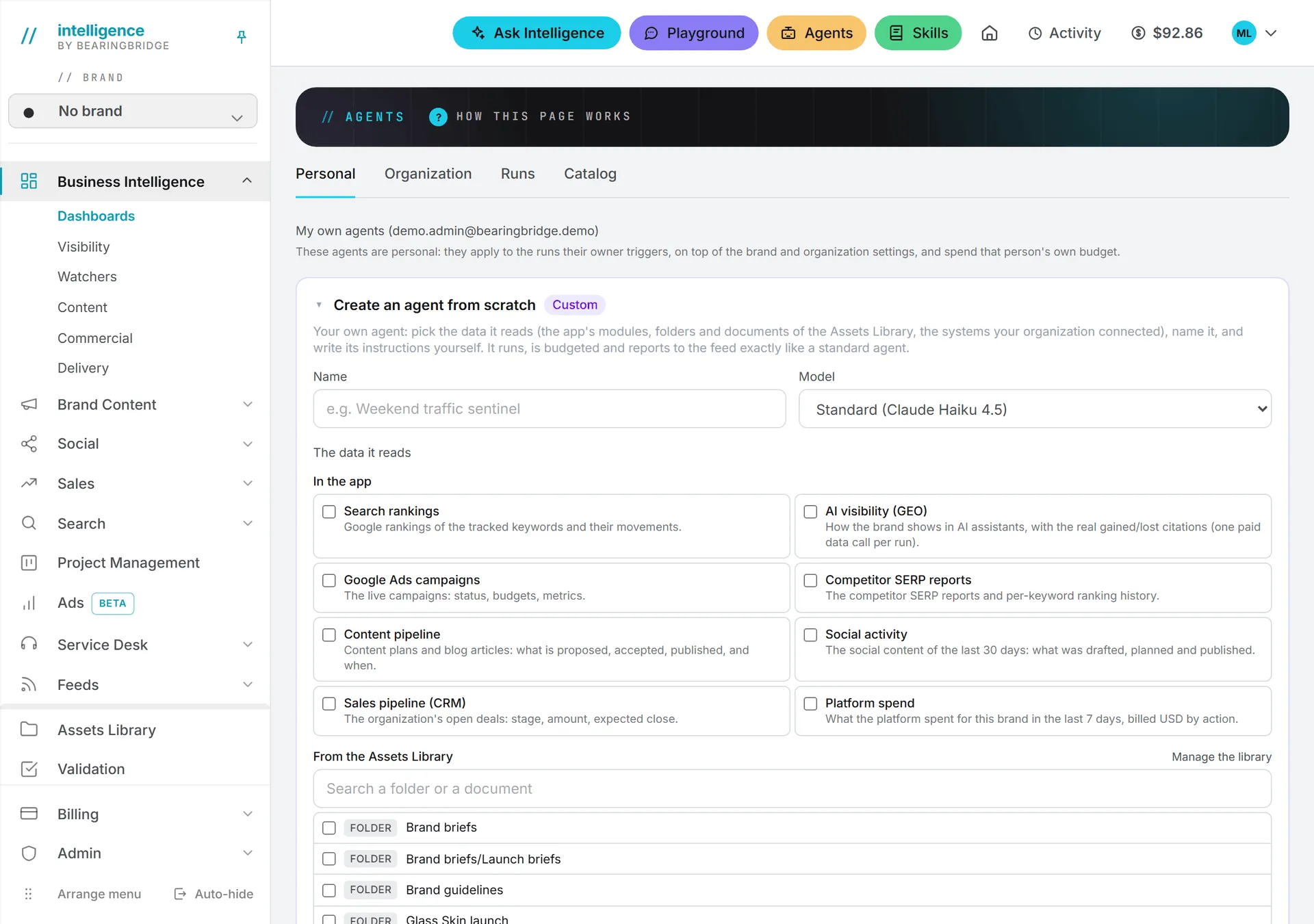
The agent starts switched on and opens in its editor right away, ready for a test on a real brand (testing on real data explains how). It shows under Custom agents, above the standard ones, with a Custom badge and the catalog code CUSTOM.
The data it reads
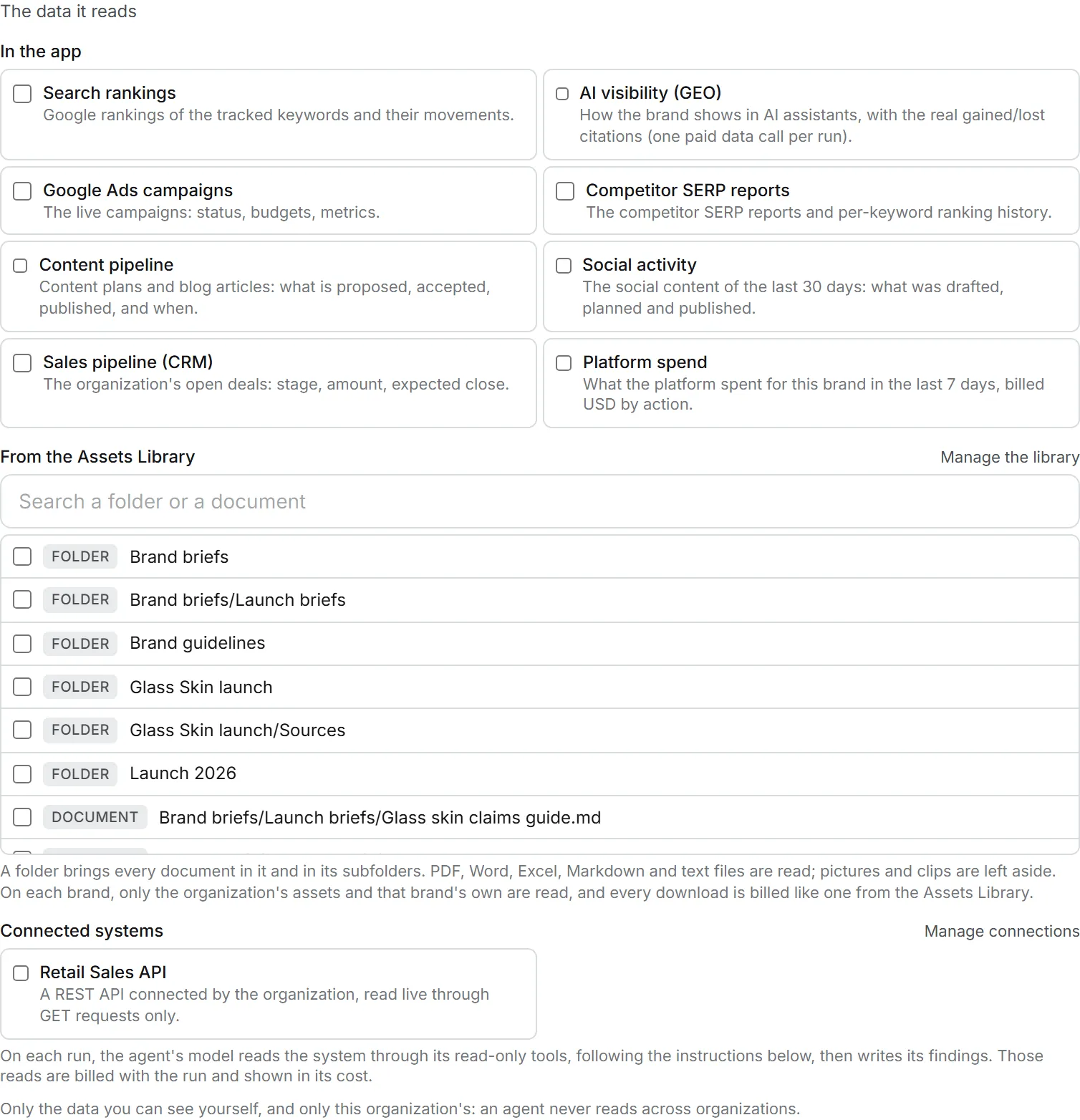
This is the longest part of the form, and the one that makes the agent yours. The picker has three parts.
In the app
Each module of the app is one block, and you see a block only when your rights let you view its feature. The last column names that feature as it appears in the rights grid.
| Block | What the agent gets | Feature you need |
|---|---|---|
| Search rankings | Google rankings of the tracked keywords and their movements. | Google Search (SEO) |
| AI visibility (GEO) | How the brand shows in AI assistants, with the real gained and lost citations. One paid data call per run. | AI Search |
| Google Ads campaigns | The live campaigns: status, budgets, metrics. | Google Ads |
| Competitor SERP reports | The competitor search reports and the ranking history per keyword. | Market Monitor |
| Content pipeline | Content plans and blog articles: what is proposed, accepted, published, and when. | Content: Text |
| Social activity | The social content of the last 30 days: what was drafted, planned and published. | Social Content |
| Sales pipeline (CRM) | The organization’s open deals: stage, amount, expected close. | CRM |
| Platform spend | What was spent for the brand in the last seven days, by action. | Usage log |
When the agent runs, a block also needs its module switched on for the brand. If it has nothing to read there, it’s skipped.
From the Assets Library
Here you tick folders or single documents from your organization’s library, with a search box once the list gets long. Tick a folder and the agent gets every document in it, subfolders included.
The agent reads PDF, Word, Excel, Markdown and text files, and leaves pictures and clips aside.
- One source reads at most 20 documents and about 60,000 characters of text per run. Very large files are skipped, and the run says which ones and why.
- On each brand, only the organization’s own assets and that brand’s assets are read, never another brand’s.
- Every download is billed like a download from the Assets Library. See storage costs.
The Manage the library link opens the library in a new tab. See the Assets Library.
Connected systems
This part lists the systems your organization connected, and your own connected accounts.
- An organization connection (an MCP server, a REST API, a Google account, or Zoho) is read live and read-only. A REST API is read through GET requests only. You see the connections an admin granted you; admins see all of them. Zoho also needs CRM access.
- Your own Gmail can be read, and the agent can write emails into your Drafts folder. It sends an email only if you ticked sending on your own connection. Every draft or send is recorded in your connection’s history with the agent’s name.
- Your own Google Sheets are read live and read-only.
Important: Only you can give your own account to an agent, and nobody else ever sees it offered. An agent with your Gmail runs unattended, so give it clear instructions about what to draft, and tick sending on your connection only if you want emails to leave without you reading them first.
On each run, the agent’s model reads the connection through its tools, following your instructions, then writes its findings. Those reads are billed with the run and shown in its cost. Admins see a Manage connections link here. More on connections and your own connections.
Writing good instructions
With the data picked, the rest is mostly writing.
The instructions decide what the agent notices. They go into its prompt right after the line naming the brand it watches. A few rules stay fixed whatever you write:
- It reports only what the data supports.
- It prefers a few meaningful findings over many small ones, and zero findings is a valid result.
- critical is for things losing money or traffic right now, warning for negative trends, info for positive or neutral signals.
- It never mentions model names, data providers or internal table names.
Be concrete about what counts as a finding and what doesn’t. An agent reading the sales pipeline, for example, could be told: “Flag any open deal whose expected close date has passed. Ignore deals under $5,000.” Run a test, read what comes back, and tighten the wording until the findings are the ones you’d act on.
Skills
Skills that you or your organization set to apply to Agents are added to the agent’s prompt on every run. On a scheduled run the organization’s skills apply. On a run you start yourself, or a test, your personal skills apply too. See skills.
What it produces
A custom agent writes findings: up to 10 per run, each with a severity, a title, an explanation and a suggested action. It can’t write reports like the operating review.
Its findings show up in the Watchers dashboard in Business Intelligence, next to every other finding (dashboards). Each scheduled run also lists them in the Runs tab (runs and schedules), and in the run email when the agent sends one.
When nothing changed in its data since the last pass, it skips the model call that writes findings, the same as a standard watcher. Reading a connected system is the exception: the model does that reading on every run, so it is billed even when nothing changed.
When it runs
A new custom agent runs every 24 hours unless you set another interval.
- An organization custom agent runs on schedule on the organization’s brands: on every brand where at least one of its data blocks has its module switched on. A block with nothing to read on that brand is skipped, and a run with nothing to read at all ends without a model call.
- A personal custom agent of an organization member runs only by hand. Test it from its card, or use Run watchers now on a findings feed such as the one on the Google Ads Reporting page, which runs every agent switched on for that brand, yours included.
Use The brands it reads to run it once over several brands, or on the organization’s own data only. See AI agents.
Changing or deleting it
Open the agent with Edit & test. Everything can be changed later, the data it reads included. You can add only data you can see yourself. Data the agent already reads can stay, even if you couldn’t have picked it. A source that no longer exists is listed as such.
Whoever may configure the agent’s scope can change or delete it: admins for an organization agent, you (or an admin of your organization) for a personal one. To delete it, click Delete this agent under the form and confirm. Its settings and instructions go, along with any queued runs. Past findings stay in the feeds.
What it costs
Creating an agent is free. What you pay for is each run that reaches the model, plus any library downloads, connection reads, or the AI visibility block’s data call. There’s no estimate before a run, but the Runs tab and every test print the cost afterward, and the agent’s monthly and weekly budgets cap what it can spend. See credits and costs.