My models
My models, in Settings, gives every AI model your organization allows its own switch. Turn off the ones you don't use to shorten your lists.
Every AI model your organization allows shows up in your model lists, including the models added later. That’s a lot of names when you only ever use three. The My models card in Settings lets you switch off the ones you don’t want to see. They leave your own lists, and nothing changes for anybody else.
Open My models
- Click your picture (or your initials) in the top right corner of any page.
- Choose User Settings.
- In the index on the left, under Preferences, click My models.
What the card shows
The card has three tabs: Text, Image and Video. Each tab carries a count, such as 31/31: the models switched on for you, out of the models your organization allows. Inside a tab, the models are grouped by maker, each with its own switch.
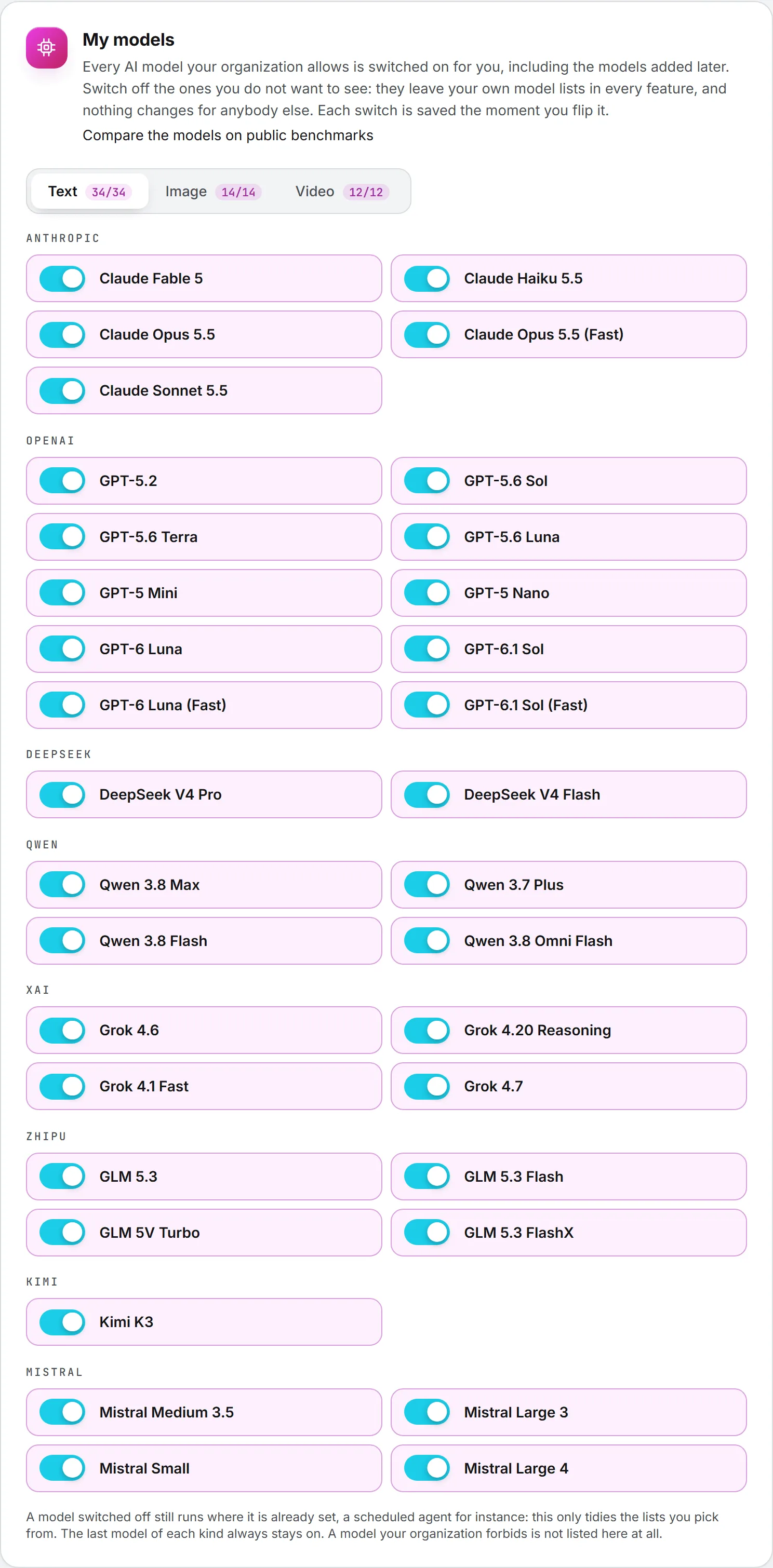
Everything is on the first time you open it. A model your organization forbids isn’t listed at all, since you couldn’t use it anyway (see AI models administration).
Not sure which models to keep? Compare the models on public benchmarks, under the card’s title, opens the Model benchmarks page: each text model’s public scores, its price level and what a post and an article cost on it. See Choosing a model.
The Image and Video tabs work the same way, for the engines of the image and video forms and of social post visuals.
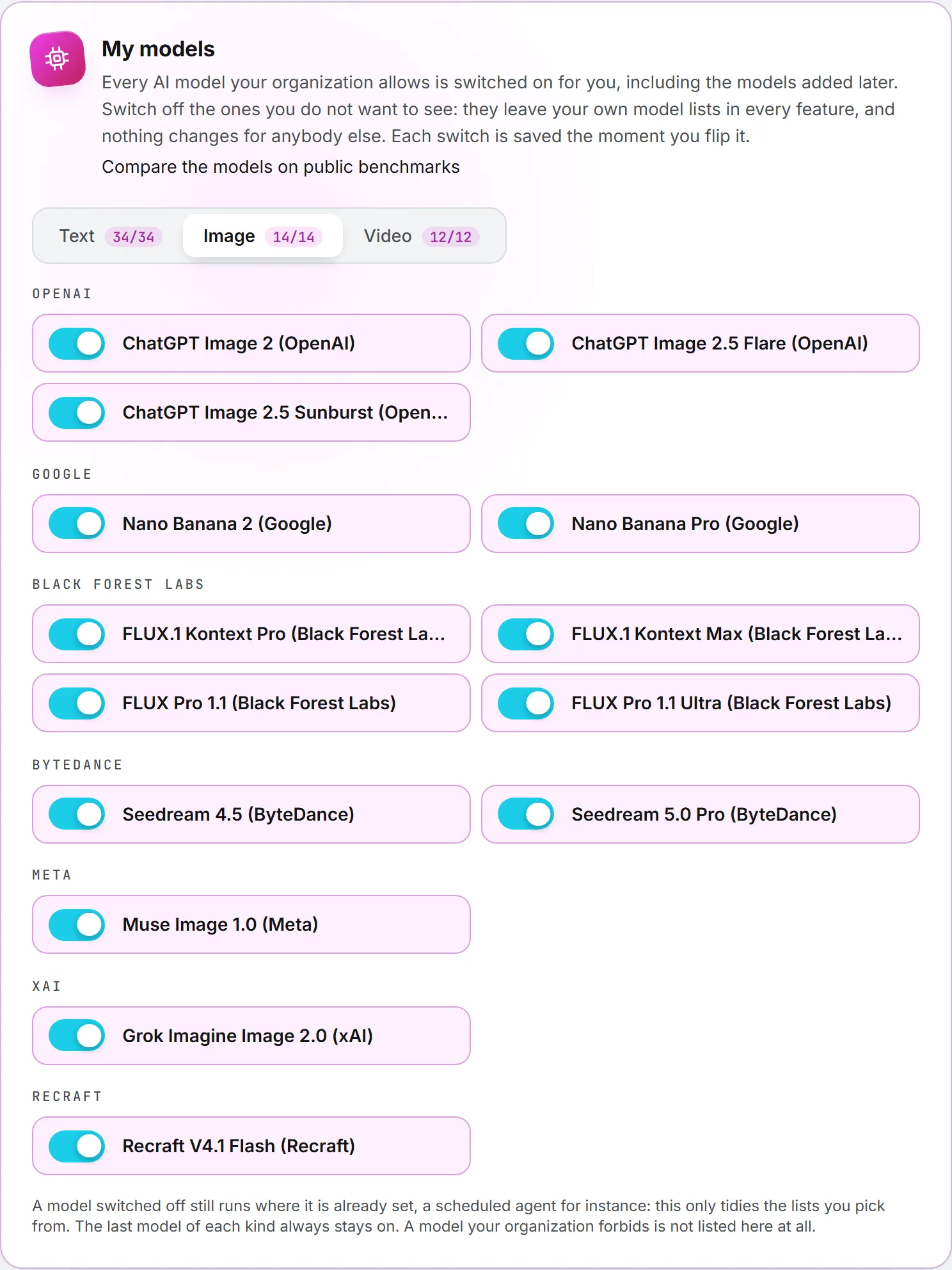
Switch a model off, or back on
- Pick the tab: Text, Image or Video.
- Flip the model’s switch.
There’s no Save button. Each switch saves the moment you flip it, and the card confirms with Switched off. It no longer shows in your model lists. or Switched on. It is back in your model lists. A model you switch off stays on the card, grayed and struck through, so you can bring it back at any time.
What changes, and what doesn’t
A model you switch off leaves every list you pick from:
- the model picker next to the buttons that run text features, in Ask Intelligence, Brand Content, Social, Search, Ads and Email, under All models;
- the model list of the Playground;
- the engine lists of the image and video forms, and of social post visuals.
Some things stay as they were:
- Your colleagues. Their lists don’t change. My models is yours alone.
- What’s already set. A switched off model still runs where it’s already chosen, such as a scheduled agent or a service desk. The card only tidies the lists you pick from.
- A conversation already open. A Playground conversation on a model you just hid keeps working.
If you switch off the model a feature runs on by default, that feature’s picker opens on your first remaining model instead, and your runs use it.
If you switch off the model behind Quick, Balanced or Best, the choice stays in your picker: it runs on the closest model in price that you kept, a cheaper one first for Quick and a stronger one first for Best.
Rules
- The last model of a kind stays on. You can’t switch off every text, image or video model. The card refuses with Keep at least one text model switched on. (or image, or video).
- New models arrive switched on. When the BearingBridge team adds a model, it appears in your lists and on this card, already on. To hear about new models by email, see emails and notifications.
- Forbidden beats hidden. If your organization later forbids every model you kept for a kind, your switches for that kind are set aside, so your lists never end up empty.
What it costs
Nothing. Switching models on or off is free. What you then run is billed on the model that actually ran, as always; see credits and costs.
Who can do this
Everyone with an account, viewers included, sets their own card. Nobody else can see or change it. To take a model away from the whole organization, an administrator forbids it on the AI Models page.
Troubleshooting
| What you see | What to do |
|---|---|
| Keep at least one text model switched on. | Switch another model of that kind on first. |
| That model is not available in your organization. | An administrator just forbade it. Reload the page. |
| Could not load your models. | Reload the page. If it keeps happening, contact support. |
| A model you switched off still runs somewhere | It’s set on an agent, a desk or a feature’s default. Change it there, or ask an administrator. |