Build your own dashboard
Describe the dashboard you want in plain words: the app builds it from your data, keeps it in your menu and refreshes it when opened.
Dashboards is the first entry of the Business Intelligence menu. It lists every dashboard you can open, and it holds a builder: you describe the dashboard you want in your own words, and the app builds it from the data you have access to. The result is kept as a page of its own, in your menu.
What a built dashboard reads
A built dashboard reads the same data as Ask Intelligence, under the same rules: the brands you may see, the modules your role opens, and the systems connected to the app. It never reads more than you could see yourself.
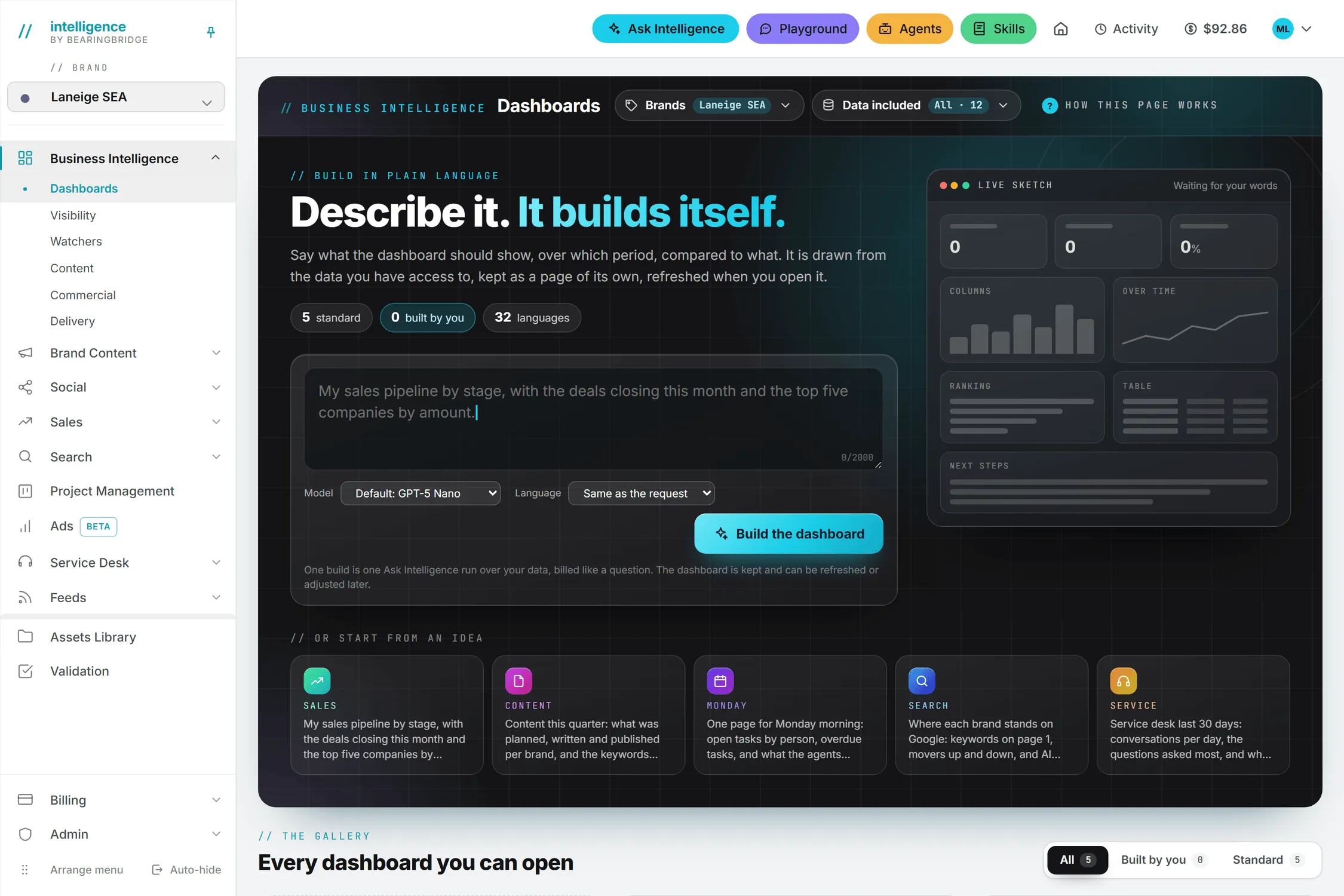
Two buttons in the page header narrow that down before a build:
- Brands: pick none, one or several. With none, only your organization’s own data is read. Each brand you pick adds its own data. See Brands.
- Data included: everything you may read is included by default. Untick what the dashboard should leave out. The choice is kept with the dashboard.
Build a dashboard
- Open Business Intelligence, then Dashboards.
- In the request box, say what the dashboard should show, over which period, and compared to what. You have 2,000 characters. The tiles under Or start from an idea fill the box with an example you can edit.
- Pick the model, and the Language the dashboard is written in. Same as the request keeps the language you typed in.
- Click Build the dashboard.
While it runs, the sketch beside the box shows three steps, Reading your data, Computing the figures and Drawing the dashboard, with the seconds elapsed. The run also shows in the Activity panel, so you can leave the page.
When it’s done, the dashboard appears under Just built, with its price and an Open its page link. It can hold figures, column and bar charts, lines over time, rankings, tables, lists and short texts. The model decides the layout from the data it finds.
Note: Before a build, the Live sketch lights up the blocks your words seem to call for. It’s a hint, not a promise of the final layout.
Where your dashboards live
Every build is saved. Each saved dashboard gets its own entry in the Business Intelligence sub-menu, which you can arrange like any other entry, even as your home page. See Business Intelligence overview.
The gallery at the bottom of the Dashboards page shows them all. Built by you filters your own, Standard the ones every organization has. Your cards show a miniature of the real dashboard, the brands it reads, the date of the last build, the model and the language. A Live mark means the dashboard refreshes when opened. Each card has Open, Refresh, Rename and Delete.
Important: A built dashboard is yours alone. Nobody else in your organization sees it, so it can never show a colleague data they have no access to.
Refresh a dashboard
A saved dashboard shows what its last build produced. To get today’s numbers, it has to be built again:
- Refresh when opened is on by default. Each time you open the dashboard, you see the last version at once, and the new numbers replace it when they’re ready. A dashboard built in the last 10 minutes isn’t built again.
- Refresh, on the dashboard’s page or on its gallery card, builds it again on demand.
Turn Refresh when opened off to refresh only when you ask. Under the title, the page recalls the request, the updates you made, the brands it reads and when it was last built.
Update a dashboard in your own words
At the top of each dashboard, the Update this dashboard in your own words box takes one more sentence, for example “add a line of deals won per month over the last 12 months, and drop the table”. Choose the language if you want to change it, then click Update the dashboard.
Every update is kept with the dashboard, so a later refresh keeps the shape you asked for. Changing the language builds the dashboard again in that language.
Who can do this
| Action | Who |
|---|---|
| Open the Dashboards page and your own dashboards | Everyone with Business Intelligence on |
| Build, refresh and update a dashboard | People whose role may create on Dashboards |
| Rename or delete a dashboard | Its owner |
If the request box is replaced by a message saying your role can open dashboards but not build new ones, ask an administrator for that right. See Roles and rights.
What it costs
Each build is billed like a question on Ask Intelligence, on the model you chose. That covers the first build, every refresh, including the ones Refresh when opened starts, and every update. The price is shown on the page after each build, and it’s listed in your usage log.
Opening a dashboard with Refresh when opened off costs nothing, and neither does the gallery. The standard dashboards stay free. See credits and costs.