Validation
Send an asset to a colleague for approval, keep every version and comment on one thread, and see who may validate, send back or reassign.
Validation is how a colleague approves your work before it goes out. You send a text, an image, a video, a social post or a file made elsewhere to a colleague. They validate it or send it back with a comment. Versions and comments pile up on one thread.
On this page, the requester is the person who sent the asset, and the validator is the colleague asked to approve it.
The module is open to everyone in an organization.
The round trip, step by step
- You send an asset for validation and name a validator.
- The validator gets a task on the Project Management board and an email with a link to the asset.
- The validator reads or watches it, then clicks Validate or Send back with a comment.
- You get the decision by email. See emails and notifications.
- If it was sent back, you submit a new version on the same thread. The validator’s task reopens and they get another email.
The back and forth can take as many rounds as it needs. Nothing gets deleted along the way: every version and every comment stays attached to the asset, so anyone can see how it reached its final form.
The Validation page
Open Validation in the menu. The page is titled Assets to validate. It has three tabs, each with a count:
- Waiting for me: assets waiting for your decision.
- My requests: every asset you sent for validation.
- All assets: every asset your organization sent for validation, whatever its brand.
The table shows the Asset, its Type, its Version, its Status, who it was Requested by, the Validator and the Last activity. Your own name is marked (you). Click a row to open the asset.
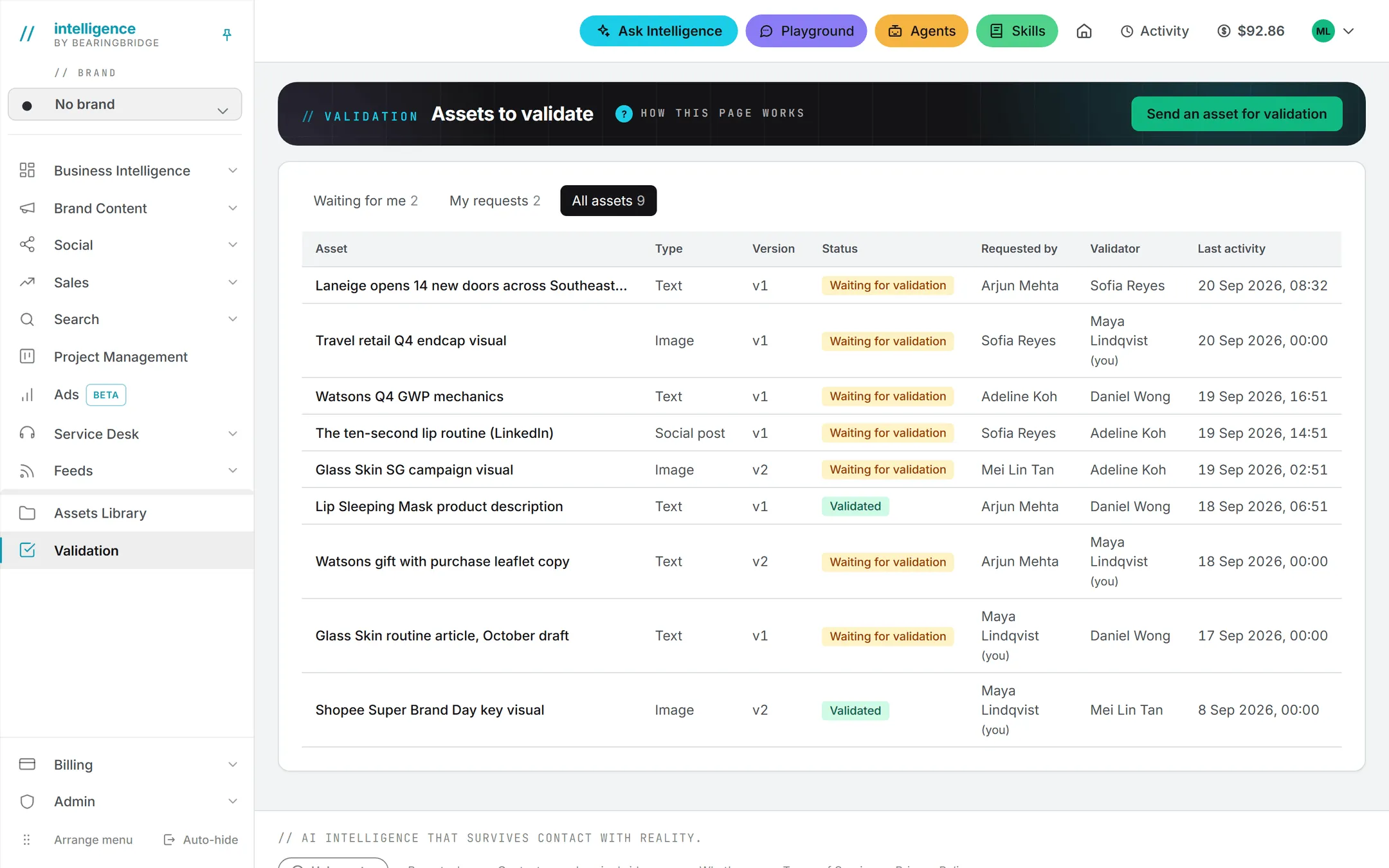
An asset has one of three statuses:
| Status | What it means |
|---|---|
| Waiting for validation | The current version waits for the validator’s decision. |
| Validated | The current version was validated and can be published. |
| Not validated | The current version was sent back. A new version is expected. |
The status always describes the current version. Earlier versions keep their own decision.
Send an asset for validation
You can send an asset from the Validation page, or from the place where you made it.
From the Validation page
- Click Send an asset for validation.
- Give the asset a Title.
- Pick its Type: Text, Image, Video, Social post, File or Other.
- Pick a Brand if it belongs to one, or leave No brand. The list shows the brands you have access to.
- Pick the Validator: any member of your organization.
- Add the asset itself, in one of three ways:
- Upload a file: any format, such as a document, an image, a video or a design file.
- Paste a text.
- Give an address: a link that starts with http:// or https://.
- Add a Message to the validator if you want. Tell them what to look at and when you need an answer.
- Click Send for validation.
The asset page opens, and the validator is notified.
An uploaded file goes to your organization’s Assets Library and is billed as storage like any other file. The upload follows your organization’s size limit, and you need credits available to upload.
From where you made it
A Send for validation button appears in these places:
- A version in the article workspace. See articles.
- A version of a Brand Content copy piece. See copy studios.
- A social post. See writing posts.
- An image in the image studio. See images.
- A video in the video studio. See video.
The same dialog opens, already filled in with what you were working on. All that’s left is to pick the validator, plus a brand and a message if you want them.
An image or video already in the Assets Library is not uploaded again: the request points to the library file. Something not yet in the library is uploaded to it when you send.
Note: Sending the same piece again does not create a second request. It adds a new version on the existing thread.
What the validator receives
The validator hears about it in two places.
First, a task on the Project Management board called “Validate: title (v1)”. It’s assigned to them, sits in To Do and starts on the validator’s today. They’ll also find it in their own task list.
Then an email with the subject “To validate: title”. When the asset belongs to a brand, the subject starts with the brand in brackets and the email carries the brand’s name, color and logo. When the asset is a file in the Assets Library, the button opens it there and a second link opens the thread. Otherwise the button goes straight to the asset page.
The asset page
This is where the actual work happens, for both of you. Each asset has its own page. At the top: the type, the status, the title and one tab per version (v1, v2…), with the current one marked (current).
Under the title you see who it was Requested by and who the Validator is. The version shown says when it was Submitted and by whom. Once decided, it also says when it was Validated or Sent back, and by whom. The message sent with the version sits just below.
The version itself is shown right in the page. A text appears in full. An image, a video or a PDF plays or displays inline, with an Open the file link underneath; any other kind of file shows its name and the same link. An address appears as a link that opens in a new tab.
To compare, click another version tab and the earlier version takes its place.
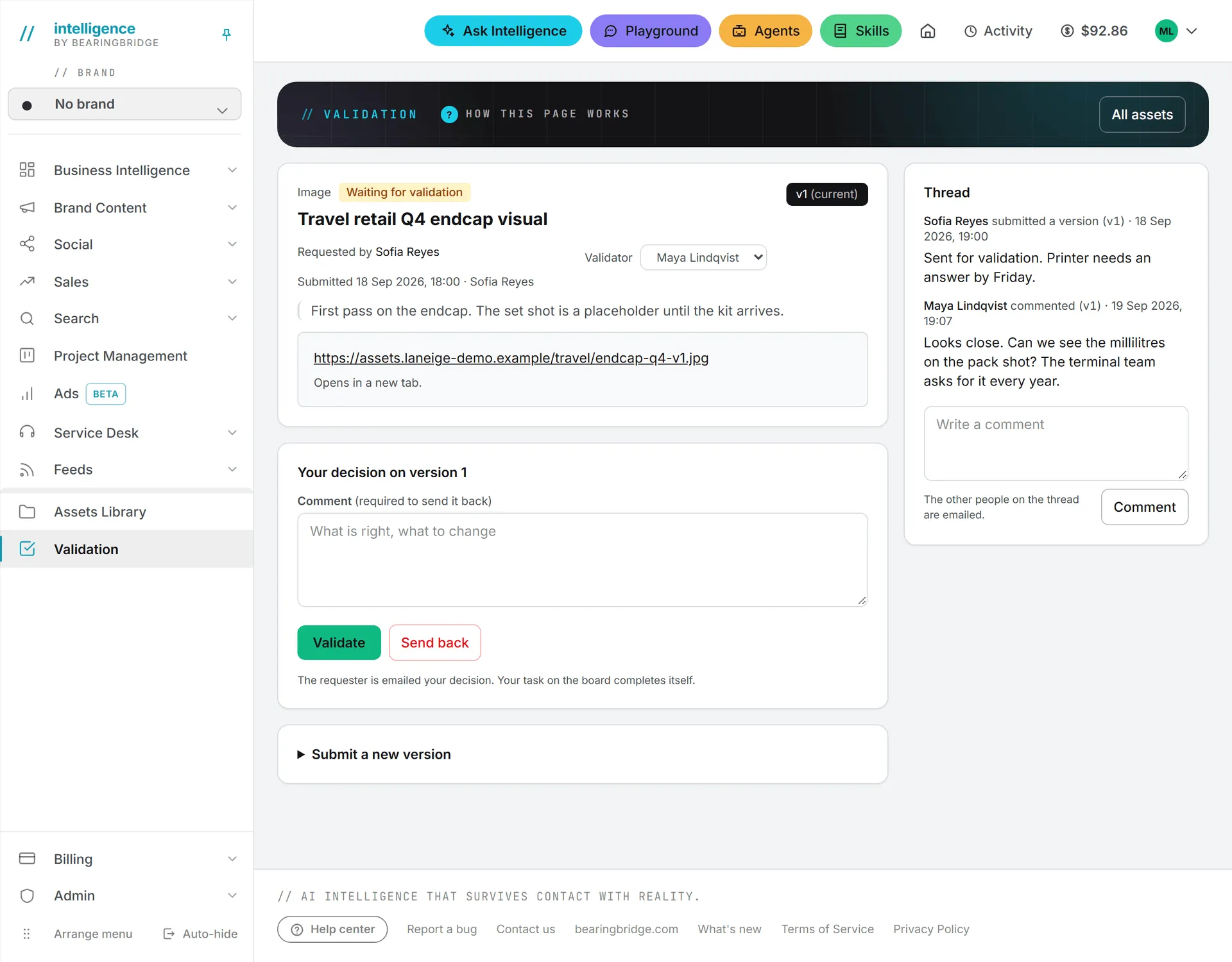
On the right, the Thread lists every event and comment in order: who submitted a version, validated it, sent it back, named a new validator or commented.
Decide on an asset
When you are the validator and the current version is waiting, a Your decision on version N form appears. An administrator sees it too and can decide in the validator’s place.
- Read or watch the version.
- Write a Comment if you want. It is required to send the version back.
- Click Validate or Send back.
The requester is emailed your decision, and your task on the board completes itself. There’s no changing your mind on a version: each gets one decision. If something needs another look, the requester sends a new version.
Submit a new version
As the requester, you’ll find a Submit a new version form on the asset page. It opens by itself when a version was sent back, but you can use it at any time, for example to fix a typo before the validator decides.
- Upload a file, paste a text or give an address.
- Say What changed if you want: how this version answers the comments.
- Click Send version N for validation.
The status goes back to Waiting for validation, the validator’s task reopens in To Do and the validator gets “New version to validate: title”.
Comment on an asset
Anyone in the organization with the Editor role or above can comment in the Thread. Write the comment and click Comment. If you’re the requester, the validator gets an email, and the other way around. When a third colleague comments, both of them hear about it.
Change the validator
Is the validator away, or the wrong person? The requester, the validator or an administrator can pick another validator from the Validator list on the asset page. The task on the board moves to the new validator. If the asset is still waiting, the new validator gets the request email.
While an asset waits, it is locked
One rule is easy to miss.
When you send an article version, a copy piece or a social post for validation, the piece shows Waiting for validation where you made it. Until the validator decides, nobody can change or delete it, or any other version of the same piece. The app says “This asset is waiting for validation. It cannot be changed or deleted until the validator decides.”
The decision is written back on the piece. A validated piece becomes approved. One that was sent back goes back to draft, so you can pick it up again.
Who can do what
| Action | Who |
|---|---|
| Open the Validation page and read any asset | Everyone in the organization |
| Send an asset, comment | Editor role or above |
| Validate or send back | The named validator (Editor role or above), or an administrator |
| Submit a new version | The requester, or an administrator |
| Change the validator | The requester, the validator, or an administrator |
An asset can carry a brand or sit in the No brand workspace; brands are explained in brands.
Important: A viewer can be named validator but can’t record a decision, because the Viewer role is read-only. Pick a validator who holds the Editor role or above. See roles and rights.
What it costs
The round trip itself costs nothing, and no AI is involved. A file you upload is stored in the Assets Library and billed as storage. Opening or downloading a file from the asset page is billed like any download from the library. See storage costs.
Troubleshooting
| Problem | What to do |
|---|---|
| No decision form on the asset page | Only the named validator or an administrator sees it, and only while the current version waits. Check the Validator line. |
| No Send for validation button on my post or copy | The piece is already waiting for validation. Open it from the Validation page instead. |
| I can’t edit or delete my article, copy or post | It’s locked while it waits. Ask the validator (or an administrator) to decide; the lock lifts as soon as they do. |
| “Your role (viewer) is read-only.” | Sending, commenting and deciding need the Editor role or above. Ask an administrator. |
Good to know
- You can’t withdraw a request or delete an asset, a version or a comment. The history is kept on purpose. If a request is no longer needed, say so in the thread.
- Ask Intelligence can tell you what is waiting for validation and what was decided. See what Ask can read.
- Emails are written in the language of the person who acted. See emails and notifications.