Social calendar
The social calendar shows planned, booked, live and refused posts by day, lets editors plan and move sends, and can read several brands at once.
The social calendar is the plan for every network in one place. Day by day, it shows what still has to be written and what the app has booked to send, along with what’s already live or was refused. It can cover one brand or several, and anyone who follows the social plan can read it. Editors also use it to plan posts and move them around.
Open the calendar
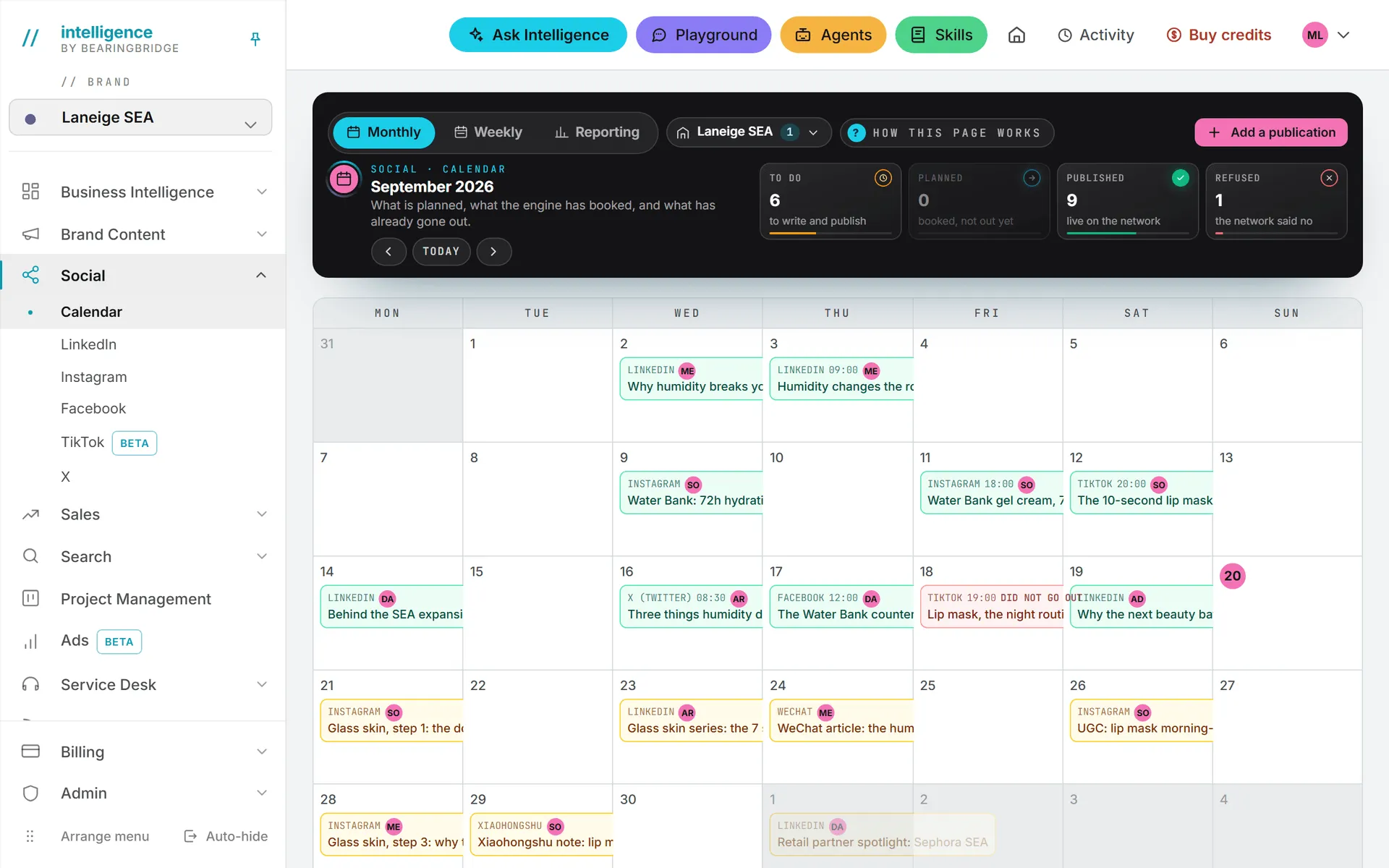
Click Social in the left menu, then Calendar. It opens on the current month, and the dark band at the top holds the controls:
- Monthly, Weekly and Reporting, to switch pages
- the brand button, to read other brands’ plans on top of this one
- How this page works, a short help note
- Add a publication
- the month or week on view, with arrows to step back and forward and a Today button to jump back
- four tiles that count the period by state
What the colors mean
Each publication is a colored chip or card, and the color tells you whether it’s out yet.
| Color | Tile | Meaning |
|---|---|---|
| Amber | To do | Planned, but nothing is booked. Someone still has to write it and publish it. |
| Blue | Planned | Booked with the app, which will send it by itself at the hour shown. It’s not out yet. |
| Green | Published | Live on the network. |
| Red | Refused | Its moment came and the network said no. The reason is on the card, and the post’s publishing step has Try again now. |
The four tiles count the month or week on screen, and the bar under each number is that state’s share of the period. It’s a quick read on how much of the period has actually gone out.

The monthly view
The month is a grid of weeks, starting on Monday. Today is marked, and days outside the month are faded. Each chip shows the network, the hour it goes out if it’s booked, a short state (Planned, Sending or Did not go out), the initials of the person in charge and the title. Hover a chip to read the account it goes out on and any error.
Hover a day and + add appears. Click anywhere in that day to plan a publication on it. The day cells and the chips also answer Enter and the space bar.
The weekly view
The week shows one row per day, with each publication as a full card. A card shows its state, the network, who’s in charge, the title and any notes. When the app is set to send it, the card lists every account it goes out on, with the hour, the state, a link to the live post and the network’s error if there was one.
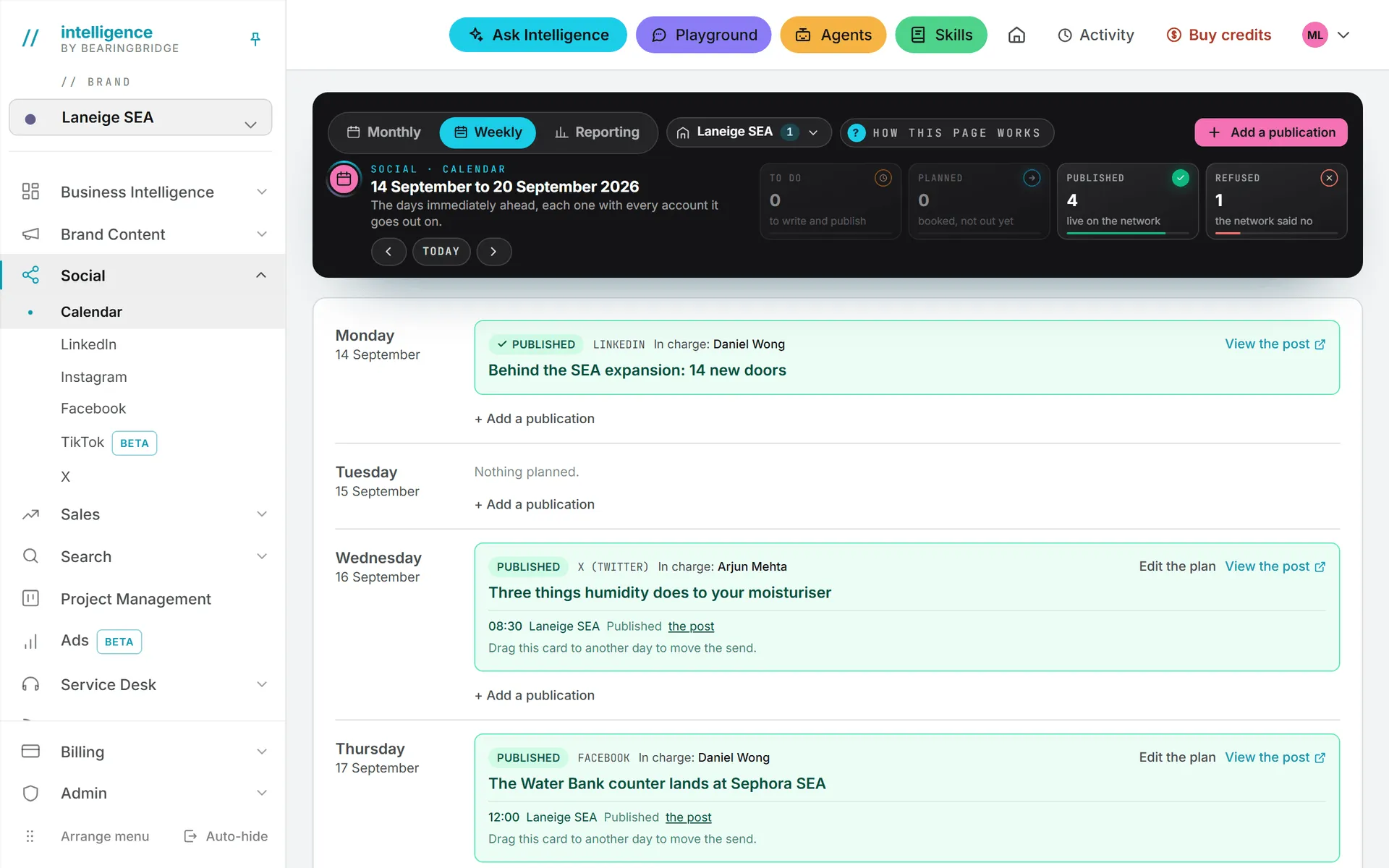
The weekly cards carry quick actions:
- Mark as published, for a post you published by hand
- Add the link, when it’s published but the link is missing
- View the post, once the link is there
- Edit the plan, on a post written in a studio, to change the plan around it without opening the post
- + Add a publication, under each day
Add a publication
You can put a post on the plan before anyone has written a word of it.
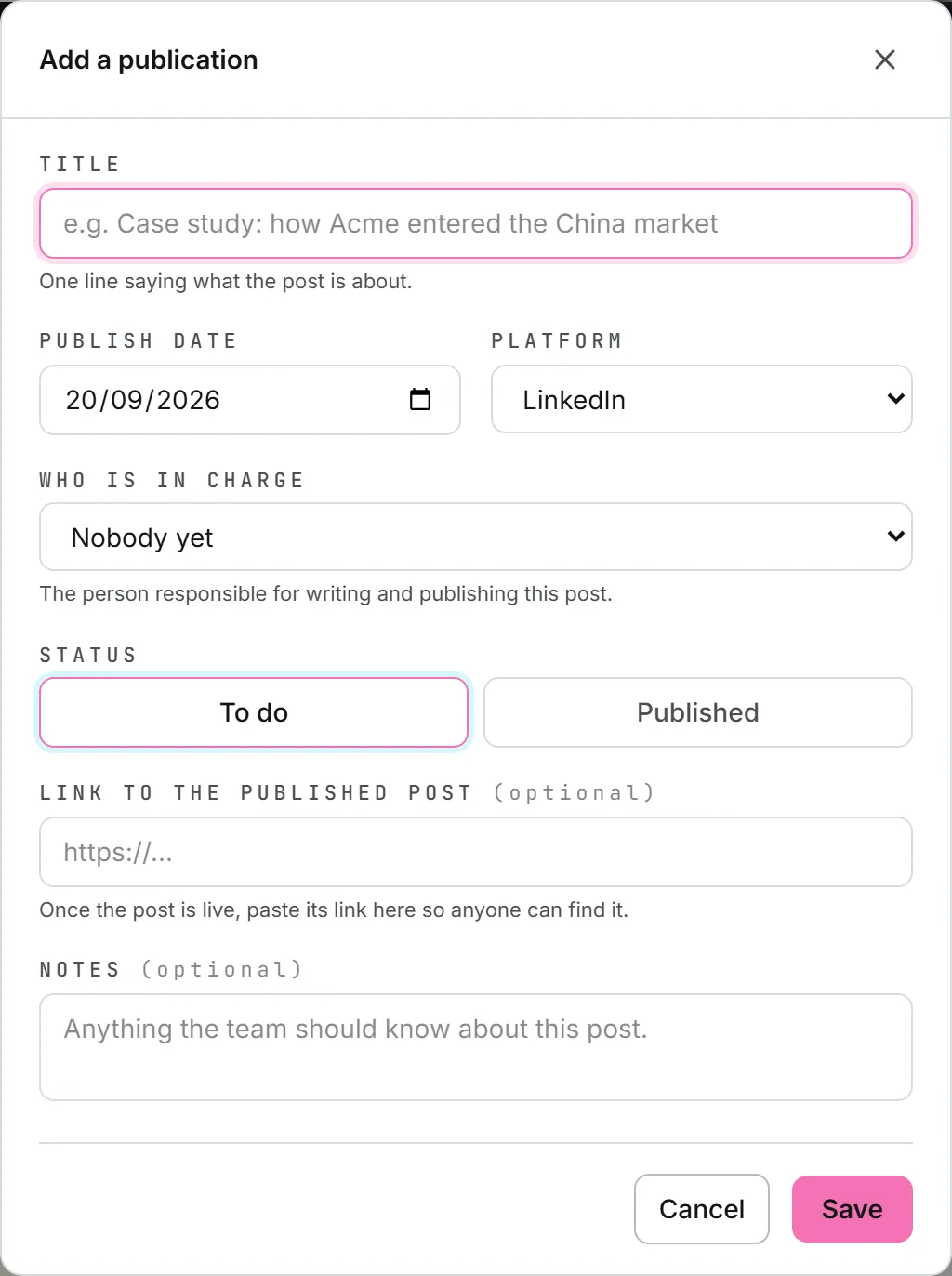
- Click a day, or Add a publication on the band.
- Enter a Title: one line saying what the post is about.
- Check the Publish date.
- Pick the Platform: LinkedIn, WeChat, Instagram, Facebook, X (Twitter), YouTube, TikTok, Xiaohongshu (RED) or Other.
- Choose Who is in charge, or leave Nobody yet.
- Leave the status on To do, or pick Published if it’s already out.
- Add the Link to the published post once it’s live, and any Notes for the team.
- Click Save.
To change a publication, click it, edit and save. Delete sits in the same window when you’re allowed to delete it.
WeChat, YouTube, Xiaohongshu and Other have no studio in Social. They’re there so the plan can hold every channel you use, and you keep them up to date yourself.
Important: A publication planned here is a note on the plan. Setting it to Published records that it went out; it doesn’t publish anything. To have the app send a post, write it and schedule it in the network’s studio. See publishing.
Posts written in the studios
Everything above is the plan you type in yourself. Most posts, though, come from the studios, and there’s no need to copy them onto the calendar. A post scheduled in the LinkedIn, Instagram, Facebook, TikTok or X studio lands here on its own, with the account it goes out on. So does a post you mark as published in a studio.
Click one of these and you’re taken to the studio, on that post’s publishing step. If all you want to change is the plan, say who’s in charge, use Edit the plan on its weekly card.
Move a scheduled post
Drag a blue or red chip, or its weekly card, to another day. This moves the send itself, and the plan with it. The post keeps its hour, in your own time zone, and goes out on the new day. A refused send you drag goes back in the queue for a fresh try. The page reloads to show what the app will now do.
When a post goes out on several accounts, the chip stands for one of those sends, and the drag moves that one. Check the weekly card afterward to see where each account stands.
You can’t drop a post on a day that has already passed. The calendar tells you, and you can schedule it again from the post instead.
Read several brands at once
Open the brand button on the band and tick the brands to lay over this one. Read every brand ticks them all, and This brand only clears the rest. The brand in the header stays ticked: it’s the one on screen.
When more than one brand is on, each chip shows its brand’s name. Your choice is remembered in this browser. A new publication is always filed under the brand in the header, and the window says so with a Brand: line when several are on screen.
There’s no filter by network or by person. Brands are the only thing you can narrow the calendar by.
Who can do what
What you can do on the calendar depends on your role, and on whose account a post goes out on.
| Action | Who |
|---|---|
| See the calendar | Anyone with the Social Calendar area open to them (see roles and rights) |
| Add, edit or mark a publication as published | Editors and above |
| Put someone in charge | Editors. The list only offers people you’re allowed to assign work to. |
| Delete a publication a brand or the organization can see | Admins |
| Delete a publication planned in the No brand workspace | The person who planned it, while only they can see it, or an admin |
| Move a scheduled send | Editors who may publish on the account the post goes out on |
The Reporting tab only shows when the Social Reporting area is open to you. See social reporting.
Costs, dates and privacy
The calendar itself costs nothing. Credits go on AI work in the studios, and on posts the app sends on X. To write the post itself, open its network’s studio, as described in writing posts.
Days and hours follow the time zone and formats you set in Settings. A publication planned in the No brand workspace is seen only by the person who planned it (see brands).
Troubleshooting
“That day has already passed.” You dropped a booked post on a past day. Pick a day ahead of now.
“Please give the publication a title.” The title is required. So is the publish date.
“Could not save:” followed by a reason. The server refused the change. The most common reasons are a brand you no longer have access to, or a person you can’t assign work to.
“You cannot publish on that account.” You dragged a send that goes out on someone else’s account. Only people who may publish on that account can move it.
A post went red. The network refused it. Hover the chip or read the weekly card for the network’s own words, fix the post in its studio, then use Try again now there or drag it to a new day.
A studio post isn’t on the calendar. It appears once it’s scheduled or marked as published. A draft that’s only written isn’t on the plan yet. Add it by hand if you want it there.