Users
Create the organizations and people you bring to BearingBridge, choose each person's role, and then follow what every account spends, pays us and earns you.
The Users page is where commercial partners create the customer accounts they bring to BearingBridge: organizations, and the people who work in them. Every organization and every person you create here is yours from the moment it exists, and what it pays us earns you your commission.
You need the partner flag on your account to see this page. Without it, there’s no Partner menu. The partner program overview explains how the flag works.
Create a user
A person always goes into an organization. You either pick one you created earlier or open a new one in the same form.
- In the left menu, open Partner > Users.
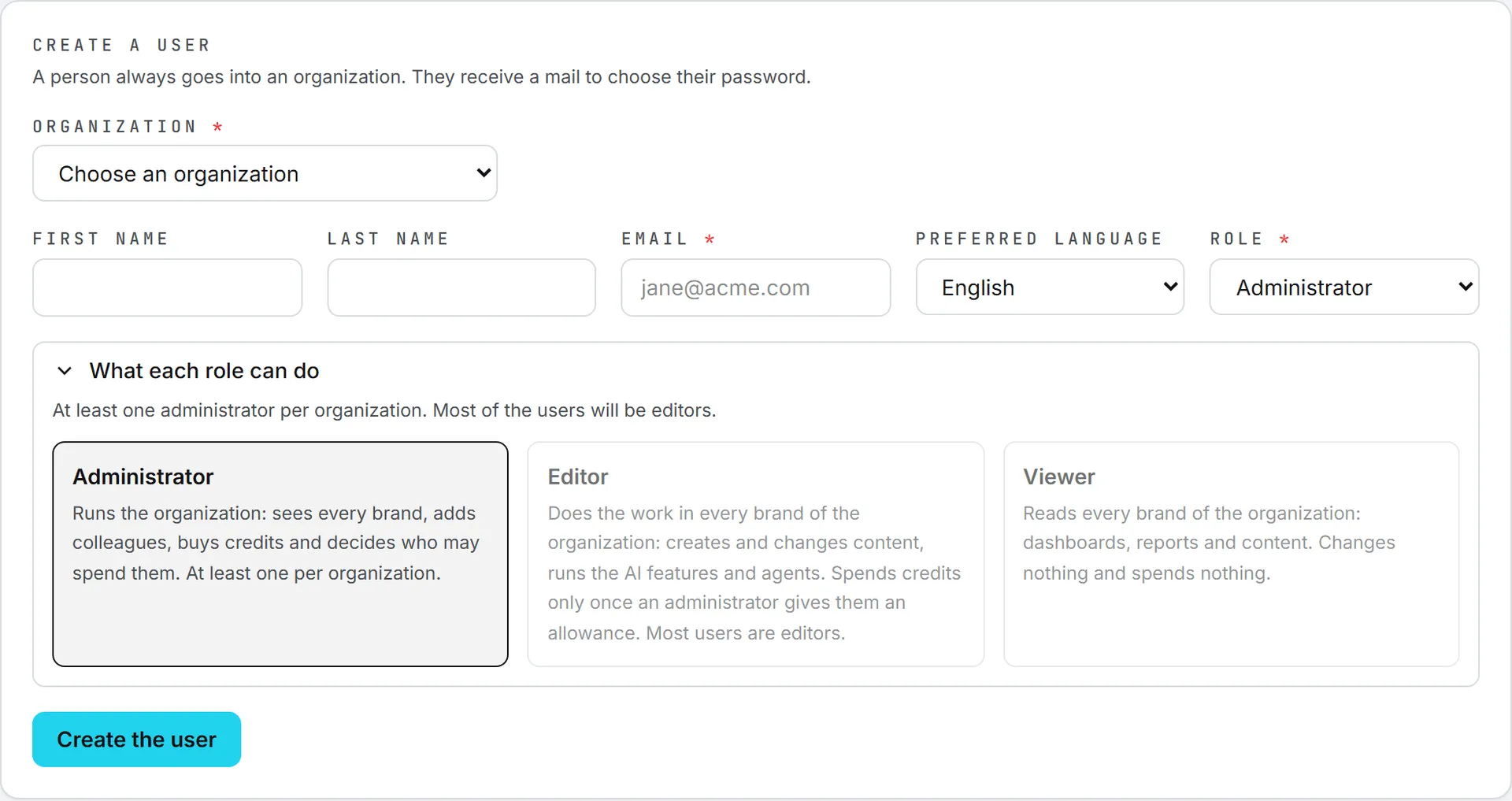
- Under Create a user, choose the Organization: one of yours, or New organization.
- For a new organization, fill in the Organization name and the Billing address.
- Fill in the person’s First name, Last name and Email. Only the email is required.
- Pick their Preferred language: English, Français or 中文. It starts on your own language.
- Pick their Role: Administrator, Editor or Viewer.
- Click Create the user.
The page reloads, and the person shows up under their organization in the table below the form.
There’s no limit on how many organizations or people you create, and creating them costs no credits.
A new organization
When you pick New organization, the person you’re creating becomes its first member, and they’re always its administrator: Editor and Viewer are grayed out. Nobody else could give the organization’s members brands or credits. Once the organization exists, come back to add its editors and viewers.
The first person’s name and address also become the organization’s billing contact, the person invoices go to. The organization can change it later on its Billing page.
Adding someone to an existing organization
When you pick one of your organizations, the role switches to Editor, the role most people get, unless you’ve already chosen one yourself. Change it before you click Create the user if this person needs something else.
The list holds the organizations you created and the ones your prospects opened through your invitations.
Which role to give
Open What each role can do under the fields to read the three roles side by side. The one you’ve picked stands out. The rule of thumb the page gives: at least one administrator per organization, and most users are editors.
| Role | What the person can do |
|---|---|
| Administrator | Runs the organization: sees every brand, adds colleagues, buys credits and decides who may spend them. |
| Editor | Works in every brand of the organization: creates and changes content, runs the AI features and agents. Spends credits only once an administrator gives them an allowance. |
| Viewer | Reads every brand of the organization: dashboards, reports and content. Changes nothing and spends nothing. |
Roles and allowances are explained in full in roles and rights. After you’ve created the person, their organization’s administrators manage them like any colleague: role, rights, allowance.
What the person receives
The new person gets the usual welcome email, with a link to choose their password. The link signs them in and works for 5 days. If it expires, they can use “Forgot password” on the sign-in page. The email also points them to this help center, in their language.
That email is written in the preferred language you picked, and so is every email the person gets afterwards, whoever sends it. The app opens in it too. They can pick another language in their own Settings, and their organization’s administrators can change it on their page.
If the email can’t be sent, the page tells you The user is created, but the welcome mail did not leave. The account exists anyway: send the person to “Forgot password” on the sign-in page.
When the form refuses
| What you’ll see | Why |
|---|---|
| Choose the organization this person goes into. | No organization is picked. |
| Name the new organization. | New organization is picked, but its name is empty. |
| The new organization needs its billing address. | New organization is picked, but its billing address is empty. |
| Enter the email address of the person. | The email is missing or doesn’t look like an address. |
| That address already has an account on the platform. | The person already has an account. They can’t be created a second time, by you or anyone else. |
| This organization does not offer Français. Choose another language, or add it to the organization’s interface languages first. | The organization you picked has switched that language off. Pick another one, or ask its administrators to offer it again. |
Your organizations and users
Below the form, Your organizations and users lists everything you’ve created. The line above the table sums it up, for example “3 organizations · 5 users · $53.09 spent this month · $129.00 earned”.
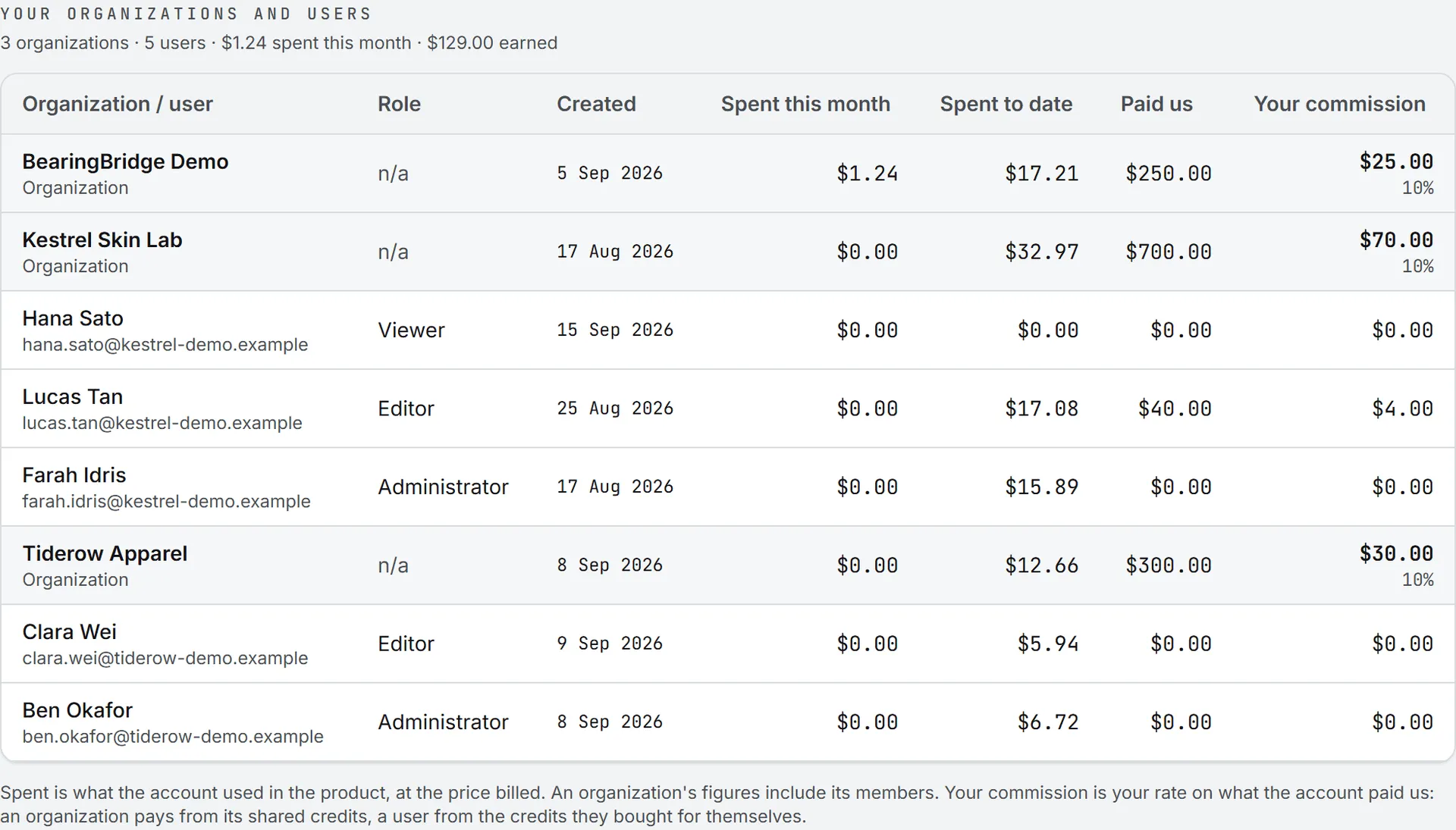
Each organization has its own shaded row, and the people in it are listed under it, indented. People who signed up through one of your invitations but work in an organization that isn’t yours (one that already belonged to another partner when they asked to join it, for instance) come after the organizations, with Signed up through your invitation under their name.
| Column | What it shows |
|---|---|
| Organization / user | The organization’s name, or the person’s name with their email under it. |
| Role | The person’s role in their organization. n/a on an organization row. |
| Created | The day the account was created, in your own date format. |
| Spent this month | What the account used in the product since the first of the month, at the price billed. |
| Spent to date | The same, since the account was created. |
| Paid us | What the account has paid BearingBridge: credit purchases and automatic top-ups, refunds deducted. |
| Your commission | Your share of what the account paid. On an organization, and on a person who signed up through your invitation, the rate frozen on the account shows underneath. |
Spent and paid are two different figures
“Spent” is usage. An organization’s figures include everything its members ran, whichever credits paid for it. It helps you see which customers are active, but it doesn’t earn you anything by itself.
“Paid us” is money in, and it’s what your commission is based on. An organization pays from its shared credits, and a person from the credits they bought for themselves. That’s why an editor can show spending but no payment: their work is paid from the organization’s shared credits, and those payments show on the organization’s row.
How the commission is calculated, and when your rate is frozen, is explained in Commissions.
Your accounts stay yours
The organizations and people you create are yours alone. No other partner sees them, and an account belongs to one partner only. If your role in your own organization is viewer, you can still create users here: the accounts you bring are your own business, and the read-only rule doesn’t apply to them.
You can’t delete or rename an account from this page. For a mistake, such as a person created in the wrong organization, write to the BearingBridge team through Contact us.