Skill catalog
Search over 250 standard skills for marketing, sales, support, finance, legal and every other team, read one in full, then add it to your skills.
The Catalog tab of the Skills area is where the app’s ready-made skills live: over 250 methods for every team, from a sales call prep to a month-end close, plus the social network formats and the search methods. The whole catalog is open to every user: you read a skill in full, then add it to your own skills, with no administrator in between. Use it when you want the AI to follow a tested method and would rather not write one from scratch.
Open the catalog
Click Skills in the header, then the Catalog tab. The address is /skills/catalog.
A search box and one chip per section sit at the top. The sections follow, top to bottom:
| Section | What it holds |
|---|---|
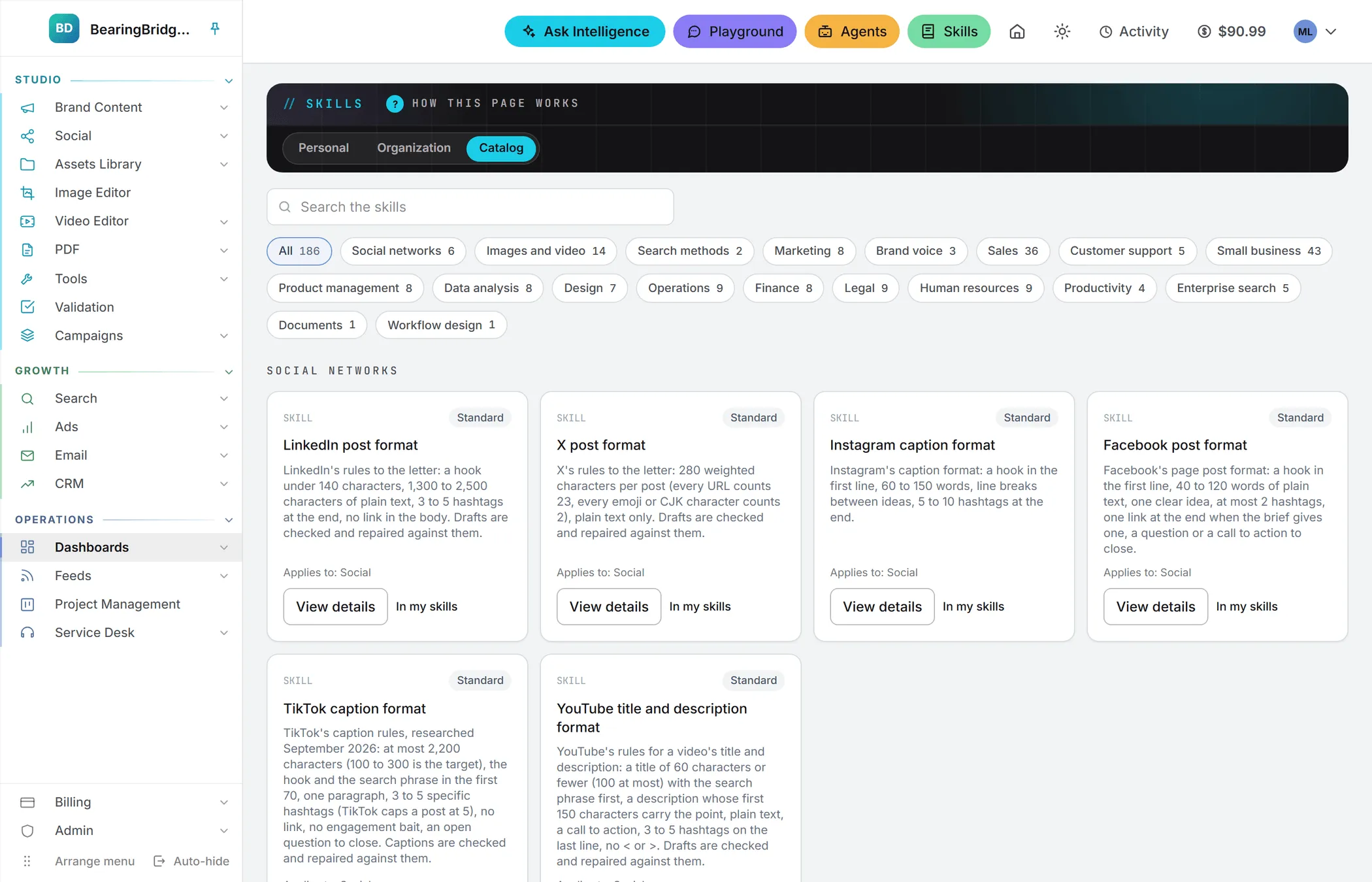
| Social networks | The posting rules of each network: LinkedIn post format, X post format, Instagram caption format, Facebook post format and TikTok caption format. |
| Search methods | The Search Conquest Strategy and the AI Conquest Strategy. |
| Web publishing | The four standards the Web editor applies: Newsroom standard (US English), Native translation standard, AI tells to remove, and Hero image standard. See Web. |
| Marketing to Zoom | Skills for every team, one section per team or tool. See Skills for every team. |
| Content Formats | The skill behind every format under Brand Content > Text. See Content formats. |
Find a skill
Type in the search box to narrow the cards as you type. It looks at each skill’s name, its description and the name of its section, and every word you type must match. “contract review” finds the contract skills of Legal and Small business, “zoom android” the Zoom skills for Android.
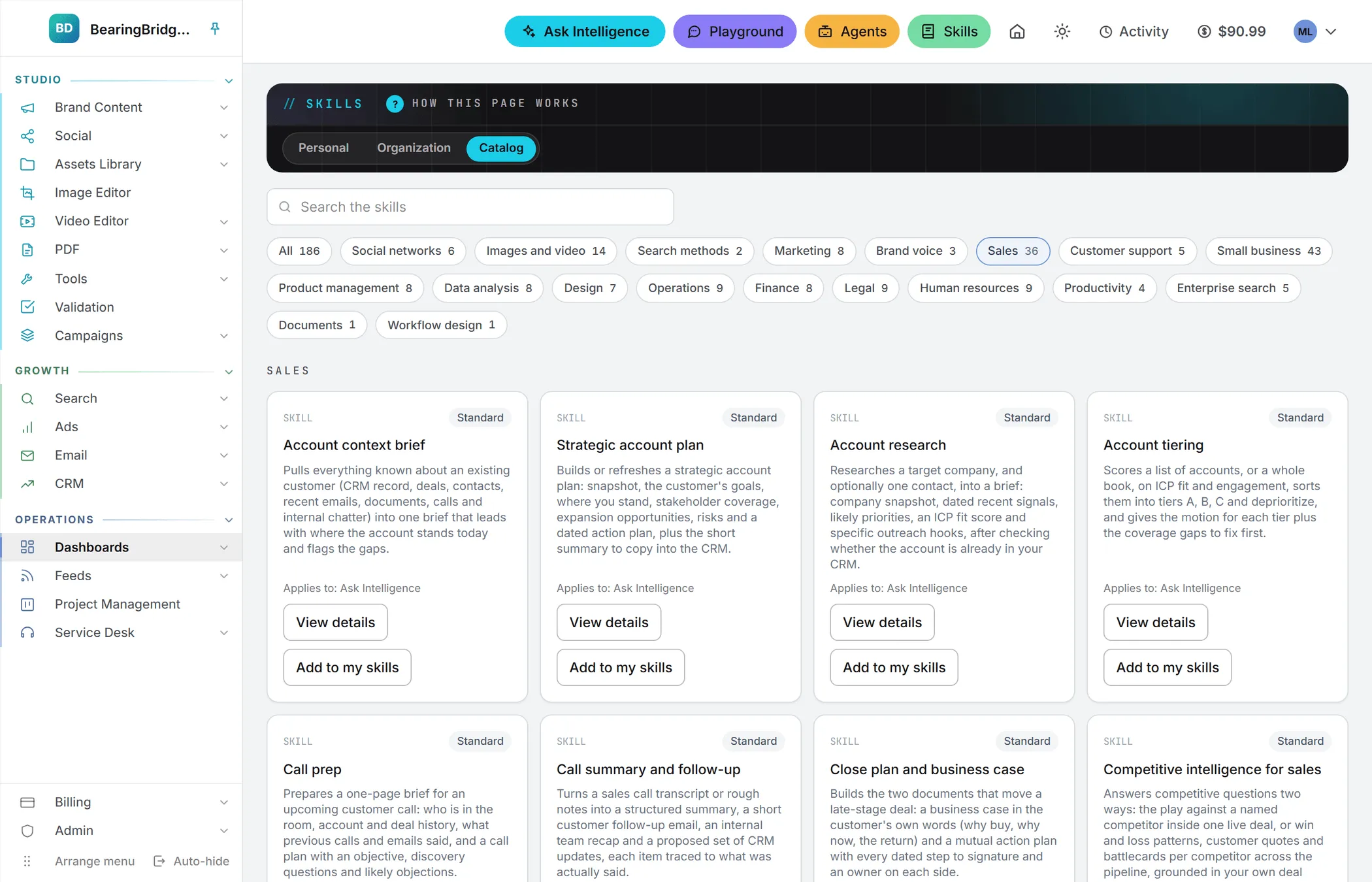
Click a section chip to show that section alone; the number on each chip is how many skills it holds. The search and the chip work together, so you can search within one section. Click All to see every section again. When nothing matches, the page says “No skill matches your search.”
The search and the chips cover the standard skills only. Content Formats stays below them, unfiltered.
Reading a skill card
Each standard skill card carries a Standard tag, the skill’s name, a line on what it does, and Applies to: with the places where it works, such as Social, Search or Ask Intelligence.
At the bottom, View details opens the whole skill before you take it: what it’s for, Applies to, and its Instructions (what the AI follows), the full text the AI reads. Next to it sits Add to my skills, or an In my skills link once the skill is yours. Add to my skills is also at the foot of View details.
The social network skills spell out each network’s limits. The LinkedIn one, for instance, asks for a hook under 140 characters, 1,300 to 2,500 characters of plain text and 3 to 5 hashtags at the end, with no link in the body. The LinkedIn, X and TikTok formats also check each draft against those rules and repair it; the Instagram and Facebook ones guide the writing only. On the social post forms, the skill of the network you write for is ticked for you (see Writing posts).
The search methods describe how the competitor search reports, or your AI visibility data, are turned into a plan. They power the conquest strategy buttons in Competitors and AI search.
Images and video
The Images and video section holds fourteen methods for the prompts of the image and video studios: E-commerce packshot, Lifestyle product scene, Consistent character across images, Legible text inside an image, Social media visual formats, Photorealistic look, Illustration and brand style consistency, Precise image edits, Upscaling and restoration, Video camera movement vocabulary, Video shot pacing and duration, Animating a still (image to video), Short vertical video ad, and Avoid list: hands, text artifacts, watermarks.
Each one tells the AI when it applies and what a good prompt for that job contains, and ignores itself when the job is something else. Once you add one to your skills, Improve with AI follows it every time it rewrites an image or video prompt. There’s nothing to tick: every switched on imagery skill joins by itself.
Skills for every team
Most of the catalog is made of methods for the work of each team. They’re written for the AI to follow step by step: what to gather first, how to reason, what to check, and the shape of the answer.
| Section | Examples |
|---|---|
| Marketing, Brand voice | Brand review, Campaign plan, Email sequence, SEO audit, Brand voice guidelines |
| Sales | Call prep, Deal review, Pipeline review, Objection handling, Sales outreach draft |
| Customer support | Ticket triage, Customer support reply, Customer escalation brief, Knowledge base article |
| Small business | Business pulse snapshot, Overdue invoice reminders, Cash flow forecast, Proposal and quote builder |
| Product management, Design | Feature spec (PRD), Roadmap update, Design critique, Accessibility audit (WCAG 2.1 AA) |
| Data analysis | Data question analysis, SQL query writing, Statistical analysis, Analysis QA before sharing |
| Operations, Finance | Process documentation (SOP), Vendor review, Account reconciliation, Variance analysis |
| Legal, Human resources | NDA triage, Contract review against playbook, Structured interview kit, Offer letter draft |
| Productivity, Enterprise search | Personal task list, Activity digest, Search across all sources |
| Engineering, Life sciences research | Code review, Incident response, System design, Single-cell RNA-seq quality control |
| Documents, Workflow design | PDF review, annotation and form filling, Tailor a skill to your organization |
| Apollo, Common Room, Slack, Zoom | Prospecting with Apollo, Call prep with Common Room, Slack message writing, Zoom Meeting SDK for Web |
None of them applies until you add it to your own skills (see below). Each person adds the ones their work calls for.
Once added, you apply one where you work:
- Ask Intelligence: every one of them applies there. Tick it in the skills list of your question, and the answer follows its method with your organization’s data (see Ask Intelligence).
- Email: like Ask Intelligence, the answer drafts of your mailboxes, Mass Mailing and Sequences offer every skill you have.
- Brand Content and Social: the skills that write marketing copy or posts also appear in the skills list of those forms, where you pick them.
- Service Desk: a desk follows the organization’s skills only. For the Customer support reply to shape every answer of your desks, an administrator writes it as an organization skill ticked for the Service Desk, starting from the instructions View details shows.
Many of these skills read data a team keeps elsewhere, such as a CRM, a mailbox or a data warehouse. With a skill ticked, Ask Intelligence reads what your organization keeps in the app and in the apps it connected under Connections; for anything else, the skill asks you for it or works from what you paste. It never claims to have changed something in another tool: it prepares the text, the entry or the change for you to apply.
The Apollo, Common Room, Slack and Zoom sections are about those tools. The Zoom skills are for developers who build on Zoom: they help choose the right kit, write the code and debug it.
Note: Legal, finance, human resources and research skills produce drafts and analyses for a professional to review. They don’t replace legal, accounting or medical advice.
Social formats and search methods are already yours
The social network formats and the two search methods are placed in your own skills automatically, the first time a page needs them. The skills for every team are not: they wait in the catalog until you add them. That’s why the social and search cards usually show In my skills rather than a button. The link opens your Personal tab, where you reword them, switch them off or duplicate them.
Deleting one there won’t stick, because the app puts the shipped version back the next time it’s needed. To stop using one, switch it off instead.
Nothing in the catalog is added to the organization. The organization’s skills are the ones its administrators write, on the Organization tab.
Add a standard skill to your own skills
Anyone who can write in the app can do this, admins or not.
- Find the skill you want, with the search box or a section chip.
- Click View details to read it first, if you like.
- Click Add to my skills, on the card or at the foot of View details.
- The button turns into an In my skills link. Follow it to the Personal tab to edit your copy, switch it off or duplicate it (see Organization and personal skills).
Your copy starts from the shipped text. Only the skills in your own list can be edited: the catalog stays as it ships.
If your organization kept an edited version of the same standard skill, your copy replaces it on your own runs, even if you rename it, because the app still knows which standard skill it came from.
Note: Your copy is yours from then on. When we update a standard skill, your copy doesn’t follow. Delete it and add it again to start from the new text.
Your organization’s skills
The skills your administrators wrote aren’t in the catalog. They’re on the Organization tab of the Skills area, open to every member: View details shows one in full, Add to my skills copies it under the same name so your copy replaces it on your runs, and Duplicate makes a separate skill that applies beside it. See Organization skills.
Who can do what
| Role | What they can do in the catalog |
|---|---|
| Viewer | Reads the catalog and opens View details, with no button to add. |
| Editor, Brand manager | View details, Add to my skills |
| Admin | The same. Admins write the organization’s skills on the Organization tab, not here. |
Roles and per-person rights are explained in roles and rights.
Good to know
Adding or copying a skill costs nothing, and standard skills carry no extra charge. A skill only costs tokens when it joins a run (see What skills cost). The skills for every team are longer than most, often a few thousand characters, so tick the ones a question needs rather than all of them.
We keep the standard skills up to date. An update changes what the next Add to my skills copies; a skill already added stays as you left it.
A skill you add starts switched on, ticked for the same places as the original. You can change both in the Personal tab.
If you add the same standard skill twice, for example from two open tabs, the second attempt says “Already added at this scope.”