Landing pages for ads
Landing page briefs moved from Ads to Brand Content. Draft one from an ad group keyword, publish the page and point your ads at it.
A landing page brief plans the page a paid click should land on, for one keyword. Briefs used to have a tab in Ads; they now live in Brand Content, and the Ads campaign builder links straight to them, one keyword at a time. This page is for the search marketers who build campaigns in Ads.
Where landing page briefs live now
The old address, /ads/landing, now forwards to the landing page brief page in Brand Content. That page no longer has a tab in the Brand Content menu. It still opens from old links, from the Ads shortcut below, or when you type its address, and the briefs you saved there are still on it. See landing pages.
There, you pick a keyword; the AI reads what currently ranks on Google for it and writes a page plan built to convert that search. Nothing goes live by itself: briefs wait until someone on your team reviews and publishes them, and each generation shows its cost next to the result.
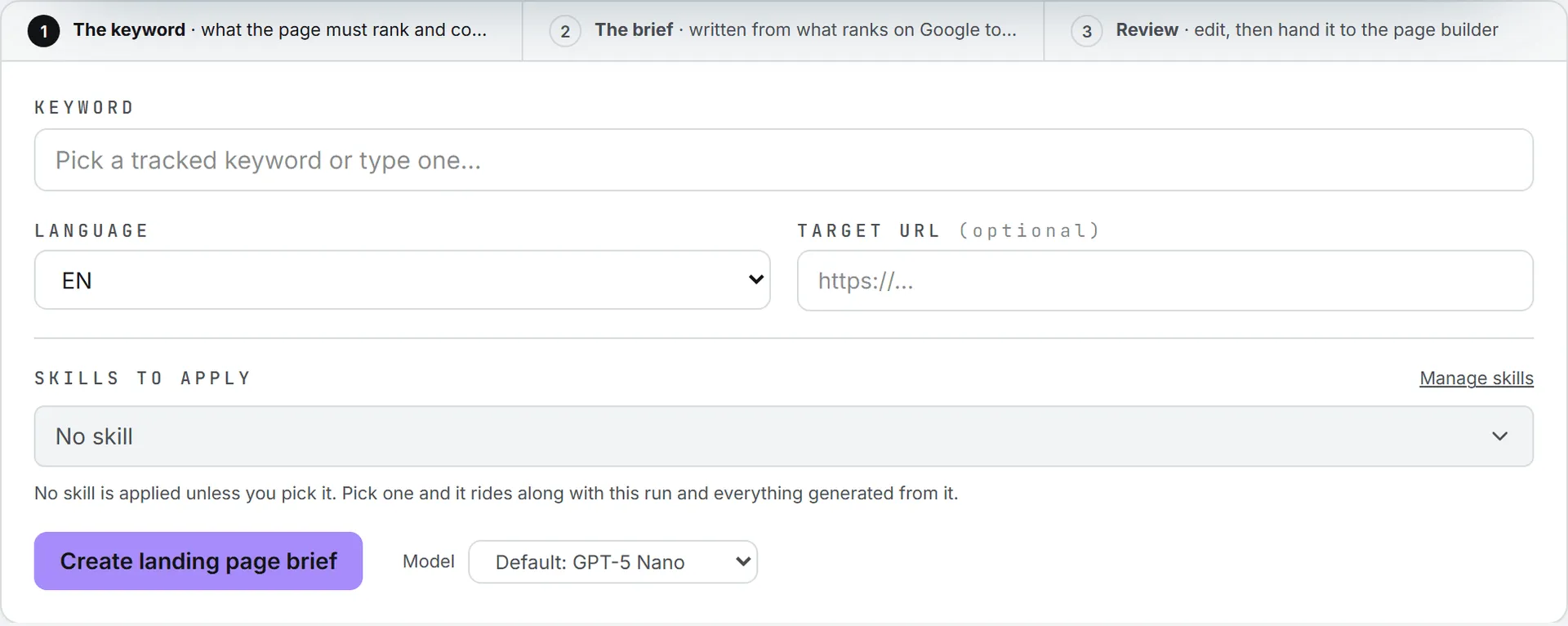
To write the page copy itself, Brand Content has a Landing page format in its Commercial studio. See copy studios.
Draft a page from an ad group
The fastest way in is from the campaign builder.
- Open Ads > Campaigns. Select the campaign and go to its Ads tab, or select a group under Ad groups without a campaign.
- Under the ad group’s write bar, find No page yet? Pick the keyword it should target and create its brief.
- In the Choose one keyword… menu, pick one keyword. The group’s keywords are listed with the highest search volume first. Not sure which? The keyword selection gives the reason each one earns paid spend.
- Click Create landing page.
Brand Content opens in a new tab, with the keyword and the group’s language already filled in. The builder confirms that the page is being drafted in a new tab and reminds you to paste the published address back once it’s live. Run the brief there. When the page is written, publish it on your website. Intelligence doesn’t host landing pages.
If you click without picking a keyword, the builder asks you to choose the one keyword the page targets first.
Aim for one page per ad group. The builder recommends it for a reason: a page that answers exactly what the group’s searches ask for gives the ad and the click the same promise, where a general home page makes the visitor hunt.
Point your ads at the published page
Once the page is live, bring its address back to the builder:
- paste it in the write bar before you click Write ads with AI, so new ads are written from it (the button refuses to run without an address);
- or paste it in an existing ad’s Landing page field and click Save URL. If the ad is already in Google Ads, the live ad is updated too.
The ad writer reads the landing page before it writes, and it’s told to promise only what the page supports. It can’t read a page that isn’t published yet, and the copy then comes out more generic. It’s best to publish the page first and write the ads once it’s live.
The first address a group’s ads use becomes the group’s default, and the next ads start from it. The campaign can also carry a default landing page, used when an ad and its group have none. See Google Ads campaigns.
Who can do this
The Create landing page shortcut needs access to Brand Content’s landing pages. Without it, the new tab lands on your home page instead. Writing the brief and the ads needs an editor role or higher. Viewers can open both pages and read what’s there. See roles and rights.
What it costs
Generating a landing page brief and writing ads both use credits, and each shows its tokens and cost next to the result. The page on your website costs nothing in Intelligence. Opening the shortcut is free. See what costs credits.