AI models
Set the default text model for each module and page, narrow the models people can pick, and control Ask Intelligence web search and Playground settings.
The AI Models page decides which text models your organization’s AI features run on. For each module, and for each page inside it, you set a default model and the list of models people may pick from. Below it, two smaller cards hold the Ask Intelligence web search switch and the Playground settings.
Note: This page covers text models only. Image and video engines are picked in the forms themselves (see below).
Two settings per feature
Each AI feature has two settings. They’re inherited separately:
| Setting | What it decides |
|---|---|
| The default | The model the feature runs on when nobody picks one |
| The models people can choose | The list offered next to the button that runs the feature |
The default is always part of the list, so the model a feature runs on can never be hidden from the people using it.
Both settings are looked up in the same order: the page, then the module, then the global page, then the global module, and finally the app default. The global settings are set by the BearingBridge team for every organization. You can’t edit them, but you can override them for your organization, and a row you leave alone follows them when they change.
Open the page
- Open the Admin menu.
- Click AI Models.
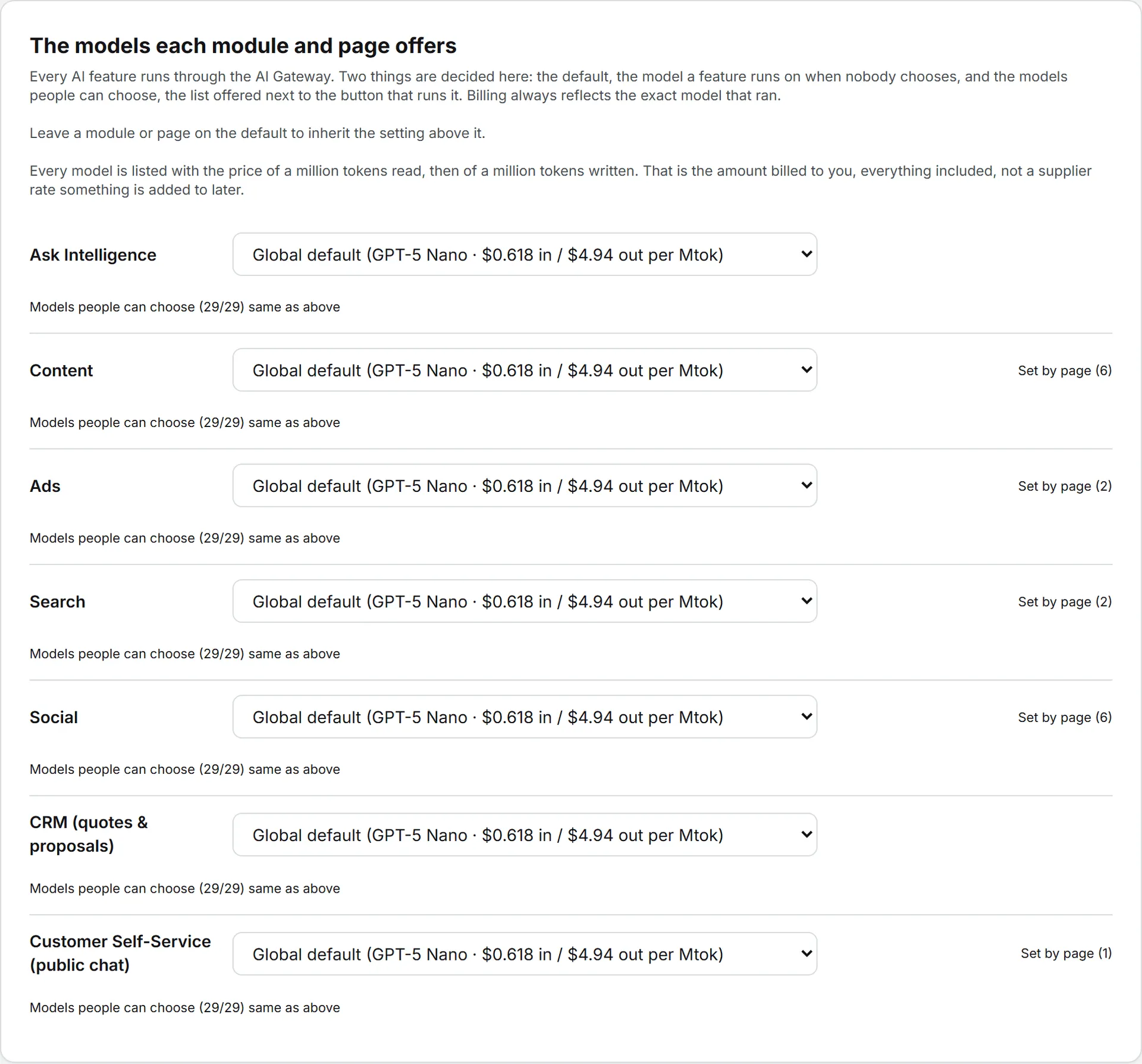
The main card, The models each module and page offers, has one row per module: Ask Intelligence, Content, Ads, Search, Social, CRM (quotes & proposals), and Customer Self-Service (public chat).
Every model in the lists shows two prices: a million tokens read, then a million tokens written. These are the prices billed to you, everything included. A run pays for the tokens it really used, so the same model costs more on a long brief than on a short one. For features that write long texts, the written price weighs most.
Set a module’s default model
- Find the module’s row.
- Open its model menu.
- Pick a model.
The change saves right away and applies from the next run. The menu’s first option keeps the inherited setting, and its label says where that comes from:
| First option | Meaning |
|---|---|
| Global default (…) | The setting the BearingBridge team applies to every organization |
| Product default (…) | The app’s built-in model |
| Same as [module] (…) | On a page row: the module’s own setting |
The model and its price show in the parentheses. Pick that first option again to go back to inheriting.
Set a model page by page
A module’s pages can each run on their own model. Use it when quality matters more in one place than another. An Editorial article may deserve a stronger model than a TikTok caption, and short posts often do fine on a cheaper one.
- On the module’s row, click Set by page. The button shows how many pages there are and how many you’ve set.
- Pick a model on the page’s row.
| Module | Pages |
|---|---|
| Content | Brand foundation, Editorial, Commercial, Creative, Corporate & PR, Other (the article workspace) |
| Ads | Google Ads, LinkedIn Ads |
| Search | Google Search (SEO), AI Search |
| Social | Calendar, LinkedIn, Instagram, Facebook, TikTok, X |
| Customer Self-Service | Self-Service |
Ask Intelligence and CRM have no pages.
Narrow the models people can choose
- On a module or page row, click Models people can choose. The count next to it shows how many models the row offers, out of the whole catalog.
- Untick the box at the top. Its label says what the row inherits, such as Offer every model in the catalog or Offer the same models as Content. The list the row offers today becomes its own list.
- Tick or untick models.
Each change saves right away. The default model is marked the default and can’t be unticked. To give people no choice at all, leave only the default ticked. To go back to the inherited list, tick the top box again.
What people see
Here’s how those settings look to the people running the features.
A Model menu appears next to the button that runs a feature. You’ll find it in Ask Intelligence and across Brand Content text, including the article workspace and the brand foundation form. It’s also on the Social post forms, the Google Ads and SEO keyword tools, and the menu that rewrites a highlighted passage. It opens on Default: [model name] and lists the other offered models, grouped by maker.
- With a single model on offer, there’s no menu. The form says Runs on [model name].
- Members see model names, not token prices. The cost of each run shows once it’s done, billed on the model that actually ran.
- A person’s choice is remembered per feature in that browser. On another browser or device, they start from the default again.
- If you take a model off the list, a remembered choice of it is dropped and the person goes back to the default.
- If you change the default, everyone who never picked a model follows the new one.
Ask Intelligence web search
Below the main card, the Ask Intelligence card holds one switch: Allow web search in Ask Intelligence. It’s on by default.
With it on, each person decides question by question, with the web switch on the Ask page. While that switch is on, the Ask model menu lists only models that can search, and the pages read are listed under the answer. With it off, Ask stays on your organization’s own data.
Web search needs a model with its own search. If Ask runs on a model without one, the card says so, and the switch changes nothing until Ask runs on a model that searches. A search is charged like any other paid call and shows in the price of the answer. See Data and web search.
Model Playground
The Model Playground card controls the Playground, where members chat with models directly.
Offer every model plugged into the app lets members use every model. Untick it, then tick the ones you want. Tags show which models take files and which have vision. Untick every model to switch the Playground off for the organization.
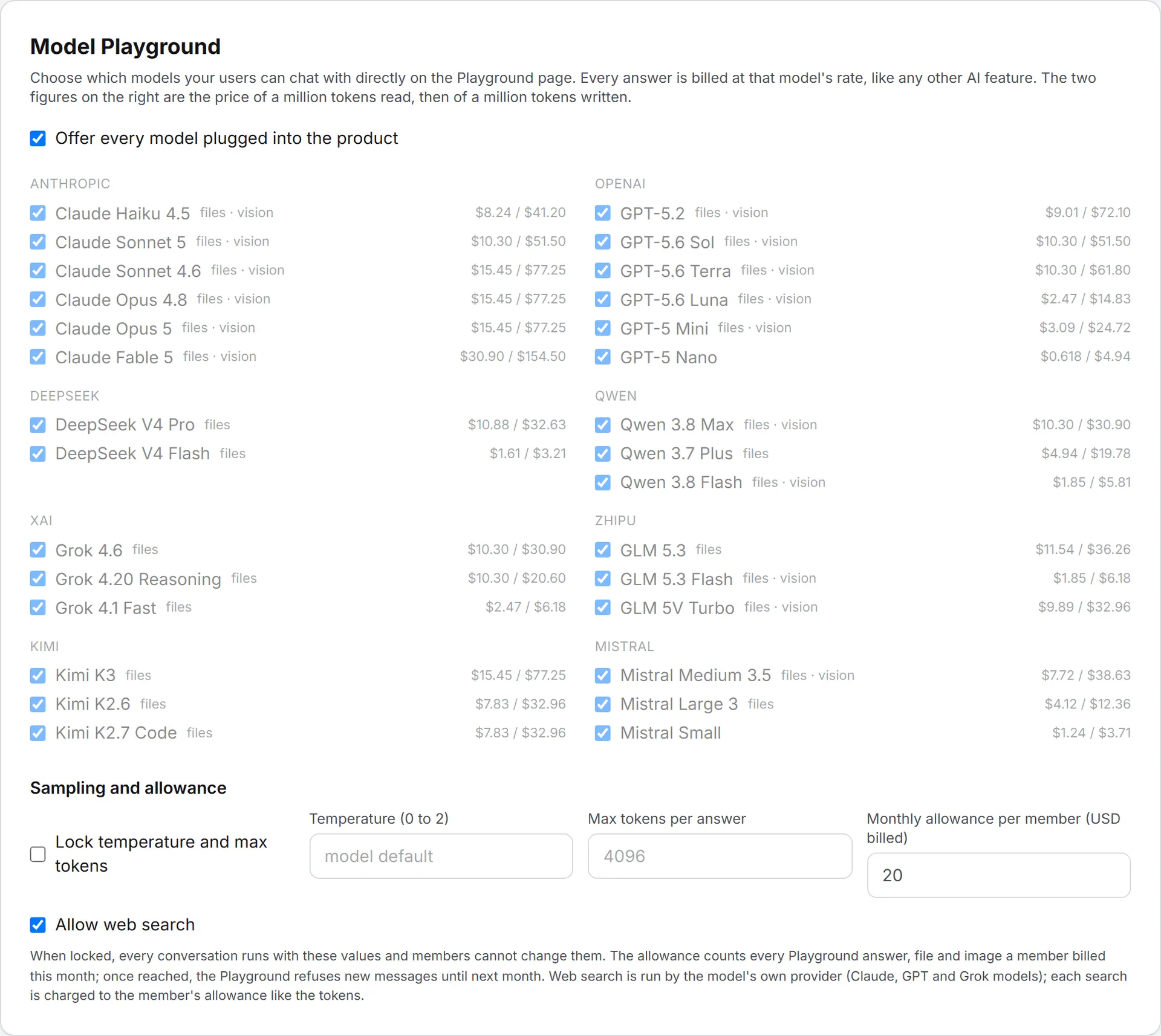
Under Sampling and allowance:
| Option | What it does |
|---|---|
| Lock temperature and max tokens | Every conversation uses your values, and members can’t change them |
| Temperature (0 to 2) | Empty means the model’s own default |
| Max tokens per answer | From 256 to 16,000 |
| Monthly allowance per member (USD billed) | Counts every Playground answer, file, and image a member billed this month. Once reached, the Playground refuses new messages until next month. Empty means no limit |
| Allow web search | Lets members search the web from the Playground. On by default |
Every Playground answer is billed at that model’s rate, and the Playground’s own allowance is on top of the shared-credit rules in Shared credits.
Image, video, and service desk models
Image and video forms open on the cheapest engine that can do the job, and people can switch engines there. A service desk picks its own model from the list this page offers for Customer Self-Service. See Create a desk.
Who can do this
Changing these settings is free. What people then run on the chosen models is billed as usual; see credits and costs.
| Task | Who |
|---|---|
| Set defaults and lists for the organization | Organization admins |
| Allow or block Ask web search | Organization admins |
| Set up the Playground | Organization admins |
| Change the global defaults | The BearingBridge team |
| Pick a model from the offered list | Anyone running the feature |
Organization admins set their own organization only. The global defaults belong to the BearingBridge team. The owner of a personal organization is its admin, so they have the page too.
Troubleshooting
“That model is not available for this module.” The model isn’t in the app’s catalog for that module anymore. Pick another one.
A member still runs on an old model. They picked it themselves in that browser, and it’s still on the list. Take it off the list, or ask them to pick Default in the Model menu.
A model you picked vanished from your settings. The app stopped offering it. The feature falls back to the next level instead of failing.