Conversations and costs
Read a desk's log, follow up with waiting customers, and see who pays for answers, how daily budgets work and when $5 triggers an alert.
Every question a customer asks a desk goes into its conversation log, and every answer is paid from your organization’s credits. This page shows how to read the log and follow up with waiting customers, then what a desk costs.
The Conversations tab
Open the desk and click the Conversations tile in the band. The tile shows how many conversations the desk had, and how many customers are waiting.
The list shows the 50 most recent conversations, newest activity first. Older ones stay stored but aren’t shown. Each row gives:
- The first question the customer asked, in quotes.
- The date and time of the last message, in your own date and time settings.
- The number of messages.
- The customer’s name and email address, if they left them.
Two tags flag what needs attention. not answered counts the answers the assistant could not give, and waiting for a reply means the customer left an email address.
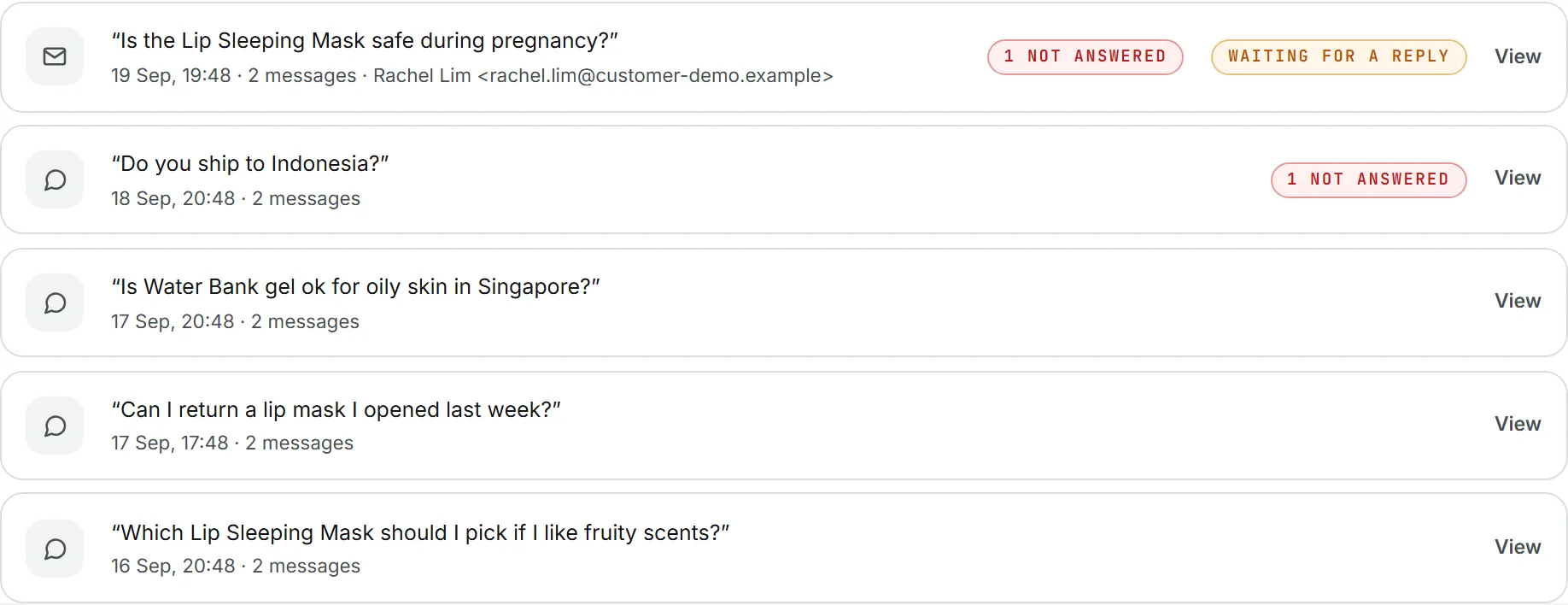
Click View to open the full exchange. Each message is marked Customer or Assistant, and answers the assistant could not give are marked “could not answer”.

Conversations come from the public page and from your website, whichever way the desk is embedded. Test questions asked in the phone frame on the desk page are never logged.
Anyone who can open the desk can read its conversations. There is no export and no way to delete a single conversation; deleting the desk removes them all.
Follow up with waiting customers
When the assistant has no answer, and the desk offers the contact form, the customer may fill it in. Their name and email are added to the conversation, which is then tagged waiting for a reply and carries a mail icon. The Conversations tile in the band counts one more customer waiting.
Note: The message box on that form is not shown back to you anywhere. What you have to go on is the conversation itself: open it with View and read the question that got no answer.
The same conversations feed the Waiting tile on the Desks page and the Waiting count on the desk’s card.
Reply from your own email. The app does not send the reply for you.
Important: The app does not email you when a customer leaves their details. Check the tab regularly, or ask Ask Intelligence what customers asked.
The waiting for a reply tag stays on the conversation after you reply. You can’t mark it as handled, so keep your own note of who has been answered.
Customers who click Send an email instead write to your contact address from their own mail app. Those messages reach your inbox directly and do not show in the log.
Turn missed questions into documents
The questions tagged not answered show you what to write next. Write a short document that answers them, add it to the desk’s knowledge base, then ask the same question in the test phone. See Build the knowledge base.
What a desk costs
Now for the money side. Your organization’s credits pay for the answers customers get. Whoever sets up or tests a desk pays for that work. So a desk costs credits in four places:
| What | When it’s charged | Who pays | Where you see the cost |
|---|---|---|---|
| Indexing documents | Each time you add a document, link a folder or sync one | The person adding, from the credits their account draws on | In the status line after each addition or sync |
| Reading a linked website | When you link it, when you press Sync now, and every night unless you turn that off | The brand’s credits for the nightly reads, the person for the ones they start | In the status line, and in the usage log for nightly reads |
| Test questions | Each question typed in the phone frame | The person testing | Under the phone: the last answer and the test so far |
| Answers to customers | Each question a customer asks on the page or your site | Your organization’s credits | In your organization’s usage log |
For a customer question, the charge covers finding the right passages and writing the answer. Its price depends on the model and on the length of the question, the passages and the answer. Contact details left through the form cost nothing.
Answers to customers are always paid from the organization’s shared credits, never from an administrator’s personal credits. In a personal organization, they are paid from the owner’s credits. Indexing and tests follow the usual rules for the person’s own actions, which may also draw on shared credits. See Credits and costs, Shared credits and Usage log.
Spending caps set on a person can refuse their indexing runs and tests. They never block answers to customers, which have their own limits below. Nightly website reads stop at the brand’s own caps, and answer from your whole website covers what they cost.
The daily budget
A daily budget, set in each desk’s settings, caps the desk’s AI use per day, measured in US dollars, and is 10 unless you change it. Once the desk reaches it, the page stops answering and offers your contact options until the next day, which starts at midnight UTC. See Create and set up a desk.
Two desks have two budgets. The budget protects you from a burst of traffic, or from someone flooding a public page with questions.
A single conversation also stops at 40 messages, questions and answers together, and sends the customer to your contact options. See Limits visitors can meet.
The low-credit email
When a charge brings your organization’s credits under $5, the app emails the people who refill them. The email covers all of the organization’s AI use, desks included, and warns that desks stop answering when the credits run out. It goes to:
- In a shared organization, every administrator, plus the billing address if it is someone else.
- In a personal organization, the owner.
Its subject reads along the lines of “The AI credits of [your organization] are running low” (or “Your AI credits are running low” in a personal organization), followed by the amount left.
The email is sent once each time the balance crosses the line, not on every answer. It is not sent while automatic top-up is on, since the balance refills itself. The email links to the Billing page, where you can buy credits. See Buy credits and Automatic top-up.
When credits run out
When the credits run out, the desk stops answering. Customers read “The assistant is not available right now.” followed by your contact options, if you switched them on. Nothing on the page mentions money. The desk answers again as soon as credits are added.
When the AI service fails
If the model behind the desk is busy, the desk tries again once, quietly. If it is still busy, the customer reads “The assistant is handling a lot of questions right now. Please try again in a minute.”
Any other failure shows a neutral message: “Something went wrong. Please try again in a moment.” Customers never see technical details or the name of a supplier.
Privacy of the log
The log keeps what customers typed, the answers, any contact details they left and a short description of their browser. It does not keep their IP address, only a scrambled fingerprint used to limit abuse. Nobody has to sign in to use a desk.
Deleting a desk deletes its whole conversation log. See Create and set up a desk.