Organization and personal agents
Admins tune shared agents and everyone manages personal ones: switching on and off, instructions, model, schedule, budgets, recipients, and test runs on real brand data.
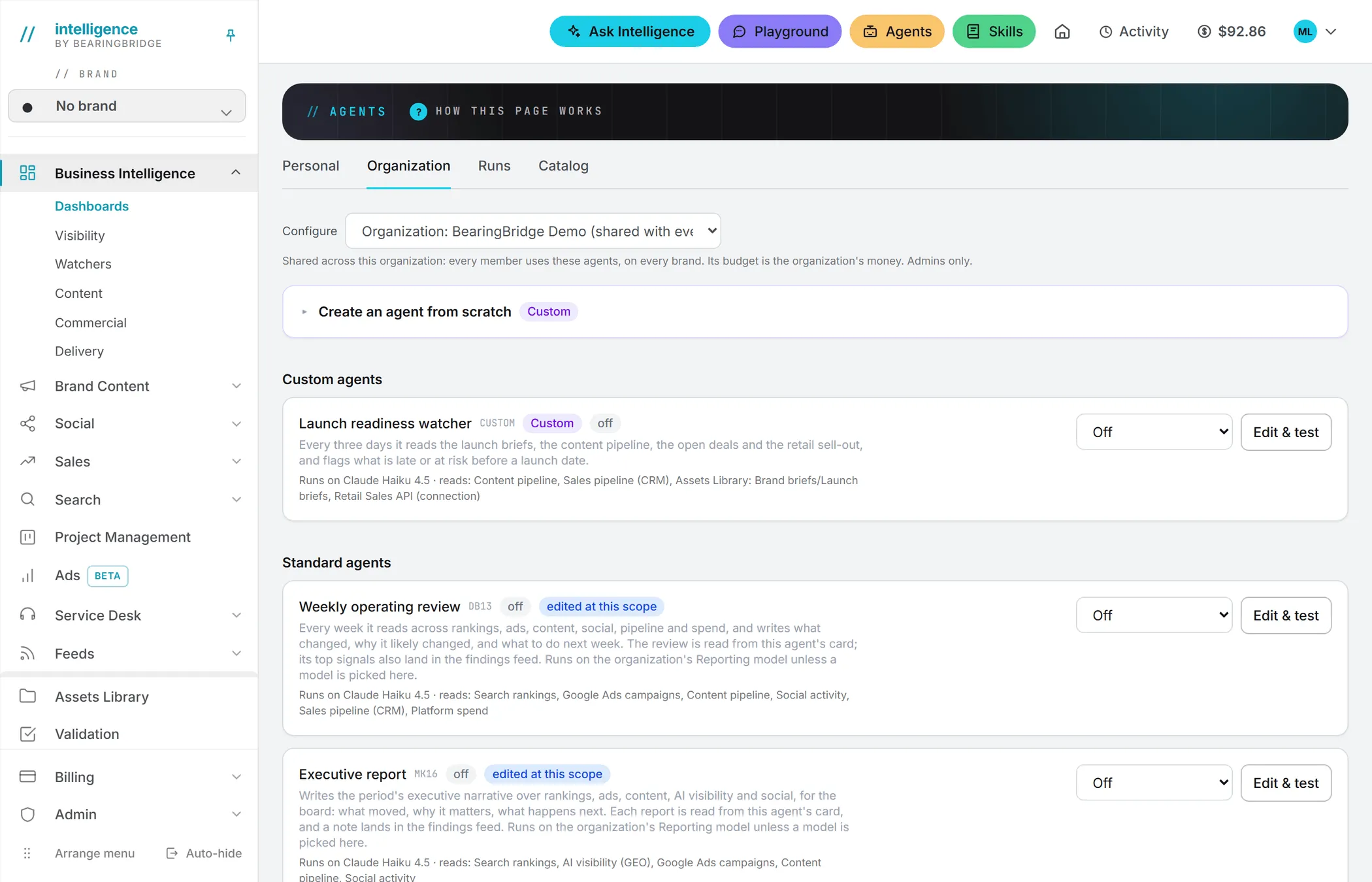
Once an agent is added, you set it up from two tabs of the Agents area. Admins and brand managers work on the shared agents in the Organization tab. Everyone manages their own agents in the Personal tab. Both use the same cards and the same form.
Personal and Organization tabs
Personal holds your own agents. It opens on your personal scope and shows no scope picker. The list starts empty until you add something.
Organization holds the shared agents. Only admins and brand managers see this tab. At the top, the Configure menu picks what you are editing:
- Organization: followed by your organization’s name and “(shared with everyone in it)”. The agents every member uses. Admins only.
- Brand: followed by a brand name. The tuning of the organization’s agents for that brand. Admins, and the brand managers assigned to it.
- User: followed by a member’s name and email address. That member’s personal agents, managed on their behalf. Admins only.
A brand manager sees only the brands assigned to them in this menu.
Who may configure which scope
| Scope | Admin | Brand manager | Editor | Viewer |
|---|---|---|---|---|
| Organization | Yes | No | No | No |
| One brand | Any brand of the organization | Assigned brands | No | No |
| Your own personal agents | Yes | Yes | Yes | Read-only |
| Another member’s personal agents | Yes, in your organization | No | No | No |
Viewers see how agents are set up but can’t change anything. A note at the top of the page explains why the controls are locked. Brands are explained in brands. See roles and rights.
The agent card
Each added agent gets a card. Next to its name and catalog code you may see a Custom badge, or Standard · added by the platform for a standard agent the BearingBridge team added. Then come:
- A status chip: on · every 20h (with its interval) or off. On the organization scope, an agent the organization left off but some brands switched on reads on for 2 brands (with the real count).
- edited at this scope when this scope changed any of its settings.
- What it does and which model it runs on, followed by what it reads.
- On the organization scope, the brands it actually runs on, with (brand setting) next to brands that switched it on themselves.
If an agent is on but no brand has its module switched on, the card says On, but no brand qualifies: each brand needs the underlying module switched on.
The On / Off menu on the right switches the agent at this scope. On the brand scope it also offers Inherit, which follows the organization.
Adding an agent here
Under the list, unfold Add an agent to see the standard agents this scope doesn’t have yet. Click Add to open the agent form, filled with the standard version, then Add the agent. It joins the list switched on.
On the Personal tab, a second button, Duplicate the organization’s setup, appears when the organization changed that agent. It opens the same form filled with the organization’s own name, instructions, model, schedule, budgets and recipients, so you start from what your team already tuned instead of from scratch.
You can also add agents from the catalog, and build your own from Create an agent from scratch at the top of the page. See custom agents.
Editing an agent
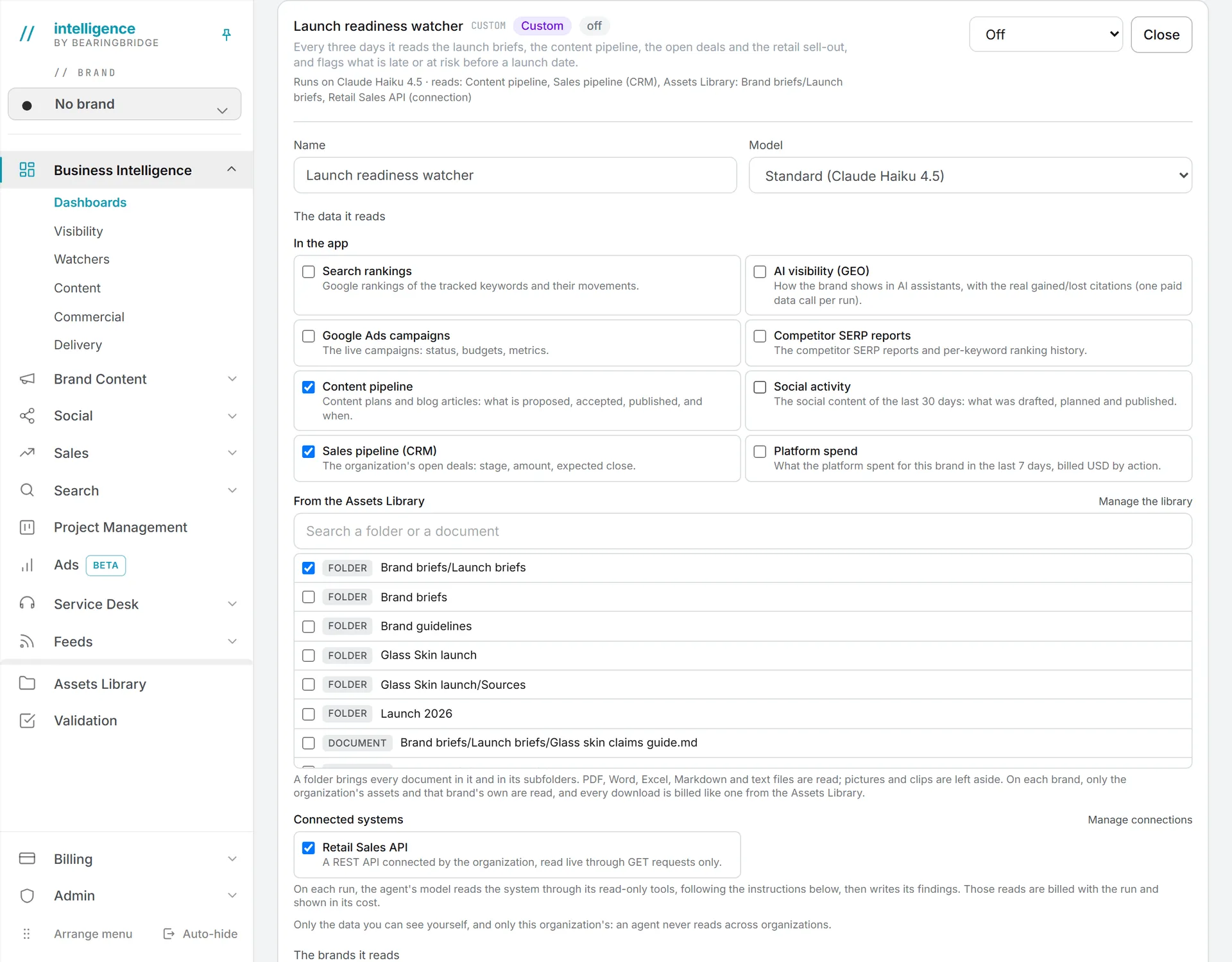
Click Edit & test on a card. The form opens under it.
| Field | What it sets |
|---|---|
| Name | What the agent is called everywhere, including in run emails. |
| Model | The model it runs on. Standard keeps the default. |
| The data it reads | Shown for reference. A standard agent’s data is fixed; a custom agent’s can be changed. |
| The brands it reads | Organization and personal scopes only. Each brand, in a run of its own, or One run over the brands ticked below. See none, one or several brands. |
| What users are told it does | The description shown on the card. |
| Instructions (the brief the agent reasons with) | Added to the agent’s prompt. At least 20 characters. |
| Runs every (hours) | The minimum time between two scheduled runs for a brand, from 1 to 720 hours. |
| Monthly budget (USD) | The most it may spend in a calendar month. Empty means no limit of its own. |
| Weekly budget (USD) | The most it may spend over any seven days. |
| Who hears about a run | The organization’s administrators, These people only (then list up to 20 addresses), or Nobody, keep it in Runs. Only scheduled runs send an email. |
| What the mail carries | A summary and a link to the run, or The full result in the mail. |
Click Save when you’re done. The button turns amber while you have unsaved edits, and changes apply from the next run.
On the organization and personal scopes, an empty field means the standard version of the agent. On a brand scope, an empty field inherits from the organization, and the menus offer Inherit.
Your instructions add to the agent’s standing rules; they don’t replace them. What it may report and how it grades severity stay fixed.
Removing an agent
The second button under the form takes the agent back out, and its label tells you what it does. On the organization scope it reads Remove from the organization; on a personal scope, Remove from these agents. After you confirm, the agent’s settings at this scope are cleared and it stops running there. You can add it again from the catalog at any time.
On a brand scope the button is Reset to inherited, which sends the brand back to the organization’s settings. For a custom agent it is Delete this agent, covered in custom agents.
Models
That covers the form itself. The next three sections go deeper on three of its settings.
The Model menu lists the models your organization can use, grouped by maker, such as Anthropic’s Claude models. Watchers and custom agents run on Claude Haiku 4.5 by default, a fast model suited to frequent runs. The two report agents, the weekly operating review and the executive report, use the model your organization set for Ask Intelligence until you pick one here.
A practical rule: watchers run often and read a lot, so a small, fast model keeps their cost down, while the report agents write longer documents that can be worth a stronger model. Test both ways on a real brand and compare the cost printed with each result.
Whatever you pick here wins over the default. If that model later leaves the list, the agent goes back to its default. See AI models and AI models in administration.
Schedules
Each standard agent comes with a default interval: 20 hours for the search rankings and Google Ads watchers, 44 hours for the AI visibility watcher and the market monitor, 168 hours for the weekly operating review, and 720 hours for the executive report. Custom agents start at 24 hours.
Think of the interval as a minimum gap. An agent is due on a brand again once that much time has passed since its last completed run there. A brand scope can set a different interval for its own brand.
Scheduled runs come from the organization’s agents. A member’s personal agents apply only to the runs they start themselves. How the daily schedule picks up due runs, and why a run can fail, is covered in runs and schedules.
Budgets
Each agent carries two budgets, monthly and weekly. Whichever is reached first stops the agent until the window clears: its scheduled runs fail with a message that gives the amount spent, and your own runs and tests are refused with the same message. The form shows what the agent spent this month and in the last seven days.
An organization or brand agent spends the organization’s money. A personal agent spends its owner’s.
When several scopes set a budget, the tightest one wins. A brand or a person can narrow the organization’s budget, never widen it. Runs and tests you start yourself must also fit the spending caps of your account and your organization. See credits and costs.
Testing on real data
Every open card has a Test run box.
- Pick a brand.
- Click Run on real data.

The agent runs on that brand’s current data with the name, instructions and model now in the form, even if you haven’t saved them. The result shows below: the number of findings, the model, the tokens, the cost, and each finding. There’s no estimate before you click; the cost comes with the result. For a report agent, the report itself is shown. Open The data the agent was given to see exactly what it read.
Nothing from a test lands in the brand’s feed or among the stored reports. The agent’s comparison snapshot isn’t touched either, so the next scheduled run compares against the same data as before.
Important: A test is still a real model call. It is billed like a run and checked against the agent’s budgets.
The brand must belong to the organization the agent belongs to, and the agent’s module must be on for it.
An agent set to read several brands is tested the way it runs: once over all the brands ticked in the form, saved or not, whatever brand the test box shows. With no brand ticked, the test reads the organization’s own data.
Sometimes the answer is that nothing is worth reporting. That’s a fair result. If you expected findings, tell the agent more precisely what counts as one, then test again.
Reading reports
Once opened with Edit & test, the card of a report agent has a Recent reports box. Pick a brand to read the latest reports stored for it. The first report arrives on the next scheduled run.
Troubleshooting
If a save or a test is refused, the message under the card tells you why.
| Message | What to do |
|---|---|
| The instructions need at least 20 characters. Clear the field to inherit instead. | Write a longer brief, or empty the field to use the standard one. |
| The interval must be a whole number of hours between 1 and 720. | Enter a whole number in Runs every (hours). |
| List at least one address, or send to the organization’s administrators. | With These people only, add at least one email address. |
| Not an email address | Fix the address named in the message. |
| Agent needs its module switched on for brand. | Pick another brand for the test, or ask an admin to switch the module on for that brand. |
| Pick a brand of the organization this agent belongs to. | Test on one of your organization’s brands. |
| No organization, brand or member scope to configure. Your own agents are under Personal. | Your role gives you no shared scope. Use the Personal tab. |