Report a bug
Found something broken in Intelligence? The Report a bug page asks where it happened and how serious it is, then the team answers by email.
When something in Intelligence is broken, the Report a bug page gets it to the BearingBridge team. It asks where the problem is and how serious it is. The answer comes back by email. Anyone who can sign in can use it, whatever their role.
Where to find it
Scroll to the footer of any page and click Report a bug. It opens in a new tab, so the page with the problem stays open behind it. That’s handy when you want to check a detail as you write.
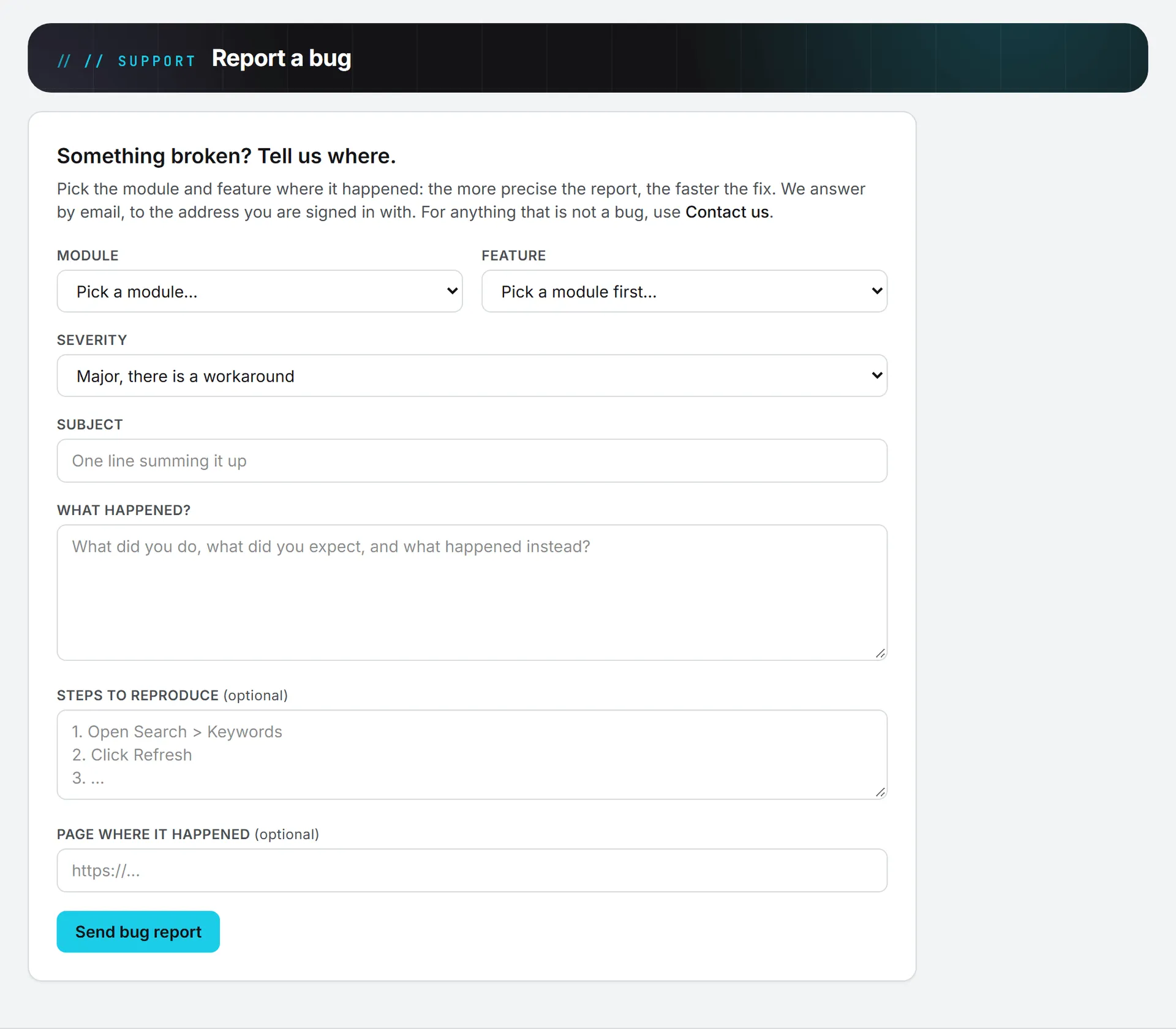
Fill in the report
- Pick the Module where it happened.
- Pick the Feature. The list follows the module you picked. Choose General / the whole module if it isn’t about one feature, or Other… to type the feature’s name in the box that appears.
- Set the Severity.
- Write a one-line Subject.
- Under What happened?, describe what you did and what you expected, then what happened instead.
- Add Steps to reproduce if you can (optional).
- Check Page where it happened (optional). It’s filled in with the page you came from.
- Click Send bug report.
Once it’s sent, the page says Thank you, your report is on its way. and shows the address the answer will go to. Report another bug gives you a fresh form.
Severity levels
| Level | Use it when |
|---|---|
| Blocking, I cannot work | You can’t get your work done at all. |
| Major, there is a workaround | It’s broken, but you found another way. This is the default. |
| Minor annoyance | It works, but it gets in your way. |
| Cosmetic / visual | Something looks off, but everything still works. |
The modules you can pick
The module list follows the app’s menu: Search, Ads, Content, Social, Market Monitor, CRM, Revenue Follow Up, Project Management, Business Intelligence, Feeds, Service Desk, Billing & credits, Admin, Account & sign-in, Ask Intelligence, and Something else. If the problem sits between two areas, pick the one you were on when it happened.
What gets sent
Here’s what travels with your words. The report goes to BearingBridge’s support mailbox. Along with what you typed, it carries your sign-in address, your role, your organization’s name, and the technical line your browser sends with every request (its user agent), which tells the team which browser and system you were on.
Nothing else is attached, and the form has no file upload, so describe a screenshot in words if you have one. There’s no ticket number or tracking page either: the answer comes by email, to the address you sign in with, and you can reply to it to continue the conversation. The page doesn’t promise a response time, so for something blocking, pick Blocking, I cannot work as the severity; it’s printed at the start of the report’s subject line in the team’s inbox.
Tips for a report that gets fixed fast
Keep to one bug per report, and use Report another bug for the next one. Say what you expected as well as what went wrong: “The button does nothing” is harder to act on than “I clicked Save and expected the post to be saved, but nothing happened.”
Check the Page where it happened field. It’s filled in with the page you came from, which is usually right, but not if you went somewhere else first. And if a message appeared on screen, copy it word for word into What happened?.
When to use Contact us instead
The bug form is for things that are broken. For a question, an idea, a billing matter or anything else, use Contact us. If you’re not sure whether it’s a bug, troubleshooting covers the most common problems and their fixes.
Limits and errors
The subject is capped at 150 characters and the description at 5,000. Steps to reproduce can run to 3,000. Sending a report costs nothing.
If the form says The support mailbox is not reachable right now. Please try again later., your report wasn’t sent. Your text is still in the form, so wait a few minutes and click Send bug report again.
You need to be signed in to send a report. If you can’t sign in at all, see sign-in and security.