Sequences
A first email and its follow-ups, sent to a list from your own Gmail or Outlook, stopping for anyone who replies, bounces or opts out.
Watch the video
A sequence writes to every person of a list from your own mailbox: a first email, then follow-ups a few days apart, each one sent only to the people who haven’t answered. Emails leave a few at a time, inside the hours you choose, and the sequence stops for a person as soon as they reply, their address bounces, or they opt out.
Open it from Email in the left menu, then Sequences, or from the Sequences switch in the black band of the Email pages. It’s one of the three pages that follow the Prospects and Sequences right of your role (see Prospects).
What you need first
- A list of people to write to, built on the Lists page.
- A mailbox that can send, connected in your own name on My Connections: a Gmail or an Outlook mailbox. The emails leave from it, in your name, and sit in its Sent folder like any email you write.
Important: An Outlook mailbox connected before sequences arrived was only allowed to write drafts. It shows in the sequence grayed out, with “This Outlook was connected before the product could send. Connect it again from My Connections to use it in a sequence.” Click Reconnect on that mailbox in My Connections, accept the new permission, and it can send. A Gmail connected before the app could write gets the same kind of note.
How the page is laid out
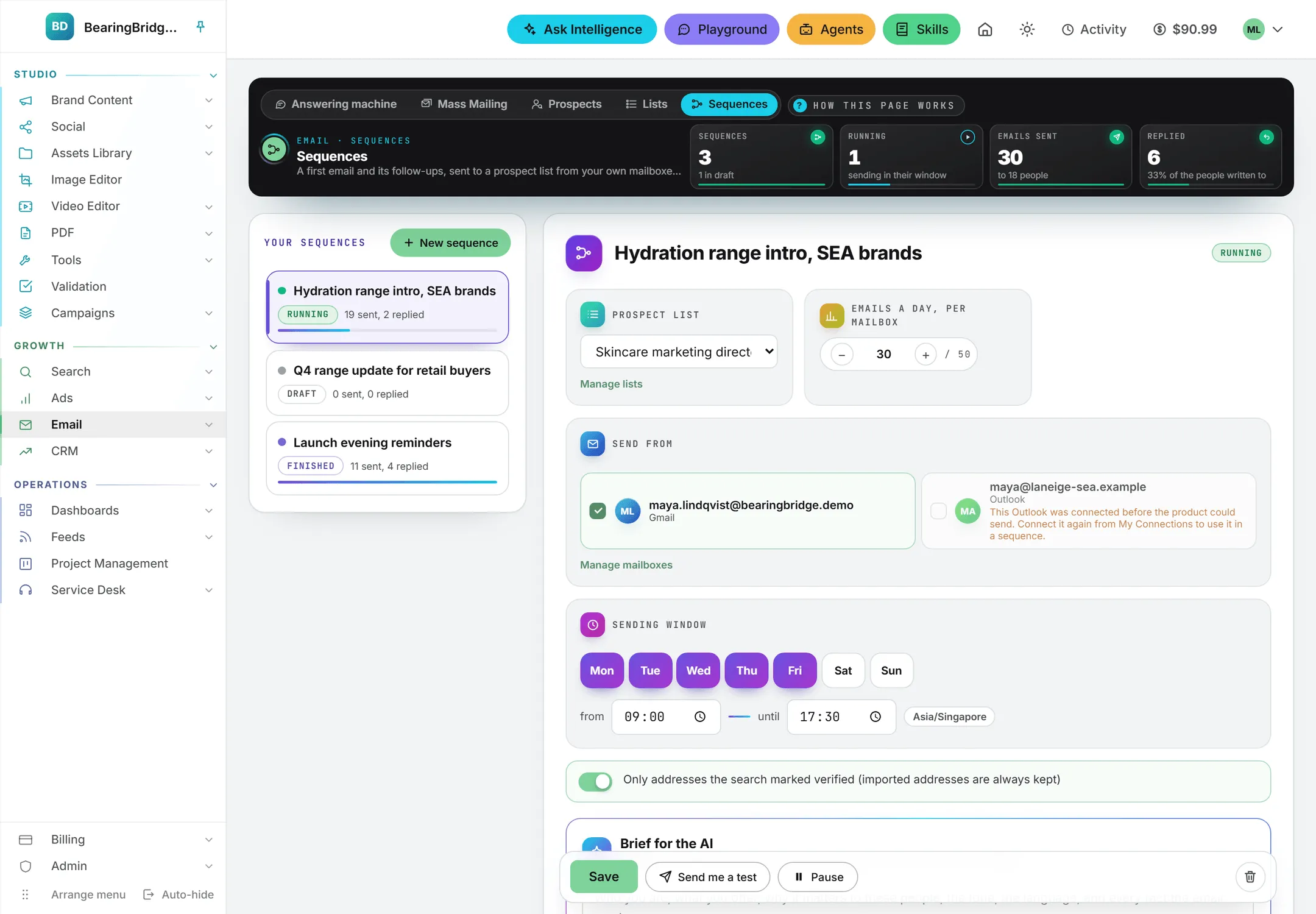
Your sequences are picked from the button at the right of the black band, which shows the open sequence and how many you have. It opens a panel with a search, the states as chips (All, Draft, Running, Paused, Finished) and one row per sequence, with its state, what it sent, who replied, and a bar that fills as people reach the end of it. New sequence, at the foot of the panel, creates a draft with your first list, your first mailbox that can send, two empty steps (a first email and a follow-up three days later), designed in your first brand’s look.
| State | What it means |
|---|---|
| Draft | Written and edited. Nothing is sent. |
| Running | Started: the emails leave inside the sending window. |
| Paused | Stopped by you, or by itself when too many addresses bounce. |
| Finished | Everyone has had every step, replied, bounced or opted out. |
The band adds them up across your sequences: Sequences (with how many are drafts), Running, Emails sent (and to how many people) and Replied (and what share of the people written to).
The open sequence fills the page. Its name is at the top, in a field you can type over, and the rest sits in tabs, a figure beside each:
| Tab | What it holds |
|---|---|
| Emails | The steps, each written on its own, with their design and their preview. |
| Audience | The list written to. |
| Send settings | The mailboxes, the number a day, the days and hours. |
| A/B test | Two versions and the share of each. |
| Results | Once it has started: who replied, and who is where. |
A draft opens on Emails, a running sequence on Results. Whatever keeps a sequence from starting shows as a pill above the tabs, and its tab carries a dot: click the pill and its tab opens.
Audience and send settings
| Setting | Tab | What it decides |
|---|---|---|
| Prospect list | Audience | Who the sequence writes to. Manage lists opens the Lists page in a new tab. Once the sequence has started, its list can’t change. |
| Verified addresses only | Audience | On by default. It leaves out the people found on Prospects whose address the people search didn’t mark as verified. People who came from a file, pasted addresses, the CRM or an agent’s reading of your data are always written to. |
| Send from | Send settings | Which of your mailboxes send, each shown as a card with its address. With several, the people of the list are shared between them in turn. A mailbox that can’t send is grayed out with the reason. Manage mailboxes opens My Connections in a new tab. |
| Emails a day, per mailbox | Send settings | At most this many emails a day from each mailbox: 30 by default, 50 at most. It counts the last 24 hours, across every sequence that mailbox serves. |
| Days and Hours | Send settings | When the emails may leave, in your own time zone, shown beside the hours. A new sequence starts on Monday to Friday, 08:00 to 18:00. |
Write the steps
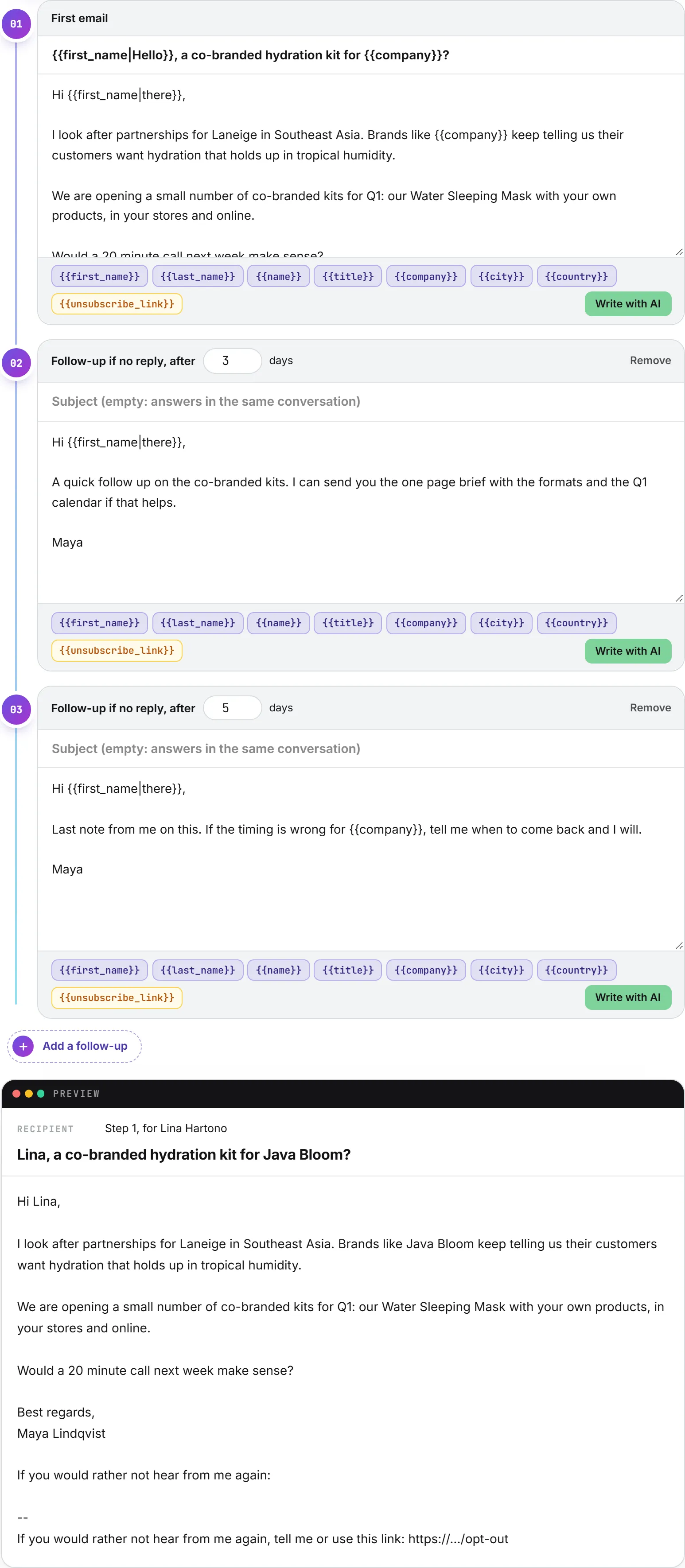
The Emails tab lists the steps on the left: First email, then up to five follow-ups, each card with the day it leaves and its subject or first line. A dot marks a step with nothing written yet. Click a step to write it; Add a follow-up, under the steps, adds one, and Remove, in a follow-up’s head, takes it out. Each follow-up waits a number of days after the step before it, from 1 to 60, and goes only to the people who haven’t answered.
The step you picked has five tabs of its own: Write, Images and video, Design, AI and Preview.
A follow-up with an empty subject answers in the same conversation as the first email, so your prospect reads it as a reply in the same thread.
Fields
The buttons under the text, in Write, place a field where your cursor is: {{first_name}}, {{last_name}}, {{name}}, {{title}}, {{company}}, {{city}} and {{country}}. The other columns of a list imported from a file work the same way, under the name of their column. Give a field a fallback after a bar for the people who have no value: {{first_name|there}} reads “Hi Anne” for Anne and “Hi there” for someone with no first name.
Every email carries an opt-out link. Place {{unsubscribe_link}} where it reads best, in your own language. Without it, a short line is added at the end: “If you would rather not hear from me again, tell me or use this link:”, followed by the link.
Write with AI
The AI tab holds Brief for the AI: who you are, what you offer, why it matters to these people, the tone, the language, and every fact the emails must carry. Pick the model that writes, in the model picker, and the skills to write with, if you want your usual tone or sign-off.
Write step 1 (named for the step you picked) writes it from the brief, knowing the steps before it, with the fields of the list; Write with AI, at the foot of Write, does the same. When a step already has text, the app asks before replacing it. Design step 1 lays the text out, as Design with AI does (see Design). The cost of each call shows beside the buttons.
In Write, highlight some words and right-click them, or press Rewrite with AI beside them, to have just that passage rewritten (shorter, plainer, more concrete, or as you say), as on a social post.
Images and video
The Images and video tab of a step holds its screenshots and one video. A step with any of them leaves as an HTML email, with the same text beside it for the mail apps that only read text.
- Pictures: up to six per step. From the library picks them in the Assets Library; Upload puts files from your computer into the library first, with a progress bar; or paste the https:// address of a picture and click Add. They sit under the text, full width (600 pixels at most), in the order of the list: the arrows move a picture up or down, the cross removes it. To show a picture inside the text instead, put the cursor where it goes and click Place in the text: a line such as [picture 1] marks the spot, and the picture takes its place in the email. The number follows the order of the list. Fill Describe the picture (alt text) for readers whose mail app hides images, and Link when clicked (optional) if a click on the picture should open a page.
- Video: Video file (MP4), Poster image, Animated preview (GIF, optional), Watch page and Caption. The folder button beside a field picks the file in the library. Apple Mail and iOS Mail play the video inside the email. Gmail and Outlook can’t, so they show the animated preview, or the poster, as a picture that opens the watch page. The caption sits under it as a link to the same page in every mail app: write it in the language of the email, such as “Watch the 30-second video”.
A picture or a video taken from the library gets a public address of its own, so the email can show it to whoever opens it. The file stays in your library as it was.
Warnings show at the foot of the tab when something could send the email to spam: a picture with no description, a link shortener such as bit.ly, or more pictures than text. A video without its MP4 file, its poster or its watch page keeps the sequence from starting.
The preview
The Preview tab draws the step as your prospect receives it, across the whole width, merged for the first person of the list, opt-out line included: designed when the sequence is designed, with its pictures and video.
The preview is also an editor. Highlight a passage and right-click it, or press Edit with AI beside it: a menu offers one-click changes to the words (Shorter, Plainer, More concrete, Fix the writing), to the layout (Make it a heading, Make it a list, Make it a callout, Make it a button, Bold) and to the design (A darker colour, Square corners, The logo centred on a full band, A serif font), and a box to say anything else. The change goes into the step and the design, is saved at once, and Undo puts both back.
A/B test
An A/B test sends two versions of the emails and shows which one gets more replies. On the A/B test tab, turn on Send two versions and compare the replies, then choose how the list is shared: drag the slider, or click one of the shares under it (50 / 50, 40 / 60, 30 / 70, 20 / 80). With 40 / 60, 40% of the people get version A and 60% get version B.
A Version A | B switch then sits beside the step’s tabs, in Emails: every tab (Write, Images and video, AI, Preview) shows the version you picked. Version A is what you wrote; version B holds its own subject and text. A part left empty is the same as version A, so you can test only a subject line, or only the text. The pictures and the video are the same as version A too, until you click Give B its own pictures in Images and video on version B: version B then starts from a copy of them, which you change freely, for instance fewer screenshots in a shorter version. Use the pictures of version A goes back to sharing them. A dot on B shows the steps where version B says something of its own.
- Write step 1, version B, in the AI tab, writes version B as a different take on version A: another opening and another reason to reply, with the same facts and the same call to action. Write version A first.
- Preview and Send me a test follow the version you picked, so you can read and receive each one.
Each person gets version A or B when the sequence takes them on, at random, in the share you chose, and keeps that version for every follow-up. The share is set while the sequence is a draft and stays as it was once it starts, so the test stays fair. You can still edit the text of either version while it runs: the changes apply to the emails not sent yet.
Design
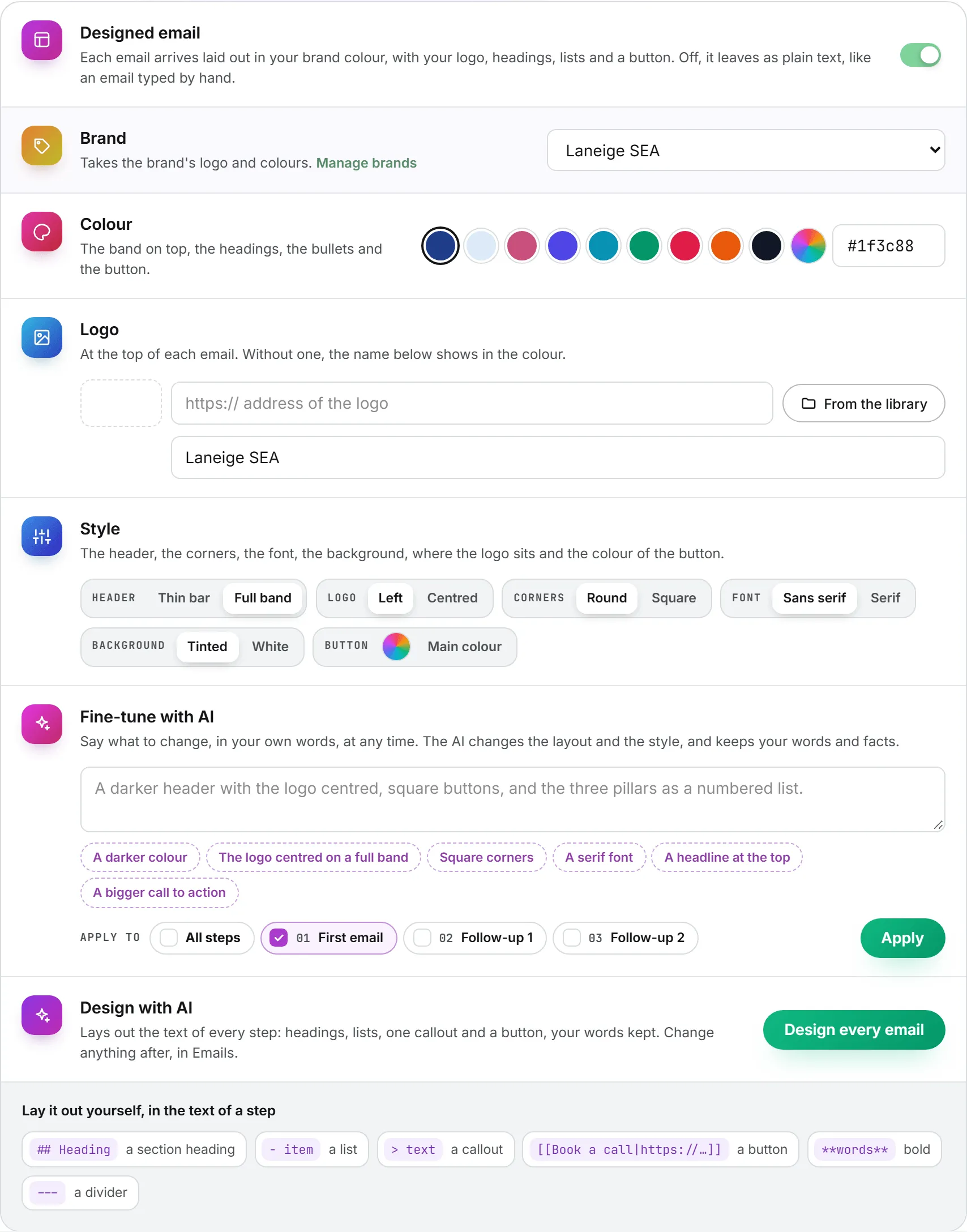
The Design tab of a step, in Emails, sets the look of every email of the sequence. It sends each email laid out in a brand’s colour, with its logo: a card on a light ground, a band of the colour, headings, lists, a callout and a button. A new sequence starts designed, in your first brand’s look. Every change here is saved the moment you make it, without Save, so a designed sequence stays designed, and every preview shows it. The step’s Preview draws it as you set it.
| Setting | What it does |
|---|---|
| Designed email | On, each email arrives designed. Off (the app asks first), it leaves as plain text, like an email typed by hand; the design comes back as it was when you turn it on again. |
| Brand | Takes the logo and the colours of one of your brands. Manage brands opens the Brands page in a new tab. |
| Colour | The band on top, the headings, the bullets and the button: the brand’s own colours first, a few others, or any colour and its code. |
| Logo | At the top of each email, by address or From the library. Without one, the name you type shows in the colour. |
| Style | Header (a thin bar of the colour, or the logo on a full band), Logo (left or centred), Corners (round or square), Font (sans serif or serif), Background (tinted or white) and Button (its own colour, or the main colour). |
Design with AI
Design every email lays out the text of every step (and of version B, where it has its own): headings, lists, one callout for the strongest proof, a button with a link the email already holds, and bold for a few key phrases. Your words, facts, fields and pictures stay as written, and a layout that would lose a field or a picture line is refused. Design step 1, in the step’s AI tab, or Design with AI in Write, does the same for one step. The result is saved at once; change anything after, in Write.
Fine-tune with AI
Say what to change, in your own words, at any time: “a darker header with the logo centred, square buttons, and the three pillars as a numbered list”. The ideas under the box add common requests. Tick the steps it applies to (All steps ticks them all), then Apply: the AI turns the style settings and lays the text out again as asked, then everything is saved.
Lay it out yourself
The layout lives in the step’s text as light marks, which you can write or change by hand:
| Mark | Gives |
|---|---|
## Heading | A section heading, with a bar of the colour |
- item or 1. item | A list, the bullets or numbers in the colour |
> text | A callout on a tint of the colour |
[[Book a call|https://...]] | A button, on its own line |
**words** | Bold |
--- | A divider |
The text part of the email, read by mail apps that show only text, gets the same words without the marks.
Test, start and pause
A bar stays at the foot of the screen while you work on a sequence:
- Save turns amber when there’s something to save.
- Send me a test sends the step you’re on to your own address, from one of the sequence’s mailboxes, merged for the first person of the list. Its subject starts with “[Test]”. A step with pictures or a video arrives as the HTML email, so you see it in your own mail app. It saves first if needed.
- Start asks you to confirm, then takes on every person of the list and starts sending inside the window. People added to the list later are taken on too.
- Pause stops the sending at once. Resume picks it up again.
- The bin deletes the sequence after a confirmation. Nothing more is sent, and its history goes with it. The people stay in their lists.
Before a start, the sequence checks that it has a list, at least one mailbox that can still send, and a subject and text in the first email, text in every follow-up, a complete video in any step that has one, and, with an A/B test, a version B in at least one step. Anything missing is listed at the top of the sequence, as in “Choose at least one of your mailboxes.”
You can still edit a running sequence: the changes apply to the emails not sent yet.
How the emails leave
The app checks the running sequences every five minutes. Inside a sequence’s window, each of its mailboxes sends at most one email per check, and now and then skips one, so the emails don’t leave on the stroke of every five minutes like a machine. A mailbox never goes past its daily number.
Before any follow-up, the conversation is read again. A person who replied, or whose address bounced, gets nothing more. Replies to the last step are still noticed for a week after it was sent.
| What happens | What the sequence does |
|---|---|
| The person replies | Stops for them, marked Replied. |
| The address bounces | Stops for them, marked Bounced, and the address goes on Do not contact. |
| The person opts out | Stops for them, marked Opted out, and the address goes on Do not contact for every sequence of your organization. |
| The address is on Do not contact | Never written to. |
| A send fails | Tried again an hour later, three times at most, then marked Failed. |
| More than 1 email in 20 bounces, after 20 sent | The whole sequence pauses itself and says why. Check the list before you resume. |
Every email sent is also listed under Written in your mailbox on My Connections, with Email: Sequences as what wrote it.
Who is where
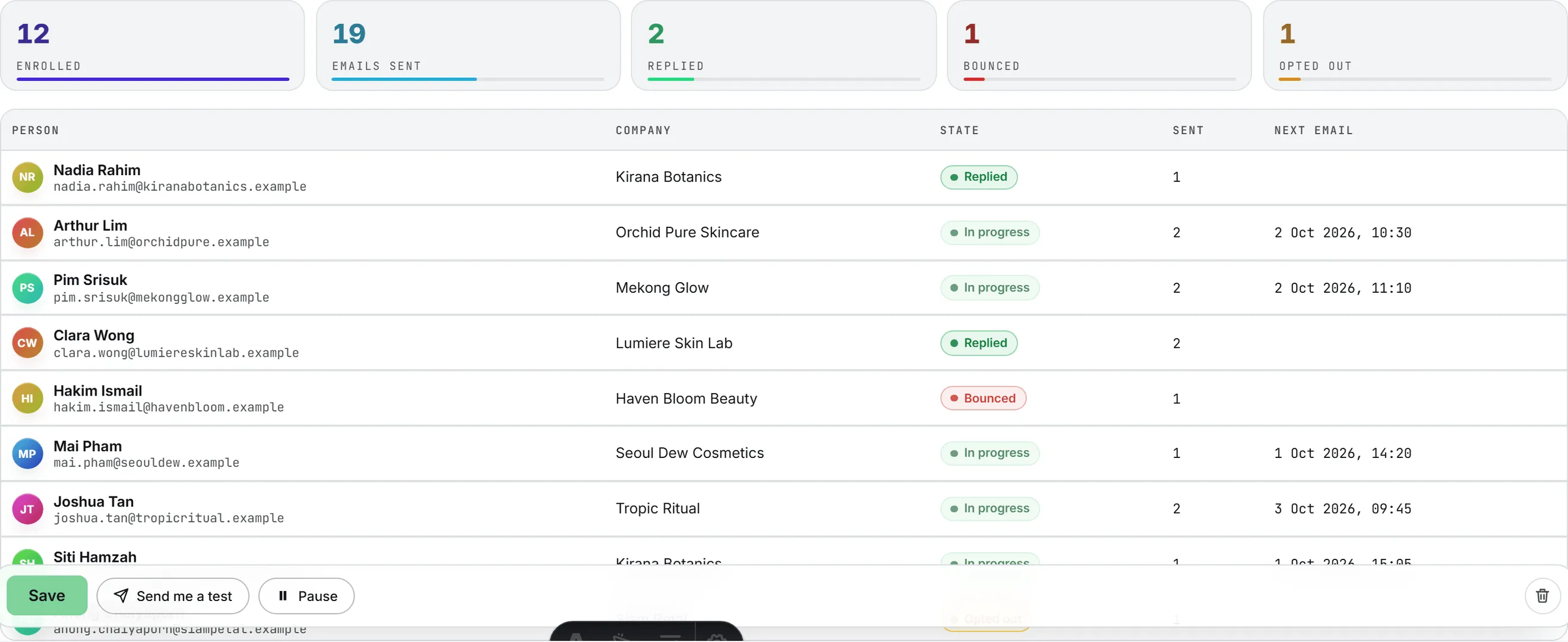
Once a sequence has started, Prospects in this sequence shows how far it got: the people enrolled, the emails sent, and how many replied, bounced and opted out. The table lists each person with their state (In progress, Replied, Bounced, Opted out, All sent, Failed or Skipped), how many emails they got, and when their next email is due.
A/B test results
A sequence with an A/B test shows both versions side by side above the table: each one’s reply rate (the people who replied, out of the people who got at least one of its emails), the share of the people it was given to, and its figures: enrolled, written to, emails sent, replied, bounced and opted out. The table gets a Version column with each person’s A or B.
Under the two versions, a line says where the test stands:
| What it says | What it means |
|---|---|
| Too early to call | One of the versions has reached fewer than 30 people. The line adds which one is ahead for now, if either is. |
| Version A (or B) is ahead, but the gap may still be chance | Both have reached 30 people or more, but the gap could come from luck. That version is marked Ahead. Let more people receive the emails. |
| Version A (or B) draws more replies, and the gap is beyond chance | The gap holds at 95% confidence. That version is marked Winner. |
The opt-out page
The opt-out link of a sequence email opens a page that names your organization and asks “Stop these emails?”. Opening it changes nothing, so a mail scanner that follows every link opts nobody out. The person has to click Stop the emails. Mail apps that offer their own one-click unsubscribe button use the same link.
The page carries your organization’s name and nothing of ours. A link copied wrong opens a page that says so and suggests replying to the email instead.
Who can do what
A sequence belongs to the person who made it, because it sends from their mailboxes. Only they can edit it, test it and start it. An administrator of your organization sees every sequence of the organization and can pause or delete any of them.
What it costs
Sending is free: the emails leave from your own mailbox. Write with AI is paid like any AI writing, at the cost shown beside the button, and the Usage log lists it as Mass mailing template. See Credits and costs.