Publishing posts
How a post leaves Intelligence: the app publishes it on your connected accounts, now or on schedule, or you post it yourself in the network.
Publishing is the last step of every social post. It’s where you decide how the post leaves Intelligence: the app sends it for you on a connected account, now or at a time you pick, or you post it yourself in the network’s own composer.
Where you find it
Open a post on any network page (LinkedIn, Instagram, Facebook, TikTok or X) and click the Publishing tile in the band at the top of the post. It is step 03 on every network.
At the top sit two tabs, Publish automatically and Publish manually. Below them come the checks and the re-purposing block, then the post’s queue. The phone preview stays on the right whichever tab is open, so you can check the post while you decide.
Who can publish
| What you want to do | What you need |
|---|---|
| See the publishing step with its buttons | The editor role or above, and access to the post’s brand |
| Publish automatically on an account | An account you connected yourself, or a company account you were given |
| Publish manually | Nothing connected: the post leaves from your own browser session |
| Cancel, retry, update or delete a queued post | The right to publish on that account |
Social accounts are personal: each person connects their own on My connections, and nobody else can post with them. Some organizations also hold company accounts, marked Company in the list. Admins can publish on all of them; other people only on the ones they were given. A company account pinned to a brand shows only on that brand’s posts, and only to people who have that brand. See roles and rights and brands.
Before you start
To publish automatically, you need a connected account on the post’s network. Without one, the automatic tab says so and offers a Connect a page or Connect an account button that opens My connections in a new tab.
Important: A post waiting for validation can’t be published. While a colleague reviews it, the post is locked and the publishing step shows only its queue, with no Schedule or Publish button.
The lock lifts when the validator decides. Once it’s approved, the buttons come back; a rejected post returns to draft for another round. See validation.
Publish automatically
Here the app does the posting. It goes through the network itself, in the name of the account you tick.
- Open the Publish automatically tab.
- Under Who it goes out as, tick one or more accounts. Nothing is ticked when the step opens.
- Under When, if you schedule it, pick a day and time, or press a chip: In an hour, Tonight, 18:00, Tomorrow, 09:00 or Monday, 09:00.
- Open the options panel, named after the network (for example What LinkedIn asks for), and set what you need.
- Press Schedule to queue it, or Publish now to send it this second.
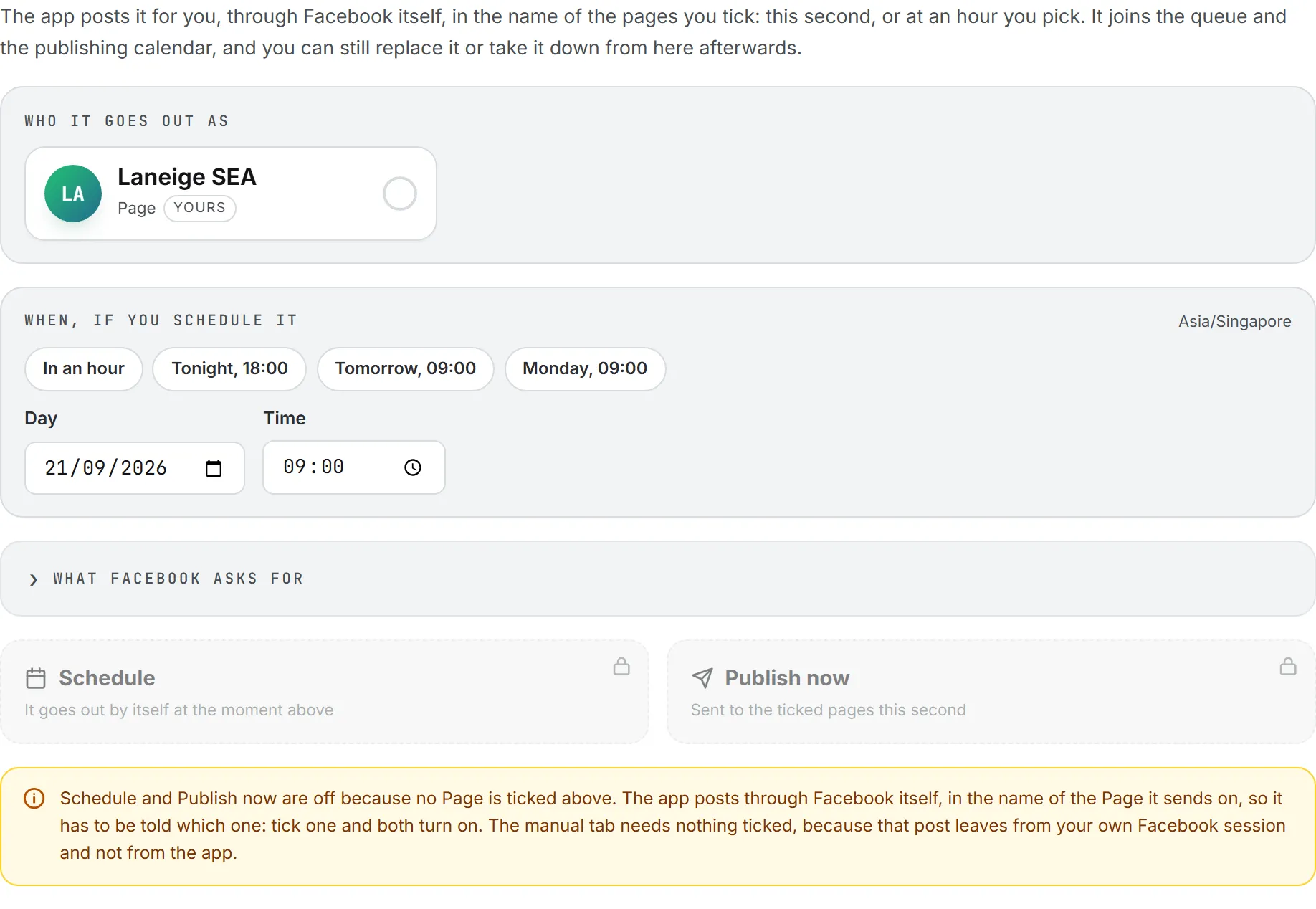
Schedule and Publish now stay locked until at least one account is ticked. A line under them explains why, and the badge next to the tabs reads Off until you tick one. Tick an account and it changes to Ready when you are.
Each account tile gives the name and the kind of account (Page, Profile or Account). A tag says whose it is: Yours or Company. You may also see This brand on a company account pinned to the post’s brand, or a day count such as “5 d” when the connection runs out within a week. Reconnect means it has stopped working, and that tile can’t be ticked.
Scheduling rules
- The fields open on tomorrow at 09:00.
- The time is read in your own time zone, which is printed next to the fields. You choose it in date, time, language and theme.
- A scheduled time must be at least a couple of minutes ahead. For anything sooner, use Publish now.
- You can’t schedule more than a year ahead.
- One post can go to up to 20 accounts at once.
- Publish now ignores the day and time fields.
Every account gets its own row in the queue, so one account can fail while another succeeds. Scheduling the same post again on the same account replaces the row that’s waiting rather than adding a second send. To move a scheduled post to another day, drag it on the calendar; a post that failed goes back in the queue when you move it.
How the scheduler sends
The scheduler looks at the queue every five minutes, so a post set for 09:00 goes out between 09:00 and 09:05. Before each send it renews the account’s connection if needed and respects the network’s pace: Instagram allows 100 posts per account in 24 hours, TikTok 15, and every network gets a short gap between two sends on the same account. It also checks the post against the network’s limits one last time, in case a picture or the copy changed since you scheduled it.
Press either button and the post freezes until the answer comes back. Then a banner on the post tells you how it went: Published., Scheduled., It did not go out. or It went out on some accounts only.
Network options
The options panel only offers what each network takes.
| Network | Options |
|---|---|
| Who sees it (Anyone on LinkedIn, Connections only), Nobody may share this post on, and a Shape of feed post or article with a link | |
| Shape: Feed post or Story for pictures. A video always goes out as a Reel | |
| First comment (optional) | |
| TikTok | Who sees it, No comments, No duets, No stitches |
| X | Send as a thread when the copy is longer than one post |
Publish manually
In this tab you post it yourself. Nothing has to be ticked or connected.
- Open the Publish manually tab.
- Press Publish interactively.
- The network opens in a new tab. LinkedIn and X open their own composer with the copy in it. Facebook, Instagram and TikTok open with the copy on your clipboard.
- Follow the steps listed under How it goes, press by press: paste the picture or drag in the downloaded files, paste the copy, then post it there.
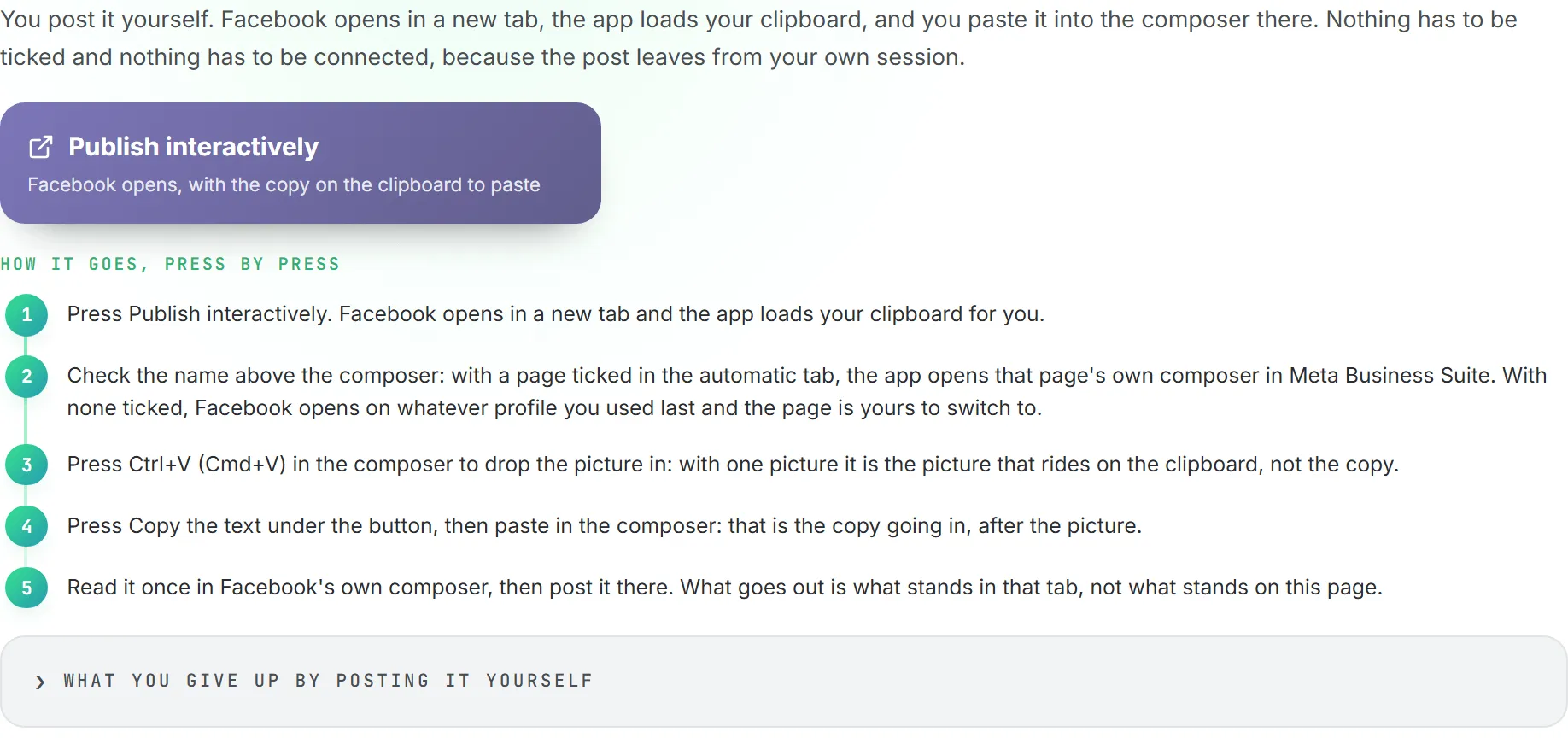
With one picture, the app puts the picture on your clipboard. With several, it downloads them as numbered files. If the copy arrives cut short, press Copy the text and paste it again.
On Facebook, if you ticked a page in the automatic tab, the composer of that page opens in Meta Business Suite. With no page ticked and only one connected, that one is used.
On X, this way costs nothing: the post leaves from your own X session, not through the paid connection.
The panel What you give up by posting it yourself lists the trade-offs. You can’t pick an hour. The app is never told the post went out, so it doesn’t join the queue or the publishing calendar, and you can’t edit or delete it from Intelligence afterward.
To keep your records straight, use Where it stands at the bottom of the step once the post is live: set it to published, paste the post’s address, and press Save. The post then counts as published and shows on the calendar.
Take a post to other networks
One post is often worth several. Re-purpose for other networks, below the two tabs, turns this post into posts for the other networks. Tick the networks, then pick a way:
- Manually. Each ticked network opens in its own tab, with this post as the brief (or as the picture prompt on Instagram and TikTok). Nothing is drafted until you press Draft there.
- Draft at once. The app drafts each network’s post from this one, with its pictures or its video, and opens each draft in a new tab. Each draft is billed like one Draft with AI.
- Publish automatically. The same drafts, then sent on the accounts you tick for each network, now or at a moment you pick per network.
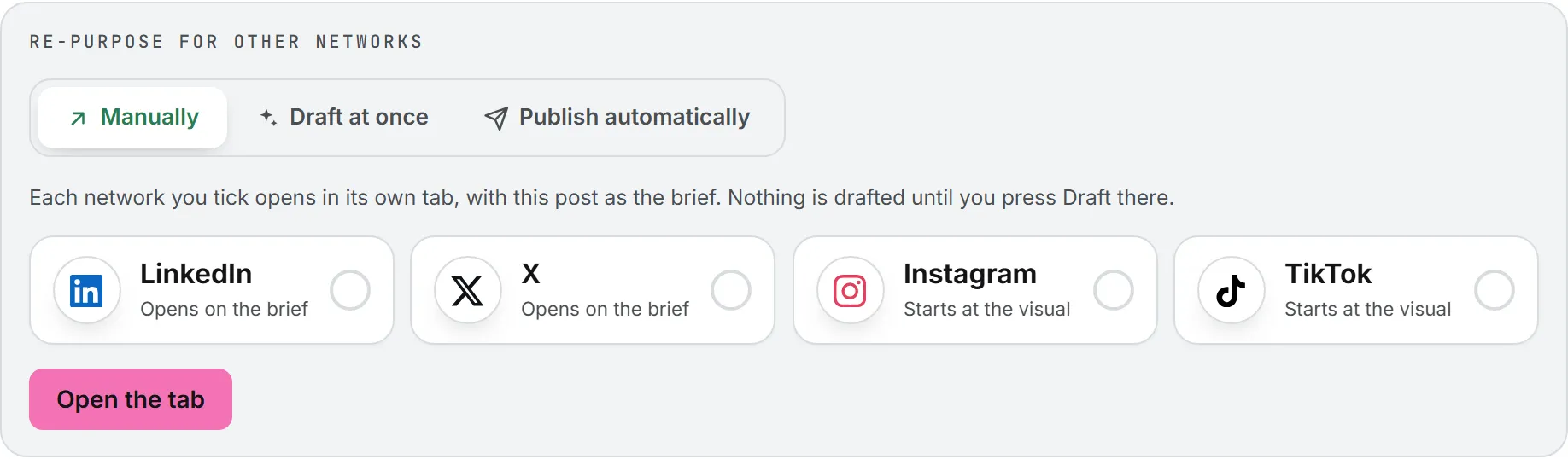
A network that can’t take the post is grayed out: Instagram needs a picture and TikTok needs a video. With Publish automatically, only networks where you have a connected account can be ticked, and nothing is sent until you tick an account under each one.
A re-purposed draft runs with the target network’s own format skill and nothing else, so an X post keeps X’s rules and never inherits the rules of the network it came from. There’s no skills picker in this block; to use your own skills, draft the post in that network’s studio instead. A results list under the buttons gives each network’s state, what it cost and a link into the new post, and the line under it totals what the whole run was billed.
Set the status by hand
Where it stands, at the bottom of the step, sets the status yourself (draft, approved or published) and holds the Published URL once the post is live. Click the Save beside them to keep the change. A post the app sends fills both in by itself, so this is mainly for posts you published elsewhere.
The queue and publication statuses
After you press Schedule or Publish now, this is where you follow the post. Everything you schedule or send lands under In the queue, with one row per account.

| Status | What it means | What you can do |
|---|---|---|
| Scheduled | Waiting for its time | Cancel |
| Sending now | The app is sending it | Wait |
| Published | Live on the network, with View live | On X: Update the post on X, Delete the post from X |
| Did not go out | The network refused it, or it is waiting to retry | Try again now, Cancel |
| Deleted from the network | Taken down from Intelligence, record kept | Schedule it again as a new send |
Canceled rows are hidden from the list. When nothing of a post is still waiting, the post itself is marked published. If you delete it from the network, the post goes back to approved unless it is still live on another account.
Only X lets the app edit or delete a post after it is out, and X sets its own conditions for edits. See X. LinkedIn, Facebook, Instagram and TikTok posts have to be changed on the network itself.
Failures, retries, and notices
A refusal isn’t always final. What the app does next depends on the reason:
- Temporary problems (the network is overloaded or down) are retried automatically: 5 minutes after the first try, then 30 minutes after the second, then 2 hours. A post gets three attempts in all. The row shows Next attempt with the time.
- Daily limits (the account reached what the network allows per day) wait an hour and try again.
- Content problems (too long, wrong file type) are not retried. The row shows the network’s own explanation.
- A dead connection is not retried. The account is marked expired and needs reconnecting.
- No credit left on an X post counts as temporary, so a top-up before the next attempt still sends it.
When a post won’t be retried, an email titled “Scheduled (network) post did not go out” goes to the person who queued it. It names the post, the account, the time it was due, the number of attempts, and what the network said. For a company account, the organization’s admins get it too. See emails and notifications.
A post can go out with a notice. On TikTok, for example, the network may publish with a narrower audience than you asked for, and the banner says so.
Publish now, Try again now, Update and Delete also show up in the Activity panel while they run.
When an account stops working
Some connections run out. A LinkedIn connection lasts 60 days. Instagram renews itself and only lapses after 60 days disconnected. TikTok’s daily renewal keeps it alive for up to a year, after which it asks to be reconnected. X and Facebook stay alive unless access is revoked.
Every day the app renews the connections it’s allowed to renew. When an account can’t be renewed, its owner is emailed: the person who connected it for a personal account, or the admins for a company account. The email says how many days are left, or that it has run out, with a link to reconnect it. You reconnect from My connections, and the posts in the queue stay where they are.
An expired account shows Reconnect on its tile and can’t be ticked. If it runs out with posts still queued, those posts fail and you get the failure email.
What it costs
Publishing on LinkedIn, Facebook, Instagram and TikTok is free. Publishing on X through the app is billed in credits, per post: a thread of four is four posts, and a post with a link costs more. As soon as you tick an X account, a line under the buttons gives the price of the send, such as “This send costs (price), 3 posts.” The banner and the queue row show what it actually cost once it went out.
Nothing is charged when you schedule. The charge lands when the post goes out, and only for the posts X accepted. The app checks your credits when you press Schedule or Publish now; with nothing left, the press is refused with a message and nothing is queued. It checks again at send time. See X and what costs credits.
Troubleshooting
Start here when a post didn’t go the way you expected.
Schedule and Publish now are grayed out. No account is ticked. Tick at least one under Who it goes out as.
My account isn’t in the list. The list shows only accounts on the post’s network. A company account pinned to another brand doesn’t show, and an account you haven’t connected yet won’t appear until you connect it on My connections.
The publishing step has no buttons at all. Either the post is waiting for validation, or your role is below editor.
A post stays on Sending now. If the server stops mid-send, the row goes back to the queue after 15 minutes, marked as interrupted, and the next attempt picks it up.
The app refused to queue the post. It checks the post against the network’s limits before queuing it: copy length, number of pictures, file types and sizes, and video length. The message says what to fix. The limits for each network are on its own page, such as Facebook or TikTok.
Good to know
- Check voice, above the tabs, scores the draft against the brand’s voice before it goes out. See writing posts.
- Scheduled posts also appear on the publishing calendar.