Profile and password
Your Settings page holds your name, picture, login email, password, trusted browsers and home page. Here's what each card does and who can change it.
The Settings page is where you manage your own account. Every account has one, whatever the role. Your name and picture live there, along with the address and password you sign in with and the page that opens after sign-in. It also tells you your role and organization, and what you’ve spent so far.
Here’s how each part works. Your date, time, language and theme settings have their own article, and so do the emails you receive.
Open your settings
- Click your picture (or your initials) in the top right corner of any page.
- Choose User Settings.
The page opens on a dark band with your name. A section index runs down the left side: Account, Preferences, Automation and Billing. Click an entry to jump to that card. On a phone, the index becomes a strip across the top of the page.
Your credits at a glance
The band across the top tells you who’s signed in: your name, your sign-in address under it, your role, your organization and the day you joined.
Three tiles sit next to it:
- Available now is what you can spend right now. A Buy credits link appears only when you run low or have nothing left for today.
- Spent today is what you spent today. The ring around it shows how much of your daily allowance on the shared credits is gone. If you have no allowance, the ring compares today with the month.
- Spent this month is the month’s total, with a small chart of the last 14 days.
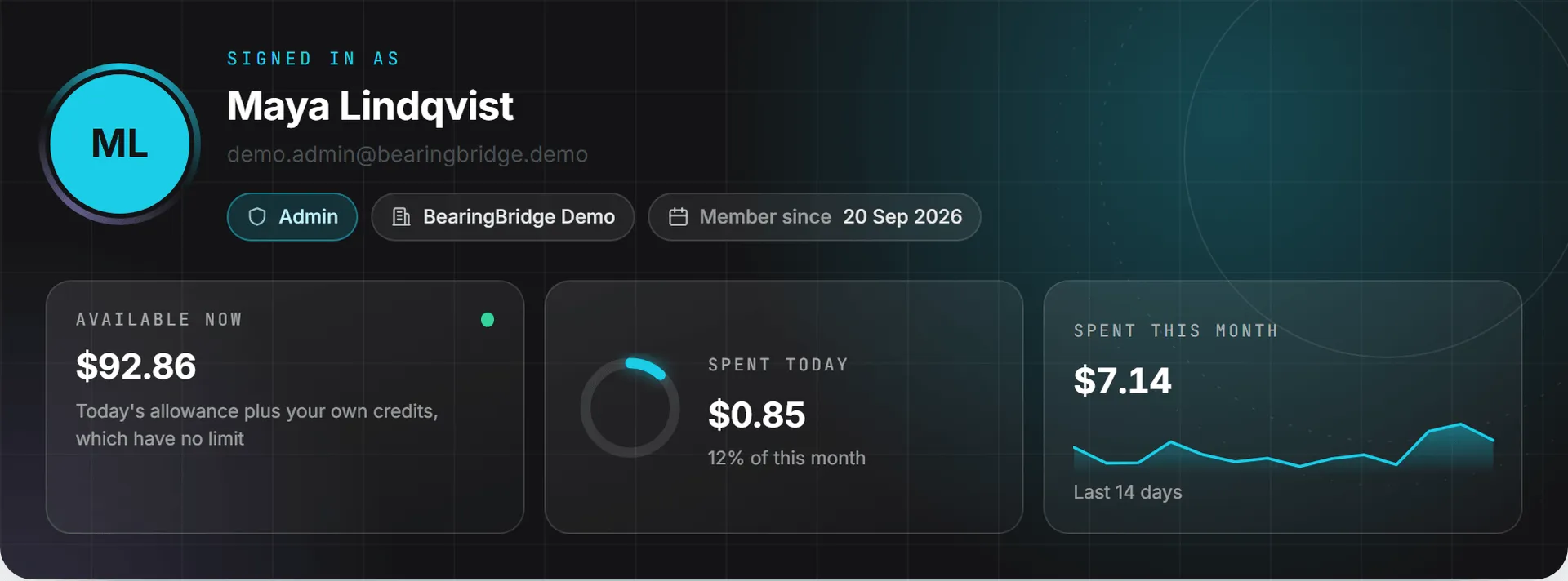
Credits on your own account have no daily limit. The allowance only caps the shared credits, and an administrator sets it (see shared credits). Credits and costs explains how the two pots work.
The figures are read when the page opens. Reload it to see a run you just finished.
Account overview
The Account overview card is a snapshot of where you stand in your organization.
- Role names your role and says what it allows. A ladder shows where it sits: Viewer, Editor, Admin, Super Admin. On a personal account, the role reads Personal.
- Organization names your organization, or says Personal account (your own organization).
- Brand access lists the brands you can open. Admins see all the brands of their organization. If no brand was granted to you yet, the card says so.
- Modules you can use lists every module with On or Off, and a count such as 5/7. A module is on only when it is on for your organization and for you. A brand can still hide one while it is the active brand. A module still in beta carries a Beta badge.
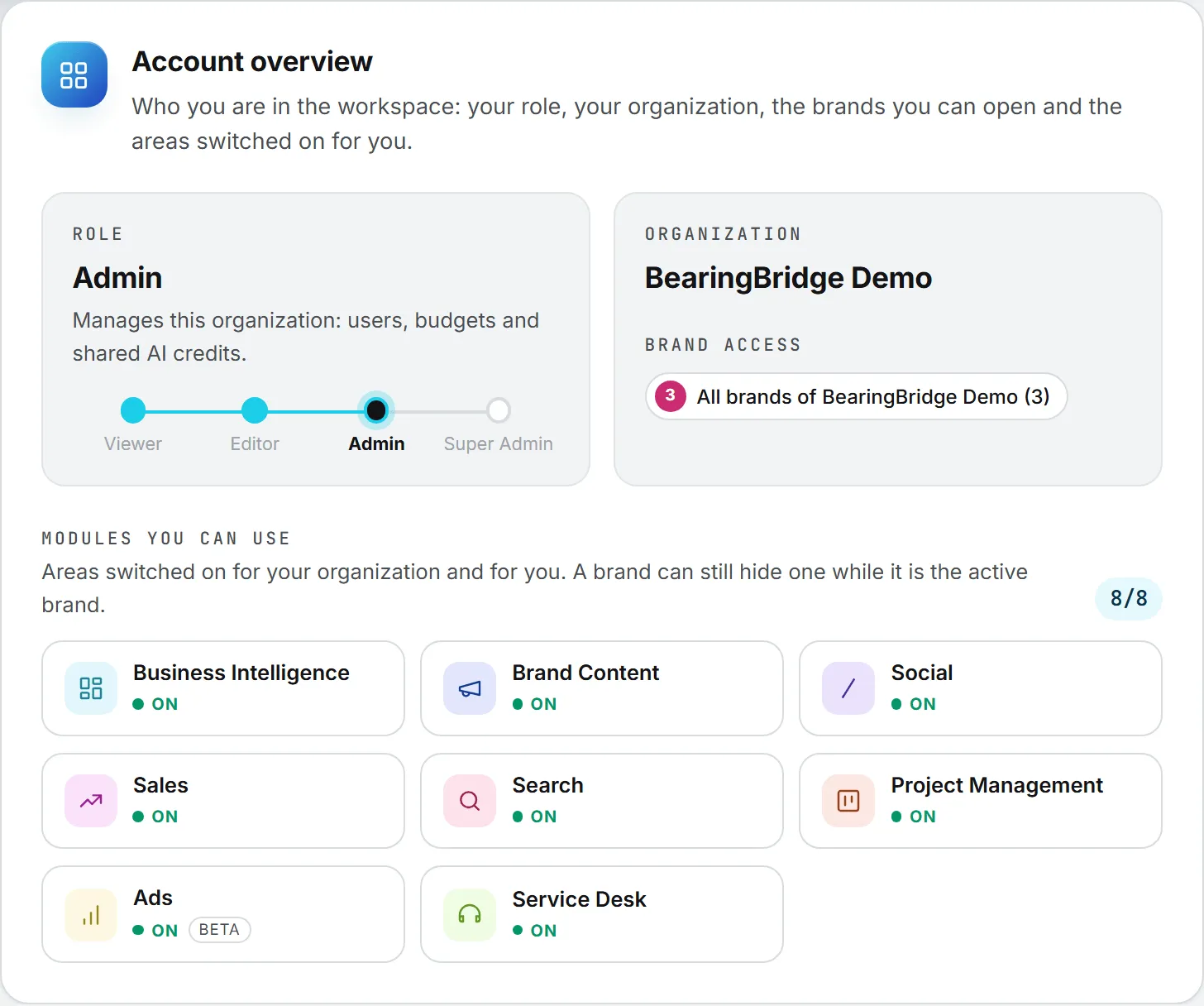
None of it can be edited here. If something looks off, say a module you expected reads Off, ask an administrator. See roles and rights and brands.
Your name
Set a name and the app stops calling you by your email address. It shows in the header, in every list of people, on the tasks assigned to you and at the top of the emails we send you.
- Go to Your name.
- Type your First name and Last name. Each field takes up to 60 characters.
- Click Save.
The Save button turns amber as soon as you type, a sign you have unsaved edits. After saving, the page says “Saved. This is how you appear everywhere now.” The new name shows at once across the app, and the next email we send you opens with “Hi” and your first name.
Both fields are optional. Leave them empty and the app uses your sign-in address instead.
An administrator can also change your name from the Users page. See users and invitations.
Profile picture
Your picture shows in the header and the account menu. Settings repeats it in the top band. Without one, the app shows your initials.
- Go to Profile picture, or click your picture in the top band.
- Drop an image on the box, or click Upload picture and pick one.
- A progress bar fills while the picture uploads.
You can upload a JPEG, PNG or WebP image. The page crops it to a square from the center and shrinks it to 512 pixels at most, so a big photo usually fits. What’s left must weigh 2 MB or less. Click Remove to go back to your initials.
Sign-in and security
If you came here to change your password, this is the card. The Sign-in and security card has two tabs: Login email and Password. A third tab, Sign-in code, appears when your organization requires a code by email at sign-in.
Changing your address or your password asks for your current password first. It’s there so nobody who sits down at your computer while you’re away can take over the account.
Change your login email
- Open the Login email tab.
- Type the address in New email.
- Type your Current password.
- Click Update email.
The change applies right away, and the page says “Email updated. Use the new address next time you sign in.”
Important: No confirmation email goes to the new address. Check it for typos before you click Update email. If it’s wrong, that’s the address you’ll need to sign in with.
From then on, you sign in with the new address only. If your organization asks for a sign-in code, the code goes to the new address too.
Change your password
- Open the Password tab.
- Type your Current password.
- Type the New password twice. It must be at least 8 characters.
- Click Update password.
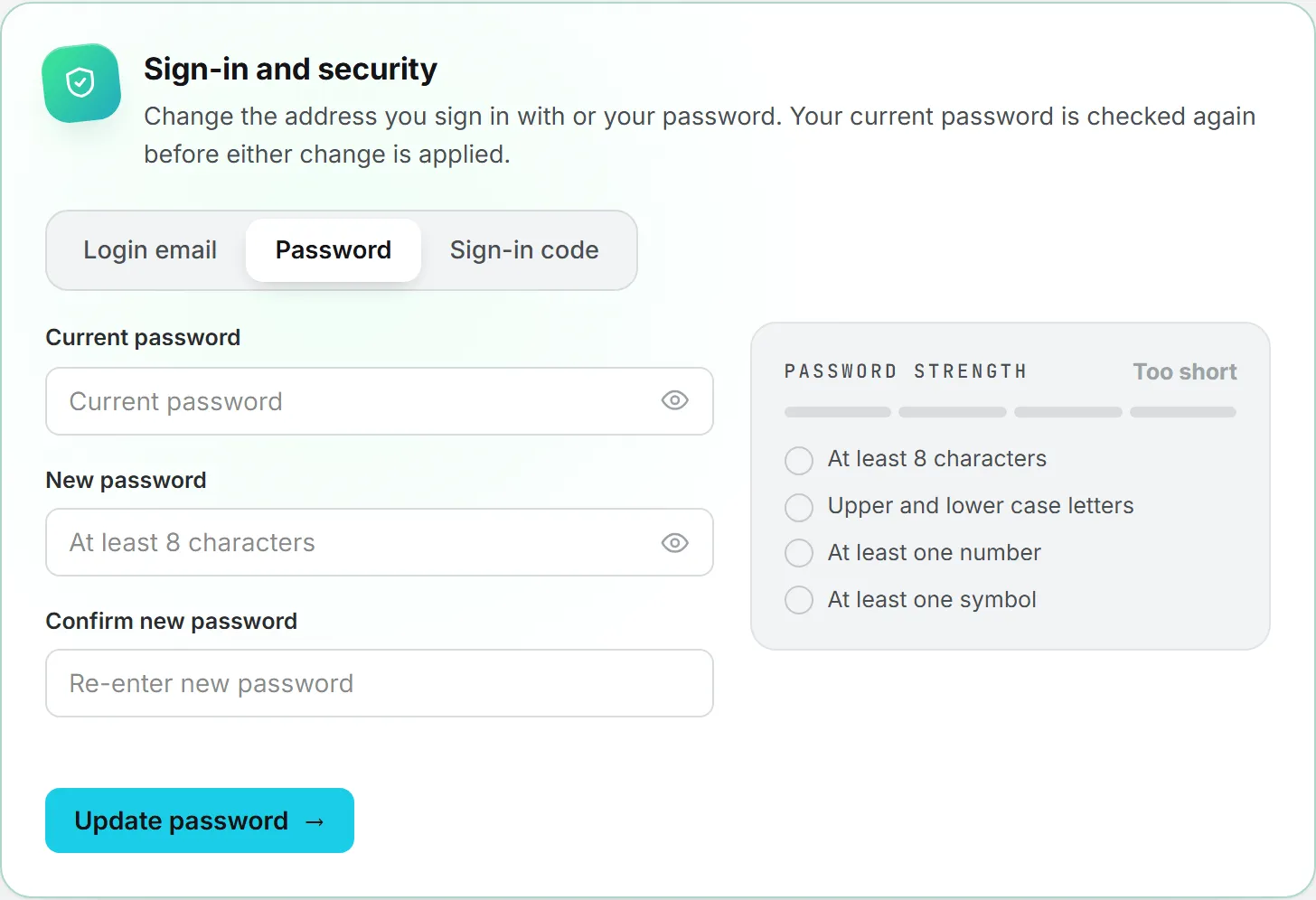
A meter rates the new password from Too short to Strong. It checks four things: at least 8 characters, upper and lower case letters, at least one number and at least one symbol. Only the length is enforced. The other three make it harder to guess.
If you forgot your current password, sign out and use Forgot password on the sign-in page. See sign in and security.
Trusted browsers
If your organization asks for a sign-in code, you can tell us to trust a browser. For the next 30 days, that browser skips the code. The Sign-in code tab lists those browsers, with the last time each was used and the day the trust ends.
The browser you are using right now is marked (this browser).
Click Stop trusting next to a browser to drop that one alone, or Stop trusting every browser to start over.
A dropped browser asks for a code at its next sign-in. Do it after signing in on a shared or borrowed computer.
Home page
Signing in normally opens the page your role starts on. You can pick another one.
Go to Home page and choose one in Open this page when I sign in. The list holds the pages of your own menu. There’s no Save button here: the choice is saved the moment you pick it, and the page confirms it.
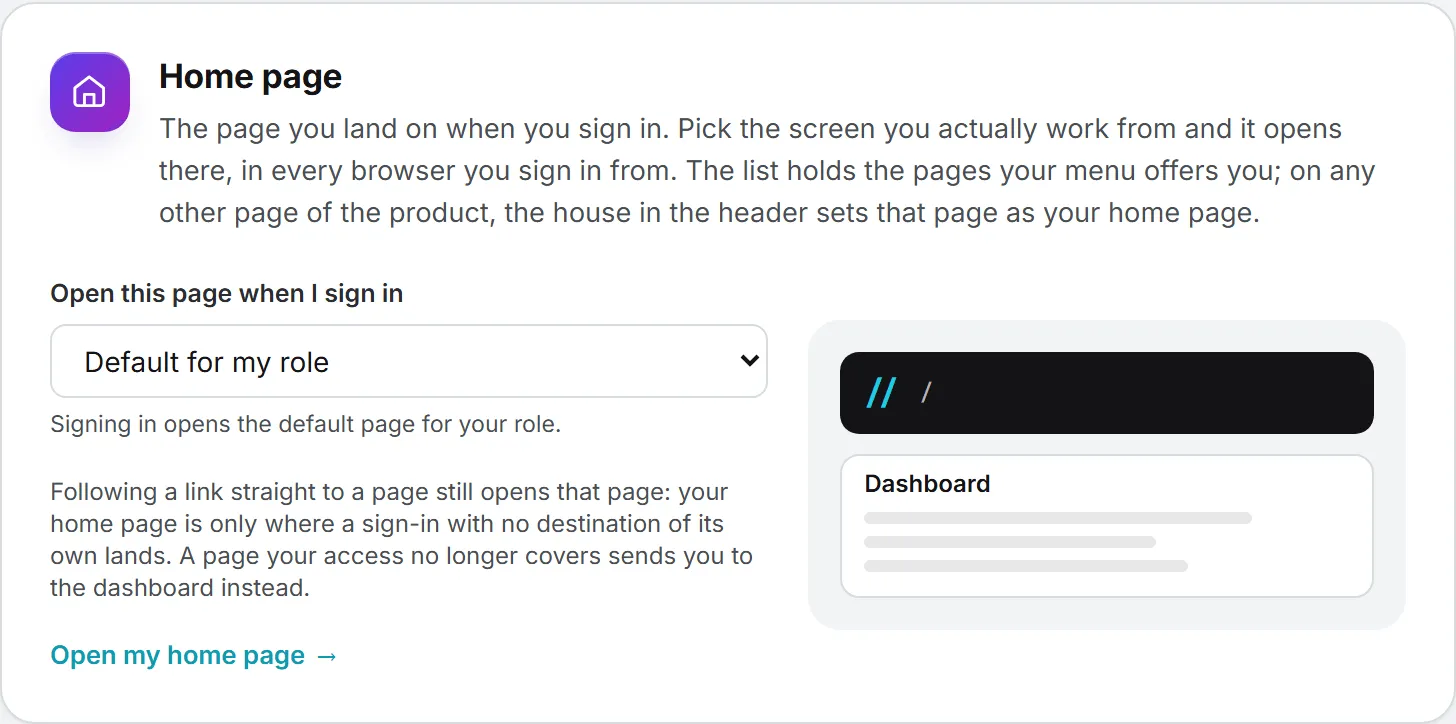
Choose Default for my role to go back. That is the dashboard, or Commissions for a commercial partner.
Tip: You don’t have to come back to Settings. On the page you want, click the house icon in the header. Click it again to return to the default.
Clicking a link a colleague sent you still takes you to that page. Your home page only kicks in when a sign-in has nowhere else to go. If you lose access to your home page, you land on the dashboard.
Invoices and your activity log
The last two cards on the page are about money: what goes on your invoices, and where your credits went.
Invoices
This card sets the name and address printed on invoices for credits you buy for your own account. The name takes up to 120 characters, the address up to 400, and Save turns amber while an edit is unsaved.
A small invoice next to the form redraws as you type, so you see what will print. Leave the name empty and your email goes on the invoice instead. Whether an invoice goes to you or to your organization is decided when you buy credits, and credits bought for the organization are always invoiced to it. See invoices.
Activity log
Every paid action you ran is listed here, with what it used and what it was billed. The card opens on the month’s and the day’s totals and a bar chart of the last 14 days. Below that, spending is split by action. You can filter by text, and by type (All, AI, Data). Click Show more for older actions. See usage log.
Don’t confuse it with the Activity button in the header, which tracks jobs that are still running. That one has its own article.
Cards covered in other articles
- Appearance, Language and Date and time: see date, time, language and theme.
- Your connections: see my connections.
- Weekly digest: see emails and notifications.
- Your agents, where you tune agents for yourself on your own budget: see agents.
What it costs
Nothing on this page spends credits. Changing your name, picture, address, password or home page is free, and the figures in the band and the activity log only report what your other work has cost.
Who can change what
| Setting | Who changes it |
|---|---|
| Name, picture, login email, password, trusted browsers, home page, invoice details | You, from this page |
| Your name | Also an administrator, from the Users page |
| Role, organization, brand access, modules | An administrator. See roles and rights. |
Troubleshooting
| Message | What to do |
|---|---|
| Current password is incorrect. | Type the password you sign in with today. |
| Please enter a valid email address. | Check the new address for typos. |
| New passwords do not match. | Type the same new password in both fields. |
| Use a JPEG, PNG or WebP image. | Convert the picture to one of those formats. |
| Image is too large (2 MB max). | Use a smaller picture. |
| Could not reach the server. Please try again. | Check your connection and try again. |
| No Sign-in code tab | Your organization does not ask for a code by email, so there is nothing to manage. |
| No Buy credits link in the band | The link only appears when your credits run low or you have nothing left for today. Use Billing & credits in the account menu instead. |