Google Ads campaigns
Build a Google Ads campaign step by step: budget, markets and hours, ad groups and keywords, negatives, AI-written ads, then launch it and read results.
The Campaigns page is where you build what a brand runs on Google: the campaign, its ad groups, their keywords, negative keywords and AI-written ads. When it’s ready, you launch it into your organization’s Google Ads account from the same screen.
A campaign usually comes together in this order:
- Create the campaign (budget, language, where and when it runs).
- Add ad groups and their keywords.
- Find negative keywords.
- Write the ads, each pointing to a landing page.
- Launch, then follow the results on the Reporting tab.
How Google Ads is organized
A Google Ads account has four nested levels. The page has a folded explainer, How Google Ads campaigns are organised, with a diagram. In short:
| Level | What it holds |
|---|---|
| Account | Currency, time zone and billing. Set once, and they can’t change later. |
| Campaign | The daily budget, where and when ads show, and the language. Give each campaign one goal. |
| Ad group | A tight theme inside a campaign: a few related keywords, the ads written for them and the page they point to. |
| Keywords and ads | Keywords are the searches you want to show on. Ads are the text people see. |
When a search matches a keyword, one of that ad group’s ads can show. A click sends the person to the ad’s landing page. You pay per click, and the spend comes out of the campaign’s daily budget.
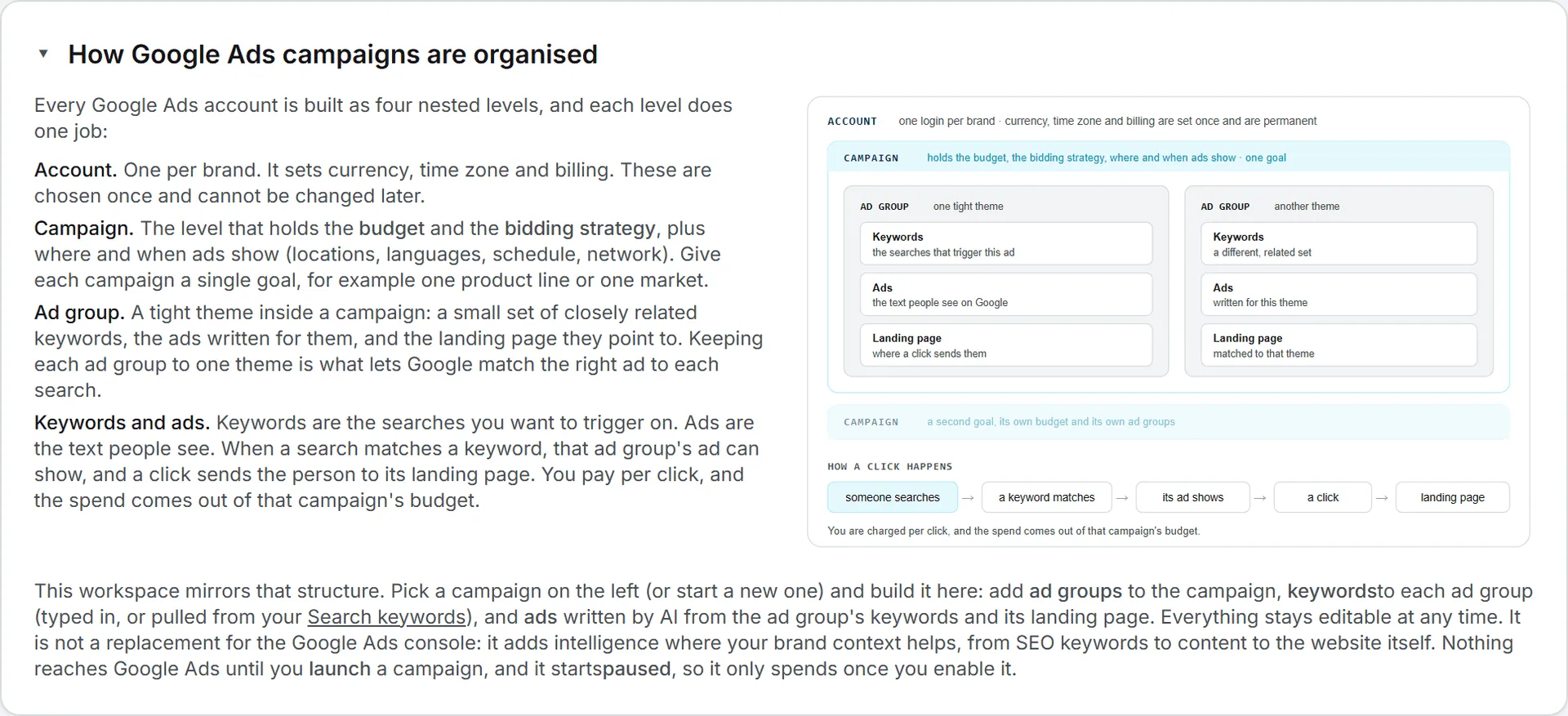
Don’t expect a copy of the Google Ads console. The page adds AI where your brand’s context helps, from your SEO keywords to your website.
Finding your way on the page
The left column lists the brand’s campaigns under Campaigns, with a + New campaign button. Each entry shows the name, a status badge, the daily budget, the number of ad groups and a scope summary such as Worldwide · 24/7. Below it, Ad groups without a campaign lists groups that aren’t in a campaign yet.
The right side is the working area for whatever you selected. Links at its top go to Find keywords with AI, Reporting and the Google Ads console. The console link opens the brand’s Google Ads dashboard when one is set on the brand, and the generic Google Ads console otherwise.
Campaign statuses
| Badge | Meaning |
|---|---|
| Draft | Saved in the app only. Nothing is in Google Ads. |
| Created · paused | Created in Google Ads but never switched on. |
| Live | Switched on in Google Ads. It can spend. |
| Paused | Was live, now paused. |
| Failed | Google Ads refused it. The error shows on the card and the settings stay editable. |
Create a campaign
- Click + New campaign.
- Under Where it runs, keep Worldwide or pick Specific markets. The markets come from the brand’s settings (see managing brands). Markets that speak the campaign language are ticked by default. The others are shown in red, unticked, with the language they speak, so targeting them is a deliberate choice.
- Under When it runs, keep Runs 24/7 or pick Business hours only (Mon-Fri 09:00-18:00).
- Fill in Campaign name.
- Pick a Language. The menu lists the brand’s languages, plus All languages when the brand has more than one. The language also decides which markets are ticked by default.
- Set the Daily budget and its currency (HKD, USD, EUR, CNY or CAD). The default is 100. Google Ads spends the budget in the account’s own currency, and the menu doesn’t convert anything, so pick the account’s currency.
- Optionally, add a Default landing page, or tick Use website home page to use the brand’s website.
- Optionally, tick ad groups under Link existing ad groups. Ticking groups also fills the campaign name from their names until you type your own.
- Click 💰 Create Campaign.
The campaign is saved in the app only, as a draft. It opens on its Ad Groups tab, ready for the next step.
Tip: Suggest from live market data, next to the budget, proposes a daily budget from the ticked ad groups’ keywords, their search volumes and click costs, and your brand profile. You get a value, a careful and an aggressive figure, and the reasoning. Tick at least one ad group first. When the Google Ads account is linked, the suggestion switches the currency menu to the account’s currency as well.
The campaign card
The card header repeats the essentials (name, status, scope, budget, language, number of ad groups) with the launch date and the last update. The header buttons change with the status:
| Status | Header buttons |
|---|---|
| Draft or Failed | Delete, Launch paused, Save settings |
| Created · paused | Delete, Pull from Google Ads, Launch paused |
| Live | Pull from Google Ads, Pause |
| Paused | Pull from Google Ads, Resume |
Four tabs sit under the header: Campaign, Ad Groups, Ads and Reporting.
Campaign tab
While the campaign is a draft, every setting stays editable: name, language, budget and currency, default landing page, where it runs and when.
Once the campaign is in Google Ads, the language and currency are fixed. You can still change the name, budget, markets and schedule; they reach Google Ads when you click Push to Google Ads. An Open Google Ads console ↗ link sits next to that button.
Negative keywords
Negative keywords are searches you refuse to pay for, such as “free” or “jobs”. They sit folded at the bottom of the Campaign tab, under Negative keywords. The list belongs to the brand and is shared by all its campaigns.
Click Find negative keywords (or Find again). The AI looks at your ad groups and at what was chosen or rejected on the Keywords page, with your full tracked list as background. Then it writes 30 to 60 negatives. You’ll typically get blockers for job seekers, students, do-it-yourself researchers, free-seekers and wrong-vendor searches, plus some specific to your business, in both English and French. It never blocks a word that appears in your own bidding keywords.
Each negative carries a reason: hover it, or open Why each keyword is blocked. Copy all copies the list. A new run replaces the list. You need a keyword selection or at least one ad group before the first run.
The list goes to Google Ads when a campaign is launched. Running Find again later doesn’t change campaigns already in Google Ads; add new negatives there in the Google Ads console.
Ad Groups tab
Type a name in New ad group name… and click Create ad group to add an empty group. It’s created in French when the campaign is French, and in English otherwise. Or pick a group under Link existing to bring in one that isn’t in a campaign yet. A group belongs to one campaign at a time.
Each group shows its name (click to rename), its language, its match type, an Active or Paused chip and its counts. For a campaign already in Google Ads, it also says staged, not pushed, in Google Ads or how many new ads wait to be pushed. Buttons on the group:
- Pause or Start switches that one group off or on. In a campaign already in Google Ads, the switch applies there at once, without a push. The same goes for the keyword and ad switches below.
- Remove from campaign sends the group back to the unassigned list. It’s only offered before the group is in Google Ads.
- Delete group deletes the group and its ads, after a confirmation. This can’t be undone.
Open Keywords on a group to edit its keywords:
- Match type: Broad, Phrase or Exact. It applies to every keyword in the group.
- Max CPC: the most one click may cost, in the Google Ads account’s currency. Leave it empty for a safe default. Suggest from live market data proposes a value from live search volumes and click costs.
- Each keyword has its own Active or Paused chip, a Pause or Start button, and ✕ to remove it.
- Type a keyword and click + Add, or press Enter.
- Pick from Search keywords lists the brand’s tracked keywords in the group’s language, grouped by cluster. Filter them by typing, then click one to add it.
While a group has no ads, a Create ad button takes you to its spot on the Ads tab. It first asks you to save the group’s keywords if there are none, and, in a campaign already in Google Ads, to push the group there.
A badge warns when a group holds more than 10 keywords. The app’s advice is to keep groups tight: a few related keywords, then one ad and one landing page written for them.
Ads tab
Each group lists its ads, folded to one line: Ad 1, its status, its first headline, its counts and its date. Open one to see its 15 headlines (30 characters max each) and 4 descriptions (90 characters max each). A counter turns red if a line runs over.
On each ad you can edit the Landing page and click Save URL, Pause or Start it, Copy its text, or Delete it. For an ad already in Google Ads, a new landing page and a delete apply there too.
The headlines and descriptions themselves can’t be edited in the app. To change the wording, write a new ad and delete the old one, or copy the text and adjust it in the Google Ads console.
To write ads:
- Enter the landing page URL the new ads should point to.
- Pick how many: 1 to 5 ads.
- Choose a model in the picker under the button, if your organization offers several. Models are listed by name under their maker. The picker shows no prices; what the run cost appears once it’s done, so try a model on one ad before you ask for five.
- Click Write ads with AI.
The AI reads the landing page, the group’s keywords, your brand guidelines and your skills, then writes the ads in the group’s language. It’s told to promise only what the landing page supports, and never to invent prices, certifications or client counts. Read every claim before you launch anyway. When you ask for several ads, or the group already has some, each new ad takes a different angle so you can test them against each other. It takes a minute or two, and you can follow the phases on screen. The first URL a group uses becomes its default for the next ads.
Under the write bar you’ll find two shortcuts:
- Or reuse an ad from another group copies an existing ad into this group with Link ad.
- Create landing page opens Brand Content in a new tab to draft a page for one of the group’s keywords. See landing pages for ads.
Reporting tab
After launch, this tab reads the last 30 days straight from Google Ads: Impressions, Clicks, CTR, Avg CPC, Cost and Conversions, then a table By keyword and a table By day. Before launch it says there are no results yet. A new campaign can take a few hours to start serving. The figures are read once per visit: reload the page, or pull, to refresh them.
Save your work
That covers the build. The rest of this page is about getting it into Google Ads and keeping the two in step.
In a draft, Save settings saves everything you changed in any tab: the settings, group names, keywords, match types, max CPCs and landing pages. The button turns amber while something is unsaved. If you try to leave the page, the browser warns you. If you switch to another campaign, the app asks you to Discard changes or Stay here.
For a campaign that’s already in Google Ads, the same job falls to Push to Google Ads, on the Campaign, Ad Groups and Ads tabs. It saves every edit and sends new ad groups (with at least one keyword) and new ads to Google Ads. New items arrive there paused. Reopen the campaign so their chips read Paused, then click Start on each one you want running.
Ad groups without a campaign
A group created from the Keywords page, or left over from a deleted campaign, shows in the left column under Ad groups without a campaign. Select it to edit its keywords and ads on one screen. Its own button, Save keywords, saves the group. To use it, pick a campaign in its header and click Link to campaign. A group only launches as part of a campaign.
Launch a campaign
Run through this list before you launch:
- your organization’s Google Ads account is linked (see Ads overview);
- the campaign has at least one ad group;
- every ad group has at least one complete ad (3 or more headlines and 2 or more descriptions);
- every ad has a landing page, its own or the group’s or the campaign’s default;
- a campaign set to business hours has a market to take the hours from.
Then click Launch paused. The app creates the whole campaign in Google Ads, all paused: the budget, the campaign, its languages, markets and schedule, the negative keywords, the ad groups, their keywords and the ads. It then switches the campaign on in the same action. The card shows Live.
If the creation works but switching on fails, the card stays on Created · paused with the error. Click Launch paused again to retry the switch.
Important: After this click, the campaign can spend up to its daily budget. Groups, ads and keywords you paused one by one stay paused.
If Google Ads refuses the campaign, the card shows Failed with Google’s reason, word for word. Fix what it points to and launch again.
Pause and resume
Pause stops a live campaign in Google Ads, with its ad groups and ads. Resume switches it back on, except the groups and ads you paused one by one.
Tip: After a resume, check the Active and Paused chips of each group and ad, and click Start on anything that should run.
Pull from Google Ads
Pull from Google Ads reads the campaign as it is in Google Ads right now and replaces the app’s copy: settings, ad groups, keywords, match types, max CPCs and ads, including changes made in the Google Ads console. The app asks you to confirm with Pull and replace, because edits you haven’t pushed are lost. Groups or ads removed in the console go back to “staged” in the app; nothing is deleted.
Each time you open a campaign that’s in Google Ads, the app quietly rereads which parts of it are on or off in Google Ads. Pauses made in the console show up without a full pull.
Business hours
Two last details, the schedule and deleting, come up less often but catch people out.
Business hours only means Monday to Friday, 09:00 to 18:00, in each targeted market’s local time. The app converts those hours into the time zone of the Google Ads account and merges overlapping windows.
A worldwide campaign set to business hours takes its hours from the brand’s markets. If the brand has no markets, choose 24/7 or add markets in the brand editor.
Delete a campaign
Delete is offered while the campaign is a draft, failed or created but never switched on. A created campaign is also removed from Google Ads. Its ad groups go back to Ad groups without a campaign.
After launch, even if you pause it later, Delete disappears. To get rid of the campaign, remove it in the Google Ads console.
Who can do this
Anyone with access to Google Ads and the brand can open the page and read the campaigns. Everything else on the page needs an editor role or higher, from building and writing ads to launching and deleting. The negative keywords and the suggestions also check your rights on Search (SEO). See roles and rights.
What it costs
Three actions here use credits, and each shows its tokens and cost next to the result. Write ads with AI is one; each ad also shows its share of the run cost. Find negative keywords is another. Suggest from live market data is the third, and it adds a live data cost when it has to fetch search volumes.
Asking for five ads in one run produces a longer answer than asking for one, so it costs more. Building, saving, launching, pausing, pulling and the Reporting tab don’t use credits. Every AI cost is recorded in your usage log. The model picker next to Write ads with AI also sets the model used for the other Google Ads AI actions. See AI models.
Clicks on your ads are billed by Google on the Google Ads account, not taken from your credits. Google spends against each campaign’s daily budget, so keep an eye on it. See credits and costs.
Troubleshooting
- “Google Ads not connected” on the launch buttons. Your organization has no linked Google Ads account yet. Contact the BearingBridge team.
- “Ad group … has no complete ad yet.” Write at least one ad for that group on the Ads tab.
- “An ad in group … has no landing page URL.” Set it on the ad, or give the group or campaign a default.
- “Tick at least one market, or choose worldwide.” You chose Specific markets without ticking one.
- “An ad group needs at least one keyword.” Add a keyword before saving the group.
- “That ad group is already in another campaign.” Remove it from the other campaign first.
- “Update the ad group first.” Create ad needs the group’s keywords saved and, in a campaign already in Google Ads, the group pushed there. Save or push, then try again.