Scratchpad
The Scratchpad is a drawer on every page for your own notes, files and recordings, kept in sheets nobody else in your organization can see.
The Scratchpad is a drawer for your own notes. It slides in from the right on every page of the app, so you can jot down an idea, keep a file at hand or record a call without leaving what you’re doing. Your notes live in sheets, and nobody else ever sees them: not your colleagues, not your administrators.
Open the Scratchpad
Click the notepad button in the header, whose tooltip reads Scratchpad (Alt+N), or press Alt+N on any page. Press Alt+N again, or click the X, to close it. Escape closes it too while you’re working in it.
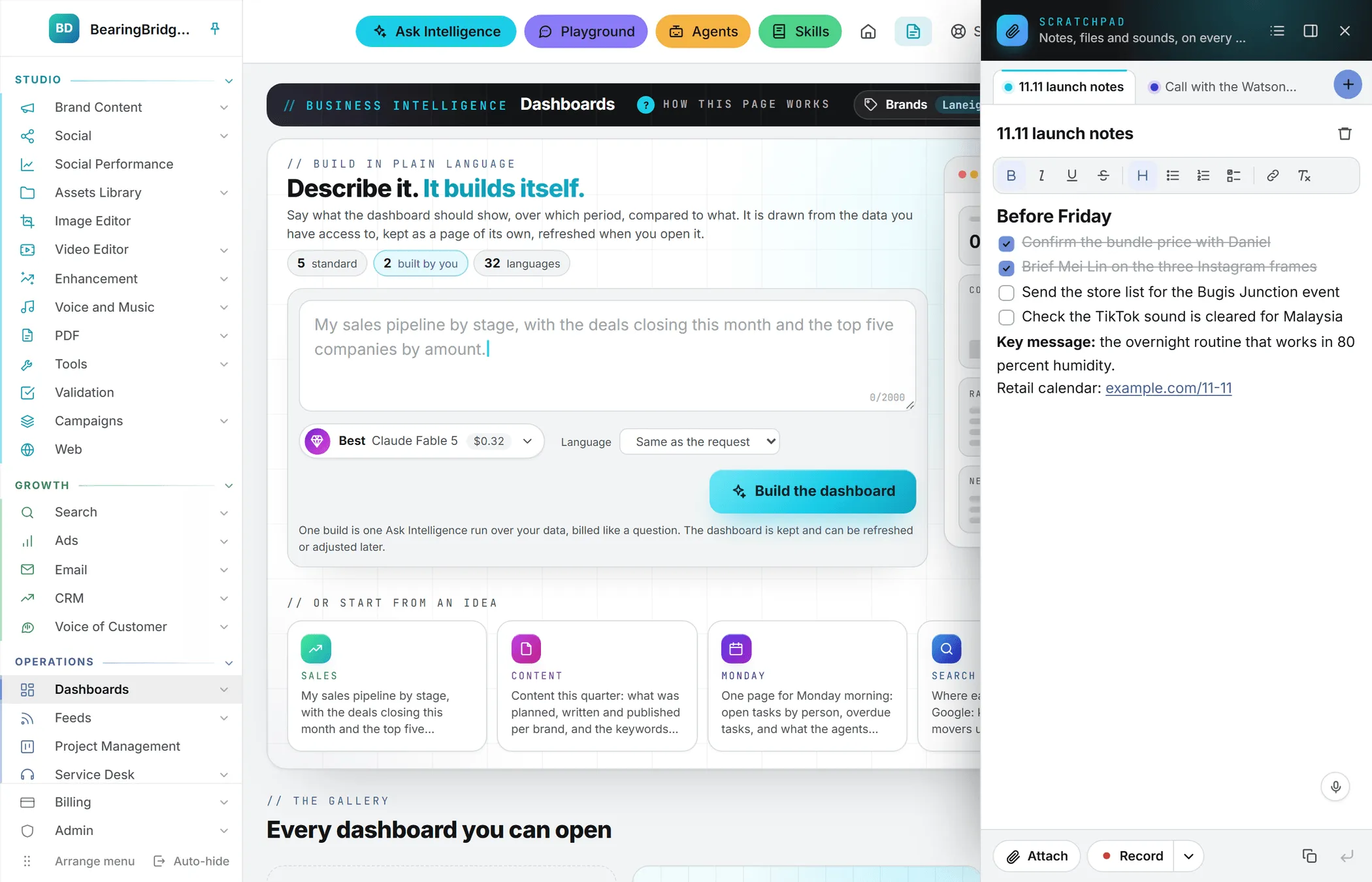
The drawer stays where you left it. Open it, move to another page, and it’s still open on the same sheet. Your browser remembers this, along with the width and whether the drawer is docked.
- Dock it. By default the drawer slides over the page. Click Keep it beside the page at the top and the page makes room for it instead, so you can read a report and take notes side by side. Click the same button, now Let it slide over the page, to undo it. Docking needs a window at least 1,024 pixels wide.
- Resize it. Drag its left edge. It’s between 320 and 760 pixels wide.
Sheets
A sheet holds a text, plus the files and recordings you add to it. Your sheets sit as tabs along the top of the drawer.
- New sheet: the plus button at the end of the tabs. You can also just start typing: the first sheet is created as you write.
- Name it: type in the title field above the text, up to 80 characters. A sheet without a title is named after its first line.
- All sheets: the list button at the top shows every sheet with its date and its number of files, and a search box to find one.
- Reorder them: drag a tab to another place.
- Delete one: the bin next to the title. The confirmation reminds you that the sheet goes with its text, its files and its recordings, and that this can’t be undone.
You can keep up to 100 sheets, each holding up to 200,000 characters.
Write and format
Write anything in the sheet. It saves itself about a second after you stop typing, again when you click elsewhere, and again when you close the tab. The foot of the drawer says so as it happens.
The bar above the text formats it: Bold, Italic, Underline, Strikethrough, Heading, Bulleted list, Numbered list, Checklist, Link and Clear formatting. The usual keys work too: Ctrl+B, Ctrl+I, Ctrl+U and Ctrl+K (Cmd on a Mac). In a check list, click an item’s box to tick it.
You can also dictate. The sheet has the microphone every multi-line text box has, and your words appear at the cursor as you speak. See voice input.
Take a note out of the drawer
Two buttons at the foot of the drawer send the text elsewhere. Both take the part you selected in the sheet, or the whole sheet when nothing is selected.
- Copy the text of the sheet puts it on your clipboard, formatting included.
- Insert into the field you were writing in writes it where your cursor was on the page: a post, a brief, an email. Click in that field first, then click the button.
Files and recordings
Attach files
Click Attach to pick files, drop them on the drawer, or paste them. They appear under the text, under Files and recordings, with a progress bar while they upload. Each file can be as large as the largest file your organization lets you upload, the same limit as in the Assets Library.
On each file:
- a picture shows a preview, and a click opens it full size; a sound or a clip plays in the drawer
- double-click its name to rename it
- Download saves it to your computer
- Keep a copy in the Assets Library copies it into the library as a file only you can see: it sits in the No brand workspace, set to Only me under Who sees it, until you share it from there. The Scratchpad keeps its own copy.
- Delete removes it
Record a sound
Record records straight into the sheet. The small arrow next to it picks what to record:
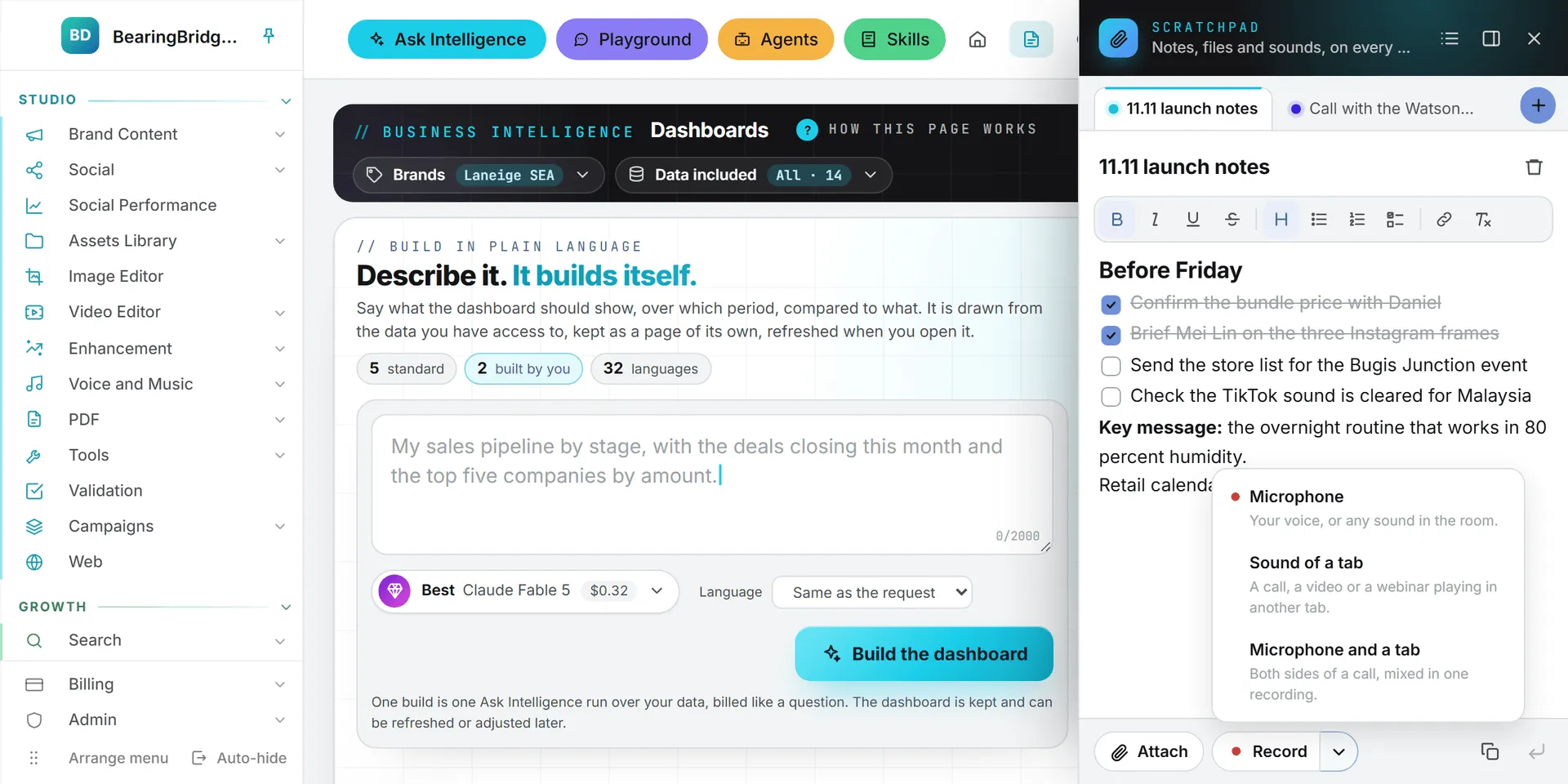
| Choice | What it records |
|---|---|
| Microphone | Your voice, or any sound in the room. |
| Sound of a tab | A call, a video or a webinar playing in another tab. |
| Microphone and a tab | Both sides of a call, mixed in one recording. |
The first time, your browser asks for the microphone. For a tab, it asks you to pick the tab: tick Share tab audio in that window, or the recording has no sound.
While it records, a bar shows the running time and the sound level, with Pause, Stop and keep and Throw away. A recording you keep is added to the sheet’s files and plays there. Leaving the page ends a recording, and your browser warns you first. If a recording can’t be stored, it’s saved to your computer instead, so it’s never lost.
Make call notes
A recording of a call becomes its notes. Click Call notes on the recording: it is transcribed with its speakers, then a text model writes the summary, the Decisions, the Next steps, the Objections and a Follow-up email, with the Transcript below them. It runs in the background and reports in Activity, so you can go on working; the notes stay on the recording, with its length and its price. Make the call notes again starts over.
Under the notes, Copy the notes puts them on your clipboard and Put them in the sheet writes them at the end of the sheet’s text. Where you may write in the CRM, Save to CRM opens a list of your deals and contacts: pick one and click Write it as a call. The notes land on the deal’s timeline as a call. A contact goes to the deal they are the contact of, else to their company’s newest deal, else into their notes. A recording can be up to two hours long.
Private to you
A sheet is yours alone. There’s no sharing, no link and no view for administrators: a colleague who opens the Scratchpad sees their own sheets, never yours. To give a file to your team, use Keep a copy in the Assets Library, then open Who sees it on the copy in the library and pick Everyone in the organization. For a text, copy it into a task, a post or a message.
What it costs
Writing in the Scratchpad is free. Files and recordings are stored files, and they’re billed like the files of the Assets Library: your organization pays a small daily rent on what they weigh. The size printed on the Assets Library page counts the library alone, so it leaves them out. Downloading a file is billed as a download. Viewing a picture or playing a recording in the drawer isn’t. A copy kept in the library is a second stored file, billed on its own. See storage costs.
A dictation is billed like any other dictation. Call notes are billed by the second of the recording for its transcription, and by the words read and written for the notes; the price shows on the notes.
Who can use it
Everyone signed in to the app has a Scratchpad, Viewers included: since nobody else reads it, a Viewer writes in their own like everybody else.
Administrators decide it in the rights grid, on the Scratchpad row of the Shared group. Without View, the button isn’t in the header. With View but not the right to change, the drawer opens read only. See roles and rights.
Troubleshooting
| What you see | What to do |
|---|---|
| “You have 100 sheets, the most the Scratchpad keeps. Delete one to start another.” | Delete a sheet you no longer need. |
| “A sheet holds up to 200,000 characters. Start another sheet for the rest.” | Move part of the text to a new sheet. |
| “That file is too large” with the limit | The file is over your organization’s upload limit. Make it smaller, or keep it elsewhere. |
| “No sound came with that share. Pick a tab and tick “Share tab audio”.” | Start again, pick a tab and tick Share tab audio in the browser’s window. |
| “The browser was not allowed to listen. Allow the microphone (or the share) and try again.” | Allow the microphone from the icon in the address bar, then click Record again. |
| “Click in a field of the page first” | Insert needs a field to write into: click in it, then click the button again. |
| No Scratchpad button in the header | Your rights don’t include the Scratchpad. Ask an administrator. |