Build the knowledge base
Add PDFs, text, web pages, a whole website or a library folder to a desk's knowledge base, keep them synced, and fix any indexing errors.
A desk answers only from its knowledge base: the documents you add on its Knowledge tab. There are five ways in. This page covers four of them, and what the desk does with a document afterward. The fifth, a whole website, has a page of its own: answer from your whole website.
How the desk uses your documents
Every document you add gets read and cut into sections. Headings in the document become section labels. Each section is then indexed so a question can find it by meaning and by wording.
When a customer asks something, the desk looks for the passages that match best, up to eight of them. The model writes its answer from those passages only. If they do not hold the answer, the desk says it does not have that information and offers your contact options.
Under each answer, a “Sources:” line tells customers which documents it came from, by title and section, so clear titles and headings matter.
Knowledge bases aren’t shared. A document added to one desk is never used by another, even one of the same brand.
Open the Knowledge tab
Open the desk, then click the Knowledge tile in the band. The tile already shows how many documents the desk holds. Adding #knowledge to the desk’s address opens this tab directly.
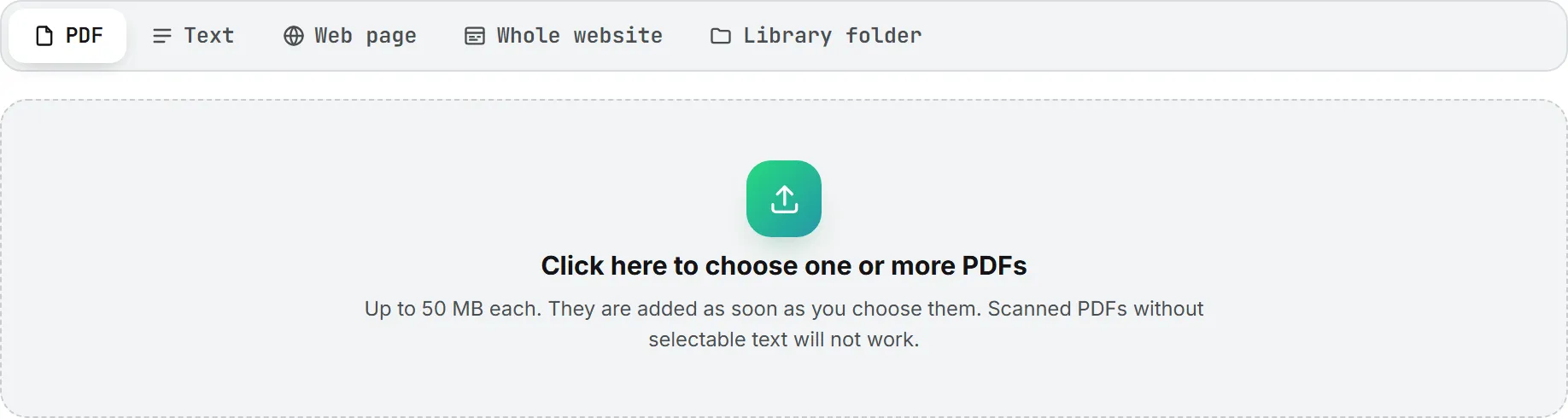
The card titled Knowledge base has a five-way switch at the top: PDF, Text, Web page, Whole website and Library folder. Below it sit the linked websites, the linked library folders, and the list of documents with a count.
Adding documents needs editor-level rights or above. Everyone who can open the desk can see the list.
Which way in suits which material:
| Your material | Best way in |
|---|---|
| A manual, catalog or price list as a PDF | |
| A short policy or answer you can copy | Text |
| An FAQ page on your website | Web page (imported once) |
| A help center, a product catalog, a whole public site | Whole website (read again nightly) |
| Files that change, including Word and Excel | Library folder (synced on demand) |
Add PDFs
- Choose PDF.
- Click the drop zone, “Click here to choose one or more PDFs”.
- Pick one or several files.
There is no second button to press. The files are uploaded and indexed as soon as you choose them, one after another, with a progress bar. Big documents take longer to index than short ones.
Each PDF can be up to 50 MB; larger files are skipped with a message, so split them or extract the pages you need. The PDF also needs selectable text. A scanned PDF with no text layer fails with “No selectable text found in this PDF (a scanned document needs OCR first).”
The document takes the file name, without “.pdf”, as its title. Only the text is kept: the PDF file itself is thrown away once read, so it doesn’t count toward your stored files.
This panel takes PDFs only. For Word or Excel files, put them in a library folder and link it, or paste their text.
Paste text
- Choose Text.
- Type a title, for example “Return policy”.
- Paste the content.
- Click Add text.
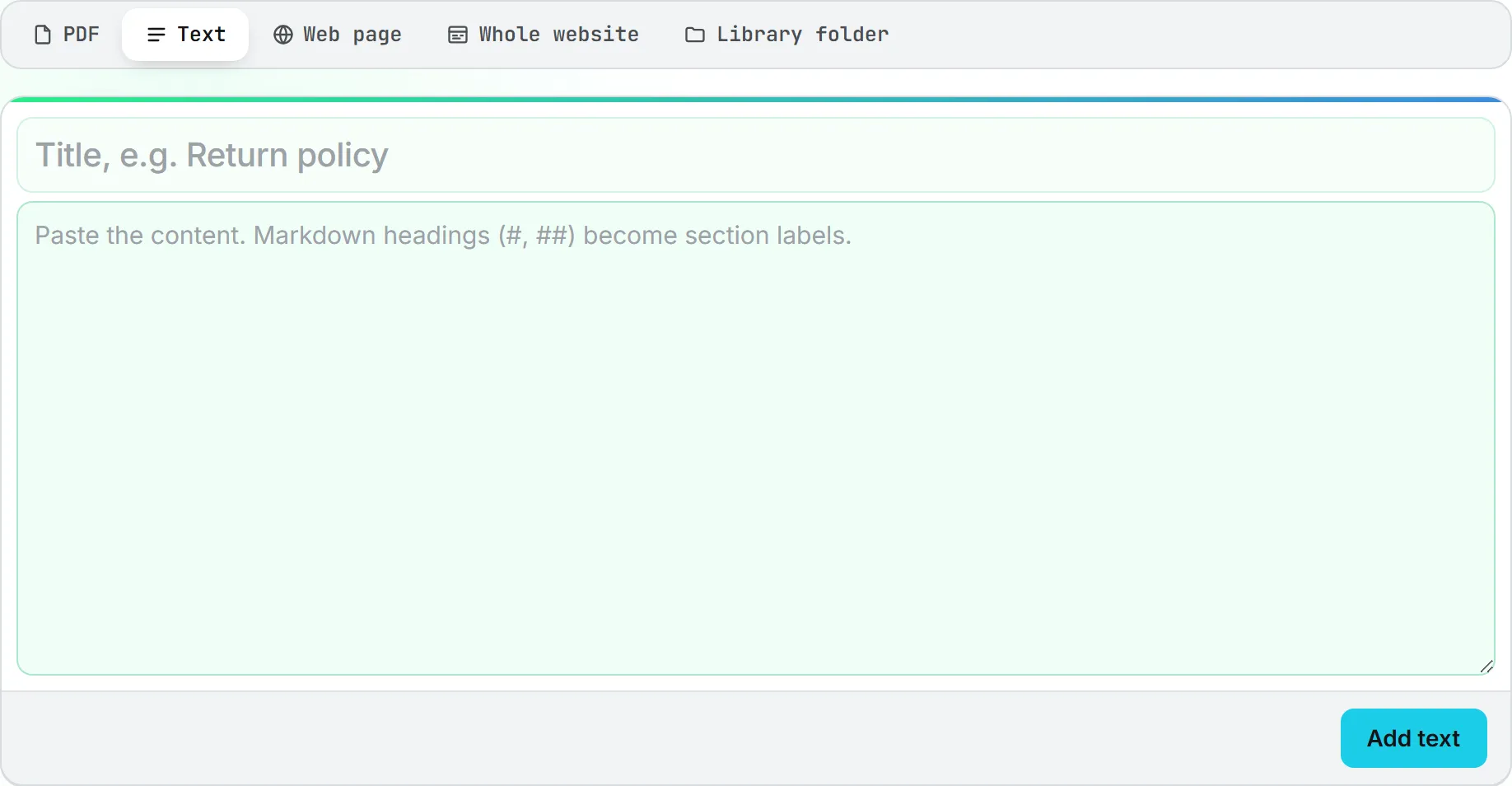
Markdown headings (lines starting with #, ## or ###) become section labels. Without a title, the first line of the text is used. A pasted text can hold up to 800,000 characters.
Import a web page
- Choose Web page.
- Paste the page address, starting with http:// or https://.
- Click Fetch page.
The app grabs the page’s readable text once, and the page address becomes the document title. It is not kept in sync: if the page changes, delete the document and fetch it again.
Some pages import little or nothing. That happens when a site refuses automated visits, or when the text only appears after the page runs code in a browser. In that case, copy the text and paste it with Text.
Link an Assets Library folder
This is the section for documents that already live in the Assets Library. Linking a folder spares you from uploading files again each time they change. The folder stays linked, and each sync brings in what’s new.
- Choose Library folder.
- Pick a folder in Choose a folder.
- Click Link folder.
The app reads the folder and its subfolders right away and indexes every text document in it. This can take a few minutes for a large folder.
The library needs an organization. If your account has none yet, the panel shows “Your role has no access to the Assets Library.” and no Link folder button. See Assets Library overview.
Which files are read
| File type | Read |
|---|---|
| Yes | |
| Word (.docx) | Yes |
| Excel (.xlsx) | Yes, sheet by sheet |
| Plain text, Markdown, CSV, TSV, JSON, XML, HTML, YAML, RTF | Yes |
| Images, videos, other formats | No, listed as “not a text document” |
Some files are left out on purpose, and the folder row says which ones under “files left out”:
- Files over 15 MB (“too large”).
- Files filed under another brand than the desk’s brand (“filed under another brand”). Files of the organization and of the desk’s own brand are read. This keeps a public desk from answering with a sibling brand’s documents. Files you are not allowed to see are neither read nor listed.
A file with more than 800,000 characters of text fails with a message asking you to split it.
If you link a folder and one of its subfolders, a file in both is indexed only once.
Keep a folder in step
Each linked folder shows its path, the number of documents, and when it last synced. A tag tells you where it stands:
- up to date: nothing changed since the last sync.
- changes waiting: files were added, replaced or removed. The row says how many of each.
- deleted: the folder no longer exists in the library. Its row loses the Sync now button.
The app works this out without reading any file, so you know what a sync would change before you pay for it.
Click Sync now to apply the changes. New files get indexed and replaced ones are read again. Files that left the folder drop out of the knowledge base. A file renamed in the library is simply renamed here. Files that failed last time show in red on the row (“failed, tried again at the next sync”), and the next sync tries them again.
One sync indexes up to 20 files. If more are waiting, the status line says how many are left: press Sync now again.
Syncing a folder is manual. Nothing changes in the knowledge base until someone clicks Sync now. A linked website is the exception: it’s read again every night unless you turn that off.
Each link and sync also appears in the Activity widget in the header, under “Knowledge base”, so you can leave the page while it runs. See Activity.
Unlink a folder
Click Unlink on the folder row and confirm. Its documents leave the knowledge base, and the desk stops using them at once. The files stay in the Assets Library.
When a folder was deleted from the library, unlink it to take its documents out.
The document list
Each row shows the document’s title, where it came from (PDF, Text, Web page or Library), its size in characters and the date it was added, in your own date settings. Pages read from a linked website are kept out of this list, so a large site doesn’t bury everything else; they’re under Show the [n] pages on the website’s own row. A tag on the right gives its state:
| Tag | Meaning |
|---|---|
| A number of sections | Ready. The desk answers from it. |
| indexing | Still being processed. |
| failed | Indexing did not work. The reason shows in red under the title. |
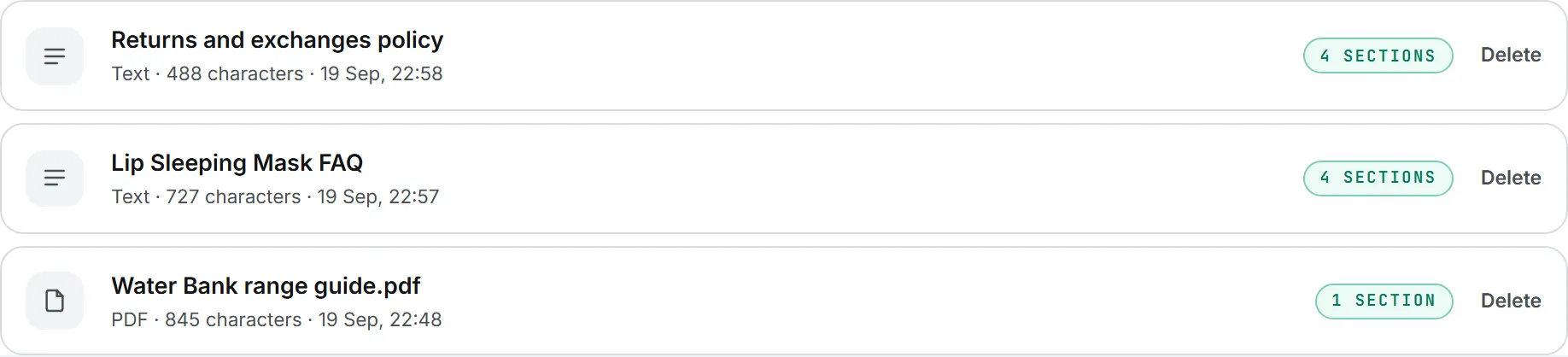
A document added by hand has a Delete button. After you confirm, the desk stops answering from it immediately.
Note: Adding the same PDF, text or page twice creates two documents. To update one, delete the old copy and add the new one.
A document from a linked folder has Open in library instead. To take it out, move or delete the file in the library and sync, or unlink the folder.
What it costs
Indexing is an AI call, so it costs credits. The amount grows with the length of the text, and it shows in the status line once the document is indexed or the sync is done, for example “Document added and indexed.” followed by the price. There is no estimate before you add a document. The person who adds the document pays, from the credits their account draws on, like any other action they run. See Credits and costs.
Reading files from a linked folder also counts as library downloads, billed like any other read from the Assets Library. See Storage costs.
Out of credits, or over a spending cap? Then the app won’t index anything, and the status line says why.
Limits at a glance
| Limit | Value |
|---|---|
| PDF size | 50 MB per file |
| Library file size | 15 MB per file |
| Text in one document | 800,000 characters |
| Files indexed per sync | 20 (press Sync now again for the rest) |
| Passages used per answer | Up to 8 |
| Pages per linked website | 1,000 |
Tips for better answers
- Keep one topic per document where you can: returns, warranty, shipping, setup.
- Write the way customers ask. If they say “refund”, use that word, not only “reimbursement”.
- Read the Conversations tab. Questions the desk could not answer show which documents to write next. See Conversations and costs.
- After adding something, ask the test phone on The desk tab a question it should now answer.
Troubleshooting
| Message | What to do |
|---|---|
| “That PDF is too large (limit 50 MB).” | Split the PDF or extract the pages you need. |
| “That file is not a PDF.” | Upload a real PDF, or paste the text instead. |
| “No readable text found on that page.” | Copy the page’s text and add it with Text. |
| “The page could not be fetched (HTTP …).” | Check the address. The site may block outside requests. |
| “Only http(s) URLs can be fetched.” | Use an address that starts with http:// or https://. |
| “That document is too long (800k characters max). Split it into parts.” | Split the document and add each part. |
| “The document was saved but indexing failed: …” | The row shows failed. Delete it and add it again. |
| “That folder is already linked to this knowledge base.” | It is already there. Use Sync now on its row. |