My Connections
Connect your own Gmail, Google Sheets and social accounts, decide what Ask may do in your mailbox, and keep each network connected before it expires.
My Connections is the page for everything you plug into Intelligence in your own name: your Gmail and Google Sheets, plus your social accounts. What you connect there is yours alone. Nobody else in your organization can use it or see it, administrators included.
To open it, click your picture in the top right corner and choose My Connections. The Your connections card in Settings links there too. Everyone can open the page; the social accounts part appears only when the Social capability is on for your organization and for you.
Personal, not shared
Intelligence has two kinds of connections, and this page only holds the personal kind. You connect each one and only you use it. Remove it and whatever it allowed goes with it.
Your organization’s shared connections, the company systems an administrator plugs in for the whole team, are a different thing. An administrator sets them up and decides who reads each one. See organization connections.
Social accounts exist only at the personal level. A post goes out on the account of the person who connected it.
Your mailbox and your spreadsheets
Connect your Gmail and your Google Sheets so your Ask Intelligence and the agents you set up can read them. Ask can look something up in your mail or a spreadsheet, and write an email that waits in your Drafts folder until you send it.
Connect Gmail or Google Sheets
- On the card, click Connect Gmail or Connect Google Sheets.
- Google’s sign-in page opens. Sign in with the Google account you want and allow access.
- Google sends you back to My Connections, which confirms the connection.
If the button is grayed out, Google connections aren’t open yet, and the card tells you so. The BearingBridge team can help.
What each connection may do
A connected card shows the Google account, a status (Connected or Paused) and a list of switches in two groups.
What it may read lists the reading tools. For Gmail: search the mailbox, read a message, list labels and list drafts. For Google Sheets: find a spreadsheet and read its tabs and figures. Google Sheets is read-only.
What it may do in your name lists the writing tools. For Gmail: write a draft, and send a draft. Writing a draft is on by default. It leaves the email in your Drafts folder and sends nothing.
Sending starts off. Only you can switch it on, and the page asks you to confirm.
Important: Once sending is on, Ask and the agents you gave this mailbox may send email from your address to real people without asking you first. Drafts alone are the safer setting.
Want Ask to leave your mail alone for a while? Untick Available to my Ask Intelligence. The connection stays, paused.
Note: Your administrators can’t read your mailbox through Intelligence. Only your own Ask and your own agents use this connection.
What was written in your mailbox
Under the cards, Written in your mailbox lists every draft and every sent email Ask or an agent wrote for you. Each line shows Draft or Sent, the subject, the recipients, what wrote it and when.
Change or remove a Google connection
Change account starts the Google sign-in again so you can pick another account. Disconnect removes the connection after a confirmation: Ask loses access, and the permission is also withdrawn from your Google account.
Your social accounts
That covers Google. The second half of the page is for publishing. Connect your social accounts so the posts you write in the Social capability go out in your name.
You can connect LinkedIn, Instagram, Facebook, TikTok and X.
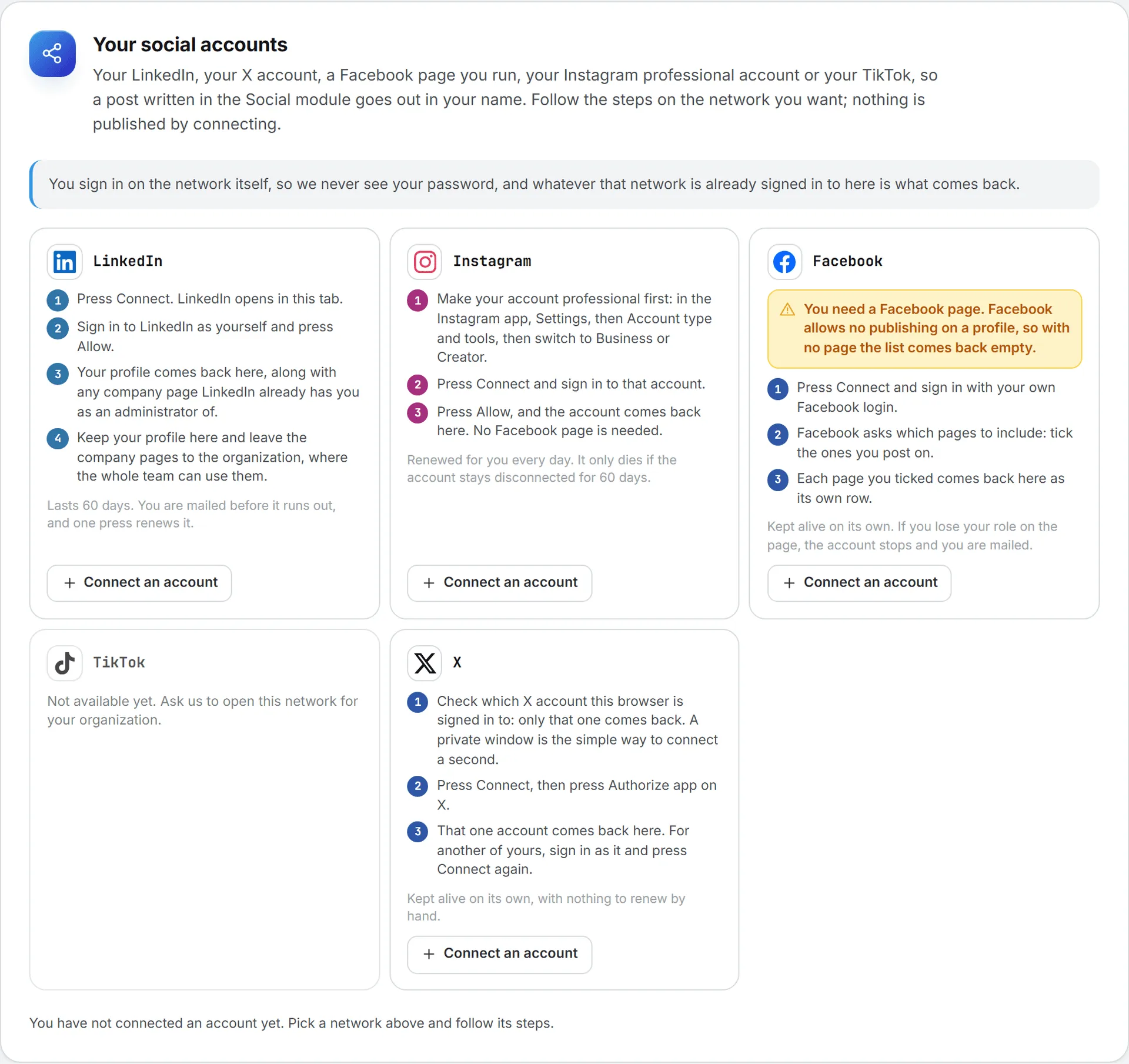
Connecting publishes nothing. You sign in on the network itself, so we never see your password. Once connected, your accounts appear in the scheduling form of every post, marked as yours. Not even an administrator can publish on them.
Connect an account
Every network gets its own card with numbered steps in plain words. In short:
- On the network’s card, click Connect an account.
- The network opens in the same tab. Sign in and allow posting.
- You come back to My Connections. The page says how many accounts came back, and lists them below.
To add a second account on the same network, click Connect another account on its card.
The networks don’t all work the same way:
| Network | What to know before you connect |
|---|---|
| Your profile comes back, along with any company page LinkedIn lists you as an administrator of. Keep the ones you post on and remove the others. | |
| Switch the account to Business or Creator first, in the Instagram app: Settings, then Account type and tools. No Facebook page is needed. | |
| You need a Facebook page. Facebook asks which pages to include; each page you tick comes back as its own row. With no page, nothing comes back. | |
| TikTok | The account comes back with what TikTok allows it: who may see your posts and how many it takes per day. The scheduling form offers only that. |
| X | Only the account signed in to X in this browser comes back. To connect a second one, sign in as it (a private window helps) and connect again. |
Sometimes a network says yes but hands back no account. The page tells you when that happens. Check that the account is of a kind the network allows posting from, then try again.
Note: A network card that reads “Not available yet. Ask us to open this network for your organization.” can’t be connected yet. Contact the BearingBridge team.
Your connected accounts
Each connected account has a row with its name, the network and handle, and its type (Profile, Page or Account). The row shows Yours alone and the date of the last post.
Four buttons act on it:
- Rename changes the name shown in Intelligence, handy when two accounts look alike.
- Switch off stops the account. Nothing new can be scheduled on it, and anything already queued will not go out. Switch on brings it back.
- Connect again runs the network’s sign-in again to renew the connection.
- Remove deletes the connection. Nothing can be published on it afterwards, including posts already scheduled on it. Posts it already sent stay on the network.
How long a connection lasts
Only LinkedIn needs you on a schedule. Its connection lasts 60 days, and one click on Connect again renews it.
The others take care of themselves. Instagram and TikTok are renewed for you every day; an Instagram connection only dies if the account stays disconnected for 60 days. Facebook and X keep themselves alive, though a Facebook page stops publishing if you lose your role on it, and you’re emailed when that happens.
Each row also carries a status line:
| Status | What it means |
|---|---|
| Connected | All good, and the connection renews itself. |
| Connected, 45 days left | All good. The count shows how long before you have to reconnect. |
| Connect it again within 5 days | The connection runs out soon. Click Connect again. |
| Connect it again to publish | The connection ran out or was revoked. Nothing goes out until you reconnect. |
| Switched off | You switched it off. Click Switch on to use it again. |
| Something went wrong on the last send, or the network’s own message | The last post failed. Read the message, then fix the account or reconnect. |
You won’t have to watch the counter. About a week before a connection runs out, and again if it expires, we email you a Connect it again button. See emails and notifications.
Troubleshooting
Most connection problems come from the network’s own rules rather than from Intelligence. These are the usual ones.
| Problem | What to do |
|---|---|
| Facebook returned no account | You need a Facebook page, and you must tick it when Facebook asks which pages to include. |
| Instagram returned no account | Switch the account to Business or Creator in the Instagram app, then connect again. |
| The wrong X account came back | X returns the account signed in to this browser. Sign in to the right one on X (or use a private window) and connect again. |
| A LinkedIn company page is missing | LinkedIn doesn’t list you as an administrator of that page. Ask the page owner to add you, then connect again. |
| Connect Gmail is grayed out | Google connections aren’t open yet. Ask the BearingBridge team. |
| A post didn’t go out | Check the account’s status here. If it says Connect it again to publish, reconnect it, then check the post in the Social capability. See publishing. |
What it costs
Connecting an account is free. Publishing on X costs credits, and the publishing step shows the price before you send anything. See what costs credits. When Ask or one of your agents reads your mail or a spreadsheet, that reading is part of the answer or the run, and its cost is counted there.