Lists
Lists of people to email: fill them from a file, pasted text, your CRM, a people search or an agent, and stop writing to anyone.
Watch the video
The Lists page holds your organization’s lists of people to write to. A list is what a sequence sends to. You fill one from a file, one person at a time, from any text you paste, from your CRM, from a people search, or with an agent that keeps adding to it.
Open it from Email in the left menu, then Lists, or from the Lists switch in the black band of the Email pages. It’s one of the three pages that follow the Prospects and Sequences right of your role (see Prospects).
Lists are shared with your whole organization. Everyone who can open the page sees every list and every person in it. Filling a list, changing its fields and editing its people need the create right; removing people and deleting a list need the delete right.
How the page is laid out
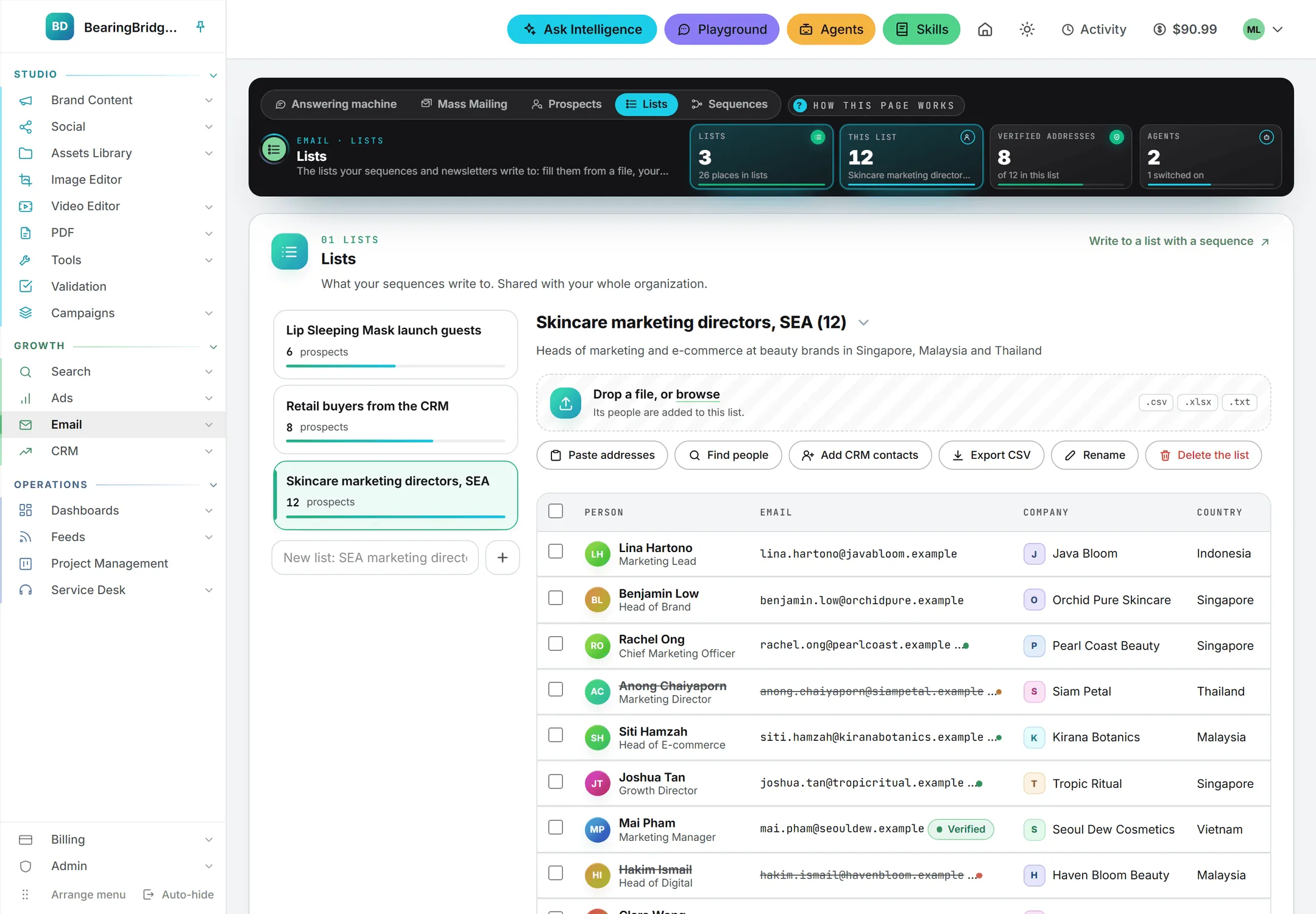
Four tiles in the band keep count:
| Tile | What it shows |
|---|---|
| Lists | How many lists your organization has, and how many places they hold. |
| This list | How many people are in the list you have open, and its name. |
| Verified addresses | How many of them carry an address the people search marked verified. |
| Agents | How many agents fill the open list, and how many are switched on. |
Under the band, the page has three cards: Lists, Agents and Do not contact.
Your lists
The shelf on the left has one card per list, with how many people it holds and a bar as long as its share of your biggest list. Click a card to open the list on the right. The menu above the open list switches between lists too.
To create a list, type its name in the field under the shelf, such as “SEA marketing directors”, and click the plus sign. Under the list’s name, the line What this list is for, in a line takes a short description. It’s saved as soon as you leave the field or press Enter.
Write to a list with a sequence, at the top right of the card, opens the Sequences page in a new tab.
Fill a list
Everybody is held once by your organization, whatever list they sit in. Adding an address your organization already has puts that person in the list and fills in what was missing about them, such as a job title. It never creates a second copy and never overwrites what’s there.
From a file
Drop a file on the zone at the top of the open list, or click browse to pick one. It takes:
- A CSV, TSV or text file, with one address per line or a table with a header row.
Ben Moreau <ben@globex.com>works too. - A JSON list, of addresses or of records.
- An Excel
.xlsxworkbook, of which the first sheet is read.
A text file can’t be larger than 5 MB, and one import adds up to 2,000 people. While the file is read and added, a progress bar runs under the drop zone, and the zone takes no other file until it’s done.
The usual columns are recognized in English, French and Chinese headers: first name, last name, job title, company, country and the like. They fill the person’s own details. A file with other columns opens the import step first, where you choose which of them become fields of the list.
When it’s done, a line says how many people were added to the list and how many were new to your organization, how many fields were added to the list, how many addresses that aren’t a person’s were left out, and how many lines were skipped for want of a valid address. The import also shows up in Activity under Prospects.
Choose the columns to keep
When a file, or a table you paste, has columns besides the address, a window opens over the page before anything is added. It lists each column of the file:
| Column | What it shows |
|---|---|
| Column in the file | The column’s header, as written in the file. |
| Becomes | What it fills: one of the person’s own details (as in Person: Job title), or a Field of the list. A column the list already has reads Field of the list, already there. |
| Filled | The share of rows that have a value in it, with a bar. |
| Example | The first value found in it. |
The person’s own columns and the fields the list already has are always kept. Every other column is ticked when it’s filled in at least one row in ten; tick or untick the ones you want. Each column you keep becomes a field of the list.
When the file holds addresses that aren’t a person’s, a box at the bottom leaves them out and shows a few of them: no-reply and system senders (noreply@, mailer-daemon@, notifications@), reply relays such as reply-to+chjvcg9z…@heepsy.com, calendar, CRM and helpdesk robots, and malformed addresses (quotes, | or ? in them, a domain that ends badly). It’s ticked; untick it to add them too. Sequences never write to these addresses, wherever they come from.
The button counts the people about to go in, as in Add 120 people, and the foot of the window counts the new fields. Cancel closes the window and adds nothing. A plain list of addresses, or a file whose columns the list already has, skips this step, unless it holds addresses that aren’t a person’s.
One person at a time
Click Add a person. A form opens on one line: Email, First name, Last name, Job title, Company and Country, then one box for each field of the list. Only the email is required.
Press Enter, or click Add to the list. The person goes in, the form clears and the cursor goes back to Email, ready for the next one. A line says who was added, and whether your organization already knew them. Close folds the form.
From any text you paste
Click Paste anything or Scan name cards to open the Paste anything or scan name cards drawer. You can paste what you have in the text box (email signatures, a thread, a web page, notes or a table), drop or choose up to 12 business card photos with Upload name card pics, or combine both.
- Pick a model in the model picker under the buttons, if you want another one than the one shown. When name card images are attached, the picker switches to vision models. See AI models.
- Click Find the people with AI. The AI reads the text and business card images and lists the people it found, with how many above the table and the price of the reading beside it.
- Everyone found is ticked, and every extracted cell (email, name, job title, company, country and list fields) can be edited inline before you add them. Click a row’s checkbox to untick it, or use the box in the header for all of them.
- Click Add to the list. The button counts the people ticked, as in Add 4 people to the list.
A person is listed only with an address written in the text, or spelled out in it, as in “anne at acme dot com”. The AI never guesses or completes an address. An address it missed but that the text holds is listed too, without a name. A generic address such as info@ comes with its company and no person’s name. The name, job title, company, country and the list’s own fields are filled only from what the text says about that person.
As you paste, a count beside the buttons says how many addresses are written in the text. When it’s a clean list of addresses or a table with a header row, every line holding an address, Add as pasted shows too. It adds them without the AI, and a table goes through the import step like a file. Cancel empties and closes the box.
From your CRM
Add CRM contacts opens a window over the page with every contact of your CRM that has an email address. A person entered twice in the CRM shows once.
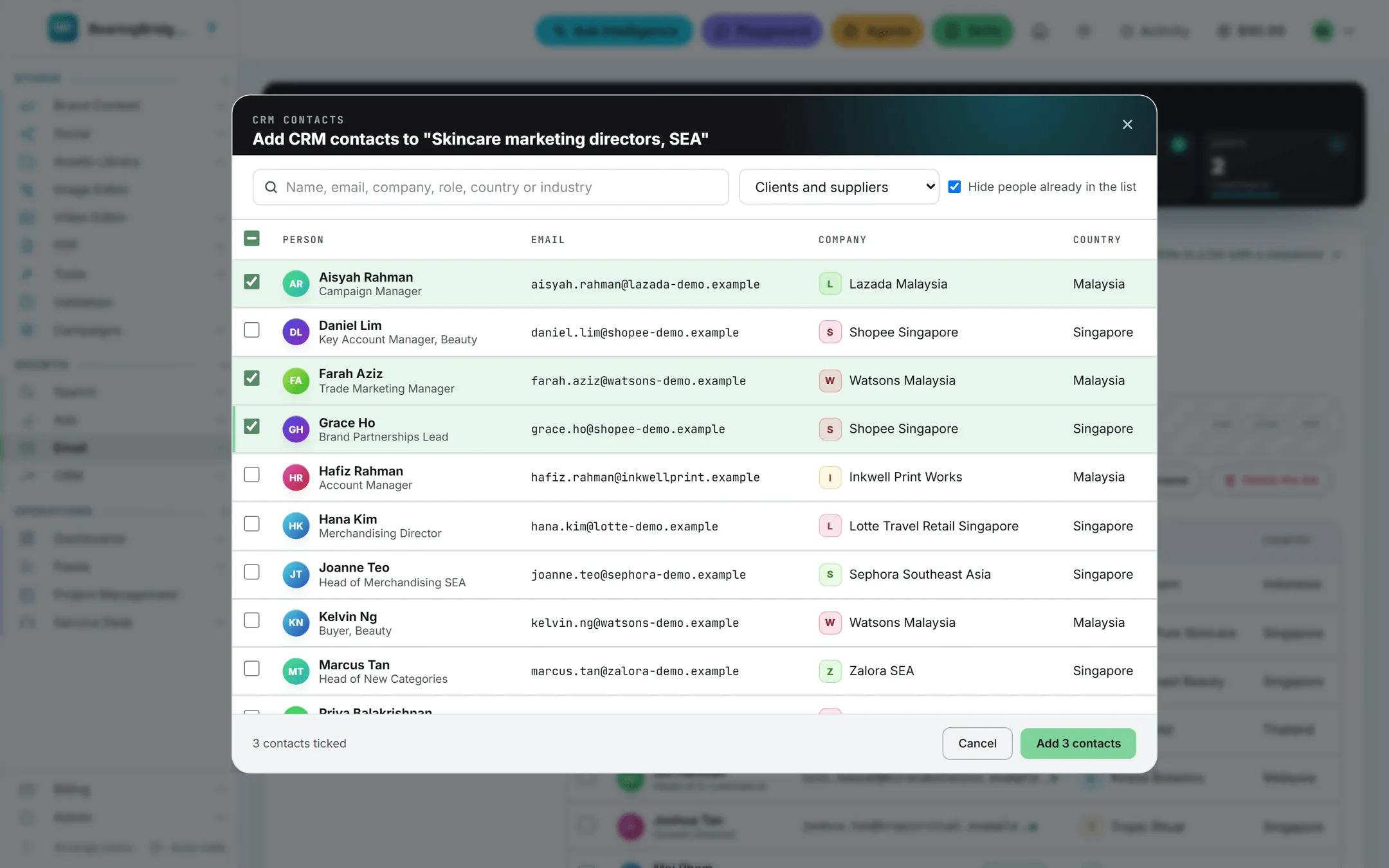
- Type in the search box to narrow the list as you type. It looks in the name, the email, the company, the job title, the country and the industry, ignores accents, and highlights what it matched.
- Pick Clients and suppliers, Clients or Suppliers to keep to one kind of company.
- Leave Hide people already in the list ticked to see only the people you can still add. Unticked, those already in the list show with In the list, and those your organization stopped writing to with Do not contact. Neither can be ticked.
- Tick the contacts you want, one by one or with the box in the header, which ticks every contact shown.
- Click Add to the list. Once people are ticked, the button counts them, as in Add 3 contacts.
The window shows up to 300 contacts at a time. When more match, the foot of the window asks you to narrow the search.
The button is only there when your role also opens the CRM. The person’s name is split into first and last name, and their company and job title come with them.
From a people search
Find people opens Prospects in a new tab, with this list already picked as the one revealed people go into.
With an agent
An agent can fill the list on a schedule, from your own data or from a people search. See List builder agents.
The fields of a list
Beyond the person, the email, the company and the country, each list has its own fields: a phone number, an industry, the event where you met, a tier. Click Fields to see them in the box Fields of this list, each with its placeholder, as in {{phone}}.
- To add one, type its name in the field of the box, such as “Phone”, and click Add the field.
- To remove one, click the cross on it. Its column leaves the table, but the values are kept on the people: add the field again and they show again.
Each field is a column of the table, a box in Add a person, something the AI fills when it reads a pasted text, and a placeholder you can place in a sequence’s emails. A list holds up to 30 fields. The values belong to the person, so someone who sits in two lists has the same value in both.
The people in a list
The table under the list shows everyone in it, 100 people a page, with arrows under the table to turn the pages when there are more:
| Column | What it shows |
|---|---|
| Person | The name and job title. |
| The address. | |
| Company | The company. |
| Country | The country, when it’s known. |
| One per field | The value of each field of the list. |
| Status | Verified when the people search marked the address so. An address your organization stopped writing to reads Opted out, Bounced or Added by hand, and the person’s name and address are struck through. |
| Source | How the person came in: Found by search, CRM, Agent or Imported (a file, a pasted text or a person added by hand). |
Sort, search and filter
Click a column title to sort the list by it, and click it again to reverse the order. Empty cells always go last, whichever way you sort. Status sorts the people who opted out first, then the bounced addresses, those added by hand, the verified addresses and the others.
Above the table, the search box looks in the name, the email, the job title, the company, the country, the city and every field. Two menus narrow the list further:
| Menu | Choices |
|---|---|
| Status | Every status, Can be contacted (not on Do not contact, and a person’s address, verified or not), Opted out, Bounced, Do not contact, added by hand, Verified address and Not a person’s address (no-reply senders, reply relays such as reply-to+…@, robots and malformed addresses, which sequences never write to). |
| Source | Every source, Imported, CRM, Found by search and Agent. |
While a search or a filter is on, a count says how many people are shown out of the list, and Clear the filters puts everyone back. Opening another list clears them too.
Edit a person in place
Click a name, a job title, a company, a country or a field’s value in the table: it becomes a box you can type in.
- Press Enter, or click elsewhere, to save.
- Press Escape to leave it as it was.
- Press Tab to save and open the next cell of the row, or Shift and Tab for the one before.
A name is typed as one: its first word becomes the first name, the rest the last name. Emptying a field’s box clears its value. The change shows in every list the person sits in. The email can’t be edited, because it’s who the person is: to change an address, add the new one and remove the old.
Act on several people
Tick people to act on them. The box in the header ticks everyone on the page shown. A dark bar rises from the foot of the screen with up to three buttons, depending on your rights:
| Button | What it does |
|---|---|
| Remove from the list | Takes them out of this list only. They stay in your organization and in any other list. |
| Do not contact | Adds their addresses to Do not contact after a confirmation. No sequence of your organization writes to them again. |
| Delete from the organization | Deletes them after a confirmation. They leave every list, and every sequence stops writing to them. |
Export, rename or delete a list
The buttons above the table also do this:
- Export CSV downloads the whole list as a spreadsheet, whatever the search and filters: the address, the name, the job title, the company and its website, the city, the country, the LinkedIn profile, the source, the status of the address, whether it’s on Do not contact, then one column per field its people carry, removed fields included.
- Rename turns the list’s name into a field, with Save and Cancel.
- Delete the list deletes it after a confirmation. Its people stay in your organization and in any other list, and a sequence that was writing to it keeps the people it already took on.
Do not contact
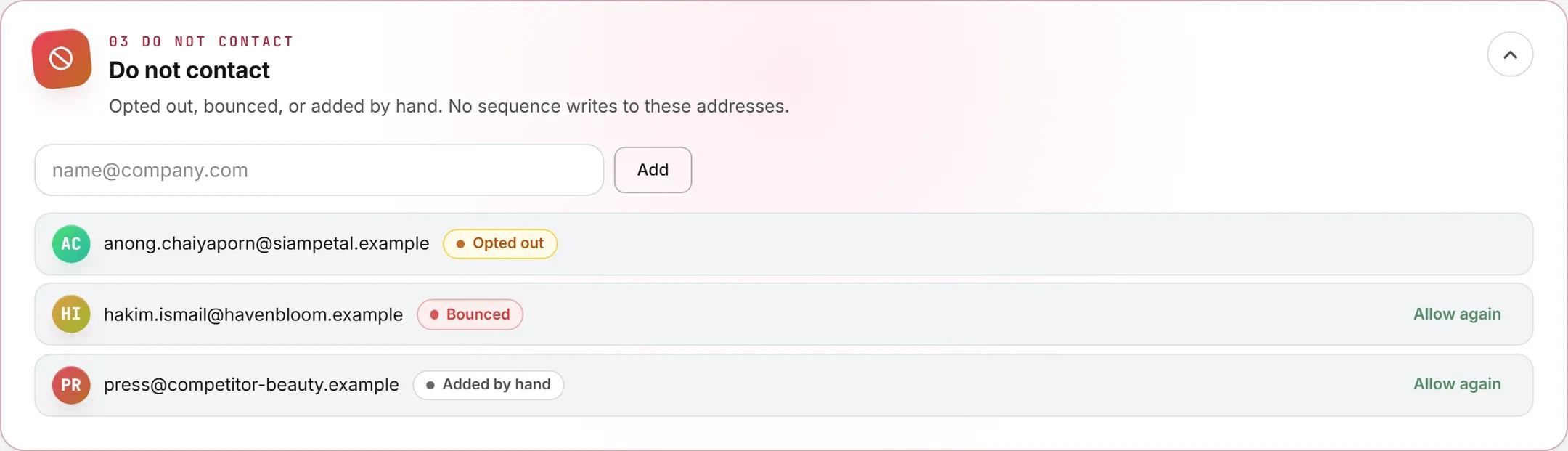
The Do not contact card, folded at the foot of the page, holds the addresses nobody in your organization writes to again. Click it to unfold it. Every sequence checks it before each email it sends, whatever list the person sits in.
An address gets there three ways, each with its label:
| Label | How it got there |
|---|---|
| Opted out | The person used the opt-out link of a sequence email. |
| Bounced | A sequence email to that address bounced. |
| Added by hand | Someone typed it in the field at the top of the card and clicked Add, or ticked the person in a list and chose Do not contact. |
Allow again takes an address back off the list. It’s offered for bounced and hand-added addresses, never for someone who opted out: that choice is theirs. It needs the delete right.
What it costs
Almost everything on this page is free: creating lists, importing a file, adding a person, Add as pasted, adding CRM contacts, fields, edits, exporting and Do not contact.
Three things cost credits:
- Find the people with AI: each reading of a pasted text is one AI call, at the price of the model picked. The price shows beside the people found once the reading is done. See Credits and costs.
- Searching and revealing emails on Prospects.
- The runs of a List builder agent.