Clients
Clients are the companies you sell to. Add them, keep details and contacts current, see every deal they hold, and learn who can delete one.
Clients are the companies your organization sells to, prospects included. Every deal belongs to one client, and so does every revenue line. You’ll find the list under Sales, Clients.
The page used to be called Companies. If you kept old links, they still work and land on the Clients list or on the right client or supplier.
The Clients list
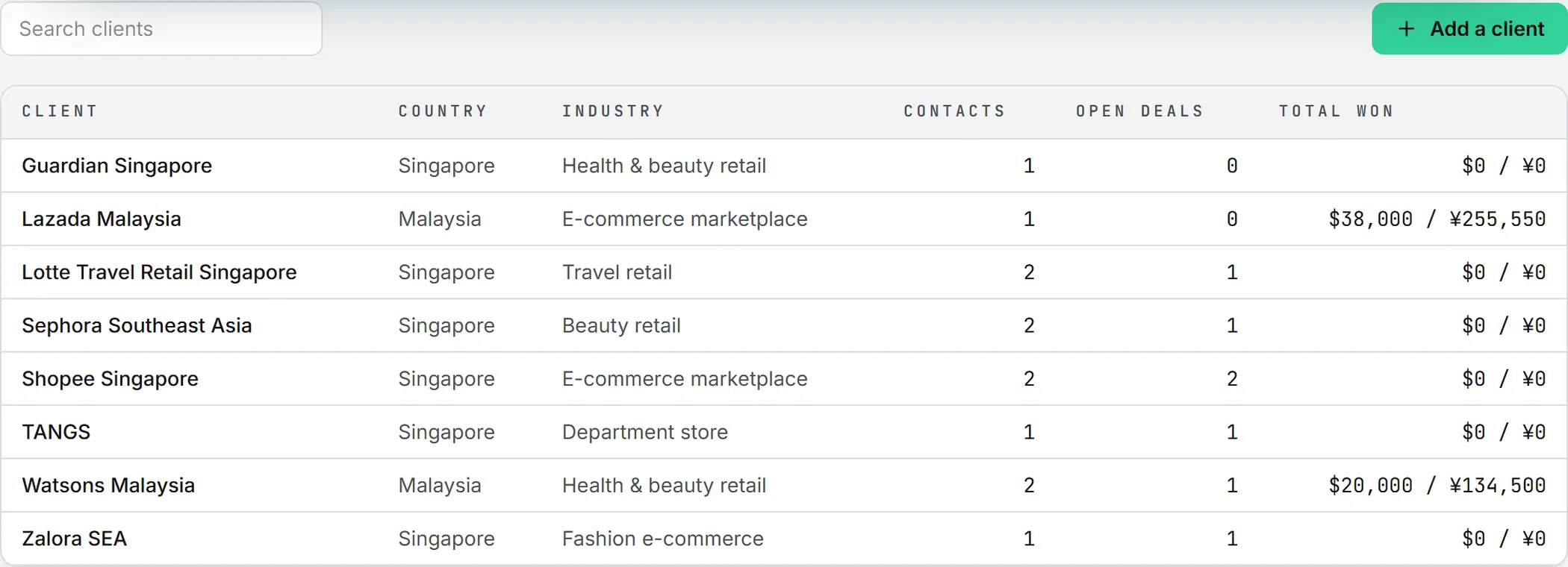
Everyone in the organization works from this one list, whatever brand they happen to be on.
| Column | What it shows |
|---|---|
| Client | The company name |
| Country | As entered, or “n/a” |
| Industry | As entered, or “n/a” |
| Contacts | How many people you hold for this client |
| Open deals | How many of its deals are still open |
| Total won | Everything ever won with it, in your reference currency |
Clients are sorted by name. Type in Search clients to filter the list by name, and click a row to open the client.
Add a client
You need editor rights or more on CRM.
- Click Add a client.
- Type the Name.
- Add a Country, an Industry, a Website and Notes if you like. All four are optional, and country and industry are free text, so agree on spellings as a team.
- Click Add client.
The new client’s page opens straight away.
One shortcut: you can create a client without leaving the pipeline. In the New deal form, leave New client… selected and type the name. The client is created with the deal, with just its name. Fill in the rest later on its page.
The client page
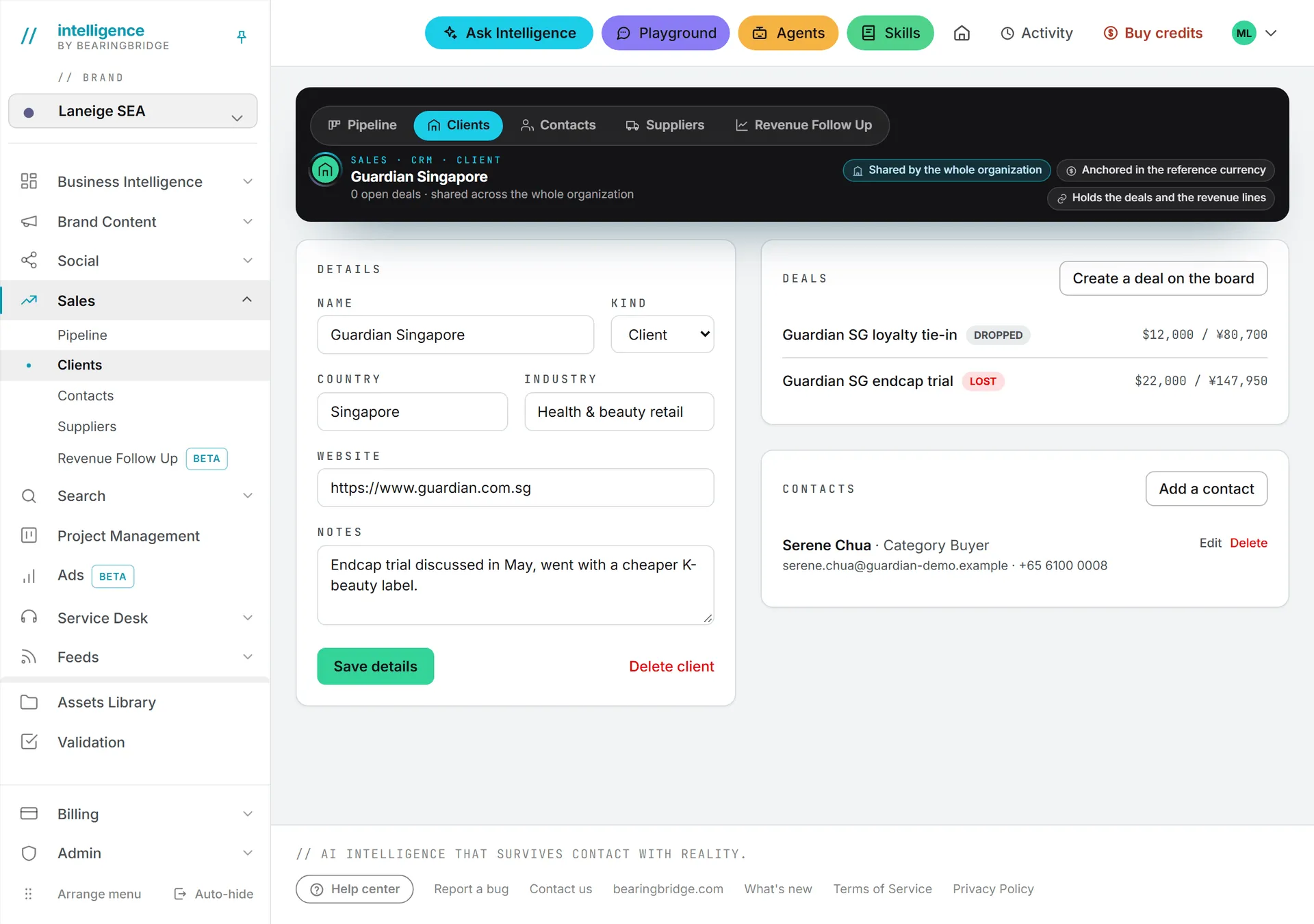
The top band shows the client’s name and how many open deals it has. Below it sit three cards: Details on one side, Deals and Contacts on the other.
Details
This card holds the Name, Kind, Country, Industry, Website and Notes. Make your changes and click Save details. The button turns amber while changes are waiting to be saved. Rename a client and the new name follows on the board and on every deal.
The Kind field switches the company between Client and Supplier. Save, and the company moves to the other list.
Note: A supplier must have an email, a WeChat/WhatsApp or a phone number on file, and the client form has no field for those. So switching a client to Supplier is refused with “A supplier needs an email, a WeChat/WhatsApp or a phone number.” unless the company already carries one of them.
Deals
Here you get every deal with this client, open and closed, newest first. Each row carries the deal’s name and stage, with the amount on the right. Click a row to open the deal. Create a deal on the board takes you to the pipeline, where New deal lives.
It’s also the place to find a closed deal that has dropped off the pipeline board.
Contacts
This card lists the people you deal with at the client, with their role, email, phone and WeChat when you have them.
Add a contact opens a short form. Only the Name is required; Role, Email, Phone, WeChat, LinkedIn and Notes are there if you have them. Click Save contact. Edit reopens the same form with the contact’s details, and Delete, which only admins see, removes the person.
This card is where contacts get edited. The organization-wide Contacts list sends you back here when you click a name.
Clients in Revenue Follow Up
If your team only uses the CRM side, skip ahead to deleting. In Revenue Follow Up, clients are where the money lands. Each revenue line is billed to a client, picked from this list. A vendor payable can be attached to a client as well. The P&L tab then shows a result per client: what you billed it in the year, minus the vendor costs attached to it.
Delete a client
Only an admin can delete a client. The Delete client link sits at the bottom of the Details card.
A client that still has deals or revenue lines can’t be deleted. The app answers “This company still has deals or revenue lines. Remove those first.” Delete or move those deals, and delete its revenue lines, then try again.
When the delete goes through, the client’s contacts go with it. A vendor payable that was attached to the client stays, without a client.
Duplicate clients
There’s no merge button. If the same company was added twice, open each deal of the duplicate and pick the right client in its Details card. Do the same for its revenue lines with Edit. A contact can’t be moved from one company to another, so add the duplicate’s people to the right client before you go further: they’re deleted along with it. Once the duplicate holds nothing, an admin can delete it.
Who can do what
| Action | Who |
|---|---|
| See clients and their pages | Everyone with view rights on CRM |
| Add and edit clients and their contacts | Editors and above with CRM rights |
| Delete a client or a contact | Admins only |
Roles and per-person rights are explained in roles and rights.
What it costs
Nothing here spends credits. Clients and contacts are plain records, and no AI model is called. See credits and costs.