Write Facebook page posts in Intelligence and publish them on your pages: text, pictures or video, with a first comment, on schedule or by hand.
Facebook in Intelligence is where you write posts for a Facebook page and publish them, without leaving the app. A post can be plain text, or carry pictures or a single video. It’s meant for editors who look after a brand’s page.
Where you find it
In the left menu, open Social, then Facebook. You land on the brand’s Facebook posts, drafts and published ones alike. Open one from the list, or start a new one.
Post shapes
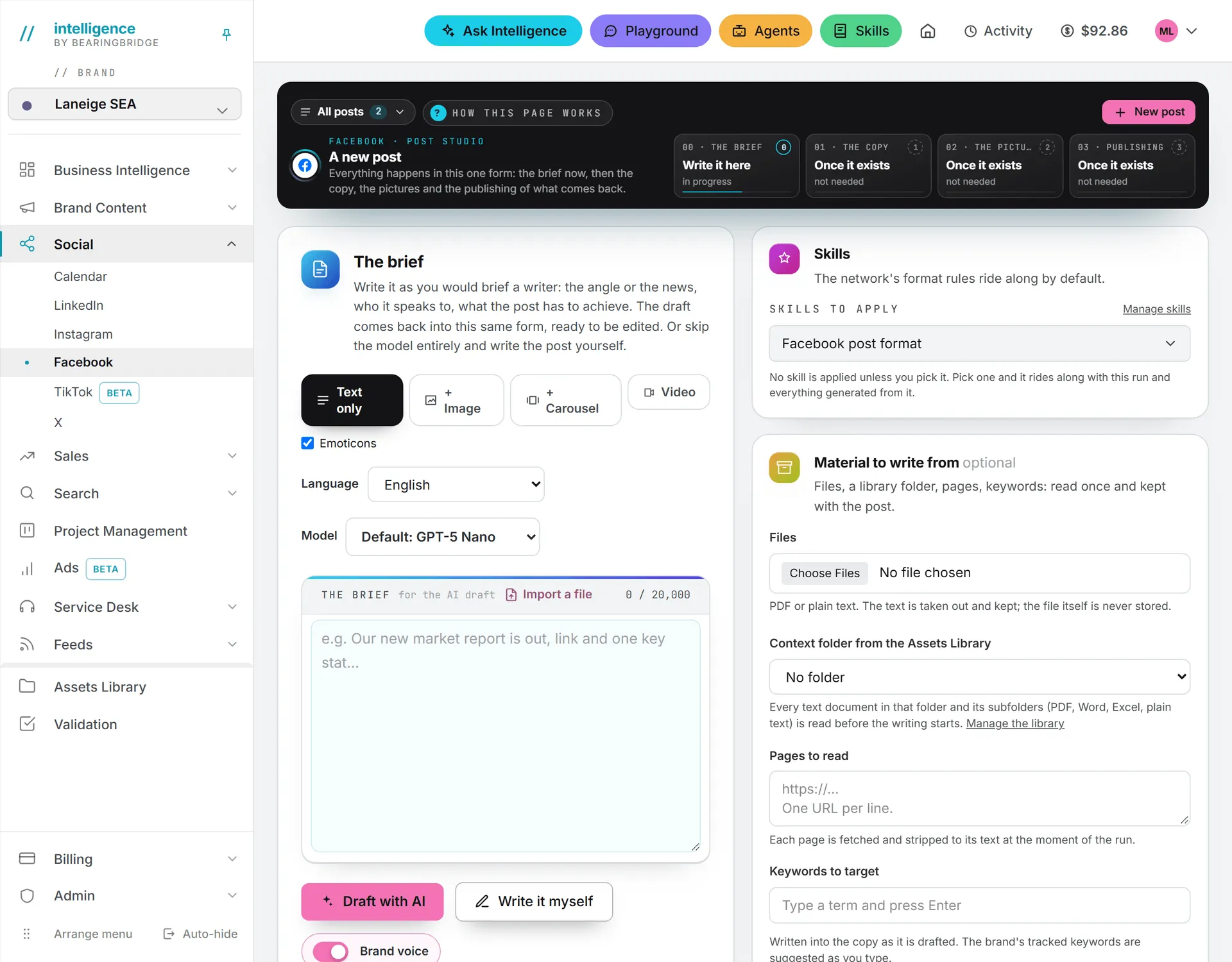
You pick the shape above the brief, before anything is written:
| Shape in the form | What goes out on Facebook |
|---|---|
| Text only | A page post with the copy |
| + Image | A photo post, with the copy as its text |
| + Carousel | One page post with 2 to 10 pictures attached |
| Video | A page video, with the copy as its description and the post’s title as the video title |
Pictures and a video don’t mix: a post carries one or the other.
Writing the post
A Facebook post moves through four steps, shown as tiles at the top of the post: 00 the brief, 01 the copy, 02 the pictures (or the video), and 03 publishing. A text-only post skips the pictures. Write the angle in the brief and press Draft with AI, or press Write it myself to write it by hand. See writing posts.
The Facebook post format skill is picked by default. It asks for a hook in the first line and 40 to 120 words of plain text around one idea. Hashtags stop at 2. A link goes at the end, and only when the brief gives one. The post closes on a question or a call to action. You can edit the skill’s text for your organization. See formats.
You can render a picture with AI or pick one from the Assets Library. Uploading one from your computer works too, and a video comes in the same ways. The price of each render shows before you press.
Facebook limits
These figures follow Facebook’s own published limits. The app checks them when you queue a post and again right before it goes out, so most problems show up before anything leaves.
| Limit | Value |
|---|---|
| Copy | 63,206 characters |
| Picture types | JPG, JPEG, PNG, GIF |
| Picture size | 10 MB each |
| Pictures per post | Up to 10. Uploading from your computer adds up to 8 to a carousel |
| Video types | MP4, MOV |
| Video size | 10 GB |
| Video length | 1 second to 240 minutes |
| Gap between two sends on one page | 1 minute |
Connect a Facebook page
Important: You need a Facebook page. Facebook doesn’t allow publishing on a personal profile, so without a page the list comes back empty.
- Go to My connections.
- Press Connect on Facebook and sign in with your own Facebook login.
- Facebook asks which pages to include. Tick the ones you post on.
- Each page comes back as its own row.
Only pages where your Facebook role lets you create content are offered.
You don’t have to renew the connection. If you lose your role on the page, the account stops and you get an email. Some organizations also have company pages connected by an admin; they appear marked Company.
Publish on Facebook
With a page connected, the rest happens inside the post. In the publishing step, the Publish automatically tab lists your pages under Who it goes out as. Tick a page, pick a time, and press Schedule or Publish now. You can tick several pages: each gets its own row in the queue and succeeds or fails on its own. The full walkthrough is in publishing.
First comment
Open What Facebook asks for to add a First comment (optional). The app posts it on the post right after it goes out. The box suggests links or credits, for instance. If the comment fails, the post itself stays up.

Publishing by hand
In the Publish manually tab, press Publish interactively. Facebook opens in a new tab with the copy on your clipboard. If you ticked a page in the automatic tab, or if you have only one page connected, the app opens that page’s composer in Meta Business Suite, where you need to be signed in. Otherwise Facebook opens on its home page and you switch to the page there.
Unlike LinkedIn and X, Facebook has no link that fills its composer with text, so you paste the copy yourself. One picture goes on your clipboard to paste. Several pictures download as files to drag in, in order.
Doing it this way has its trade-offs, though. You can’t pick an hour, and Intelligence is never told the post went out, so it stays out of the queue and the calendar. To schedule a Facebook post, use the automatic tab or Meta Business Suite.
After it’s published
The queue row shows View live with a link to the post. A video can take a while to show on the page, because Facebook processes it after it arrives.
The app can’t edit or delete a Facebook post. Change or remove it on Facebook.
Who can do this
You need the editor role or above, plus access to the post’s brand, to write and publish. Automatic publishing also needs a page connected on your account. Posting by hand doesn’t. See roles and rights.
What it costs
Publishing on Facebook is free, and no credit check happens when you schedule or send a Facebook post. Drafting with AI and rendering pictures or videos use credits, and each price shows in the app before you press. Pictures and videos you upload are stored in the Assets Library, which bills storage. See what costs credits and storage costs.
Troubleshooting
No page came back after connecting. Facebook returned no page you can create content on. Check your role on the page in Facebook, then connect again.
The composer opened on the wrong profile. Tick the page in the automatic tab first, then press Publish interactively. With several pages connected and none ticked, Facebook opens on the profile you used last.
The post was refused. Read the message on the queue row: it names the limit, such as a file type Facebook doesn’t take or a video that’s too long.
The page shows Reconnect. The connection stopped, usually because your role on the page changed. Reconnect it on My connections. Publishing explains what happens to queued posts.