Invitations
Email prospects in your own words from the Invitations page. Anyone who opens an account through your mail becomes your lead automatically, connected and earning.
The Invitations page is where commercial partners email prospects and invite them to open an Intelligence account. BearingBridge suggests a text and you rewrite as much of it as you like. If the prospect opens an account through your mail, they become your lead automatically, already connected to that account. To send one right away, go to Send an invitation.
How an invitation works
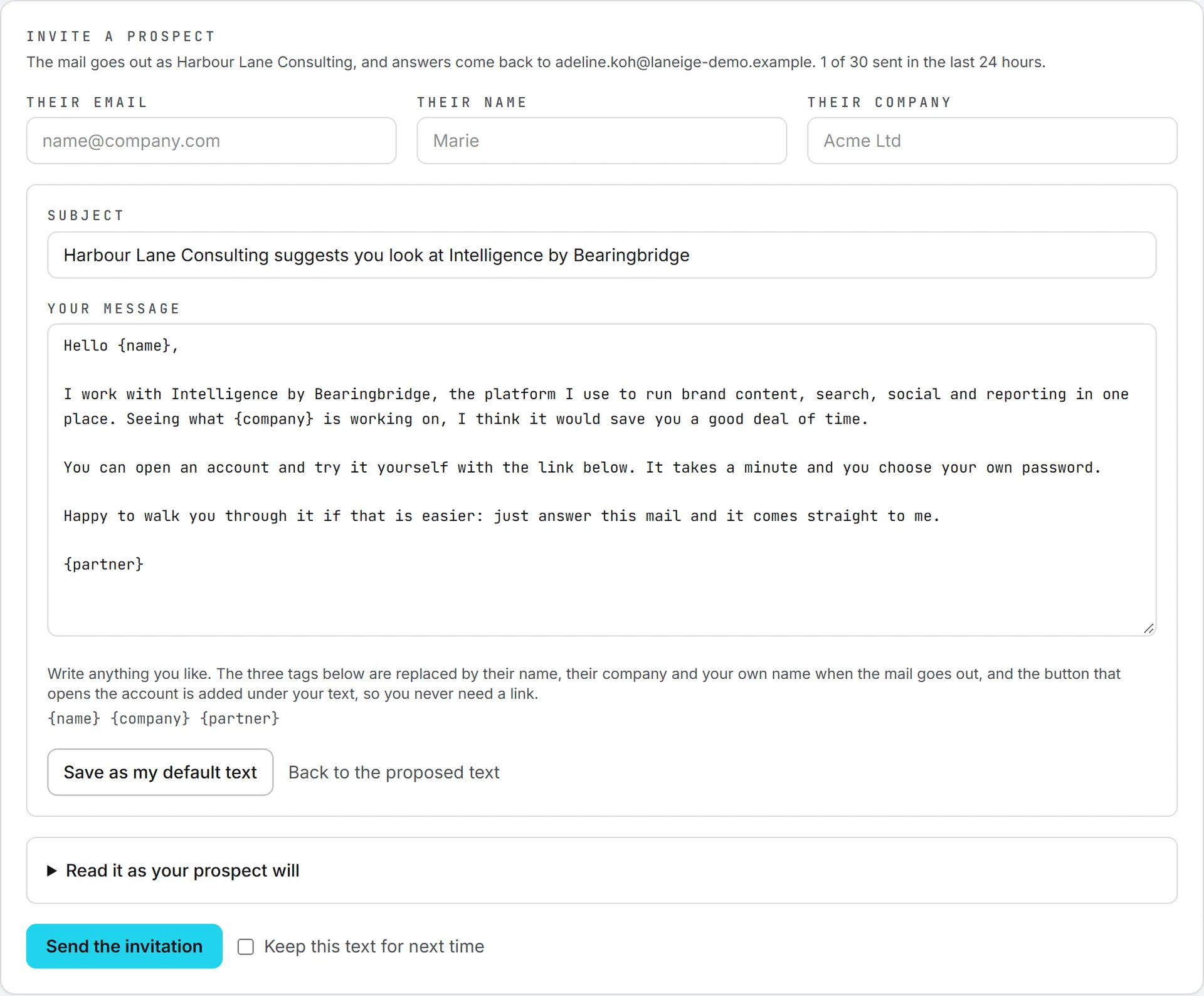
The mail leaves from BearingBridge’s own sending domain, which keeps it out of spam folders. Your own sign-in address is set as the reply address. When your prospect hits Reply, the answer lands in your inbox.
The mail carries an Open your account button. It opens the sign-up page with your prospect’s address already filled in and this line on top: “[your name] invited you here. Your account stays entirely yours: they simply remain your contact with us.” The prospect then signs up like anyone else, choosing Just me or My organization (see Create an account). When they finish, three things happen at once:
- A lead is registered for you, exactly as if you had typed it on Leads.
- The lead is filed in BearingBridge’s sales pipeline, like every partner lead.
- It’s connected to the account that was just created, at your commission rate of that day.
Nobody has to link anything by hand, and your commission counts from that account’s first payment.
What your prospect receives
Your subject becomes the headline of the mail, and your message is the body. Under it come the Open your account button and a short note from BearingBridge: the invitation comes from you, the link stays valid for 30 days, and nothing is created until the prospect enters a code sent to their address. The footer says they’re receiving it because you invited them and that replying reaches you directly. There’s also a link to bearingbridge.com for anyone who wants to read about the app first.
The text BearingBridge proposes has the subject “[your name] suggests you look at Intelligence by Bearingbridge” and a short message that greets the prospect by name, says you use Intelligence, and offers to walk them through it. Send it as it stands or rewrite every line.
Send an invitation
- Open Partner > Invitations.
- Under Invite a prospect, fill in Their email. Their name and Their company are optional, but they make the mail read better.
- Read over the Subject and Your message. They open on the text BearingBridge proposes, or on your own saved text if you kept one. Change whatever you want.
- Open Read it as your prospect will to see the mail with the tags filled in.
- Click Send the invitation.
The page reloads, and your prospect shows up in Your prospects.
Writing your message
Write anything you like. The mail is plain text, and the button that opens the account is added under your text for you, so you never need to paste a link.
Three tags are replaced when the mail goes out:
| Tag | Replaced by | If it’s empty |
|---|---|---|
{name} | Their name | “there” |
{company} | Their company | “your team” |
{partner} | Your name as a partner | Always filled |
Leave the name blank and “Hello {name},” goes out as “Hello there,”. That way your sentence doesn’t end up with a gap in it.
Your partner name is the trading name the BearingBridge team recorded for you. If there isn’t one, your sign-in address is used instead. The line under Invite a prospect shows the name the mail goes out under and the address replies come back to. To change the trading name, ask the team.
Keeping your own text
There are two ways to keep your version for next time:
- Tick Keep this text for next time before you send.
- Click Save as my default text at any point. The button turns amber while you have unsaved changes.
Back to the proposed text puts the text the page opened with back in the boxes. If you save an empty subject or message, the app’s own proposed text comes back for that field.
Limits and checks
When an invitation is refused, the table below tells you what the message means.
Every invitation is checked before it leaves. If a check fails, nothing is sent and the page tells you why.
| Check | What you’ll see |
|---|---|
| The address must look valid | A valid email address is needed to send an invitation. |
| No temporary mailboxes | Temporary mailboxes cannot be invited. |
| Not your own address | That is your own address. |
| The subject can’t be empty | The invitation needs a subject. |
| The message needs at least 20 characters | Write a few words to your prospect before sending. |
| The address must not have an account already | That address already has an account on the platform. Register it as a lead instead if you brought it to us. |
| One account per prospect | This prospect has already opened an account through your invitation. |
| 30 invitations in any 24 hours | You can send 30 invitations a day. Try again tomorrow, or tell us if you need more. |
| Spam check | This mail would be read as spam, so it was not sent. followed by the reasons |
Why the spam check? Your words go out under BearingBridge’s domain, and one mail that reads like spam can hurt every mail the domain sends. Fix what the reasons point at and send again.
The daily limit is a rolling 24 hours, not a calendar day. If 30 isn’t enough for the way you work, ask the BearingBridge team. The line under Invite a prospect shows how many you’ve sent in that window, for example “4 of 30 sent in the last 24 hours”.
Your prospects
Every invitation you’ve sent is listed under Your prospects, newest first. The line above the list follows your prospects down the funnel: invited, opened the link, opened an account. Prospects who went on to open an account are included in the “opened the link” count too, and called-back invitations aren’t counted as invited.
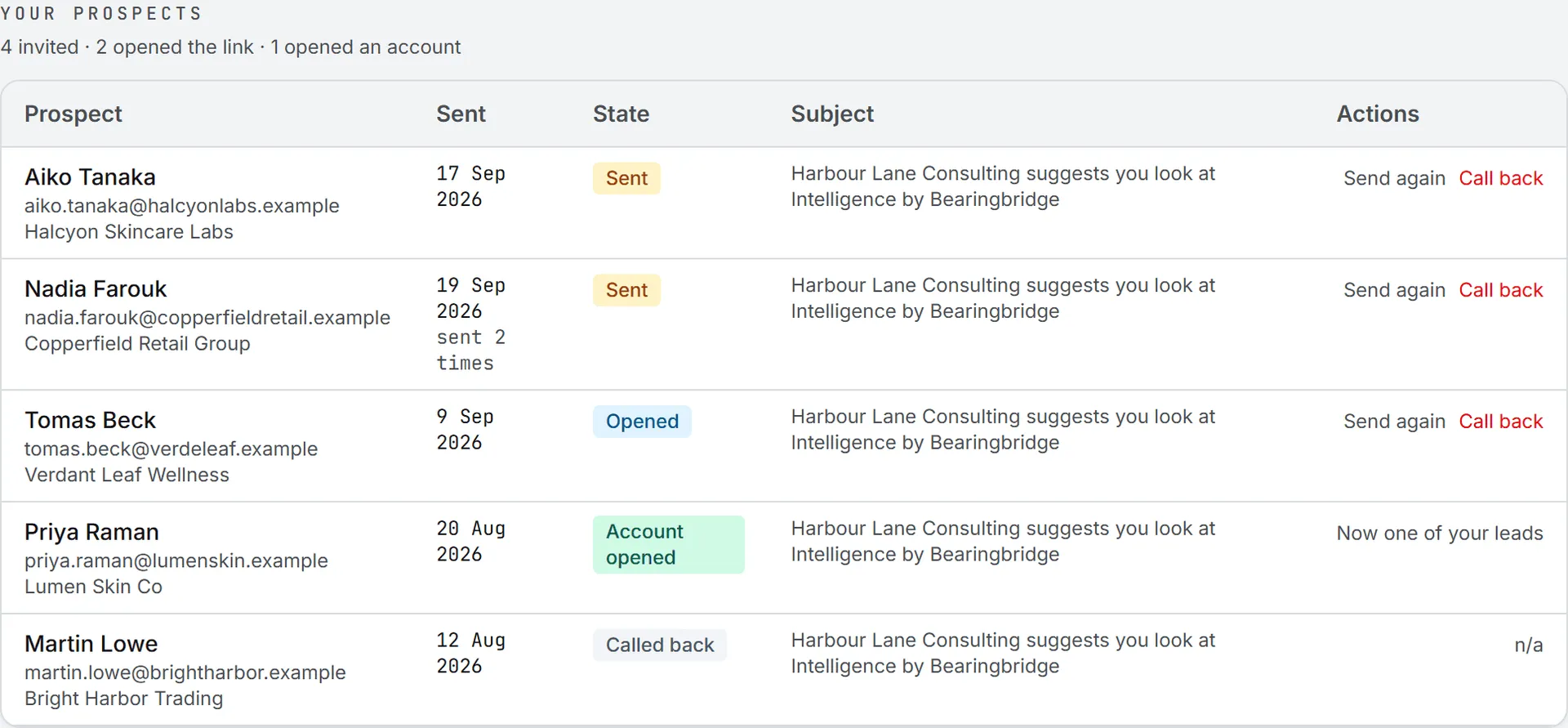
| State | What it means |
|---|---|
| Sent | The mail went out. The prospect hasn’t started signing up yet. |
| Opened | The prospect used your link and started signing up. |
| Account opened | They finished. The prospect is now one of your leads. |
| Expired | The link is older than 30 days and no longer works. |
| Called back | You stopped the link. |
If the mail couldn’t be delivered, the reason shows in amber under the state.
Send again and call back
Send again mails the same invitation with a fresh link. The earlier link stops working and the 30 days start over. It also counts toward your 30 a day. It’s the button to use when an invitation has expired or the prospect says they never got it.
Call back stops the link straight away. You’ll be asked to confirm. Your prospect keeps the mail but can’t open an account through it any more. The row stays on the list, so you keep a record of who you approached and when. A called-back invitation can’t be sent again, but you can write to the same person with a new one from the form.
Once a prospect has opened an account, neither action is offered: the row reads Now one of your leads.
Expired links, failed sign-ups, and other details
An invitation link stays valid for 30 days. If the prospect opens an expired or called-back link, they still land on the normal sign-up page and can create an account, but it won’t be credited to you. Send the invitation again first.
Rarely, the lead can’t be registered automatically after the prospect signs up. The row still reads Account opened, with the reason in amber under it, and the BearingBridge team can connect the lead to the account by hand. Tell them through Contact us.
The parts BearingBridge adds (the button, the note, and the footer) are in English. Your own subject and message go out as you wrote them, in the language you wrote them in.
Sending invitations costs no credits, however many you send within the daily limit.