Contacts
Contacts are the people at your clients and suppliers. Search the organization's list, add someone quickly, and edit or delete them on their company page.
Contacts are the people you talk to at your clients and your suppliers. The Contacts page under Sales puts all of them in one list for the whole organization, handy when you need a phone number five minutes before a call.
Every contact belongs to one company, either a client or a supplier. You can’t save a person on their own.
What the list shows
| Column | What it shows |
|---|---|
| Contact | The person’s name |
| Role | Their job title, or “n/a” |
| Belongs to | A Client or Supplier badge, and the company name |
| Their email, or “n/a” | |
| Phone | Their phone, or “n/a” |
Contacts are sorted by name. To find someone, type in Search contacts; it looks at names, company names and email addresses. The menu next to it starts on Clients and suppliers and narrows the list to Clients only or Suppliers only.
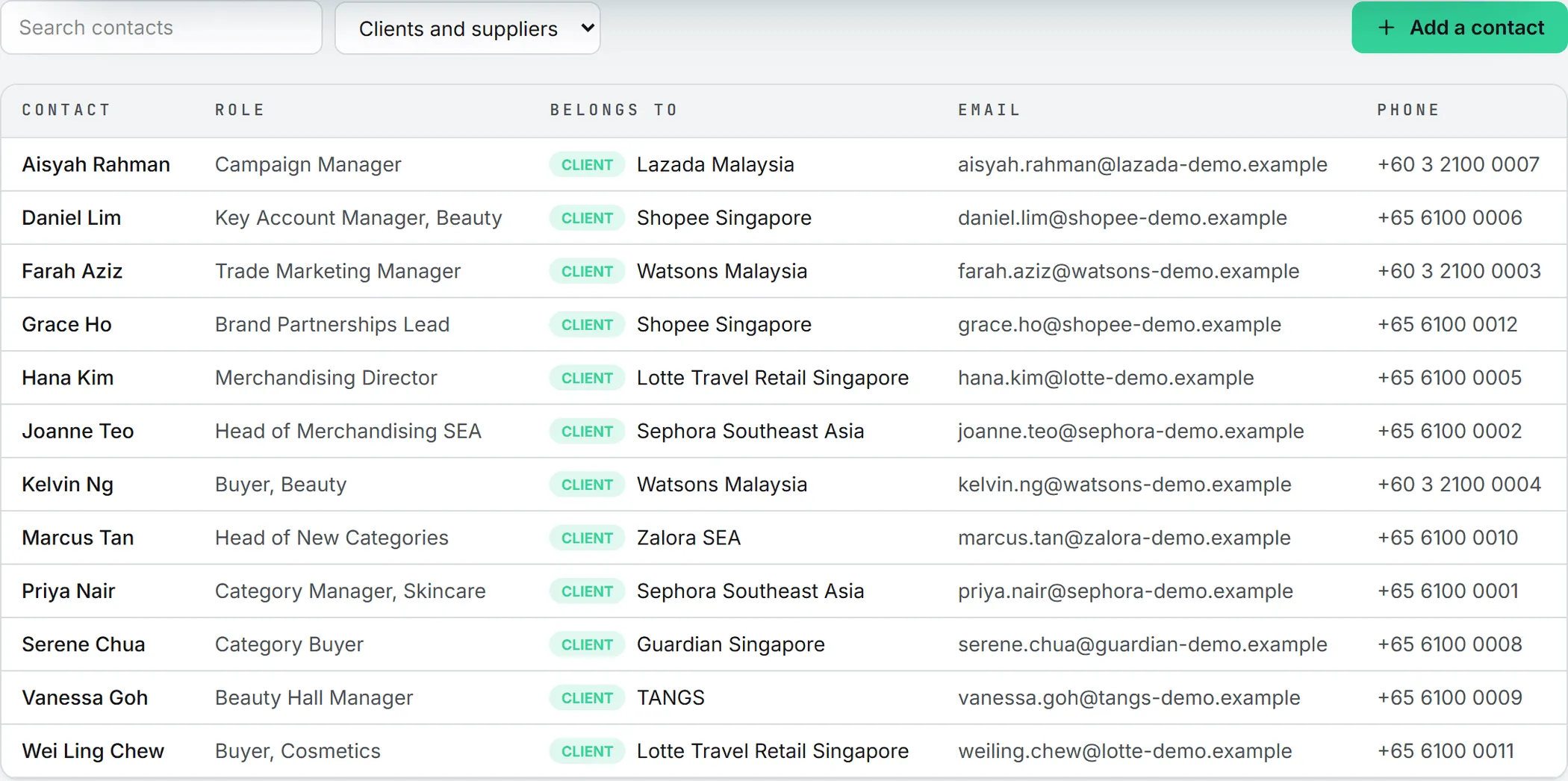
Click a row and you land on the contact’s company, where the editing happens. That page is also where you see the deals around that person, since deals are listed per company.
Add a contact
You need editor rights or more on CRM, and at least one client or supplier must exist.
- Click Add a contact.
- Under Belongs to, type the first letters of a client or supplier and pick it. Clients and suppliers are grouped separately in the list.
- Type the Name. It’s the only required field.
- Add a Role, Email, Phone, WeChat, LinkedIn and Notes if you have them.
- Click Save contact.
The app doesn’t flag duplicates, so search the list before you add someone. Contacts can’t be imported from a file or exported, either.
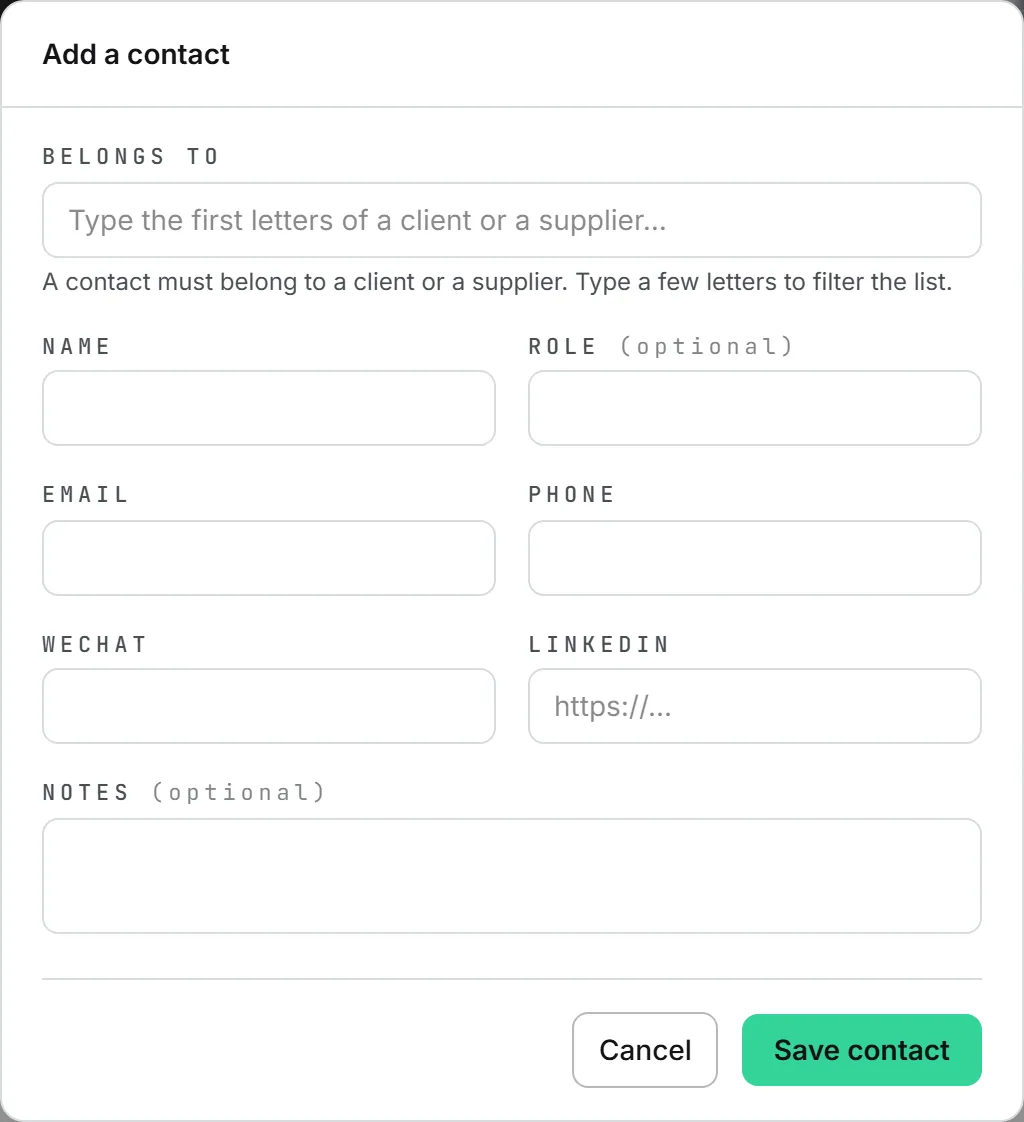
You don’t have to come here to add someone. Three other spots do it as you work:
- A client or supplier page: Add a contact in its Contacts card.
- The New deal form on the pipeline: New contact… in the Contact list.
- A deal’s Details card: the same New contact… option.
Edit or delete a contact
Open the company, then use Edit or Delete in its Contacts card. Only admins see Delete. Edit is also where you read a contact’s LinkedIn and notes, which the lists don’t show.
A contact can’t move to another company. When someone changes employer, add them again under the new one.
Deleting a contact takes them off any deal they were attached to, but the deal stays. Deleting a whole client or supplier goes further: all of its contacts disappear with it.
Contacts on deals
A deal can name one contact, picked from its client’s people. Supplier contacts can’t be a deal’s contact. The list on the deal form only shows the contacts of the client on the form. If you move a deal to another client, its contact is cleared unless you pick one of the new client’s people.
Who can do what
| Action | Who |
|---|---|
| See contacts | Everyone with view rights on CRM |
| Add and edit contacts | Editors and above with CRM rights |
| Delete a contact | Admins only |
The Sales overview explains how these rights are set. See roles and rights.
What it costs
None. Contacts never spend credits, whatever you do with them. See credits and costs.