List builder agents
Describe who you want: on its schedule, an agent reads your data or searches for new people, and adds the right ones to a list.
Watch the video
A List builder agent fills one of your lists by itself. You say in plain words who you want, and on its schedule it looks for them: in your organization’s own data, through a people search, or both. Everyone it finds is added to the list, ready for a sequence.
It’s an agent like the others of the Agents area, with its own name, instructions, schedule and budget, but you create and run it from the list it fills, on the Lists page.
Where you find them
Open a list on the Lists page. Under it, the card Agents that fill this list (02 Agents) shows the agents working on that list. The Agents tile in the band counts them, and All agents, at the top right of the card, opens the Agents area in a new tab.
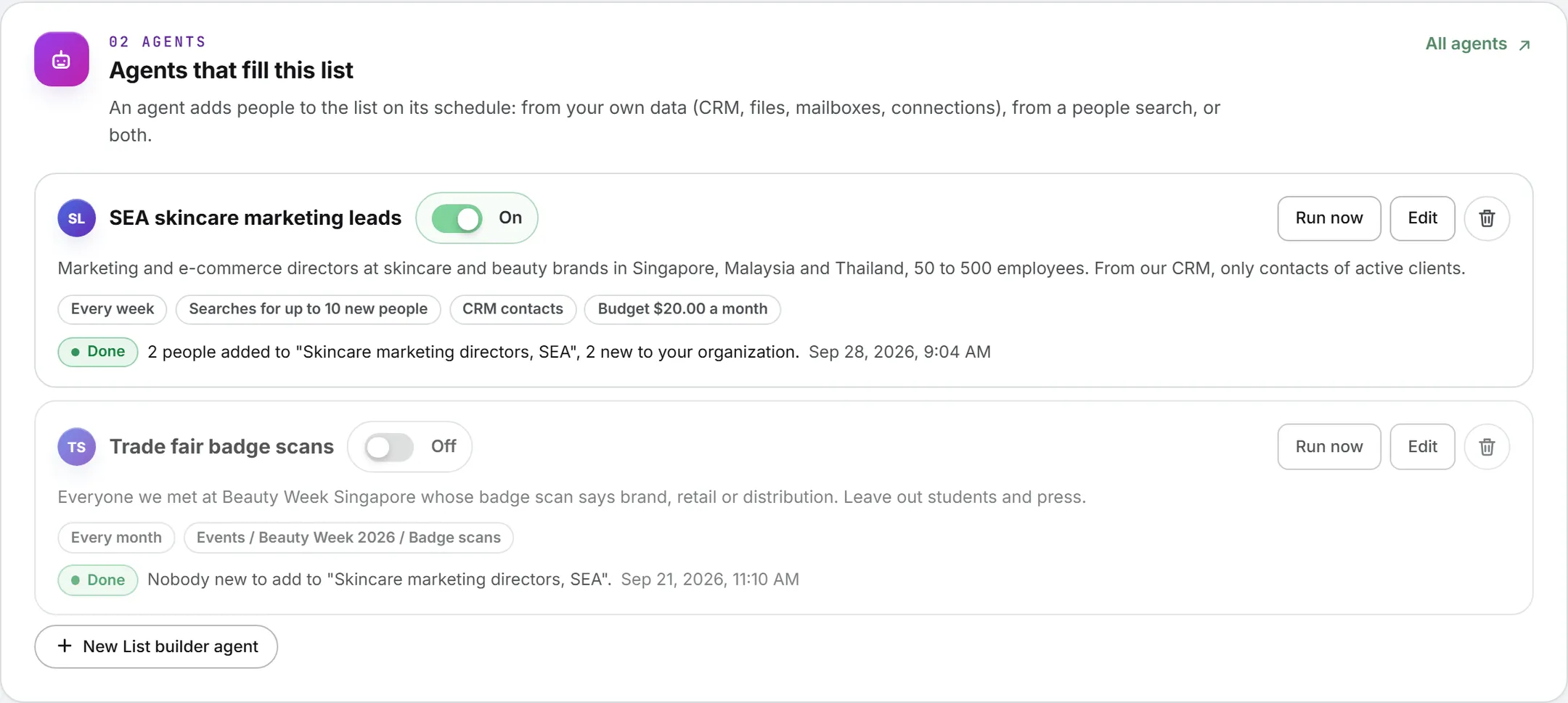
Each agent shows:
- Its name, and a switch that says On or Off.
- Run now, Edit and a bin to delete it, when the agent is yours to change.
- What it looks for, in your words.
- Tags: how often it runs, Searches for up to 10 new people when it may search, the data it reads, Only me for a personal agent, and its monthly budget.
- Its last run: Done with what it added, Running, or Failed with the reason, and the date. Not run yet. before the first one.
Create one
- Open the list the agent should fill, and click New List builder agent under the card.
- Give it a Name.
- In Who it looks for, describe the people in a sentence or two: their jobs, the kind of company, its size, the countries, and what to leave out. A brief under 20 characters is refused.
- Under Where it looks, choose its sources. Search for new people lets it search a people database and reveal the addresses it finds, at the prices shown beside the switch: one per email found, one per page of search results. At most sets how many new people one run may reveal, from 1 to 50 (10 by default). Under And in your own data, tick what it may read.
- Pick How often: Every day, Twice a week, Every week (the default) or Every month.
- Set a Monthly budget (USD) if you want one. Left empty, it reads No limit.
- In Belongs to, pick My organization or Only me. Only administrators can give an agent to the organization.
- Click Create the agent. It starts switched on.
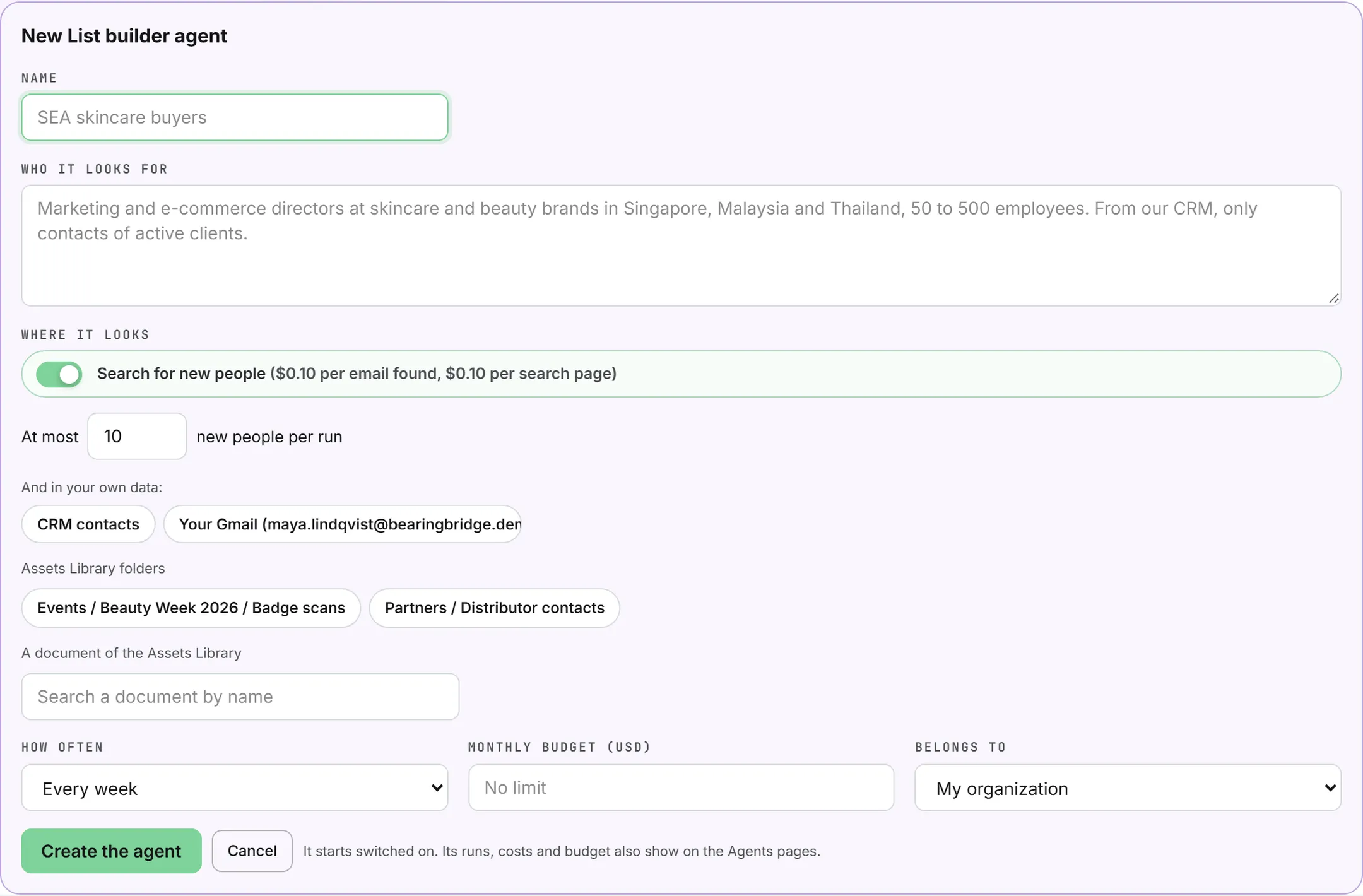
An agent needs somewhere to look: the search switched on, or at least one source ticked. Without either, the form says “Let the agent search for new people, or give it data to read.”
The data it can read
Only what can hold people is offered, and only what you can reach yourself:
- CRM contacts: the people of your clients and suppliers, when your role opens the CRM.
- Your own mailboxes, and the systems your organization connected, each on its own line.
- Assets Library folders: every document in the folder.
- A document of the Assets Library: type part of its name in the search box to find it.
A source you can’t open yourself isn’t offered. See custom agents for what each kind of source gives an agent.
What a run does
A run does up to two things, both steered by your brief.
From your data. The agent reads the sources you ticked, and a text model picks out the people your brief describes. It keeps a person only when their email address is written in that data, word for word. An address it can’t find there is dropped, never guessed or completed. These people come in with Agent as their source.
From a people search. With the search on, the model turns your brief into a search: a few job titles, the seniority, the company size, the places and a keyword for the industry. When that search finds nobody, the agent loosens it one step at a time (the company’s location first, then its size, then the keyword cut to its first word) until somebody matches. It then reveals up to the number you set, only among people who have an address and whom your organization doesn’t hold yet. They come in with Found by search as their source.
Everyone found lands in the list. A person your organization already holds is added to the list, never duplicated, and never paid for twice. The run’s result says how many people were added to the list and how many were new to your organization, or that there was nobody new to add.
An agent works on your organization’s own data, not a brand’s: it runs once for the whole organization, whatever brand you’re on.
Run, pause, edit or delete
- Run now starts a run at once. The agent has to be on: off, the card says “Switch the agent on to run it.” When the run ends, a line under the list says what it added and what it cost, and the list’s people refresh.
- The On and Off switch pauses the agent or brings it back. Off, it doesn’t run on its schedule.
- Edit opens the same form with the agent’s settings. Everything can be changed except who it belongs to. Click Save.
- The bin deletes the agent after a confirmation. It stops filling the list, and the people it already added stay.
You can change your own agents. An administrator can also change the organization’s. Everyone who opens the list sees the organization’s agents and their own.
On its schedule
Scheduled agents are checked once a day and start when they’re due, so an agent runs at most once a day. Its runs, costs and budgets also show in the Agents area, in the Agents Command Room like any other agent. See runs and schedules.
What it costs
A run is paid like any agent run: the text model that reads your data and writes the search, plus each page of search results it reads (each loosening of a search included) and each address it reveals, at the same prices as on Prospects. Everything a run spends, searches and reveals included, counts in its cost and against the agent’s monthly budget, and against the weekly one you can set in the Agents area. Reading Assets Library files counts as a download, as it does for any agent. Run now shows the run’s cost when it ends, and the Agents Command Room lists every run with its price. See Credits and costs.
Tip: Start with Every week and a small At most, then read what the first runs added before you raise either.