Data, brands and web search
Leave data out of a conversation, pick none, one or several brands, turn web search on when allowed, and apply a skill to your questions.
Four controls on the Ask Intelligence page decide what a conversation may use: Data included, Brands, Web search and Use a skill. They matter to anyone who asks questions there, and the web search setting also matters to admins.
They narrow what Ask reads, or add the web to it, but never open data your rights keep closed. See roles and rights.
Data included
Data included sits in the dark band at the top of the page. It lists all the data Ask may read for you, and everything is ticked by default. The number on the button says how much is on, for example “All · 11” when everything is included, or “7/11” when you left some out. The total depends on your rights.
Click it and the list opens, in two groups:
- In the app: the areas of the app you have access to, such as Search, Ads, Brand Content or CRM and revenue. Each one has a line saying what it holds. The full list is in What Ask can read.
- Connected systems: the external systems your organization connected and you may read, and the accounts you connected yourself.
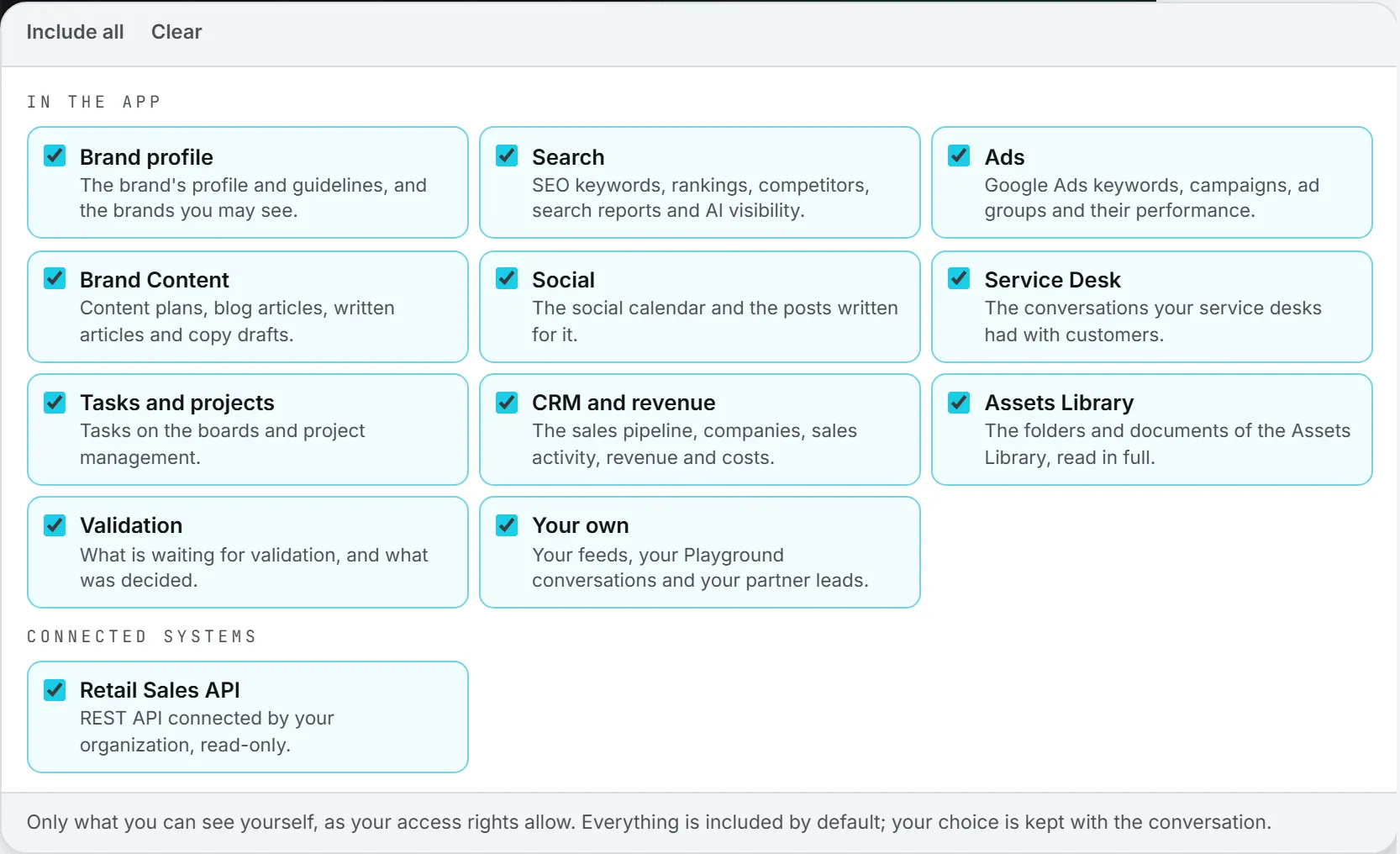
When a group is empty, the list says so: “None of the app’s data is open to you yet.” or “No external system is connected, or none is shared with you.” For the second, see Connections and My connections.
Leave data out of a conversation
- Click Data included.
- Untick what the conversation should not read. Use Clear to untick everything, or Include all to tick everything again.
- Click anywhere outside the list, or press Esc, to close it. Then ask your question.
The choice is kept with the conversation. When you reopen it later, the same boxes are ticked.
If you ask about data you left out, Ask doesn’t guess. The answer says it’s left out of this conversation, names it, and tells you to tick it in Data included and ask again.
A New conversation starts with everything included again.
When to leave data out
Mostly to keep an answer focused: a question about blog content doesn’t need your CRM. It also helps when you plan to share an answer and would rather a connected system stayed out of it. And it trims the bill a little, since less data read means fewer tokens.
Brands
Once you can see at least one brand, a Brands button joins the band. It decides which brands the conversation reads.
| Your pick | What Ask reads |
|---|---|
| None | Only your organization’s own data, such as the CRM, revenue, project management and the Assets Library. No brand’s keywords, content, ads, social posts, service desk or task board. |
| One brand | That brand’s data, plus your organization’s own data. |
| Several brands | Each brand’s data, kept apart, plus your organization’s own data. Answers name the brand behind every figure and can compare them. |
The list shows only the brands you have access to: a brand manager, for example, sees the brands assigned to them. All brands ticks every one of them, and None clears the list. The button shows “None”, the brand’s name, “All · 5” or “2/5”.

When you open the page, the brand you were last working in is picked. Picking exactly one brand also makes it your active brand in the rest of the app.
Work in your own No brand workspace is included whatever you pick. See Brands.
If you ask about a brand’s data with no brand picked, Ask says so and asks you to pick one or several in Brands.
You can change the brands in the middle of a conversation. The change is saved with it, and the next question reads the new pick. It doesn’t start a new conversation.
Web search
This is the one control that reaches outside the app, so it has a few more rules than the others.
The Web search switch is in the toolbar above the conversation. For it to work, your organization has to allow web search (it does unless an administrator turned it off), the model you picked needs a search of its own, and you have to switch it on.
It reads OFF when the page opens. Turn it ON and the answer may use the web as well as your data.

What changes when it is on
- Ask can look up what the app cannot hold: a market fact, a competitor’s public announcement, a price, a regulation, a recent event.
- Facts about your own organization still come only from your data. If a figure is missing from your data, Ask says so instead of taking it from the web.
- Answers keep the two sources apart and say which part came from where.
- A From the web: line under the answer lists the sites it used, as links.
- The model list shows only the models that have their own web search. Turn the switch off and the full list comes back.
The switch is kept with the conversation. New conversation leaves it as it is.
Tip: Turn web search off when a question is only about your own data. The answer then comes from your data alone, and no search is charged.
When the switch is gray
Sometimes the switch is there but won’t turn on. The reason is written right next to it.
| Message next to the switch | Why | What to do |
|---|---|---|
| “Web search is off for your organization.” | An administrator turned web search off for Ask Intelligence. | Ask an administrator. Admins see an Allow it in AI Models link that opens the setting in a new tab. |
| “This model has no web search of its own.” | The model picked in the model list can’t search the web. | Pick another model. |
The organization setting
Every organization starts with web search allowed. The setting is Allow web search in Ask Intelligence, in the Ask Intelligence card of the AI Models page. Only admins can change it. See AI models.
Turning it off deletes nothing: past conversations stay with the people who had them, and their switch comes back off.
What web search costs
Each search the model runs is charged, on top of the tokens. The price of a search depends on the model, and there’s no quote before you ask. The cost line under the answer starts with the number of searches, for example “2 web searches”, and the price shown includes them. The pages the model reads also add tokens to the answer.
Use a skill
Use a skill in the toolbar opens the skills picker, under Skills to apply. It lists every switched-on skill of your organization and every one of your own, whatever pages they were written for.
- Click Use a skill.
- Open the list and tick one or more skills.
- Ask your question, and the answer follows the skills you picked.
Nothing is applied unless you pick it. Close the picker with Use a skill again and no skill is applied to the next question. The choice is not saved with the conversation.
A skill adds its instructions to the question, so it adds a few tokens to the price. Manage skills in the picker opens your skills in a new tab. See Skills.