Billing overview
Intelligence runs on prepaid credits. See how the Billing menu works, how your own and shared credits add up together, and who can buy them.
Intelligence is prepaid. You buy credits, and every paid action takes its price off your balance. The Billing menu shows what you have left and where it went, and it’s where you buy more. Every role can open it.
The Billing menu
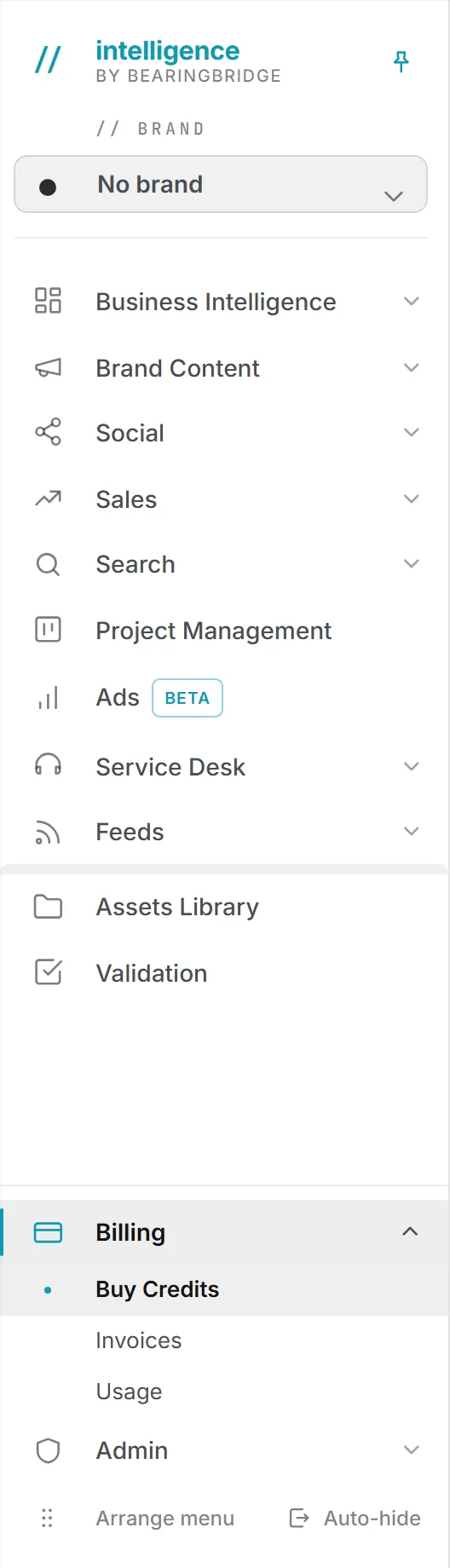
You’ll find Billing in the left menu, with three pages under it.
| Page | Address | What it does |
|---|---|---|
| Buy Credits | /billing | Shows your balance, lets you buy credits, and sets up automatic top-up. |
| Invoices | /billing/invoices | Lists the invoice for every purchase and every movement on your credits. |
| Usage | /billing/usage | Logs every paid action for the current or previous month. |
There’s also a Payment page that isn’t in the menu. Stripe sends you there after you pay, to show whether the payment went through. Buy credits explains what it shows.
Two shortcuts open Buy Credits from any page: the credit amount in the top bar, and Billing & credits in the menu under your picture.
How credits are spent
One credit equals one US dollar, and credits never expire. You buy them from $10 to $1,000 at a time, through Stripe, and the amount you pay is the amount you get. They only go toward paid actions, at the price shown on each one.
There’s no fixed price list, because a price moves with the model you pick and the size of the job. Each paid result prints what it cost, and the Usage log keeps every price. What costs credits lists what’s paid and what’s free.
When a paid action runs, its price comes straight off your balance. An action that starts with credit left finishes, even if it crosses zero; the next one is blocked. At zero, AI features switch off and new file uploads are refused until you buy more. Everything else keeps working, from your dashboards to your CRM.
The amount in the top bar
The amount next to the coin icon, at the top of every page, is what you can spend right now. It updates after each paid action. For a moment it shows the price just taken off, for example ”-$0.04”, then settles on what’s left.
It changes color as the balance falls:
| Color | Meaning |
|---|---|
| The header’s usual color | You have $5 or more. |
| Amber | Less than $5 left. |
| Red, reading Buy credits | Nothing left. AI features are off. |
Hover over it for a breakdown of the amount; a click takes you to Buy Credits.
Your own credits and shared credits
Credits come in two kinds. Your own credits belong to you: you buy them on Buy Credits for your account, and they have no daily limit and no cap of any kind.
Shared credits belong to an organization. An administrator buys them into one shared balance, and each member may draw a daily allowance from it. The allowance resets at midnight UTC.
If you have a personal account
If your account runs its own personal organization, with nobody but you in it, there’s only one pot. Everything you buy is yours, and every paid action you run comes out of it.
If you belong to an organization
The amount in the top bar is a sum: what you may still take from the shared credits today, plus all of your own credits. If it looks lower than the shared balance, your daily allowance is usually why.
Paid actions draw on the shared credits first, within your daily allowance. When today’s allowance runs out, or the shared balance hits zero, your own credits take over.
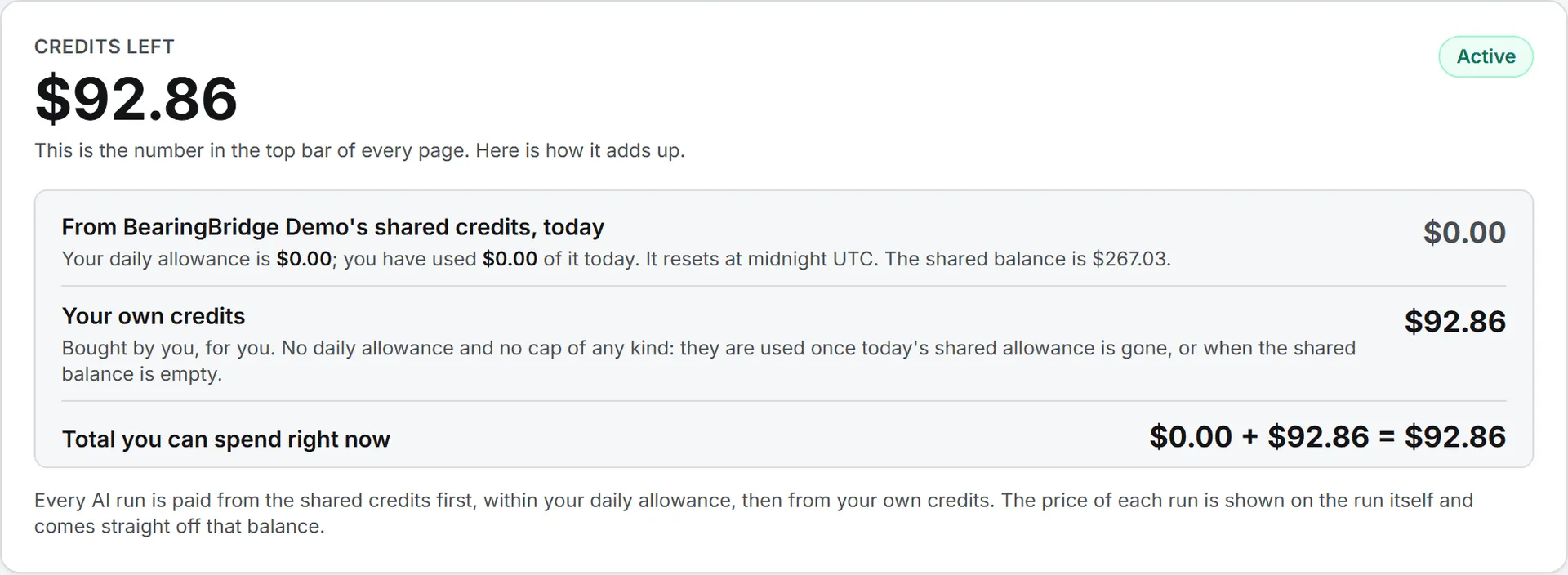
The Buy Credits page works this through on an example, and credits and costs walks the same sum step by step.
Your allowance is in one of three states:
- No allowance yet. A new member starts at $0 on the shared credits. Until an administrator sets an allowance on your page, you can only spend credits you buy yourself.
- A set allowance. You may draw up to that amount each day.
- No daily allowance set. Your administrator removed the limit, and you may use the whole shared balance.
Admins set allowances person by person. See shared credits.
Who can do what
That covers where the money sits. What you can do with it depends on your role.
| Action | Who |
|---|---|
| See your balance and buy your own credits | Everyone |
| See your own invoices and credit history | Everyone |
| See your own paid actions on Usage | Everyone |
| Buy credits for the organization | Admins |
| Set automatic top-up on the organization’s credits | Admins |
| See the organization’s invoices and credit history | Admins |
| See the paid actions of everyone in the organization | Admins |
| Set each member’s daily allowance | Admins |
| Set a monthly budget, the billing name and address, or extra display currencies | The BearingBridge team |
A member who isn’t an admin still sees the shared balance on Buy Credits, but can’t fund it or read its history. See roles and rights.
Low-balance emails and monthly budgets
When an organization’s shared credits drop under $5, its administrators get an email, and so does the organization’s billing email. No email goes out if automatic top-up is on for those credits, because they refill themselves.
An organization can also have a monthly budget, set by the BearingBridge team. It counts what the team draws from the shared credits, never anyone’s own credits. When the budget is used up, paid actions stop until the next month and you see: “Your organization’s monthly budget is used up.” Ask your administrator.
Important: The first time you buy credits, you accept the Terms of Service. They state that credits are never refunded, so it’s worth buying roughly what you expect to use. Terms and privacy in plain words goes through the money rules in ordinary language.
Currencies
Everything in Billing is counted in US dollars. If you pay with WeChat Pay, your bank is charged in yuan at a fixed rate shown on the page, and you receive the exact dollar amount of credits.
On the Usage page, amounts can also appear in other currencies your organization displays, for example “$1.20 / ¥8.70”. Those extra figures are indicative only.
There’s no subscription or seat fee in Billing, only the credits you buy.
Where to go next
- Credits and costs: the idea behind credits, in more depth.
- Buy credits: how to pay, how a promotional code adds free credits, and who the invoice goes to.
- Automatic top-up: refill your credits from a saved card.
- Invoices and credit history: download invoices and follow every movement.
- Usage log: see each paid action and its price.
- What costs credits: the full list, paid and free.
- What runs by itself: what keeps spending when nobody is signed in.