Projects
A project groups tasks, and its team decides who sees them. Admins create and staff projects, list each one's resources, and see the planned cost.
A project gathers the tasks that lead to one result. It has dates and a team, it can list the resources it needs, and the team decides who gets to see its tasks. Organization admins create and staff projects; everyone else sees the projects they’re on.
Projects, brands and tags
Brands and projects are easy to confuse. A brand is what you market, while a project is a piece of work, such as a website relaunch, and it can cover one brand, several brands or none (internal work). A task can also carry its own brand tag, set in its details, whatever project it’s in.
Projects are what the project board filters on and what the Gantt chart plots. The brands you associate with a project don’t tag its tasks. They matter in one place: the brand filter of the board’s Done card also picks up the tasks of projects that cover that brand.
Where to find it
Open Project Management and click the Projects tab. Admins can also get there from Admin, then Projects, or from the Open projects button on the Organization page. People who aren’t admins don’t have the Admin menu, so the tab is their way in.
Reading the project list
Projects are listed by start date. Each project is one row. It starts with a color dot and the name. The app picks the color, and the same color marks the project’s cards on the board and its bars on the Gantt chart. Under the name you’ll read the dates (or “no end date”), how many tasks are done, such as “3/8 tasks done”, a short summary of the resources, and the brands it covers, or No brand. The team shows as initials. Hover a badge to see who it is.
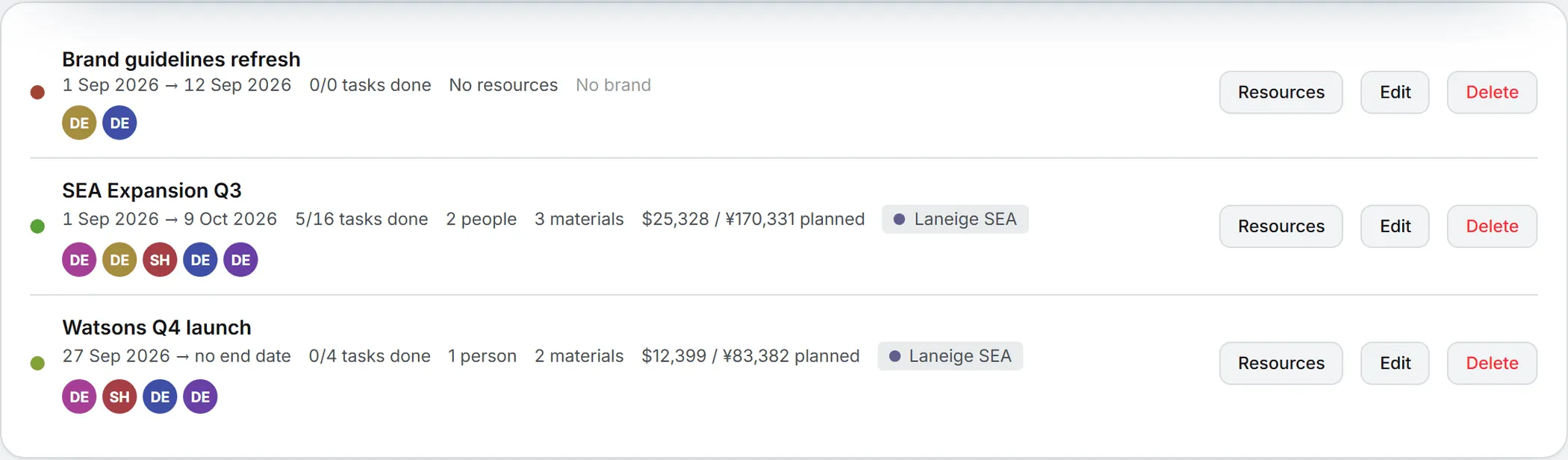
Create a project
You need to be an organization admin for this.
- Click New project on the band.
- Type a Name.
- Set a Start date. The End date is optional: leave it empty for open-ended work.
- Tick the people on the Team. You’re ticked already.
- Tick the Associated brands, if any.
- Click Save.
The end date can’t come before the start date. Project dates don’t limit the dates of its tasks: a task can start before the project or run past its end, and the Gantt chart simply shows it that way.
There’s no project manager role. Every organization admin can manage every project.
The team decides who sees the project
A project is visible only to its team and to the organization’s admins, and so are its tasks. Admins see every project of the organization on this page, whether or not they’re on the team. Adding someone to the team opens the project to them at once, with every task already in it. Taking them off closes it again.
Someone who leaves a team keeps any task assigned to them, but can no longer open it, so it’s worth reassigning their tasks when you change the team.
A project with nobody on it says “No team yet: only the organization admins see this project.”
Project tasks can only go to team members. Anyone who tries to hand one to someone else gets “This person is not on the project team. Add them to the project first.”
Edit or delete a project
Admins see Edit and Delete on each row. Edit opens the same form as New project. Saving the team replaces the whole list, so untick only the people you mean to remove.
Delete asks for confirmation first. The project’s team and resources are deleted with it. Its tasks stay on the board, outside any project.
Important: Once their project is gone, everyone in the organization can see those tasks. Move sensitive tasks to another project, or delete them, before you delete the project.
Resources
Resources are optional, and a project works fine without them. They’re the people and material a project needs, with what each will cost. Click Resources on a row to open the list. Team members can read it. Only admins can add, edit or remove entries.
To add one:
- Click + Add a resource.
- Pick the Kind: Person or Material (equipment, a license, a media budget).
- For a person, pick a Colleague, or keep Somebody from outside for a freelancer or an agency. Picking a colleague fills in the name from their email address, if you haven’t typed one.
- Type a Name, such as “Senior designer” or “Studio rental”.
- Set the Unit. The list suggests day, half-day, hour, week, month, unit and licence, or type your own.
- Set the Quantity, in steps of 0.5.
- Set the Cost per unit and pick its currency: USD, EUR, CNY, HKD or AUD. Leave the cost empty if you don’t know it yet.
- Add Notes if you like, then click Save.
The table lists each resource with its kind, quantity, cost per unit and planned amount. The planned amount is the quantity times the cost per unit. A resource with no cost shows “n/a”. Planned cost, at the bottom, adds everything up. The project’s row sums it up in a few words, such as “2 people”, “1 material” and the planned total, or “No resources”.
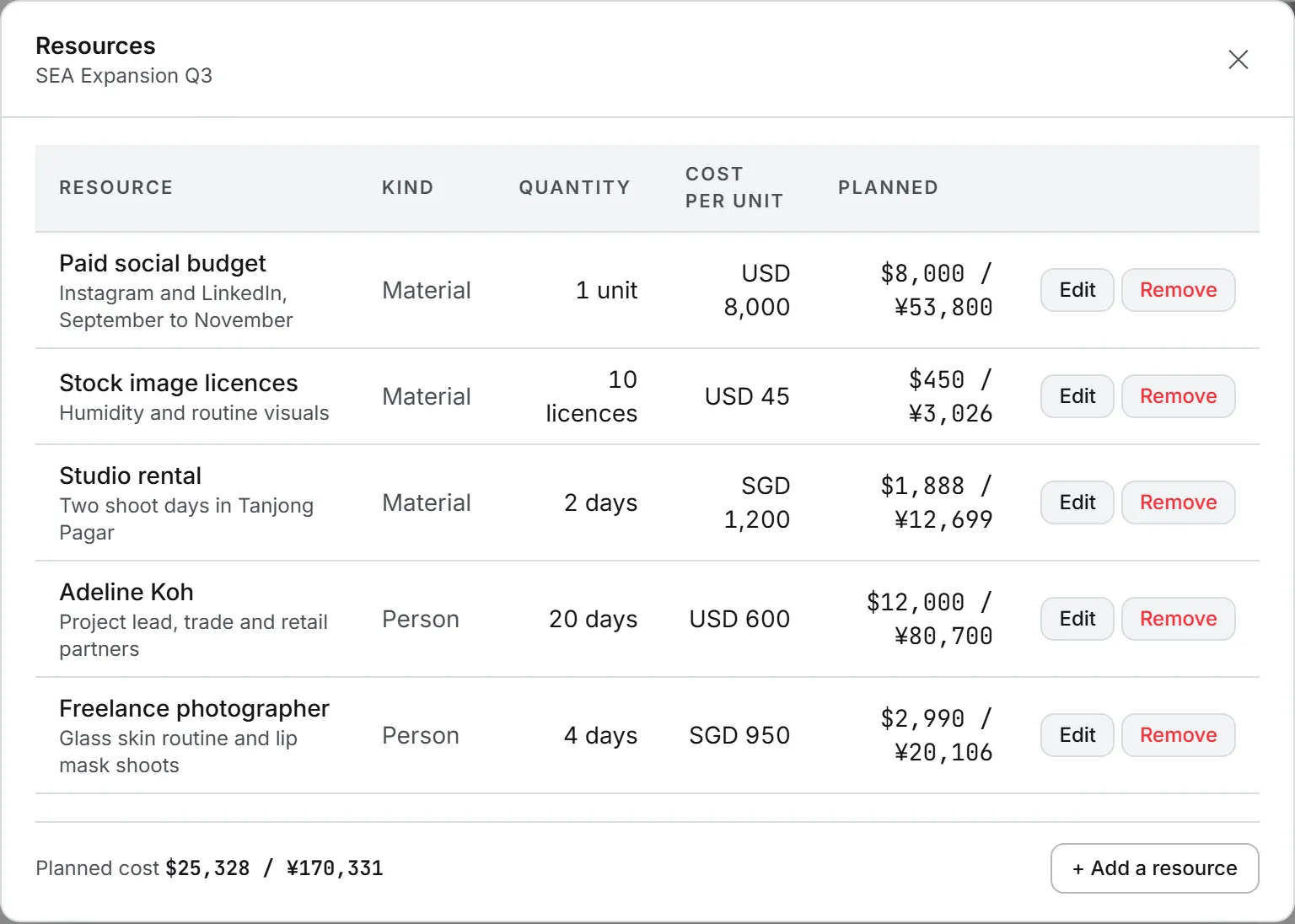
Which currency the totals use
Planned amounts are shown in your organization’s reference currency, followed by a second currency if one is set. Both are chosen in the CRM settings. If nobody has set them, the reference currency is CNY. Each amount is converted on the day you save it, so a later change in exchange rates doesn’t move it.
Report on a project’s finished work
The report of completed tasks sits on the board. On the Done card, pick the project in All projects, choose a period and click PDF.
Who can do what
| Action | Who |
|---|---|
| See a project and its resources | Its team and the organization’s admins |
| Create, edit, staff or delete a project | Organization admins |
| Add, edit or remove resources | Organization admins |
Brands are explained in brands, and roles in roles and rights.
What it costs
Nothing. Projects and resources use no credits. The planned cost is never charged to anyone: it’s a planning figure, kept apart from your credits and invoices. See credits and costs.
Troubleshooting
- “Name is required.” or “A project needs a start date (YYYY-MM-DD).” Fill in both before saving.
- “The resource needs a name.” Every resource needs one, even a person picked from the list.
- “The quantity must be a number of 0 or more.” Negative quantities aren’t allowed. The same goes for the cost per unit.
- “Only an organization admin can create projects.” Ask an admin.
- No New project button. It only shows for organization admins. The same goes for Edit, Delete and + Add a resource.