Projects
Organization admins create projects, choose the team that can see them, tag brands, plan people and material costs, and delete projects while keeping their tasks.
A project groups tasks toward one outcome, with a start date, an optional end date, and a team, and the board’s timeline view plots projects by their dates. Only organization admins can create or delete a project and choose its team, which is the side this page covers. For how people work inside a project, see Projects in Project Management.
Before you start
- Your organization needs the Project Management capability. Without it, the Projects page sends you back to the dashboard.
- You need the admin role.
- The people you’ll put on a team must already be users of your organization. See Users and invitations.
Find the Projects page
- Open the Admin menu.
- Click Projects.
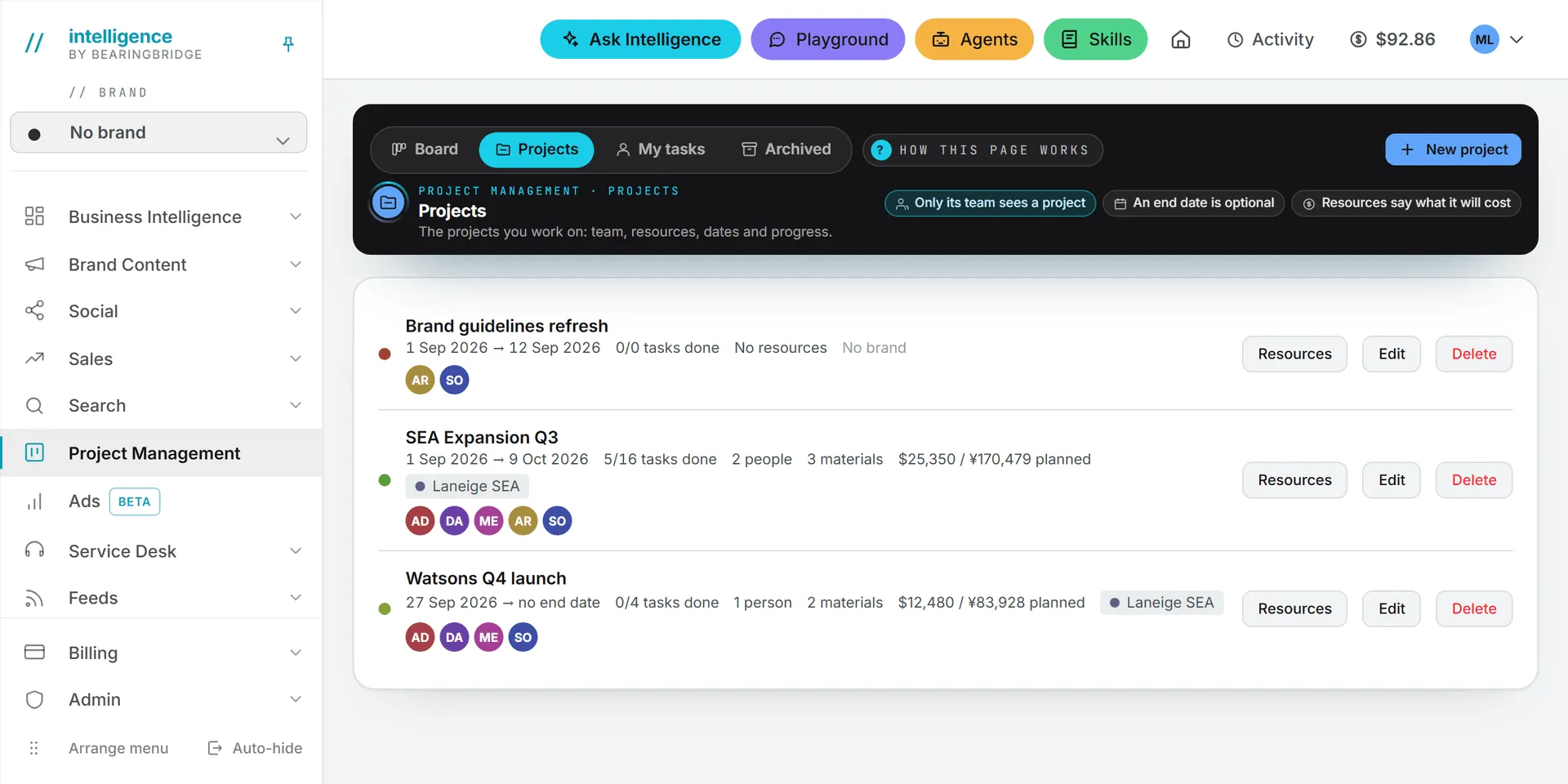
This opens the Projects page of Project Management, the same one members use. As an admin, you see every project of the organization, with a New project button and Edit and Delete on each row.
Each row gives the project’s dates, how many of its tasks are done, its resources and planned cost, its brands, and the initials of its team.
Create a project
- Click New project.
- Type a Name, such as “Q4 website relaunch”.
- Pick a Start date.
- Pick an End date if the project has one. Leave it empty for open-ended work.
- Under Team, tick the people who work on it. You’re ticked by default, so the work has an owner. You can untick yourself: as an admin, you still see the project.
- Under Associated brands, tick the brands it touches. Pick several, or none for internal work.
- Click Save.
The end date can’t be before the start date. You can change any of this later with Edit.
Brands are tags: they say which brands the project serves. The No brand workspace isn’t offered, since a project with no brand simply tags none. See Brands.
Who sees a project
The team decides who sees a project, and its tasks with it. Put someone on the team and they see the project. Take them off and it’s gone from their view.
| Person | What they see |
|---|---|
| Organization admins | Every project and every task in it |
| Team members | The projects they’re on, and those projects’ tasks |
| Other members | Nothing of the project, even if they can see its brands |
A project with no team is seen by the admins only. The list says so on its row: “No team yet: only the organization admins see this project.”
A task created outside any project is personal. Only its author and the person it’s assigned to see it. See roles and rights.
Edit a project
- Click Edit on the project’s row.
- Change the name, the dates, the team, or the brands.
- Click Save.
Plan the project’s resources
Each project lists what it needs: people and material. Their total is what the project is planned to cost.
- Click Resources on the project’s row.
- Click + Add a resource.
- Pick the Kind: Person or Material.
- For a person, pick a Colleague, or leave Somebody from outside. Picking a colleague fills in the name for you.
- Fill in the Name, the Unit, the Quantity, and the Cost per unit with its currency. The unit field suggests common ones, such as day, hour, or month, but you can type any unit.
- Add Notes about what the resource is for, if it helps.
- Click Save.
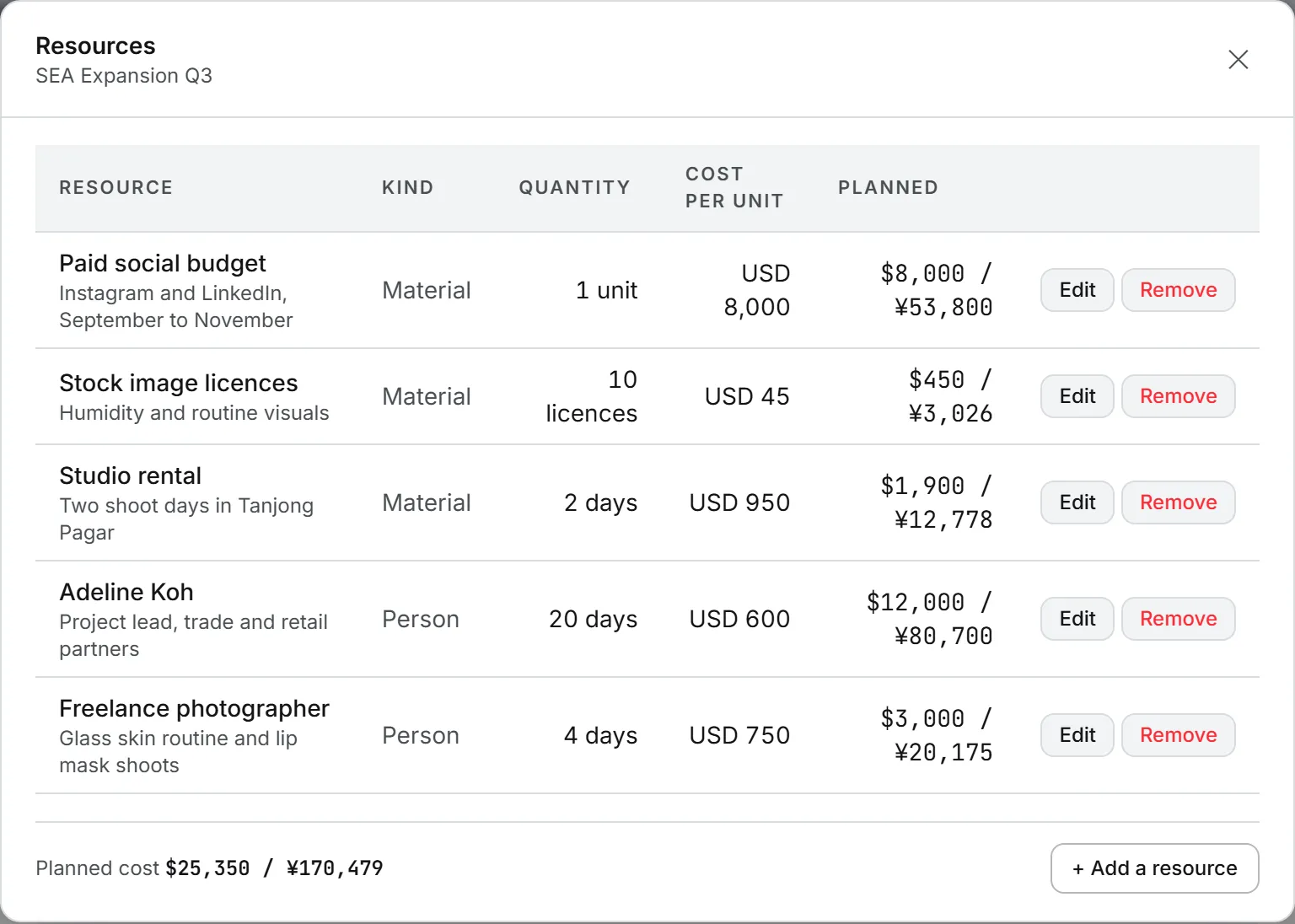
The cost per unit is optional. A resource without one shows n/a and adds nothing to the total. Costs typed in another currency are converted into your organization’s reference currency when you save, at the app’s exchange rates. The Planned cost is shown in that currency. The reference currency is the one chosen in the CRM settings.
To change a resource, click Edit on its row. To drop it, click Remove and confirm.
Team members can open Resources and read the list. Only admins add, edit, or remove a resource.
Note: Listing a colleague as a resource doesn’t put them on the team. Tick them under Team too if they should see the project.
Delete a project
- Click Delete on the project’s row.
- Confirm.
The project is deleted along with its team list and its resources. Its tasks stay on the board, detached from the project. This can’t be undone.
Projects have no archive. Tasks do: a finished task can be archived from the board and restored later. See Board.
Other admin pages
The CRM entry of the Admin menu opens the CRM settings: when a deal counts as stale, the reference currency, an optional second currency, the stage weights, and the CRM’s dropdown lists. It shows only when your organization has the Sales capability. See CRM settings.
What it costs
Projects cost no credits. The planned cost is a planning figure for your own budget, not a charge.
Who can do this
| Task | Who |
|---|---|
| Create, edit, or delete a project | Organization admins |
| Choose the team | Organization admins |
| Add, edit, or remove resources | Organization admins |
| Read a project and its resources | Its team and the organization admins |
Troubleshooting
“Every team member must belong to the same organization.” Someone you picked isn’t in your organization anymore. Untick them and save.
“Every associated brand must belong to the same organization.” A brand you ticked belongs elsewhere. Untick it and save.
A member can’t see a project. Open it with Edit and check that they’re ticked under Team.
The New project button is missing. Only admins see it. Check your role with an admin of your organization.
The Projects entry sends you to the dashboard. Your organization doesn’t have the Project Management capability. See Capabilities.