Capabilities
The Capabilities page shows what your organization has bought and lets administrators decide, brand by brand, which sides of the app each brand actually uses.
A capability is one whole side of the app, such as Sales or Social. The Capabilities page shows what your organization owns and lets you decide which capabilities each brand uses. What one person works on is set on their own page.
A typical case: your organization owns Sales, but one of your brands is a pure content brand with no pipeline. Switch Sales off for that brand and its team no longer sees the CRM while they work on it.
Open the page
Open the Admin menu and pick Capabilities. You need the Admin role, plus View on the Brands row of the roles table, which administrators hold by default.
Three levels, all must say yes
Each capability has an on/off switch at three levels. A person gets into an area only when all three are on.
| Level | What it means | Who sets it | Where |
|---|---|---|---|
| Organization | What the client bought | The BearingBridge team | Read-only on this page |
| Brand | What a brand uses | Administrators | This page, or the brand editor |
| User | What one person works on | Administrators | The Modules card on the person’s page |
Once someone can reach an area, their role decides what they may do there (view, create, update, delete). That’s covered in Roles and rights.
Need a capability your organization doesn’t have yet? Only the BearingBridge team can add it at the organization level. Once they have, it shows up on this page and you can switch it on for your brands.
The eight capabilities
| Capability | What it covers |
|---|---|
| Business Intelligence | The default dashboard, cross-area reporting and executive views |
| Brand Content | Text, image and video content for the brand |
| Social | Social media calendar, content and reporting |
| Sales | Pipeline and follow-up |
| Search | Google Search (SEO) and AI Search |
| Project Management | Projects, tasks and delivery follow-up |
| Ads (Beta) | Google Ads and LinkedIn Ads |
| Service Desk | Customer-facing assistance, including the self-service portal |
Read the table
You get one card: your organization. Its table has one column per capability and one row per brand.
The first row is your organization itself, marked “(what it bought).” Its boxes are grayed out, and hovering one explains why: “Only a super admin decides what an organization owns.” Your brands fill the rows below. Under a capability the organization doesn’t own, a brand’s cell is grayed out and empty, and hovering it names both, for example “Acme does not own Service Desk.”
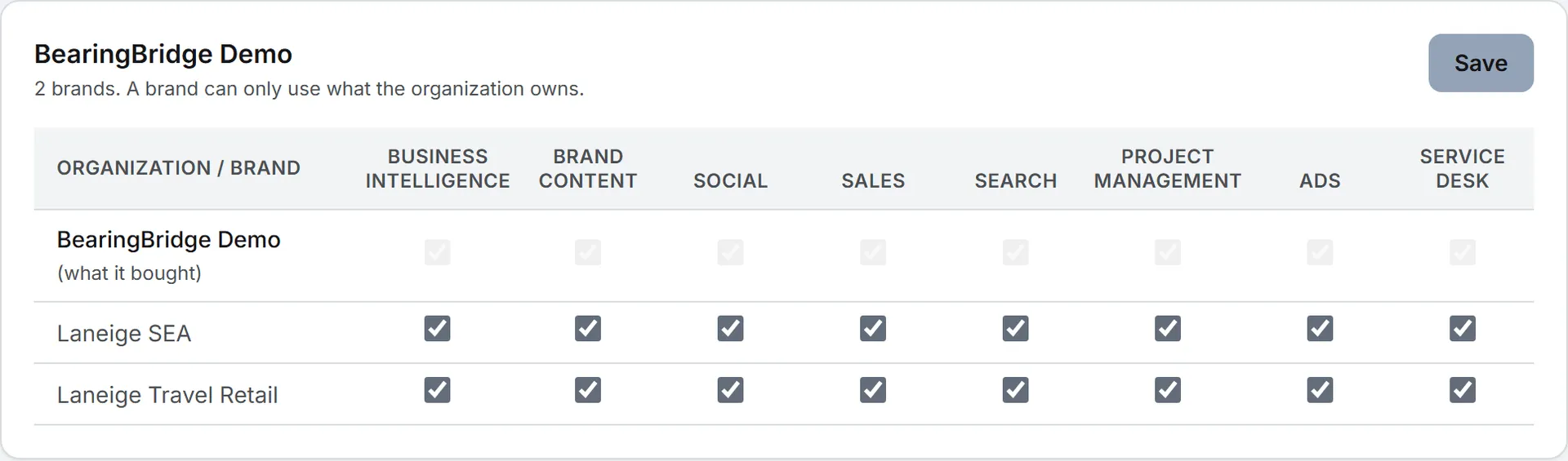
The card header counts your brands and repeats the rule: a brand can only use what the organization owns. With no brands yet, a link points to the Brands page.
Switch a capability for a brand
- Tick or untick the boxes on the brand’s row. You can change several brands before saving.
- Click Save at the top of the card. It turns amber as soon as something changes.
One Save covers the whole card, and only the brands you changed are written. The change applies at once. A capability switched off for a brand disappears while that brand is the active one, from the menu, the pages and the brand’s dashboard. Switch to another brand that uses it and the area is back.
The modules inside a capability, such as Google Ads versus LinkedIn Ads, are chosen per brand, in the Capabilities section of the brand editor.
Switch a capability for one person
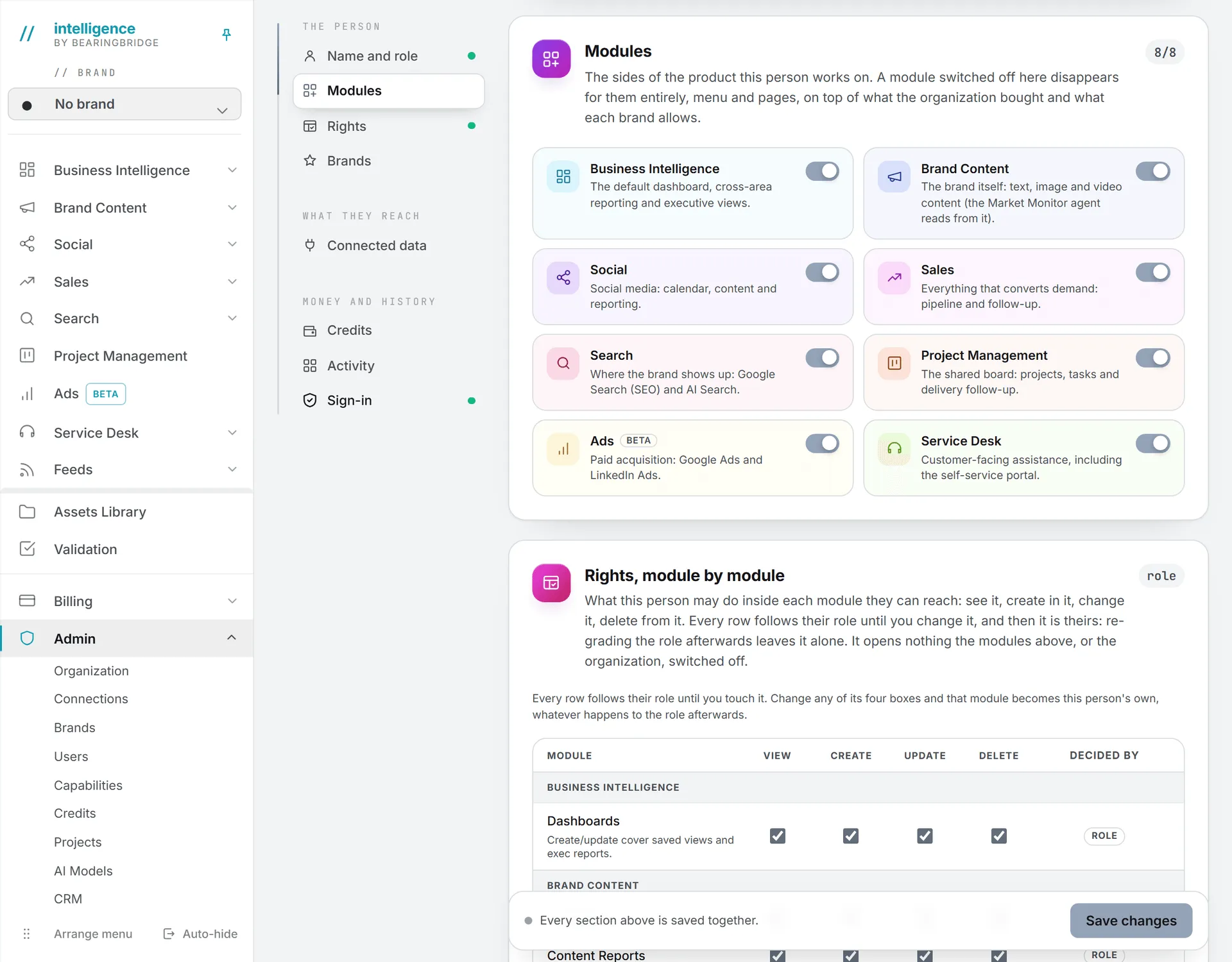
Open Admin, then Users, click Open on the person’s row and flip the switches in the Modules card. Save changes at the bottom of the page saves them. A capability switched off there disappears for that person entirely, menu and pages, whatever brand they’re on. The counter on the card, such as 6/8, tells you at a glance how many they have. The rest of the person’s page is covered in Users and invitations.
Good to know
A new brand starts from its organization’s set and can never hold a capability the organization doesn’t own. When the BearingBridge team switches a capability off for your organization, it’s switched off on every brand in the same move. If it comes back later, the brands don’t get it back on their own: switch it on again for the ones that need it.
Switching a capability off only hides the area; nothing is deleted. The brand’s keywords, posts, deals and the rest are still there when you switch it back on.
- A right in the roles table never reopens a closed capability.
- The Organization page lists the same capabilities as “Modules of the organization,” with On or Off.
- On a personal account, the page shows one card for your own space and your brands. The first row still reflects what the BearingBridge team switched on.
What it costs
Switching capabilities is free and doesn’t touch your credit balance. What people run inside each area can cost credits: see What costs credits.
Troubleshooting
A box is grayed out and won’t tick. Your organization doesn’t own that capability. See the note on adding one under Three levels.
“This brand is not yours to configure.” The brand belongs to another organization. You can only change your own organization’s brands.
Somebody still can’t see an area. Go through the three levels in order: the organization row, the brand they are working on, and the Modules card on their page. Then check their role’s rights.