Brand Content overview
Brand Content writes and renders a brand's copy, articles, images and videos. Learn its pages, who can use them, what runs cost, where work goes.
Brand Content is the part of Intelligence that writes and renders a brand’s material: copy, articles, images and videos. It’s for the people who produce that material, usually marketers and writers, working on one brand at a time.
What’s in Brand Content
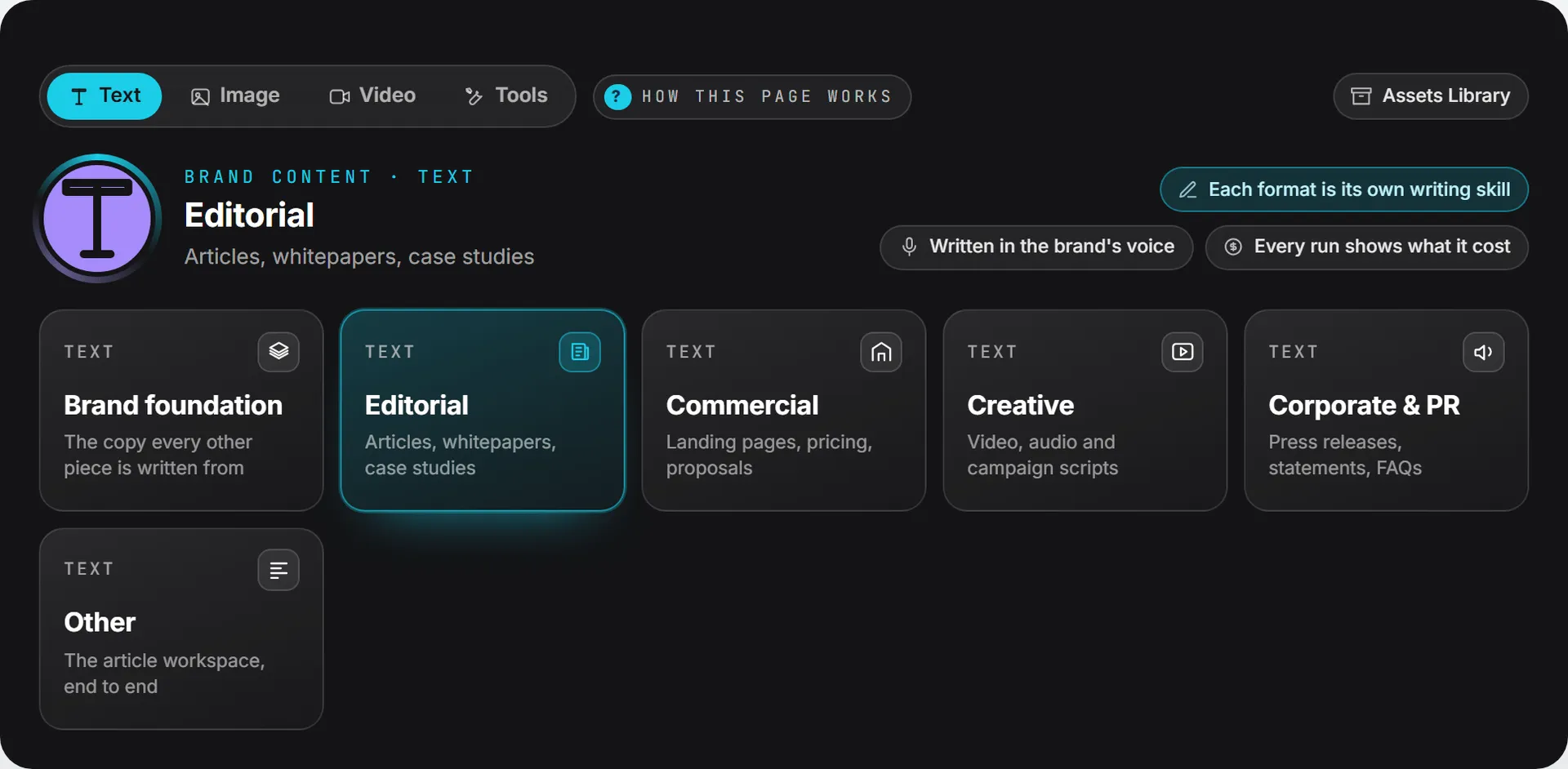
Brand Content sits in the left menu as four entries. The same four also appear as a switch at the top of every Brand Content page, so you can jump from one to another without going back to the menu.
| Sidebar entry | What it makes | Pages inside |
|---|---|---|
| Text | Written copy: brand foundations, articles, sales pages, scripts, press material | Brand foundation, Editorial, Commercial, Creative, Corporate & PR (copy studios) and Other (article workspace) |
| Image | Pictures rendered from a brief | Image generation (Images) |
| Video | Clips rendered from a brief | Video generation (Video) |
| Tools | Nothing new: they work on a picture or a video you already have | Image anonymizer and YouTube (Tools) |
Most of the pages sit under Text. Its five copy pages are the copy studios, and each lists its own writing formats, anything from a manifesto to a crisis holding statement. The Other tile opens the article workspace, which runs a longer process: brief, outlines, articles, versions.
There’s one more Text page without a tile: landing page briefs. You reach it from the Google Ads campaign builder, as explained in Landing page briefs.
Where to start
New to Brand Content? Work in this order and you’ll redo less.
- Ask an admin to fill in the brand’s guidelines, or do it yourself if you can edit brands. Every run reads them. See Brand foundation and guidelines.
- Write the foundation pieces on the Brand foundation page: a value proposition, a messaging house. Later briefs can draw on them: paste them in, or attach them as material.
- Move on to the studio for what you need today: a case study in Editorial, a service page in Commercial, a blog series in the article workspace.
Who can use it
What you see depends on three things.
First, the organization and the brand. Brand Content has to be part of what your organization uses. Then, per brand, an admin picks which parts the brand uses in the brand editor: Content Plan, Content Reports, Image and Video. A brand with Image switched off loses the Image entry and the Image anonymizer; with Video off, it loses Video and the YouTube tool. The switches are described in Brands administration.
Second, your rights. Each part of Brand Content is a feature in the roles table: Content: Text, Content: Image and Content: Video, each with four rights (view, create, update and delete). You need create to run anything. Editing and changing a status take update, and removing a piece takes delete.
Third, your role. Viewers can read, nothing more; anything that changes data needs the editor role or above.
The roles table also lists Content Reports. It matters when you grade roles: it covers report agents that now live in the Agents area, not a Brand Content page. See organization agents.
For the full picture, see capabilities and modules and roles and rights.
One brand at a time
Every Brand Content page works on the brand picked in the header. You only see brands you have access to. Switch brands and the page shows that brand’s library.
What you make is shared with the brand’s team. Anyone with access to the brand and the matching right sees the same work you do. Nothing here is private to the person who wrote it. Pick titles your colleagues will recognize.
If you switch brands halfway through a Text brief, what you typed follows you to the same format under the new brand.
How a studio page is laid out
The pages share one layout, top to bottom.
A dark band runs across the top. It says which format and which page you’re on, and on Text it shows the pages as tiles you can click. Three short facts about the page sit on its right. The band also carries a How this page works link, which opens a short help note, and an Assets Library button that opens the Assets Library in a new tab.
Under the band is the studio. You pick a format or an engine, then fill in a brief and its options. The run button sits at the bottom of the form, with the Model menu beside it. What comes back appears under the form, in its own tab for each run of your visit.
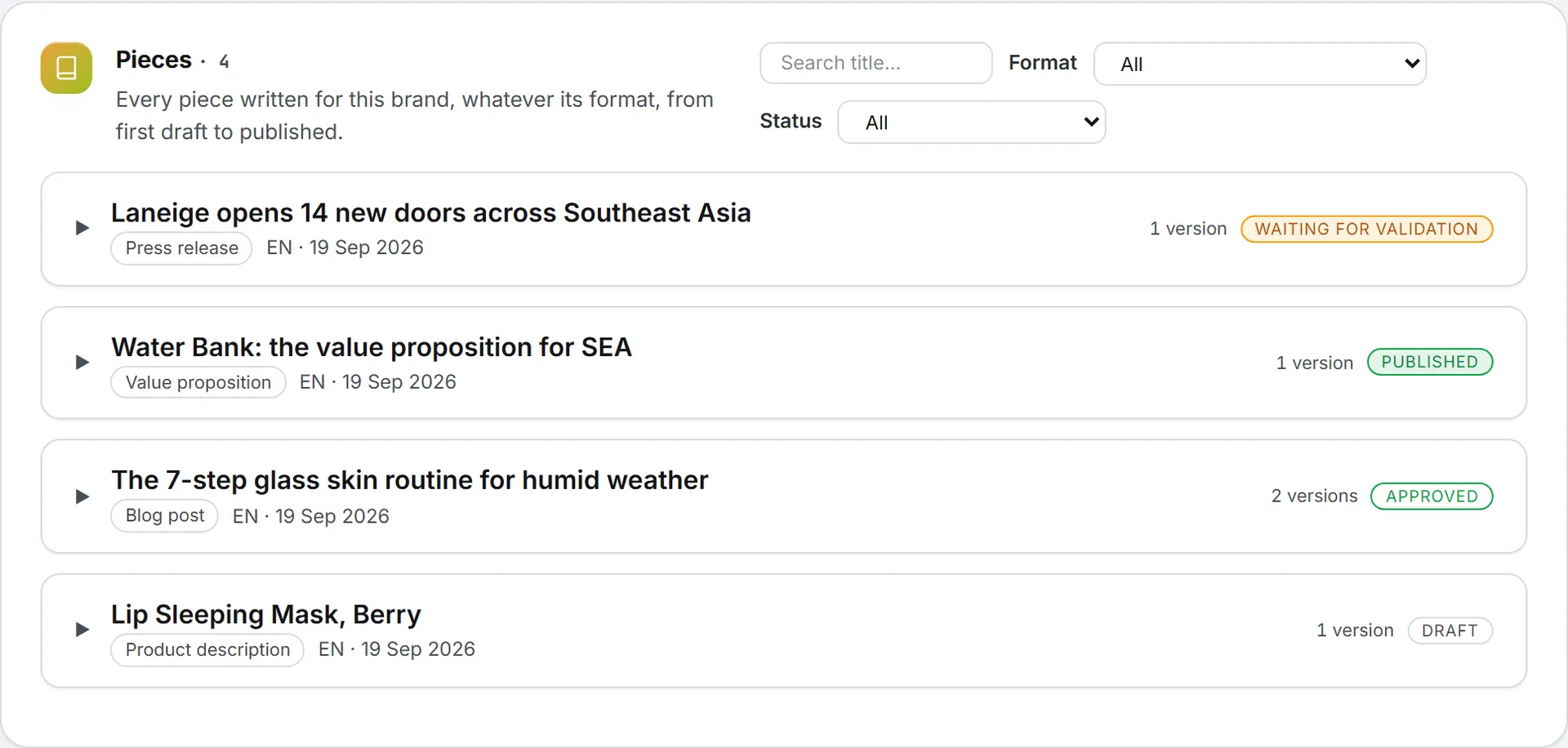
At the bottom is the library: everything made before for this brand, newest first, with search and filters.
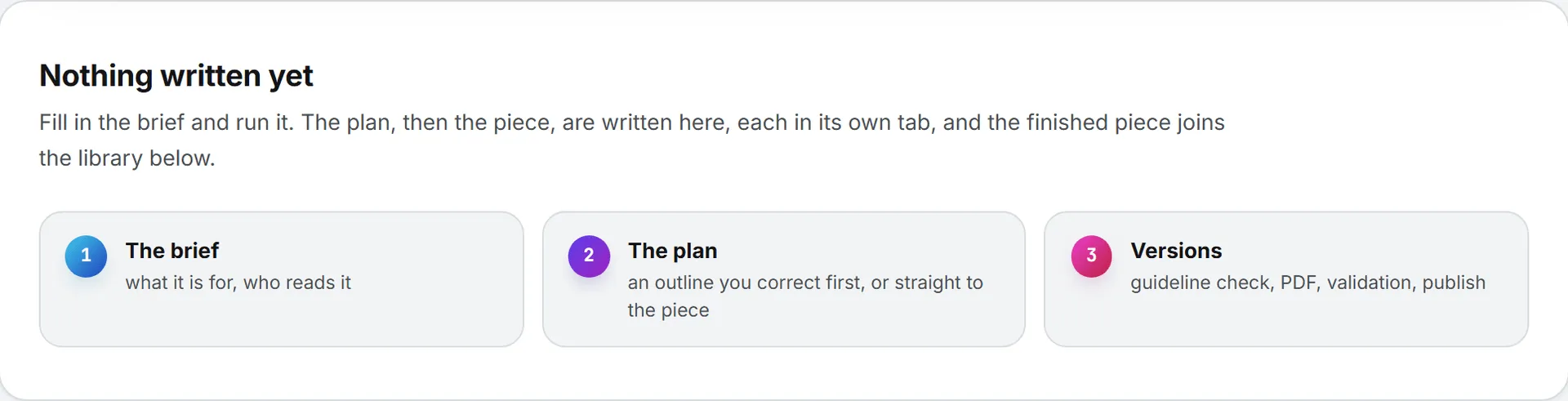
Before anything has run, the Text pages show three steps: the brief, the plan, then versions. The article workspace shows four: the brief, outlines, articles and versions.
Settings every run shares
The studios differ in what they make, but a handful of settings work the same way on all of them.
Brand guidelines
Text runs follow the brand’s guidelines by default. A Follow the brand guidelines checkbox sits in the form. Untick it for copy that mustn’t carry the brand’s marketing voice. The guidelines themselves are written in the brand editor, covered in Brand foundation and guidelines.
Skills
A Skills to apply menu lists the organization and personal skills that apply to Brand Content. Nothing is ticked by default: a skill is applied only when you pick it. Manage skills opens the Skills page in a new tab. On the Text pages, each format also carries its own writing skill, which is always applied. More on how skills and formats fit together.
The model
The Model menu next to the run button lists the models your organization offers for that page, grouped by maker, with the default first. When only one model is offered, the form just says which one runs. Your choice is remembered for the next run. For what each model is good at, see AI models.
Activity
Long runs report into Activity, so you can leave the page and follow them from there. That covers writing a piece of copy, drafting articles, rewriting an outline and the guideline checks and fixes on an article.
One exception: a new article brief and its outlines run in the Outline queue at the top of the article workspace, not in Activity.
What it costs
AI runs are paid from credits. The cost shows up in the app: next to each Text version and plan you’ll see the tokens used and the price, and an article brief shows its generation cost. Image and video engines show their price before you run them. If you’ve hit your spending cap or your credits are out, the run doesn’t start and the app says why.
To estimate a Text run before you start, open an earlier version of the same format in the library: it shows what it cost. Every run is also recorded in your usage log. Which wallet pays, yours or the organization’s, is explained in credits and costs and what costs credits.
Where the work is kept
Each page keeps its own library. Most of what you make also lands in the Assets Library:
- A piece of Text copy is filed as a text document. Each new AI-written version replaces that document with the latest text.
- An article is filed when it’s first written.
- Images and videos are filed as soon as they’re rendered.
Landing page briefs and article outlines stay on their own pages; they aren’t filed in the library. The library copy is what you share, search and reuse across the app. Files kept in the library count toward your storage, which is billed; see storage costs.
Sending work for validation
A written version can go to a colleague for sign-off. On a Text piece or an article version, click Send for validation. A dialog asks for a title, the validator and an optional message. The validator gets a task on the Project Management board and an email with the link, and the request opens in a new tab.
While it waits, the piece shows Waiting for validation and is locked. Nobody can edit, rewrite or delete it until the validator decides. A link to Open Validation sits on the locked piece. See Validation.
Statuses don’t publish anything
Text pieces carry a status you set by hand: Draft, Approved or Published. Articles use Draft, Approved for publication or Published. The status is a label for your team. Marking a piece Published doesn’t post it anywhere. For articles you can also record the address where it went live.
Good to know
- Nothing in Brand Content publishes by itself. Every run lands as a draft or a document for you to review.
- The Text form saves what you type in your browser, per brand and per format. Reload the page and a Draft restored tag tells you it came back. Attached files aren’t kept this way.
- Old addresses still work. The former content plan page and the old Search articles page both open the article workspace.
Troubleshooting
Most questions about Brand Content come down to access or credits.
Image, Video or Tools is missing from the left menu. One of three things: the active brand has that part switched off in the brand editor, your role has no view right on Content: Image or Content: Video, or your organization doesn’t use Brand Content at all. Try another brand first; if it’s missing everywhere, ask an admin.
The run button does nothing or says my role is read-only. You’re a viewer. Ask an admin for the editor role.
A run stopped with a message about credits or a cap. Your credits are out or you reached your daily spending cap. See credits and costs.