Answer from your whole website
Link a whole website to a service desk. Its sitemap is read first, you choose the sections the assistant may read, and pages refresh nightly.
The answers are usually written already, on your own website. Whole website is the way into a desk’s knowledge base that puts them to work, with no page copied by hand. You point the desk at a site. It reads the sitemap and shows you what is there, then waits while you pick the sections it may read. After that it keeps up with the site on its own.
Before you start
You need a desk already created, and editor rights or above on the brand it belongs to. See create and set up a desk. The desk can be live or switched off while you work: linking a website changes neither.
A desk answers only from its knowledge base, never from the open web (service desk overview). This is one of five ways to fill that knowledge base. The other four are in build the knowledge base. Reach for this one when the material is published and keeps moving. For a single page, Web page is less work. For files that never leave your own systems, link a library folder.
Step by step
- Open the desk and click the Knowledge tile, or add #knowledge to its address.
- On the Knowledge base card, pick Whole website.
- Check the address in Website. Your brand’s own site is filled in for you when the brand has one.
- Click Check the sitemap. The status line reads “Reading robots.txt and the sitemap… no page is fetched yet.” Nothing is billed at this stage.
- Untick the sections you don’t want.
- Click the button at the foot of the plan. It reads Read the pages while nothing is ticked, then counts what you picked: Read 412 pages.

The address is reduced to the site itself. Type yourbrand.com/faq and the desk reads yourbrand.com. You choose what it reads in the next step, not by typing a path.
Reading runs in batches, and the status line counts them off: “example.com: reading pages, 75 of 412 done…”. A large site takes a few minutes. You can leave the page; what is already indexed stays indexed.
Once it’s done, the assistant answers from those pages like any other document, and the “Sources:” line under an answer names the page it came from. Customers get your own wording, and a link back to where you wrote it.
What the check tells you
The check starts at robots.txt, for the sitemaps it names and for the rules it sets. If nothing is named there, the usual addresses are tried. If the site has no sitemap at all, the check falls back to the pages the home page links to, and the card tells you that is what happened.
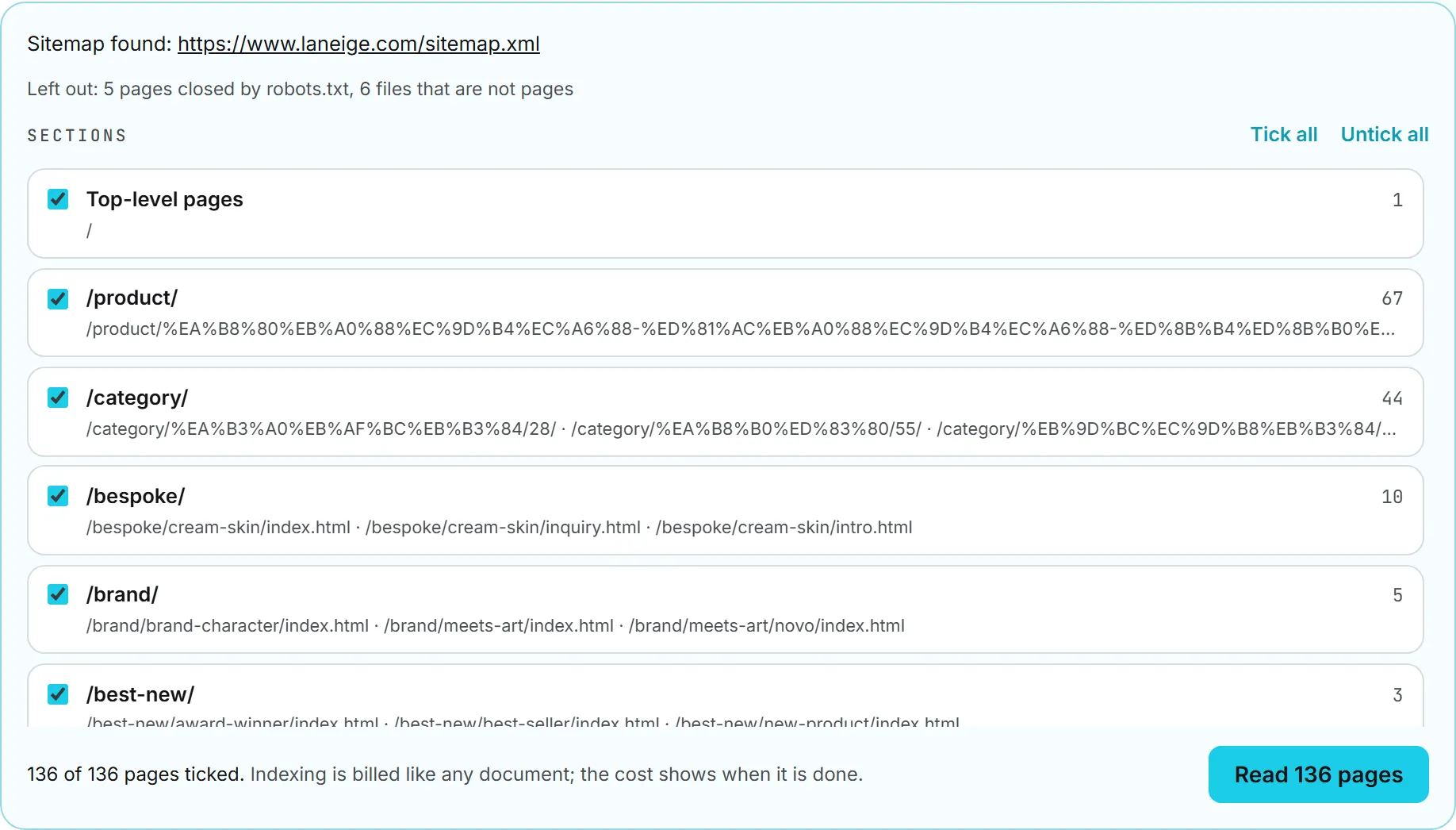
The plan card opens with Sitemap found and the sitemap’s address as a link, with “(named by robots.txt)” after it when that is where it came from. Under it, a Left out line accounts for what was dropped before you even see the list: pages robots.txt closes to crawlers, files that are not pages, addresses pointing at other sites. Then comes Sections, one tick box each, with Tick all and Untick all beside the heading.
A section is the first part of a page’s address, so /blog/ is a section. Pages sitting at the root are grouped as Top-level pages. Each row gives a page count and a few sample addresses, usually enough to tell product pages from press releases without opening the site.
Under the list sits the tally: “412 of 980 pages ticked,” followed by the reminder that indexing is billed like any document.
Note: A desk reads at most 1,000 pages per website. Over that, the tally turns red and the button is blocked until you untick enough sections.
What gets read, and what doesn’t
Only pages of the same site are kept. Images, video, archives, stylesheets, scripts, Word files and spreadsheets count as files rather than pages, and are skipped. PDFs listed in the sitemap are read.
Inside a page, only the main content is indexed. Menus, footers, sidebars and forms are dropped, so the assistant never answers with your navigation. Each page is stored with its title and its address, which is how an answer points a customer back at the page it came from.
A page with almost no text on it is skipped, with “no readable text on this page” against its address. So is a page over 5 MB, and a page hiding behind more than six redirects.
The reading is paced so it does not hammer your server. Pages go in batches of 25, five at a time, and each request gives up after 20 seconds. A nightly read fetches the pages the sitemap dates as changed, plus any page the sitemap gives no date for that hasn’t been read in a week. A live site is not crawled from end to end every night.
The Linked websites list
Once a site is linked, it gets a row under Linked websites, just above the linked library folders. The row carries the host, then a meta line that tells you where it stands:
| What you see | What it means |
|---|---|
| “412 pages of 980” | How many pages are indexed out of the ones the sitemap lists |
| “read [date]” or “not fully read yet” | The last time it finished |
| “sitemap” or “no sitemap, home page links” | Where the page list came from |
| “without /blog/, Top-level pages” | The sections you left out |
| “14 new, 3 changed, 2 gone” | Waiting for the next read |
| “2 could not be read, tried again at the next sync” | Pages that failed |
A tag on the right reads up to date, pages waiting or reading.
The pages of a website are not in the document list below, which surprises people the first time. They would drown it, since one site can run to hundreds of rows. They sit under Show the [n] pages on their own website’s row instead.
Now the controls on that row. Read it again every night is a tick box, on unless you turn it off. Choose the sections reopens the tick list, and Save and read them applies the change at once; that save is also what takes an unticked section’s pages back out of the knowledge base. Show the [n] pages unfolds everything that site contributed, each page linking out, each with its section count or the reason it failed. Sync now reads the sitemap again, then the pages that changed. Unlink is at the end, in red.
The nightly read
That covers the first read. The interesting part is what happens after it, because a website is the one knowledge source that keeps moving on its own.
A linked website is read again every night unless you untick Read it again every night. The pass runs once a day and picks up sites whose last automatic read is more than 20 hours old.
Only what changed costs anything. A page whose text is word for word what it was last time gets fetched and then left alone, so a settled site is close to free night after night. A site that publishes every day costs a little every day.
The nightly pass is quiet. It opens no job in the Activity panel and sends no email. The “read [date]” on the row is how you know it ran. If it failed, a red line under the row says so, and it clears after the next successful pass.
Very large sites finish over several nights rather than in one. The pass gives each website a couple of minutes, then moves on to the next one. See what runs by itself.
Unlink a website
Click Unlink on the row. The confirmation says the pages leave the desk’s knowledge base and it stops answering from them immediately. The website itself is not touched, and neither is the conversation log: answers already given keep the wording they were given in. There is no undo. Linking the site again reads every page from scratch, and you pay for that reading again.
If the desk moves to another brand
A desk can be moved to another brand in its settings. Its linked websites move with it, along with its documents and its conversations. Nothing is read again and nothing is lost. See create and set up a desk.
Limits at a glance
| Limit | Value |
|---|---|
| Pages per website | 1,000 |
| Page size | 5 MB |
| Text kept from one page | 800,000 characters |
| Redirects followed | 6 |
Who can do this
| Action | Who |
|---|---|
| See the linked websites and their pages | Anyone who can open the desk |
| Link a website, sync it, change its sections, unlink it | Editor rights or above on the desk’s brand |
Brand access decides who can open the desk in the first place. See brands and roles and rights.
Pick fewer sections than you think
Link the sections customers actually ask about, not the whole site. A press release archive and ten years of blog posts make answers vaguer, because the passages that match a question are drawn from everything the desk holds. Start narrow. Choose the sections lets you widen later, and widening costs far less than reading a site twice.
When a read finishes, ask the test phone on The desk step a question the new pages should answer. It is the quickest way to find out whether you linked the right part of the site.
What it costs
Indexing a page is an AI call, priced like any other document you add. Checking the sitemap is free. A page whose text hasn’t changed is free to re-read.
The cost of a run appears in the status line when it finishes: “example.com: 412 pages indexed, 0 unchanged, 0 removed,” followed by the amount. Nothing is quoted before you start, because the price follows how much text the pages carry, and only the pages know that.
You can still gauge it. Tick one small section, read it, and look at what the status line says it cost. Multiply that by the page counts on the other sections and you have a figure good enough to decide with. Every run is a line in your usage log too, so the first site you link tells you roughly what the next one will cost.
The nightly reads are billed to the brand’s own credits, and they stop at that brand’s spending caps. See credits and costs and conversations and costs.
Troubleshooting
“That address is not a public website.” The address resolves to a private network. A desk only reads sites the public internet can reach.
“No sitemap was found on [host], and its home page links to no page of the site.” The site has neither a sitemap nor links the check can follow. Add the pages one at a time with Web page instead.
“The sitemap of [host] lists no page that can be read.” The sitemap holds only files, or only addresses on other sites. Add the pages you need with Web page.
Pages missing from the plan. robots.txt closes them to crawlers, and the check respects it. The Left out line says how many. Open the site’s robots.txt if you think that’s wrong.
“That is [n] pages: untick sections to stay under 1000.” Narrow the sections. Read the parts customers actually ask about.
“Every section is unticked: tick at least one.” Tick something before saving.
“This website is already linked to this desk: use Sync now on it.” It’s on the list already.
Pages that keep failing. A page that 404s stays on the list as an error and is tried again at every read, so the run doesn’t loop on it. If the address is gone for good, the fix is on the site: take it out of the sitemap.
The same page answered twice. A page added with Web page and the same page read as part of a website are two documents. Delete the one you added by hand.