Folders, tags and search
Organize the Assets Library with folders and shared tags, then find any asset with one search field, five filters, four sort orders and two views.
This page explains how to keep the Assets Library tidy with folders and tags, and how to find an asset again when you need it. Everyone can use folders, tags and the search. Deleting follows stricter rules, spelled out below. For what each asset action does, see the Assets Library overview.
Folders
Folders belong to the whole organization. Everyone sees the same tree, but inside it each person only sees the assets their brand access allows.
The path above the list shows where you are, starting at All assets. Click any part of it to go back up.
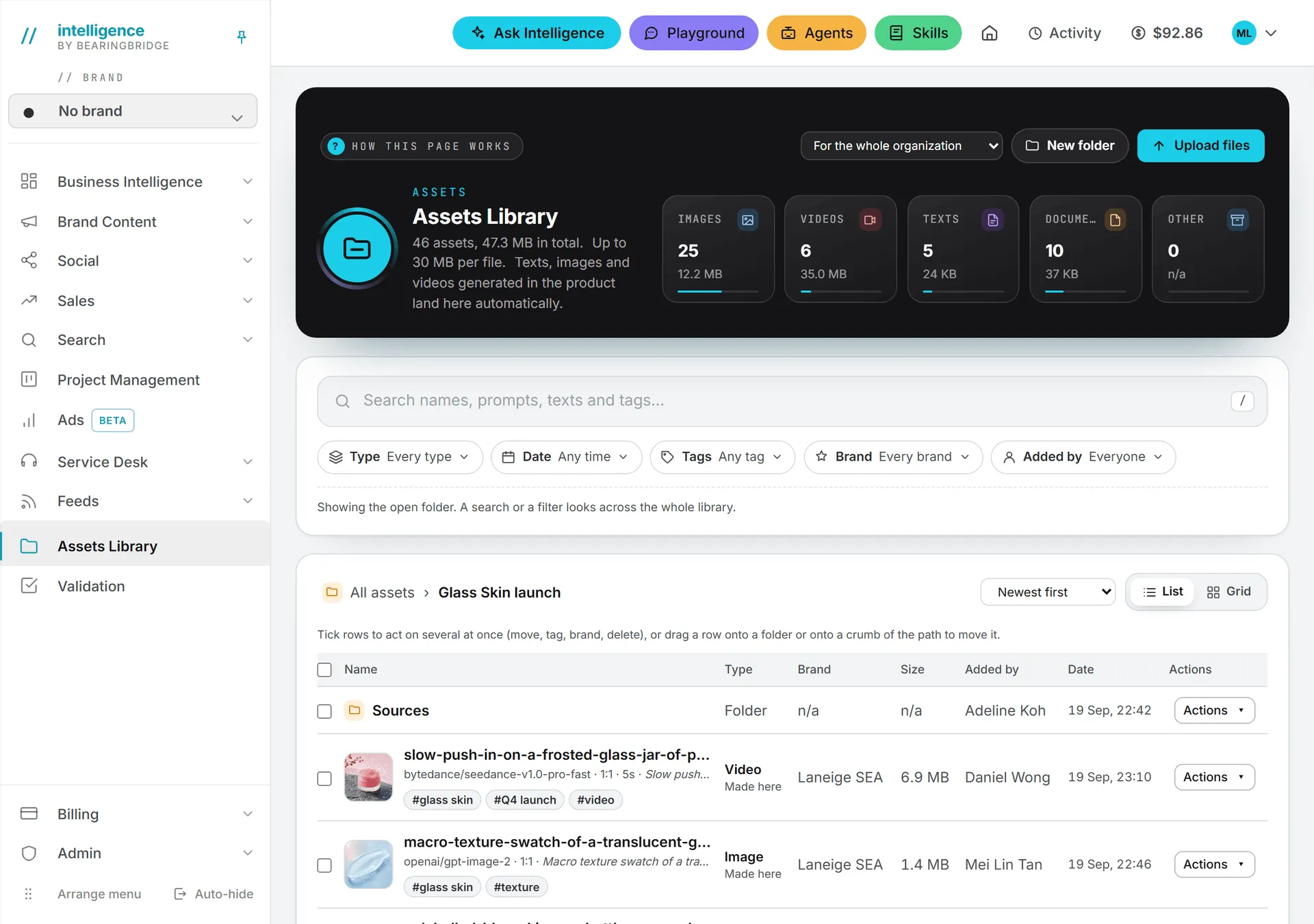
Create a folder
- Open the folder that should hold the new one, or stay at All assets.
- Click New folder in the band at the top.
- Type the name in the box that opens and confirm.
Two folders in the same place can’t share a name. If you try, the app says “A folder with that name already exists here.”
Rename, move or delete a folder
Each folder has an Actions menu (the three-dot button in Grid view) with Rename, Move and Delete.
- Move opens a strip listing every folder it can go to. A folder can’t go into itself or one of its own subfolders.
- Delete tells you how many assets and subfolders are inside, and how much space they take, before you confirm.
Important: Deleting a folder deletes everything inside it, subfolders and assets alike. It can’t be undone from the library. Their storage stops being billed the next day; see Storage costs.
Anyone can create, rename and move folders. Deleting one is different: you can delete a folder only if you created it and added everything inside it yourself, subfolders included. Otherwise the app refuses with “This folder holds assets added by other people. Only the person who added an asset can delete it.”
Move assets into folders
You have three ways to do it.
- Drag a row, or a card in Grid view, onto a folder or onto a part of the path above the list. All assets works as a target too. A folder won’t drop into itself or one of its subfolders.
- Open the asset’s Actions menu, choose Move, pick the folder and click Move.
- Tick several rows, pick a folder in the bar that appears and click Move.
Dragging a ticked row carries every ticked row with it.
Tags
Tags are your own words, such as “Q3 launch”, “packshot” or “approved”. They’re shared: everyone who sees an asset sees its tags.
Tag one asset
- Open the asset’s Actions menu and choose Tags. A strip opens under the row.
- Type a tag, then press Enter or a comma. Add as many as you need.
- Click Save. The button turns amber while you have unsaved changes.
To reuse a tag your organization already has, click it under In use, where the most used ones are listed. Backspace in the empty field removes the last tag. Esc closes the strip without saving.
Tag several assets at once
Tick the rows, type a tag in the bar that appears and click Add tag. To take a tag off, pick it in the dropdown next to it and click Remove tag.
Tag rules
An asset takes up to 20 tags of up to 40 characters each. A leading # is dropped, so “#launch” and “launch” are one tag, and so are tags that differ only in capital letters; the first spelling used wins.
Spotted a useful tag on an asset? Click it and the whole library filters on that tag.
Search and filters
The card under the band holds the search field and five filters. A search or a filter always looks across the whole library, whichever folder is open. Each result shows “Filed in” with its folder path; click the path to open that folder.
How assets are typed
The Type filter and the tiles sort assets into five types. Images and videos count as such whether you uploaded them or the app made them. Texts are the pieces written in the app. Documents are uploaded files such as PDF, Word, Excel, PowerPoint, CSV, plain text or Markdown. Anything else is Other.
The search field
Type words to search names, prompts, the opening lines of pieces written in the app, engines, brands, the person who added the asset and tags. The search doesn’t look inside uploaded documents. With several words, an asset must match all of them. Press / anywhere on the page to jump to the field, and Esc to clear it.
The filters
| Filter | Choices |
|---|---|
| Type | Images, Videos, Texts, Documents, Other files (tick several); where it comes from: Anywhere, Made here or Uploaded |
| Date | Any time, Today, Last 7 days, Last 30 days, Last 90 days, This year, or between two days (From and Until) |
| Tags | Every tag in use, with a field to find one; with two or more ticked, choose Any of them or All of them |
| Brand | Every brand, Whole organization only (the pill then reads “Organization only”), or one of the brands you can access. Shown only if you have brands. |
| Added by | Everyone, or one person |
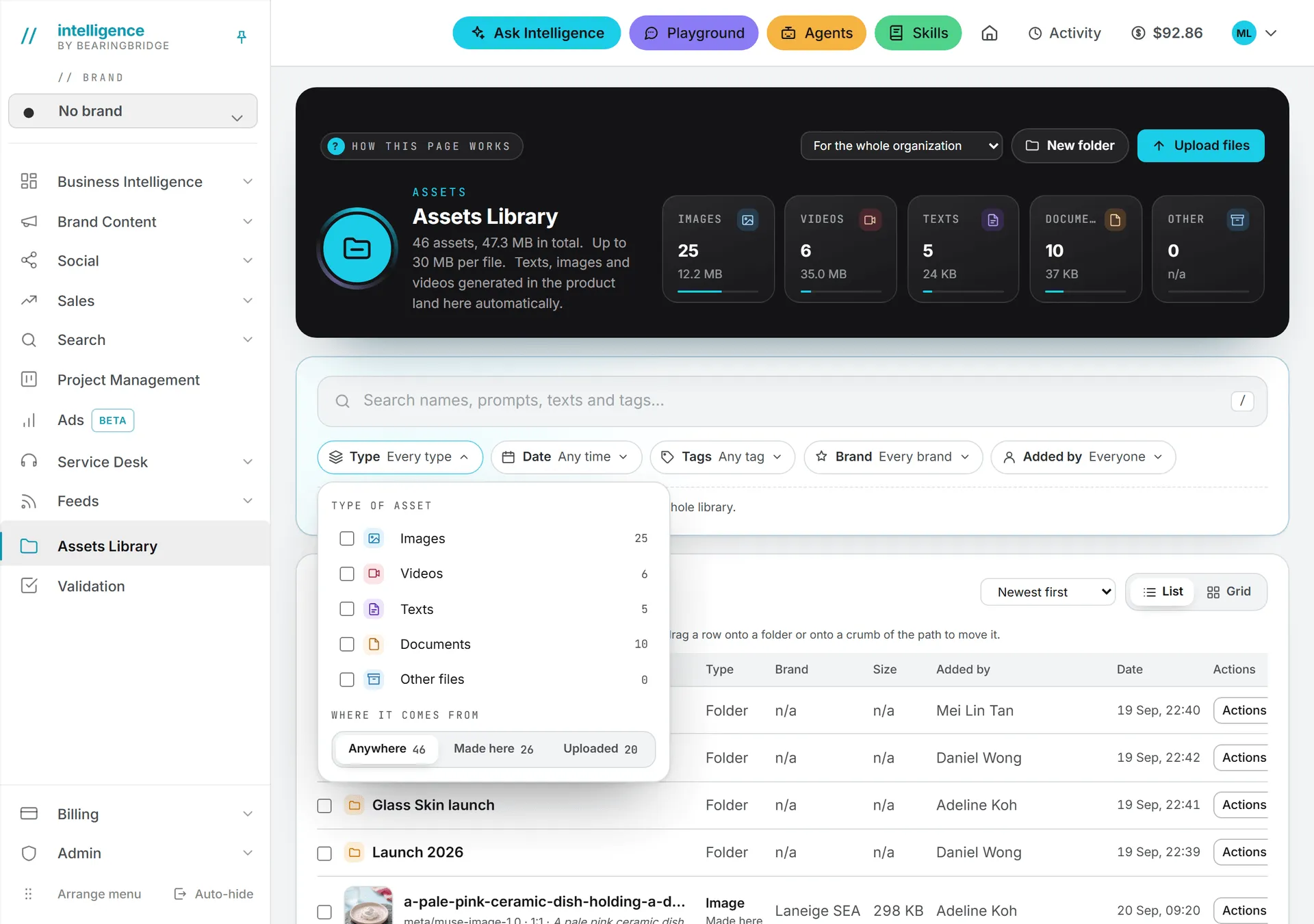
Each choice shows how many assets it would find, given the other filters already active. For dates, leave one day empty to get everything before or after the other. Days start at midnight in your own time zone.
The type tiles in the band double as shortcuts. Click Images to see only images; click it again and every type comes back.
What’s active shows as chips under the filters, with the number of matches in the whole library. Click a chip to remove it, or Clear all to start over.
Sort and view
The sort menu offers Newest first, Oldest first, Name, A to Z and Largest first.
List shows a table with Name, Type, Brand, Size, Added by, Date and Actions. Grid shows cards with a thumbnail (a video shows its first frame), the first lines of a text, and the type, size and date.
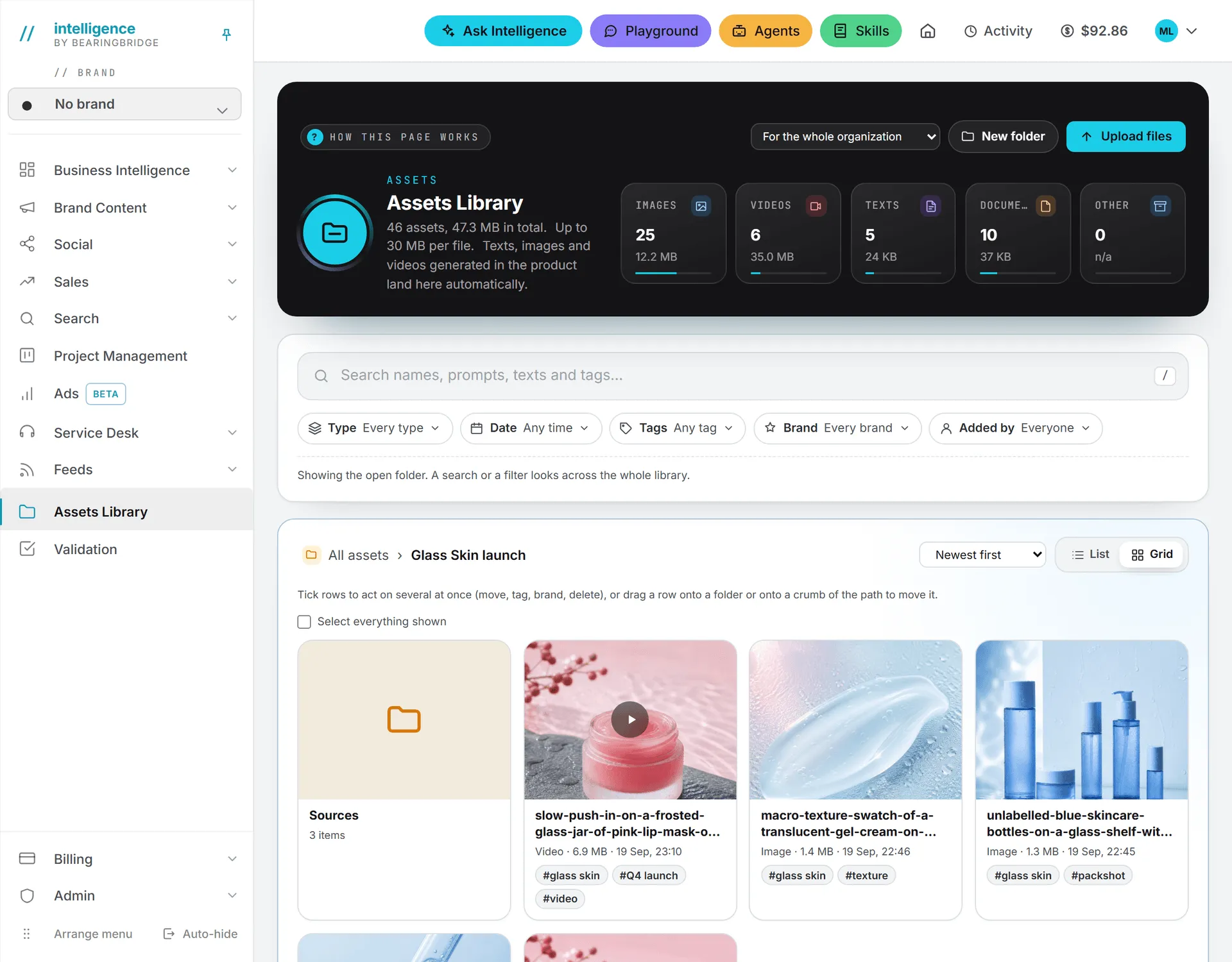
Your browser remembers both choices.
Select several rows
Tick rows one by one, or tick the box in the table header to select everything shown. In Grid view, use Select everything shown. The bar that appears offers:
- Move to a folder
- Add tag and Remove tag (assets only)
- Set brand: the whole organization or one of your brands (assets only)
- Delete: the assets you added and the folders you may delete (the button shows a count when only some are yours)
- Clear selection
One catch: rows a filter hides drop out of the selection.