Enhancement
Enlarge a picture to print size or a clip to 4K, restore old photos, clean up phone videos, fix every small file in one batch.
Enhancement makes the pictures and clips of your Assets Library larger, sharper and cleaner. Pictures go through Topaz Wonder 3.5; clips go through Topaz Proteus or Starlight Precise 2.6. The engines recover detail without changing what is in the picture or the clip. Open the module from the left menu with Enhancement: its pages are tabs of the same band.
The original is never touched. Each result is a new file saved next to it, in the same folder, under the same brand and with the same sharing. For a file you uploaded yourself, you can tick Save it as a new version of this file instead: the result becomes the file’s next version, and the original stays in its history.
What it costs
The price depends only on the size of the result, never on the look you pick. Every size shows its exact price before anything starts, read from the file’s own bytes.
- A picture is billed per started 8 megapixels of the result: an 8 MP file is one step, 16 MP two, 24 MP three. 24 MP is the largest file the module makes.
- A clip is billed per block of frames: more frames, more blocks. 4K costs more than 1080p, and Starlight costs more than Proteus.
- Free work costs nothing: cropping for the networks, setting a print resolution, the Quality scan.
A run that fails bills nothing. Each run is listed in Billing > Usage as Picture enhancement or Clip enhancement.
The pages
Each page opens with What it does, with an example: a short explanation, the cases it suits, and a real before and after made with the same engine and settings the page runs. Drag the handle to compare. Click the title to fold it away; it stays folded on that page until you open it again.
Upscale
Enlarges pictures to 8 MP: about 4K, 16 MP: for print or 24 MP: large print, and clips to 720p, 1080p or 4K. Drop files on the page, or pick them with From the Assets Library. A size the file already reaches is shown as already at this size and can’t be picked. With several files, the run becomes a batch (see below).
Pick a Look for pictures:
| Look | Use it for |
|---|---|
| Sharp and clean | product shots, renders and screenshots: the most detail recovered |
| Natural | people, fabric, foliage: a lighter hand that keeps texture |
| Barely touched | artwork and logos: as little change as possible |
| AI render | a render from the image studio taken to print size |
And for clips: Enlarge (Proteus picks its own settings, the quick, low-cost choice), AI render (Starlight with a softer sharpening) or Archive footage (Starlight, slower and dearer, which rebuilds faces, text and textures).
Restore
For old or damaged material. Pictures: Old photo (full restoration, then a fine silver grain so it still reads as a photograph), Film look, Phone picture, Natural, Barely touched. A picture can also be restored at its own size with Same size, restored only. Clips: Archive footage, Phone video, Downloaded from a network and Film look.
Clean up
A clip cleaned by hand with Proteus. Pick a look as a starting point, then move the sliders: Noise reduction, Compression artifacts, Detail recovery, Sharpening, Halo removal, Keep original detail and Grain. Try the first two seconds cuts the start of the clip in your browser, saves it, and runs the sliders’ settings on it for the price of a two-second clip, so you can compare before paying for the whole clip.
Fit for every network
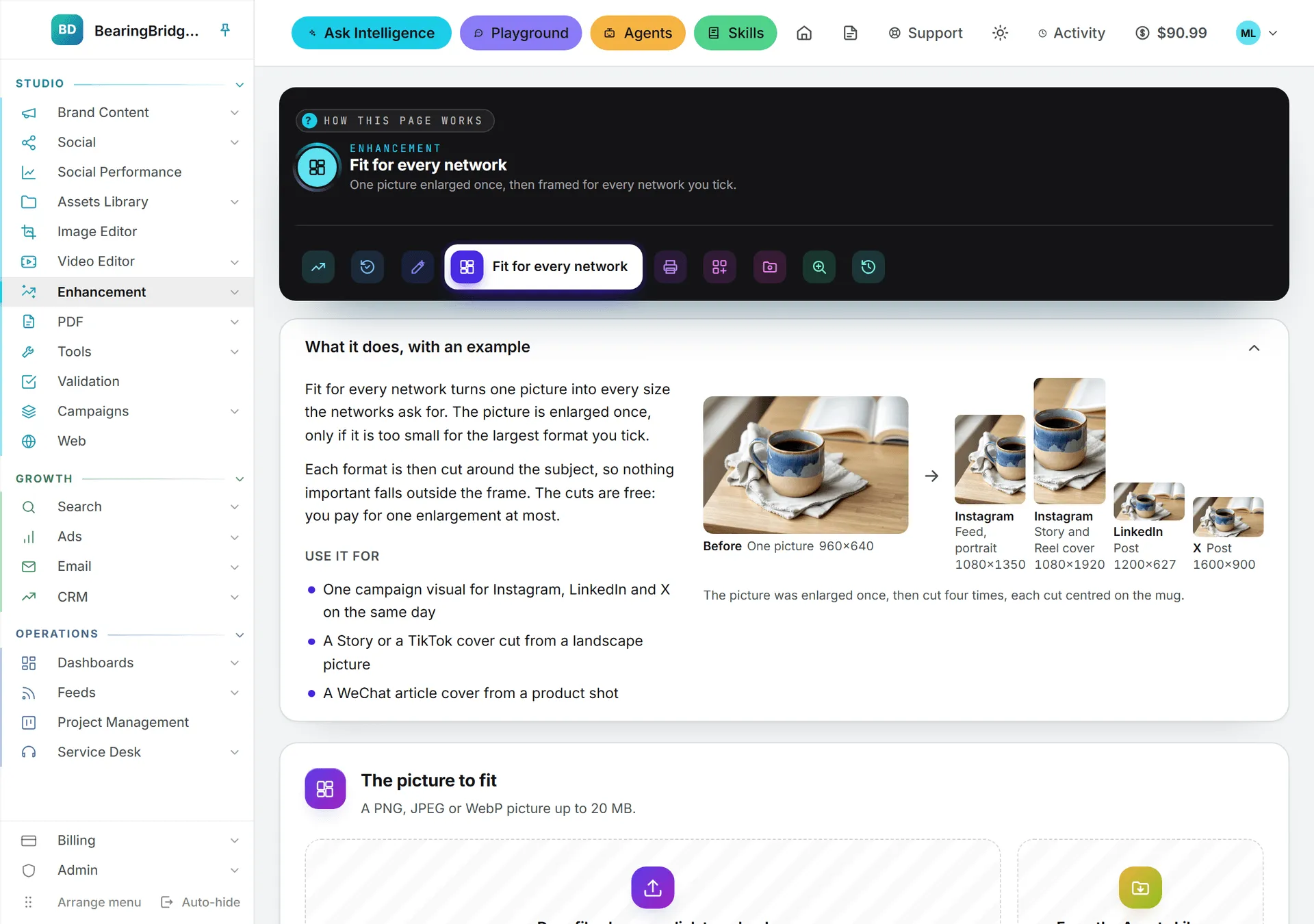
One picture, every network’s size. Tick the formats you need, such as Instagram feed, Story and Reel cover, LinkedIn post, X post, YouTube thumbnail, Pinterest pin, Xiaohongshu note or WeChat article cover. The picture is enlarged once, only if it is smaller than the largest format you ticked, then cropped on its subject for each format. The crops are free, so you pay at most one enlargement. Every crop is saved in the Assets Library.
Print-ready
Pick a paper, from a 4 x 6 in photo to an 18 x 24 in poster, A5 to A2 included, and a resolution of 150, 200 or 300 DPI. Use 300 DPI for prints seen up close and 150 to 200 for posters seen from a distance. The picture is enlarged just enough to cover the paper at that DPI, and the file is saved as a JPEG with that DPI written in it. Tick Crop to the paper’s shape to cut it to the paper’s proportions; otherwise it keeps its own shape. If the paper needs more than 24 MP, the page says so: pick a lower DPI or a smaller paper.
Batch
Several files at once: pick them from the library, or take A whole folder or A whole campaign. Each file is quoted on its own line, with the total at the foot. A file that can’t be enhanced says why and is left out. Budget for this run caps the total: files past it are skipped. The batch reports in Activity as it goes; each clip in it reports on its own line.
Watched folders
A watched folder enhances the new pictures or clips added to it by themselves and saves each result next to the original. Pick the folder, the kind of files, the look and size of the pictures, the look and resolution of the clips, and a Monthly budget (USD).
- A new watched folder is off. Nothing is enhanced, and nothing is billed, until you switch it on.
- Switching it on never enhances what the folder already holds: only files added from that moment.
- Runs are billed to the person who set the folder, up to the monthly budget; once it is spent, new files wait for next month.
- Only that person or an administrator can switch it, change it or remove it. Removing it never deletes a file.
New files are picked up within five minutes.
Quality scan
Measures every picture and clip you can see in the library and lists the ones too small to publish well: pictures under 1080 pixels on their short side, clips under 1080p. Pictures under 720 pixels and clips under 720p are marked Too small; the others Small. Each line shows the campaigns the file is in. Tick the files to fix and click Enhance the ticked files to run them as one batch. The scan is free: it reads only the size of each file. Files enhanced since the scan drop out of the list.
History
Every enhancement you made, newest first, with the original and the result side by side, the look, the sizes and the price. Compare opens a before/after slider for a picture, or the two clips side by side.
How long it takes
A picture takes from ten seconds to a minute. A clip takes from one minute to half an hour with Starlight. You can close the page: the run goes on, reports in Activity, and lands in the Assets Library.
Enhance from the other modules
You don’t have to open Enhancement to use it:
- Assets Library: Enhance…, Restore… and Make print-ready in a file’s menu, and Enhance in the bar that appears when several files are ticked. An enhanced file shows Enhanced from with its original, and Compare opens the before and after under it.
- Image studio: Enhance on every finished picture, and Then enlarge to 8 MP for print in the form, which enlarges each picture as soon as it is rendered, billed separately.
- Video studio: Polish (Starlight, for an AI clip) and Upscale (Proteus, quick and low-cost) on every finished clip, so a draft rendered at a low resolution can be finished in 1080p or 4K.
- Image editor: Enhance saves a copy, enlarges it and reopens it in the editor; Export for print saves a copy and opens it on the Print-ready page.
- Video editor: Upscale the export once a cut is saved, and Enhance on a clip that comes from the library; when the enhanced copy runs the same length, the clip plays from it with its trims kept.
- Social posts: a picture or a clip smaller than the network shows well gets a warning with Enhance to fit; the enhanced copy takes its place on the post, and the original stays in the library. The warning never blocks publishing.
- Campaigns and Validation: a small picture or clip carries a Small or Too small badge with Enhance, and a campaign offers Enhance the small ones.
The Library quality agent
The Library quality agent measures a brand’s pictures and clips once a week and lists the ones too small to publish well, those in a campaign first. It enhances nothing and spends nothing. Like every agent, it is off until you add it from Agents > Catalog.
Who can use it
The Enhancement row of a person’s rights decides: View opens the pages, Create runs enhancements and the Quality scan, Update changes a watched folder or switches it on or off, Delete removes a watched folder. An administrator can also forbid the engines for the whole organization; a look whose engine is forbidden is refused.