Activity panel
The Activity panel tracks the long jobs you start, from images and videos to search reports, alerts you when each ends and shows the results.
Some jobs in Intelligence take several minutes. The Activity panel in the header keeps track of them for you, from any page of the app. It tells you what’s still running and how each job ended, with a way back to the result.
It lists your own jobs only; a colleague’s jobs show in their own panel. Don’t mix it up with the Activity log card in Settings, which lists what you spent.
Where to find it
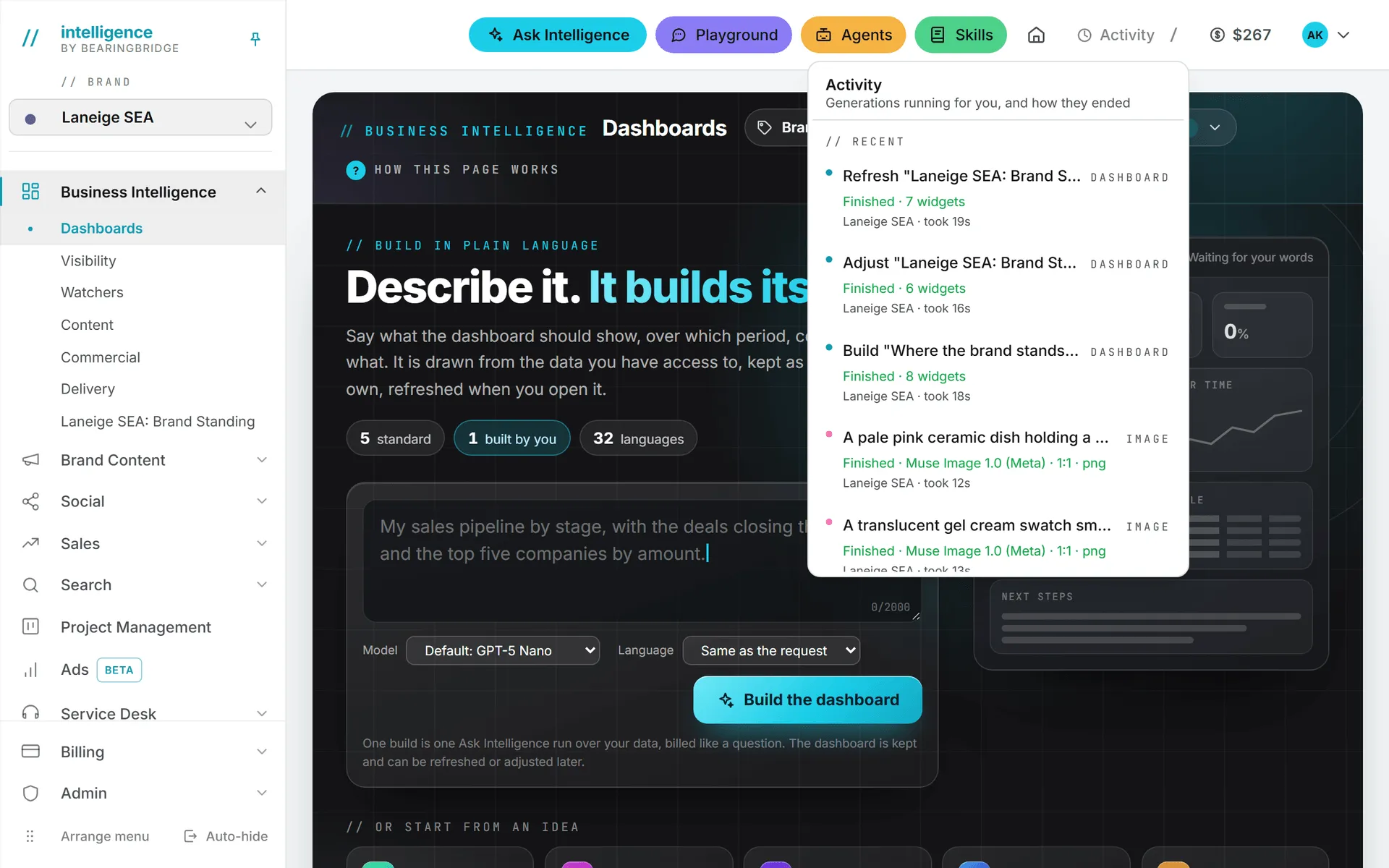
The Activity button sits in the header, next to your credit balance.
- When nothing is running, it shows a clock and the word Activity.
- When something runs, it shows a spinner and a count, such as 2 running. On a phone, only the number shows.
- A small badge with a number means jobs finished while you were elsewhere and you haven’t been told yet. It clears once the app has shown you their alerts.
Click the button to open the panel. To close it, click anywhere else or press Escape.
What the panel shows
The panel is headed Activity: Generations running for you, and how they ended. It has two lists:
- running: jobs still in progress, each with its current step and the time elapsed.
- recent: the last 20 jobs that ended in the past 24 hours, each marked Finished or with the error, and how long it took.
A row gives the job’s name and type, plus its brand if it has one.
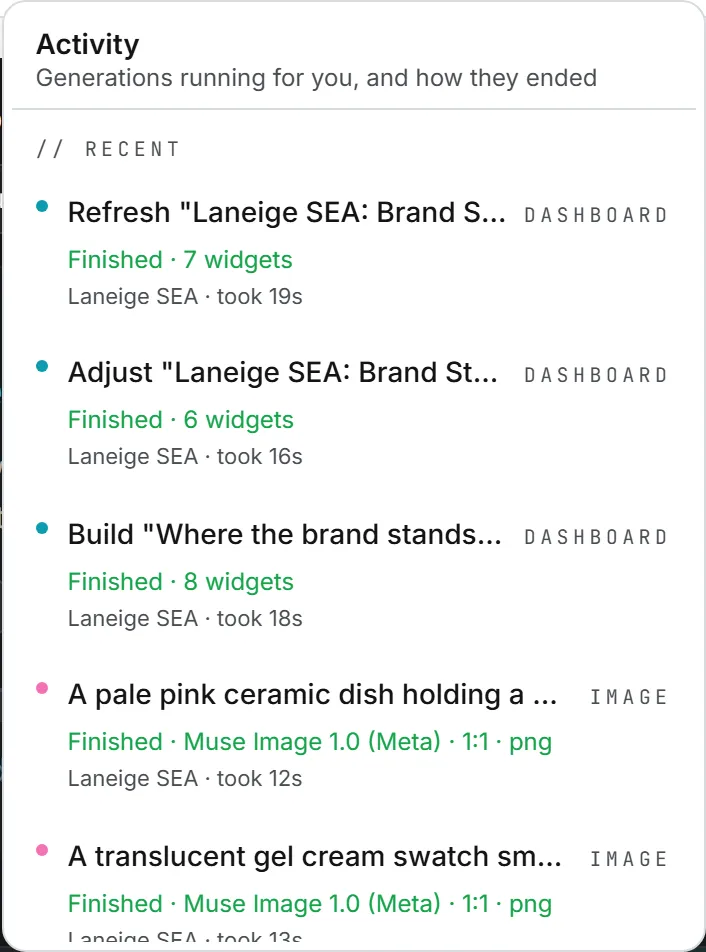
Click a row to open the page where the job belongs. Click Clear finished at the bottom to empty the recent list. Jobs still running stay. Most rows are cleared on every device you use; Brief, Google ranks, SERP report and Conquest strategy rows are only hidden in the browser where you clicked.
When nothing is running and nothing ended recently, the panel says “Nothing running. Generations you start show up here, wherever you are in the app.”
Which jobs appear
You’ll only ever see jobs from the modules you use.
| Module | Type labels in the panel |
|---|---|
| Brand Content | Brief, Outline, Article, Copy, Guideline check, Fix all, Image, Video |
| Social | Social post (a draft from a brief), Post visuals (the image or carousel), Publishing (a scheduled post on its way to the network, shown to the person who scheduled it) |
| Search | Google ranks, SERP report, Conquest strategy, Keyword Gap |
| AI search (GEO) | AI share of voice, AI search results, Ask the AIs, AI Volume, Who AI Trusts, AI trends, AI Conquest Strategy |
| Service desk | Knowledge base (an Assets Library folder read into a desk’s knowledge), Website (a whole website read into it) |
Agent runs and Ask Intelligence answers don’t appear here; agents have their own Runs page. See runs and schedules.
To read a few of the labels: Image covers a render, an edit or an upscale. Copy covers a Brand Content plan, a first version or another version. Fix all is a version rewritten to match the brand guidelines.
Alerts when a job ends
When a job ends, a small card appears in the bottom right corner of the screen. It reads, for example, “Image ready” or “Video failed”, with the job’s name.
A finished job’s card shows how long it took and an Open button, then goes away on its own after about 12 seconds. When a job fails, its card shows the error and waits for you to close it.
You hear about each job once, not every time you change pages. If you are already on the page where the job belongs, no card appears: the result is in front of you. If a job ended while your browser was closed, the card appears the next time you open the app.
It follows you from page to page
The list is kept on our side, not in your browser tab. Start a render, wander off to another page, reload, open a second tab, even close the browser, and the job will still be in the panel when you look.
While something runs, the panel checks for news every 5 seconds. With nothing running it checks every 20 seconds, and a tab left in the background checks every 45. When you start a job, the page tells the panel right away, so the new row appears at once. Coming back to the tab also refreshes it.
Note: Once in a while a job dies halfway. If a job stops getting news for 15 minutes, the panel marks it as failed with “Interrupted: the server running this stopped before it finished.” Open its page from the row and start it again there.
Where to find finished results
Here’s where each kind of result ends up.
The Open button and the row both take you to the page where the job belongs.
- Articles, copy, outlines and social posts are saved in their module.
- Images and videos are saved in the Assets Library. The picture or clip itself is shown in the tab where you started it; if you’ve left that page, open it from the library.
- A published post shows on the social calendar. See publishing.
- Search and AI search reports appear on their Search page. See AI search.
Troubleshooting
| Problem | What to do |
|---|---|
| A job has been spinning for a long time | Give it time: long videos and big reports can take minutes. After 15 minutes with no news, the panel marks it as interrupted. |
| I don’t see a job I started | The panel only lists your own jobs from the last 24 hours. A job a colleague started shows in their panel. |
| No alert appeared when a job ended | You were probably on that job’s page, so the result was already in front of you. Open the panel to check. |
What it costs
Watching the panel costs nothing, and it’s not a record of spending. Each job costs what its action costs, and the price shows where you started it. To see whether a failed or interrupted job was billed, look it up in the usage log. See credits and costs.