Podcast
Set up a two-host show, write an episode from a brief or article, record it, publish it to your feed and make its YouTube video.
Podcast makes a real podcast from what you already have. Two hosts discuss a brief, an article or any document of the Assets Library, in chapters, with an intro jingle and a sound between chapters. Each episode comes with its show notes, its chapter times and its transcript, and goes out through your show’s feed to Apple Podcasts, Spotify and every other podcast app.
The show
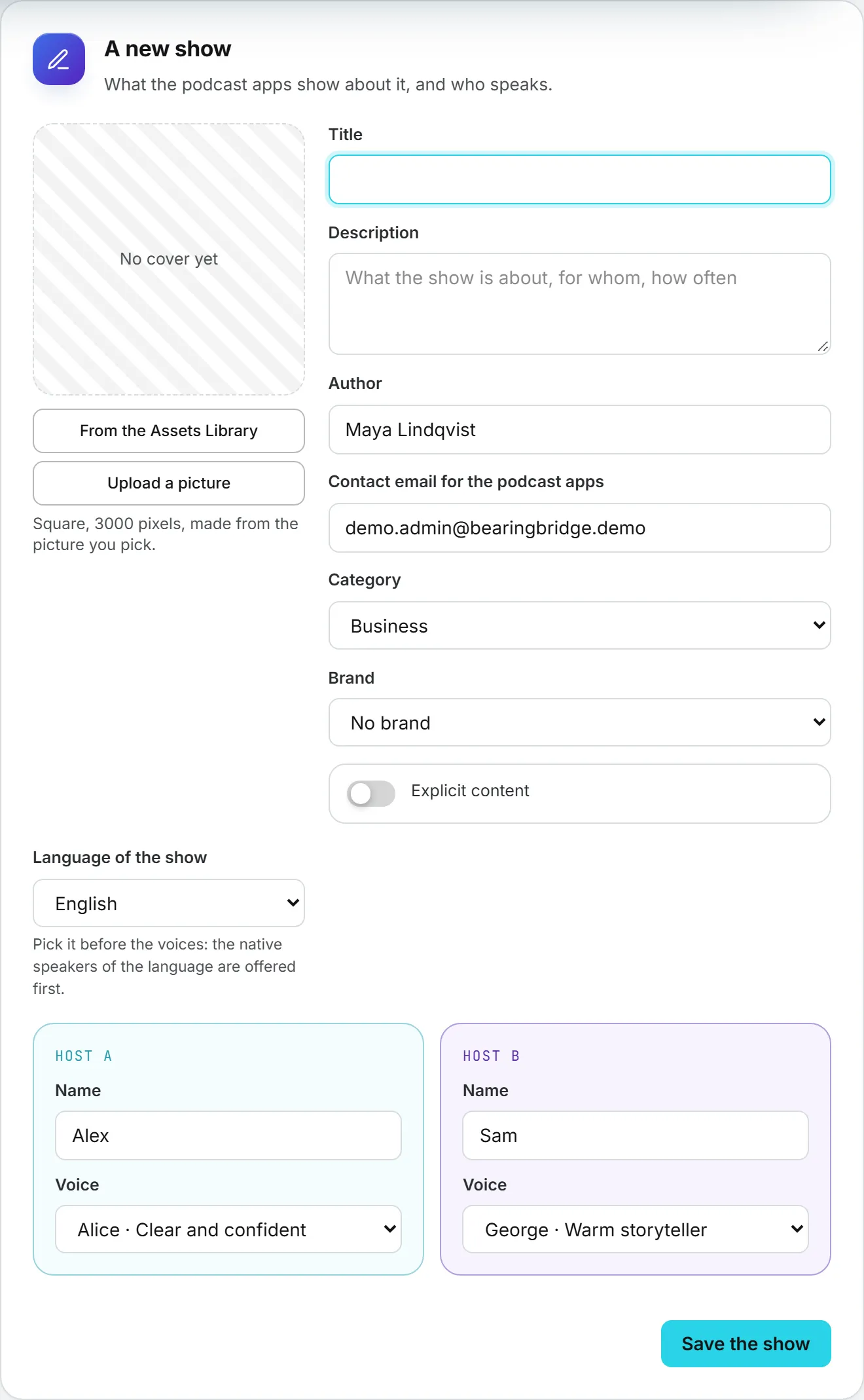
Click New show and fill in what the podcast apps display: the title, the description, the author, the contact email (Spotify sends its confirmation code there), the language, the category and whether the content is explicit. A show may belong to a brand; its sonic brand kit then gives its pronunciations to every script.
Language of the show sits just above the two hosts: pick it before their voices. Give the two hosts a name and a voice each. Their voice lists follow the language: its Native speakers first, then the voices With an accent, and a woman and a man among the natives are picked by default. Pick two different voices, so listeners can tell them apart.
The cover. Pick a picture from the Assets Library or upload one. The page makes the square 3,000 pixel cover the apps ask for, cropped on the subject, and keeps it in the library. The picture must be at least 1,000 pixels on its short side; enlarge a smaller one in Enhancement first.
Jingle and transition
The jingle opens every episode, the transition plays between two chapters. For each one you can:
- take The brand’s jingle, when the brand’s sonic kit has one,
- pick a sound From the Assets Library,
- make one: describe it, give its length, and click Make it. Its price shows on the button.
Whatever you pick is prepared in your browser in the format of the episodes, so the pieces join without a gap, and that copy is kept with the show. No sound removes it: the episode then goes straight on.
The feed
The feed is the address of your show for the podcast apps. Copy it and submit it once:
- Apple Podcasts: sign in to Apple Podcasts Connect, choose New Show, then Add a show with an RSS feed, and paste the address.
- Spotify: sign in to Spotify for Creators, add an existing show, paste the address and confirm with the code sent to the contact email.
The apps need a cover and at least one published episode. Every episode you publish afterwards reaches them by itself, usually within a few hours. The feed is public: anyone with the address can listen. If the address went where it should not, Give the feed a new address; the old one stops working at once, and you submit the new one again.
Write an episode
In A new episode, start from A brief, A text you paste, or a document From the library (Markdown, text, PDF, Word). Set the length, from 3 to 20 minutes, and the tone, then click Write the script. The hosts’ conversation is written in chapters, with the show notes and a title. It takes about a minute and goes on if you leave the page; it reports in Activity.
Edit the script
Open the episode in the list. Every line shows its host and its text: change the words, switch the host, add or remove lines and chapters, rename a chapter, edit the show notes, then Save the script. Expression tags in square brackets, such as [laughs], are performed, not read aloud. A chapter is recorded in one take and holds 10,000 characters at most; its counter turns red above that.
Record
Under The recording, each voice model that records two voices in one take shows the price of this script; the cheapest is selected. Click Record the episode. Each chapter is recorded in the hosts’ voices, one after the other, then the episode is put together with the jingle and the transitions. The progress bar counts the chapters. You can close the page: the recording picks up again as soon as the episode is opened again.
The finished episode
The episode plays on the page, with its chapters (click one to jump to it) and its transcript. The MP3 is in the Assets Library, and in History with its price.
- Published in the feed puts the episode in the feed, or takes it out. Only published episodes are listed in the apps.
- Download the MP3 saves the file.
- Copy the show notes copies the notes with the chapter times, ready for a description.
Changing the words of a recorded episode means recording it again: it leaves the feed until then, and the previous MP3 stays in the library.
The video for YouTube
Make the video turns the episode into a 1920 x 1080 video: the cover, the show and the current chapter on screen, a waveform that moves with the voices and, if Captions is on, the words on screen. Tick Also an upright 1080 x 1920 version for a vertical one. The video is made in your browser, so keep the tab open; a progress bar shows how far it is. It is then saved in the Assets Library.
Publish on YouTube opens a YouTube post in the YouTube studio of Social, in a new tab, with the video attached and the title and description filled in. Publishing on YouTube stays in your hands from there.
What it costs
- Writing the script is billed like any text the app writes; its price shows when it is done.
- Recording is billed by the character of the script; the price of each voice model shows before you record.
- A jingle or a transition you make is billed by the second.
- The video is made in your browser and costs nothing; the files kept in the library count as storage.
- The feed is free. Each time a podcast app downloads an episode or the cover, the transfer is billed like any download of the file.
A recording that stops bills only the chapters already recorded; press Record the episode again to go on from there.