YouTube
YouTube in Intelligence prepares each video's title and description, plus the channel itself, then hands everything over to YouTube Studio, where you publish it yourself.
YouTube in Intelligence is where editors prepare YouTube videos and the channel they go out on. A YouTube post is a video with its title and its description. The app writes and checks both, then hands the upload over to YouTube Studio, where you publish it yourself.
Where you find it
In the left menu, open Social, then YouTube. Two tabs sit under the title:
Videos holds every YouTube post of the brand, from first draft to published. Channel prepares the channel itself: its name, handle, description, keywords, links, banner and profile picture.
Why you publish it yourself
YouTube keeps every video uploaded by an app that it hasn’t audited private, whatever privacy you ask for. So Intelligence doesn’t connect to your YouTube account and doesn’t upload for you. It prepares everything, and the last step opens YouTube Studio with the video, the title and the description ready to drop in. Nothing has to be connected, and the video goes out public, unlisted, private or scheduled, as you choose in YouTube Studio.
A YouTube post starts with the video
As on TikTok, you make the video first, then write the words from it. A post has three steps: 01 the video, 02 the title and description, 03 publishing.
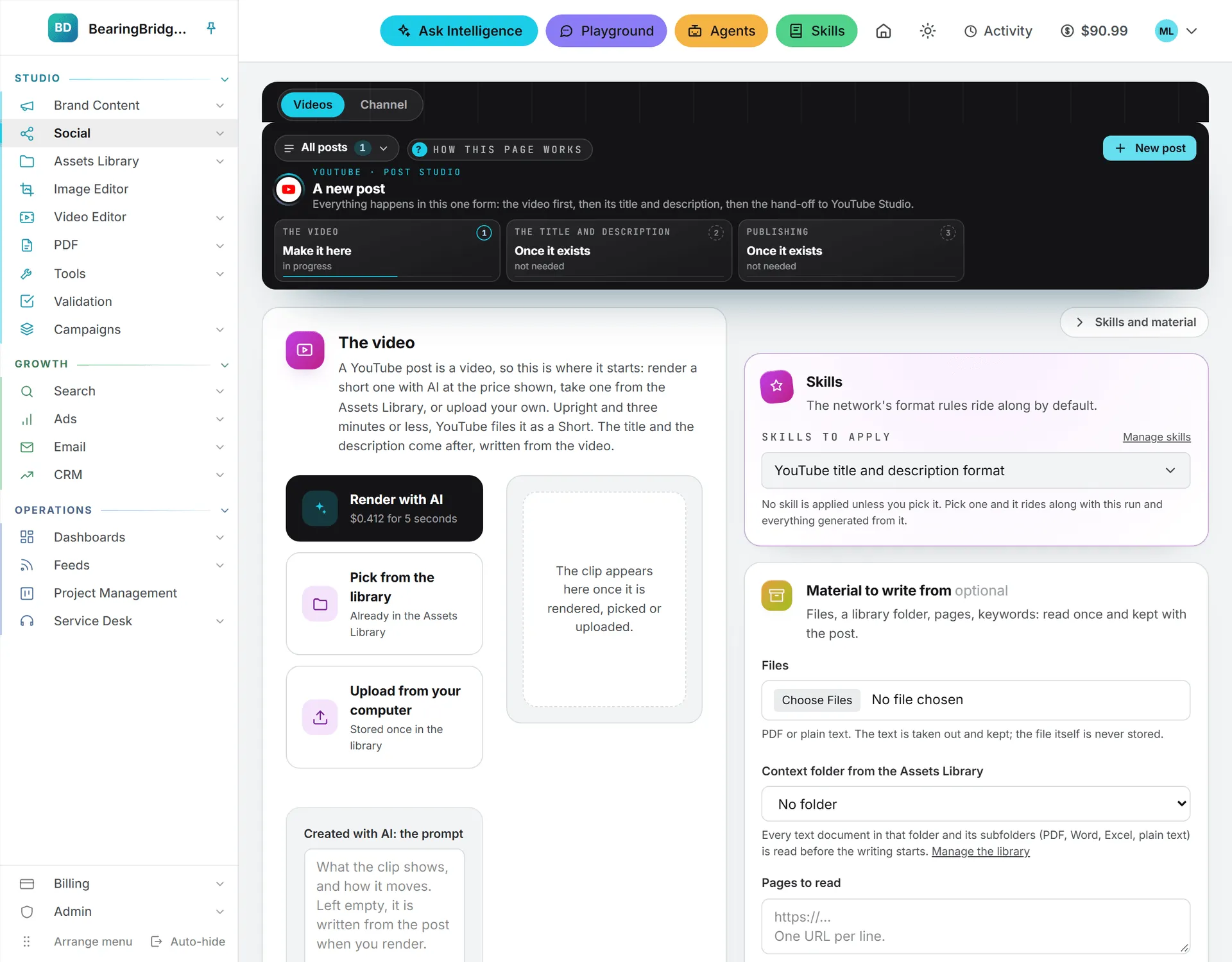
To start a post on the Videos tab, use the The video card:
- Pick the language of the title and description, and whether the description may use emoticons. For skills or material to write them from, unfold Skills and material too (see skills and material below).
- Get the video: render a short one with AI at the price shown, pick one from the Assets Library, or upload one from your computer.
- There’s no separate Create button. The post exists as soon as you render, pick or upload.
- Write the title and description in step 02, with AI or by hand.
- Publish in step 03.
A video that’s upright or square and three minutes or less becomes a YouTube Short. The preview marks it Short. A longer or wider video is an ordinary YouTube video.
Skills and material
The strip labeled Skills and material, at the right edge of the page, holds two cards. Unfold it before you render, pick or upload:
- Skills. YouTube title and description format is picked by default. Add your own skills or unpick it.
- Material to write from. Files, a folder or a campaign from the Assets Library, pages to read and keywords to target, the same fields as on a LinkedIn brief.
When the post is created, the material is read once and kept with the post, together with the skills, and the title and description in step 02 are written from them. A file or a page that couldn’t be read is named under Could not read in step 02. The strip empties itself for the next post, and the folder stays picked.
The title and description
In step 02, the title box above the editor holds the video’s title, as YouTube shows it, 100 characters at most. The editor holds the description. While the description is still empty, a Have AI write the title and the description box sits above it: add a brief if you like, then press Write it with AI. Its skills dropdown opens on the skills picked in Skills and material when the post was started, and the line beside the button says what the copy is written from: what you said the video shows and your brief, then, when the post has some, the material kept with it, and the brand voice when the post belongs to a brand.
With the YouTube title and description format skill picked (the default), the copy follows YouTube’s rules:
- A title of 60 characters or fewer, never over 100, with the subject and the search phrase first. No hashtag in the title and no clickbait the video doesn’t deliver.
- A description whose first 150 characters carry the point and the search phrase. That’s what search and the watch page show before “…more”.
- Two to four short paragraphs in plain text. YouTube shows no bold and no headings.
- A link only when the brief or the brand gives one. Links in a YouTube description are clickable.
- A plain call to action, then a last line of 3 to 5 hashtags. YouTube shows the first three above the title.
- No < or > anywhere: YouTube refuses them in a title and a description.
Every draft is checked when it comes back. One that breaks a rule gets a single repair pass from the AI. A title or description YouTube would still refuse is made to fit: the angle brackets go and the title is cut at a word. Another version works the same way. Unpick the skill to write freely: the 100 characters of the title and the ban on angle brackets still hold.
Publish on YouTube
The publishing step has one way out: Publish interactively. Press it and three things happen:
- The title goes on your clipboard.
- YouTube Studio opens in a new tab, on its upload window, for the channel your browser is signed in to.
- The video downloads to your computer.
The steps under the button follow YouTube Studio’s own order: check the channel name at the top right, drop the video on the upload window, paste the title, press Copy the description and paste it, answer whether the video is made for kids, and mark it as altered content if it was made or changed by AI and looks real. Then pick Public, Unlisted, Private or Schedule, and publish in YouTube Studio.
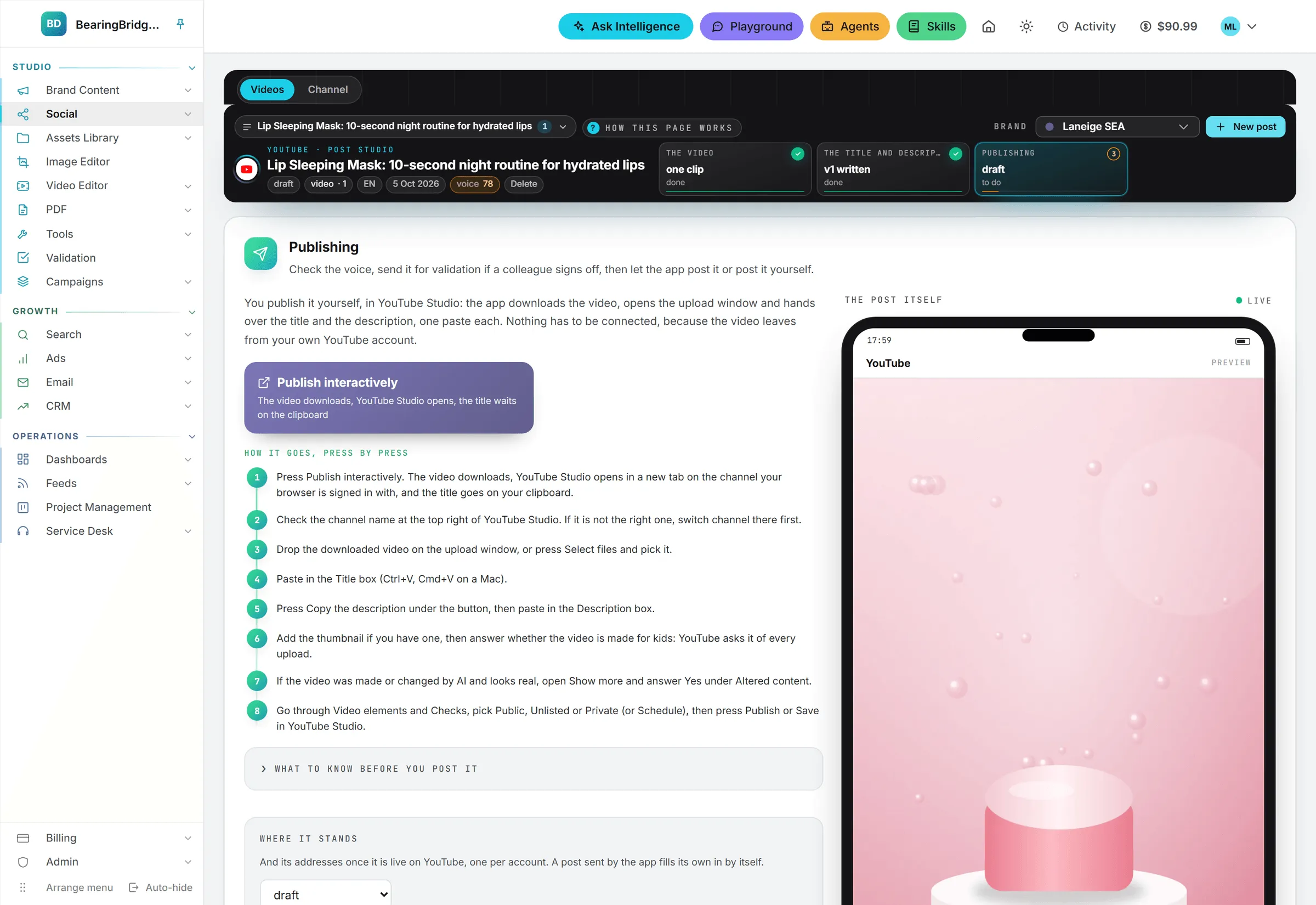
Beside the step, the phone shows the post as YouTube’s watch page: the player, the first three hashtags, the title, the channel row and the description in its grey box. The description on the phone takes typing, as on every network.
Once the video is live, paste its address under Where it stands, lower in the publishing step, and set the post to published. The app is never told about the upload otherwise.
Video limits
| Limit | Value |
|---|---|
| Title | 100 characters, no < or > |
| Description | 5,000 characters, no < or > |
| Hashtags | Past 60, YouTube ignores every one of them |
| Video types | MP4, MOV, MPEG, MPG, AVI, WMV, FLV, 3GP, WEBM (ProRes, DNxHR, CineForm and HEVC video inside a MOV or MP4 file) |
| Video size | 256 GB, or 12 hours |
| Over 15 minutes | Needs a YouTube account with a verified phone number |
The Channel page
YouTube lets no app create a channel, so the Channel tab prepares it and walks you through opening it on YouTube. There’s one channel kit per brand, and it saves by itself a second after you stop typing.
- Under What the channel is about, say who the channel is for and what they’ll watch, then press Write the kit with AI. The AI proposes names, handles, a description and keywords, plus the prompts of the two pictures.
- Under Name and handle, pick the name and the handle you prefer from the proposals, or type your own. A name is 50 characters at most. A handle is 3 to 30 characters: letters, numbers, underscores, hyphens and periods, never one of those three at either end. Whether a handle is free is only known on YouTube, so keep a second one in mind.
- Under Description and keywords, edit the description (1,000 characters) and the keywords (500 characters). The first 150 characters of the description are the part search and the channel page show.
- Under Links, add up to 14 links, each with the words shown for it.
- Under Banner and profile picture, render each picture with AI at the price shown (the engine list opens on the cheapest engine for that picture), or take one from the Assets Library or your computer.
- Under Open it on YouTube, follow the five steps. Each one opens the right YouTube page and puts what it asks for on your clipboard or in your downloads.
- Once the channel exists, paste its address in the last field. The preview then opens it.
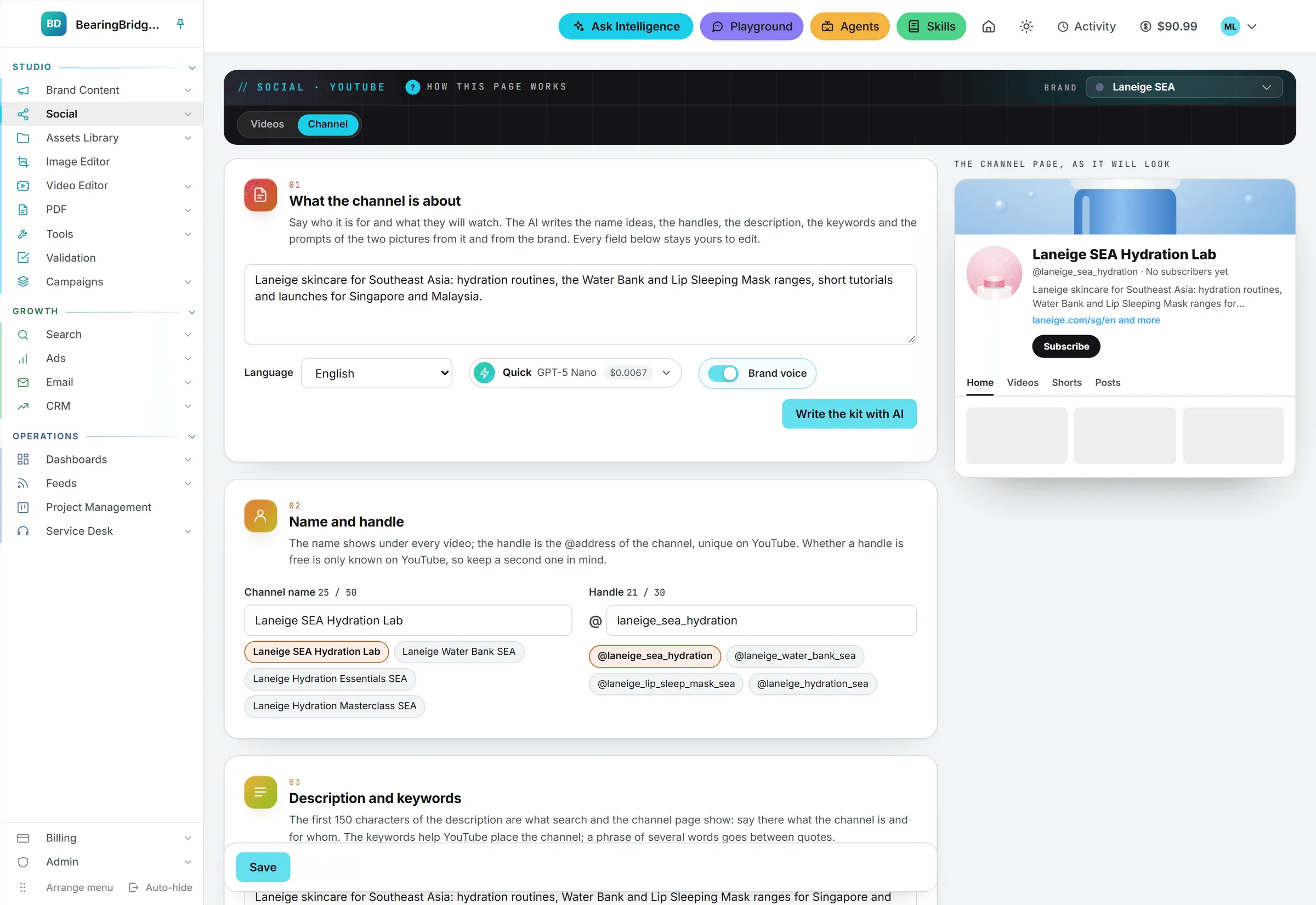
The preview on the right shows the channel page as it will look, and follows every keystroke.
The banner and the profile picture
Whatever you start from, the app keeps a copy at YouTube’s size in the Assets Library, and the original stays as it is:
- The banner is cropped to 16:9 at 2560 x 1440. Only a strip in its middle shows on every screen, phones included. The dashed frame marks it, so keep any text or logo inside.
- The profile picture is cropped square at 800 x 800. YouTube shows it as a small circle.
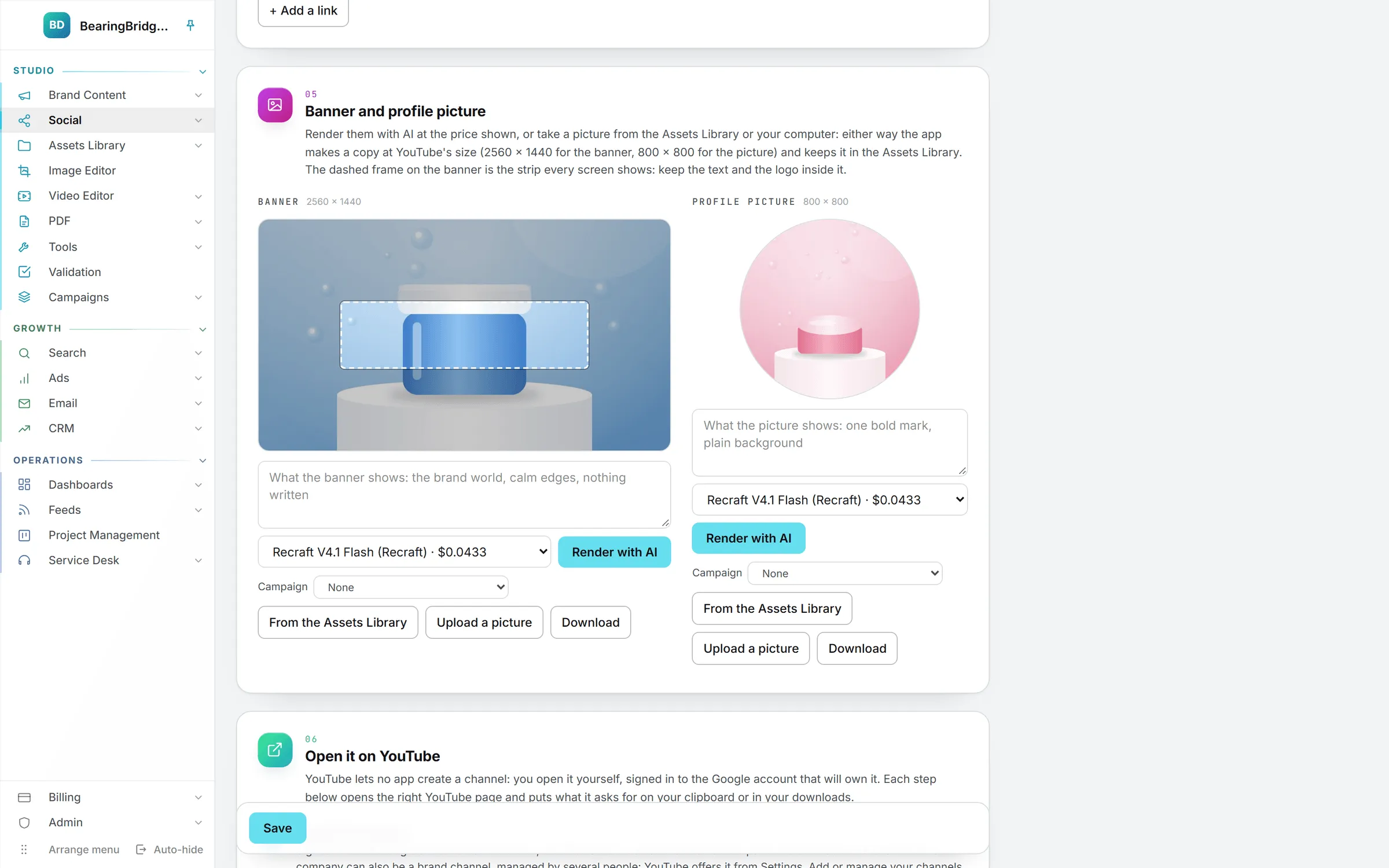
The Campaign choice next to Render with AI files the pictures this page saves in a campaign. See Campaigns.
Opening the channel on YouTube
Sign in to the Google account that will own the channel first. Then:
- Create the channel. The button copies the name and opens YouTube’s channel creation page. Paste the name, then the handle. A company channel can also be a brand channel, managed by several people, which YouTube offers from its settings.
- Banner, picture and description. The button downloads the banner and opens YouTube Studio. Under Customization, then Profile, upload the banner and the picture, paste the description, and press Publish.
- Links. Still in Profile, add each link. The clipboard holds them all, one title and one address each.
- Keywords. In YouTube Studio, open Settings, Channel, Basic info, and paste them in Keywords.
- Bring the address back. Paste the channel’s address into the kit.
What it costs
Publishing on YouTube costs nothing: the upload is yours. Writing a title and description with AI, writing the channel kit and rendering a banner or a picture use credits, and each price shows before you press. A picture taken from the Assets Library or your computer is free. Videos and pictures are stored in the Assets Library, which bills storage. See what costs credits.
Who can do this
Writing posts and preparing the channel need the editor role or above. Viewers can read both. See roles and rights.
Troubleshooting
YouTube Studio opened on the wrong channel. It opens on the channel your browser is signed in to. Switch channel from the picture at the top right of YouTube Studio, then upload.
Nothing downloaded. The post has no video yet, or the browser blocked the download. Add the video in step 01, or allow downloads for the site, and press Publish interactively again.
The handle is taken. YouTube checks handles when you set them. Pick another proposal under Handle, or adjust yours, and paste it again.
The video is limited to 15 minutes. YouTube asks for a verified phone number before it takes a longer video. Verify the account in YouTube, then upload again.