Public page and website embed
Every live desk has a public page. Put it on your website as a chat bubble, a window or a link, and design the bubble.
Every live desk has a public page that anyone can open without an account. The same desk can also sit on your own website, as a chat button in a corner, a window inside a page, or a link. Here’s how each one works.
The public page
Each desk’s public page lives at https://intelligence.bearingbridge.com/s/ followed by the desk’s slug. You set the slug in the desk settings. See Create and set up a desk.
The page answers only while the desk is live. A desk that is switched off, or a slug that does not exist, shows a “not found” page: “This assistant does not exist or is currently switched off.”
To open it, click Open the public page on the desk page, or Public page on the desk’s card in the Desks list. Both appear only while the desk is live.
The page tells search engines not to index it, so it shouldn’t show up in search results.
What visitors see
The header shows your brand logo (or the first letter of the name) and the display name, over the line “Help assistant · answers from our official documentation”. Your welcome message comes first, if you wrote one.
Visitors type in a box labeled “Ask a question…” and press Send, or Enter. Shift+Enter starts a new line, and a question can run to 1,000 characters. Answers come laid out for a phone, in short paragraphs and bullet lists, with a “Sources:” line under each one naming the documents and sections used. A footer line says the answers come from your documentation, can be incomplete, and are powered by Intelligence by BearingBridge.
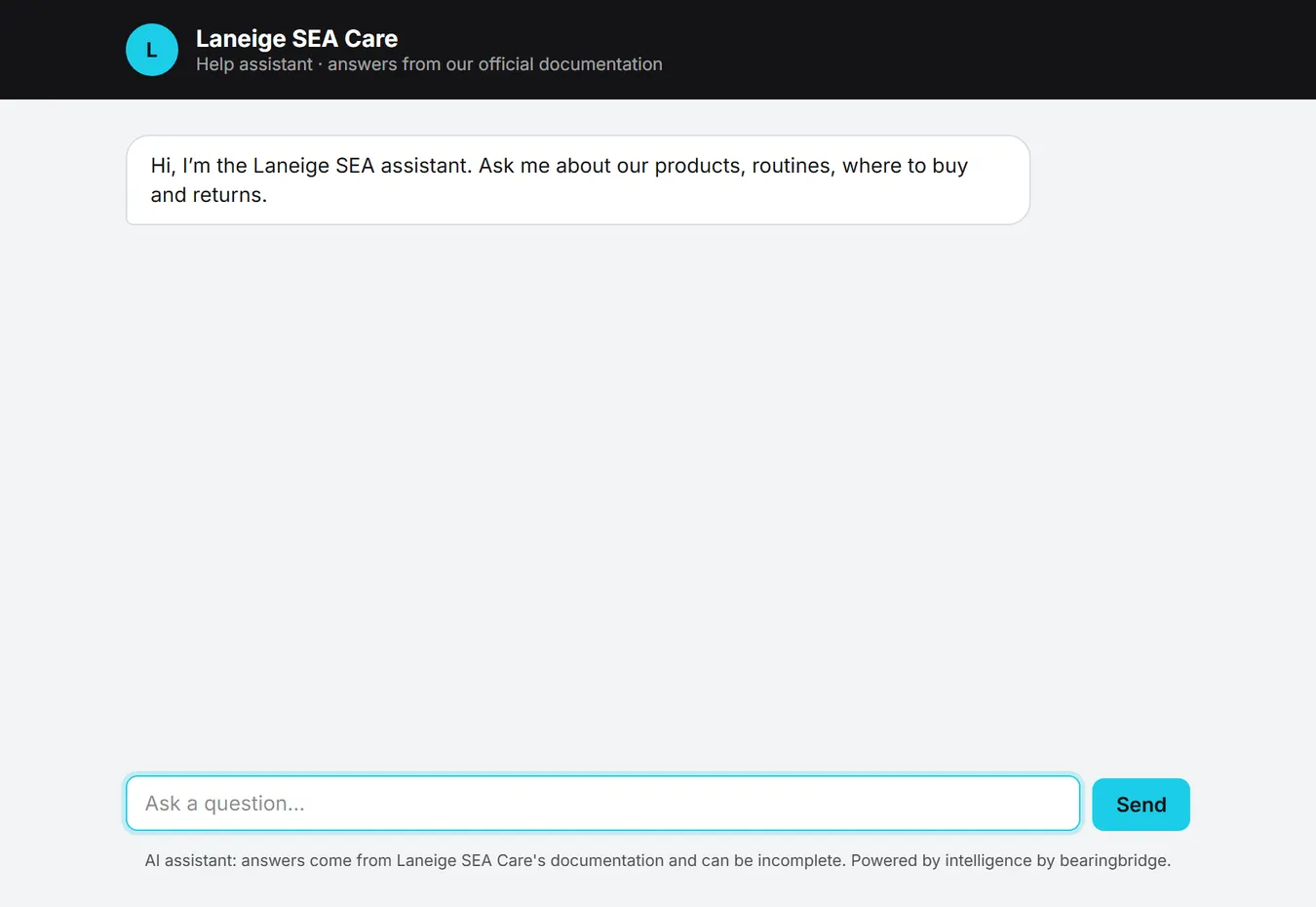
The page’s own labels are in English, though each answer comes in the language the visitor wrote in.
The website bubble and the window show this same page, so everything here applies to them too.
When the desk has no answer, the visitor sees the ways out you switched on in the desk settings. Send an email shows when Offer to send an email is on and the desk has a contact email. It opens the visitor’s mail app with the question filled in, and your address is also written out for devices with no mail app.
Fill in the form shows when Offer the contact form is on. It opens a short form for a name (optional), an email address and a message, already filled in with the question. After Send, the visitor reads: “Thank you! Your details were passed on; a human will get back to you.” Where those details land is in conversations and costs.
The assistant remembers the last few exchanges of the conversation, so a visitor can ask a follow-up. Reloading the page starts a new conversation.
Limits visitors can meet
Anyone can open the public page, so it has limits that protect your credits. When one trips, the visitor gets a short message. Where the table says so, your contact options appear under it, as long as you switched them on.
| Situation | What the visitor reads |
|---|---|
| More than 10 messages in a minute from one visitor | “Too many messages at once. Please wait a moment.” |
| A conversation reaches 40 messages (questions and answers together) | “This conversation has reached its limit.” followed by your contact options |
| The desk reached its daily budget | “The assistant has reached its daily limit.” followed by your contact options |
| Your organization is out of credits | “The assistant is not available right now.” followed by your contact options. Money is never mentioned |
| The page has been open for more than 2 hours | “Your session expired. Please reload the page.” |
| The desk was switched off while the page was open | “This assistant is currently switched off.” |
| The assistant is busy | “The assistant is handling a lot of questions right now. Please try again in a minute.” |
| Any other failure | “Something went wrong. Please try again in a moment.” |
The contact form accepts up to 5 submissions an hour from one visitor.
Opening the page or the chat button costs nothing. Credits are used only when a visitor asks a question.
Add the desk to your website
That covers the page itself. Putting it on your own site is mostly a matter of copying and pasting.
On the desk page, open The desk tab and switch to Add it to your website. There are three ways in. Each comes with ready-made code, a Copy the code button and short steps, and a small browser drawing shows where it lands on a page.
The codes work on any site: WordPress, Shopify, Wix, Webflow, Squarespace or hand-built. They always point to the production address, whatever address you used to open the app. They also follow the saved slug: edit the slug and the codes change only once you save the settings.
Copy the code turns to “Copied” for a moment. If the browser blocks the clipboard, the code is selected instead and the button reads “Press Ctrl+C to copy”.
Tip: You can paste the code while the desk is still off. It starts answering on your site the moment the desk goes live.
Floating bubble
A round chat button in the bottom right corner of every page. A click opens the desk in a panel above it, 380 by 640 pixels on a computer screen; a second click, or the Escape key, closes it. On a phone, the panel fills most of the screen and the button stays below it. Most sites should start here.
- Click Copy the code. It is one line.
- Paste it once, at the very end of your site’s template, just before the closing body tag, so it shows on every page. Site builders have a place for this, often called Custom code, Code injection or Footer scripts.
- Publish the site and open any page. The button sits in the bottom right corner.

A few extras can go on that same line:
| Add to the line | Effect |
|---|---|
data-position="left" | Puts the button in the bottom left corner |
data-label="..." | The text screen readers and the tooltip use. Default: “Ask us” |
data-color="#rrggbb" | A color used only if the button can’t load its saved design |
Your own links and buttons can open the chat too, with onclick="BearingBridgeDesk.open()". BearingBridgeDesk.close() and BearingBridgeDesk.toggle() also work.
The button script sets no cookie, and it opens the desk’s page only when a visitor clicks. Pasting the line twice still shows one button. If the desk is switched off, no button appears at all.
Design the bubble
The design card, above the code, sets how the button looks. The preview follows your choices. Changing and saving the design needs editor-level rights or above; others see the card grayed out.
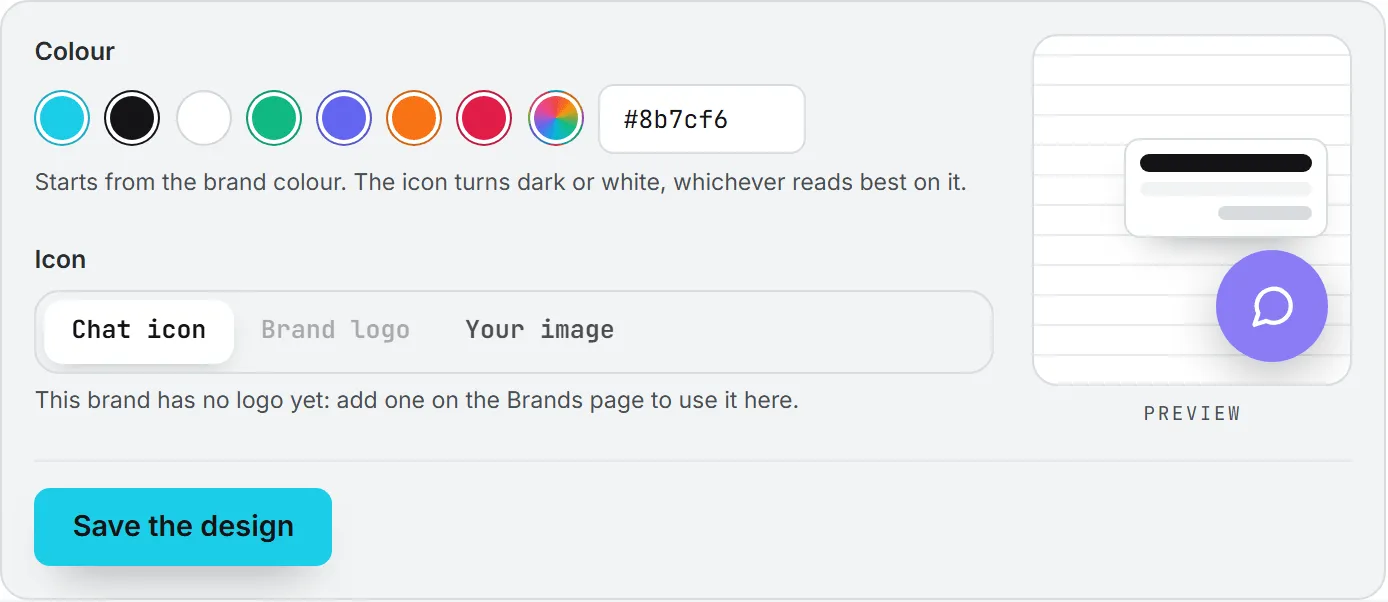
- Colour: pick a swatch, any color from the picker, or type a color code. It starts from the brand color. The icon turns dark or white, whichever reads best.
- Icon: Chat icon, Brand logo or Your image. Brand logo is grayed out until the brand has a logo; add one on the Brands page. See Brands.
- Your image: Choose an image to upload a PNG, JPEG or WebP file, 2 MB at most. A square image works best. Replace the image and Remove the image appear once one is uploaded.
- The picture fills the whole button: with a logo or an image, this switch makes the picture cover the whole circle instead of sitting inside it.
Click Save the design. Your site shows the new look within a minute, without pasting the code again. An uploaded image goes live only after you save the design. Removing the image puts the chat icon back.
Window in a page
The chat as a window inside one page of your site, such as a Help or Contact page.
- Click Copy the code.
- Paste it where the chat should appear. In a site builder, add an HTML, Embed or Custom code block there and paste the code into it.
- To fit your layout, change the width (max-width) and height in the code. It starts at 560 pixels wide at most and 640 pixels tall.
Unlike the bubble, the window doesn’t hide itself when the desk is switched off: your page then shows the “not found” message inside the frame. Remove the code, or switch the desk back on.
Link to the page
The desk’s own page, opened from a link: a button or menu entry on your site, an email signature, a QR code or a message.
- Copy the address copies the plain public address. Paste it into a button or menu link in a site builder.
- Copy the code copies a ready HTML link reading “Ask our help assistant”. Change the words as you like.
Good to know
- Every conversation from your website lands in the desk’s Conversations tab, like those on the public page.
- Changing the slug changes every code and the public address. Paste the codes again after saving. Links to the old address stop working, and a site still carrying the old bubble line shows no button.
- Answers are paid from your organization’s credits, and the daily budget caps what your site’s visitors can spend each day. See Conversations and costs.
- The desk runs on the app’s own address. There is no option to serve it from your own domain.
How credits work is explained in credits and costs.
Troubleshooting
| Problem | Check |
|---|---|
| The chat button doesn’t appear | Is the desk live and saved? Is the line pasted before the closing body tag of every page, and the site published? Did the slug change since you pasted it? |
| The window shows “not found” | The desk is switched off, or its slug changed. |
| The panel or window stays blank | Your site’s Content-Security-Policy may block it. See below. |
For your web developer
If your site sends a Content-Security-Policy header, allow https://intelligence.bearingbridge.com in frame-src, and also in script-src for the bubble. The desk page shows this address in its notes under the codes.